How I Use AI in UX/UI Design: 7 Real Workflows from My Projects

Anna Podrez


How I Use AI in UX/UI Design: 7 Real Workflows from My Projects
1. Functional Clickable Prototypes with AI
🛠 Tools: Claude, Figma Make, Lovable, Codex, Cursor
Figma can produce a good looking clickable prototype, but at its core, it is a set of linked images.
You cannot type into a field, demonstrate complex logic, extensive flow branching, or advanced animation. Beyond the limited functionality, Figma prototypes take a lot of time to build. Large flows can slow down the system, connections can break, and fixing them takes additional time.
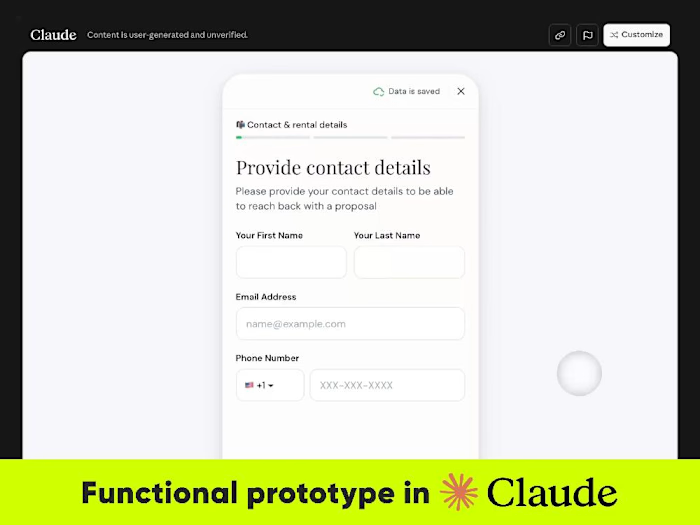
With Claude, I can create fully functional working prototypes with states, interactivity, and dynamic behavior in a fraction of that time.
How I use AI:
1. Define the visual style
Before assembling a prototype, I describe the project's visual style to AI so the result matches the actual design.
A convenient way to do this is with Skills, a file containing instructions that AI can reference throughout the project. Unlike a regular prompt, a Skill is created once and can be reused across conversations.
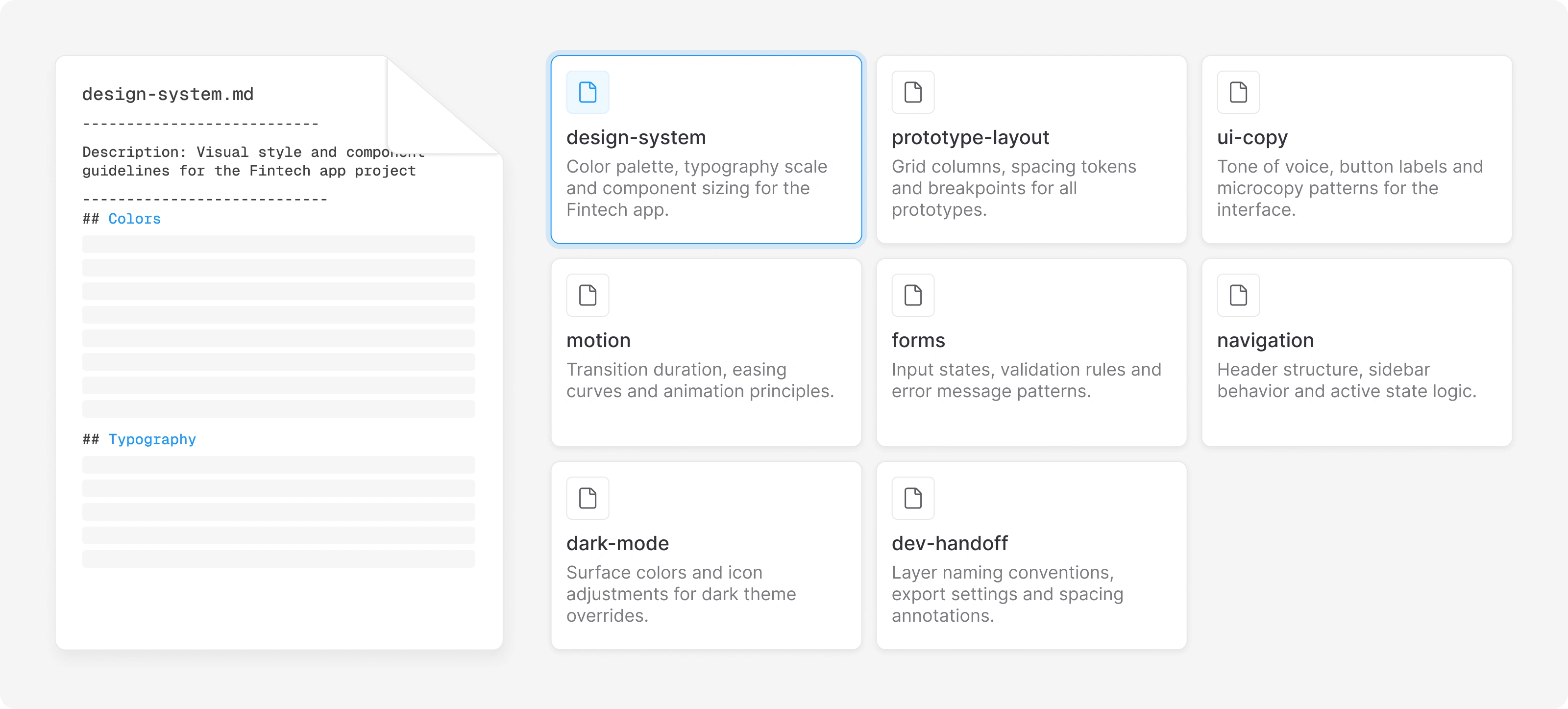
Setting one up is straightforward. I can ask Claude or ChatGPT to create a Skill based on project specifications or a design screenshot.
For example:
"Create a new skill for my project based on this design screenshot. We use Inter, shadcn/ui, Tailwind."
Claude can extract colors, typography, component dimensions, and other visual rules and structure them into a reusable file.
2. Describe the task
If I am testing new functionality, I briefly describe the required behavior in text.
If the prototype is based on an existing design, I attach the relevant screens from Figma or connect Figma through MCP.
3. Review and iterate
I review the generated result and make adjustments directly through prompts.
For example:
"Add validation."
"Change the step order."
"Make this interaction work differently."
For more precise adjustments, I can open the prototype in Claude Code and use Select Element. This allows me to select a specific interface element so Claude can work directly with its code instead of interpreting a written description.
After a few iterations, the prototype is usually ready.
4. Test
Once the prototype is ready, I save the final version as an HTML file and send it to test users or the client.
It opens locally in any browser, allowing users to complete realistic scenarios without installing anything or accessing Figma.
Result:
• Fully interactive prototypes in hours instead of days
• Real scenarios can be tested before development begins
• UX decisions can be validated earlier
• Clients can experience the solution directly in the browser with real states and interactions, almost as if the product had already been developed
2. Flow & Pattern Research
🛠 Tools: Refero.design, MCP
Before starting work on a new screen or flow, I research how other products solve similar problems, which interaction patterns have become standard, and where there may be opportunities for improvement.
Previously, this could mean hours of manually researching competitors and browsing platforms such as Dribbble, Behance, or Mobbin.
Today, AI significantly accelerates this process.
Refero.design
Refero is a database of real interfaces with AI powered search based on UX patterns.
Instead of manually browsing hundreds of screens, I can describe a specific task such as:
"Onboarding for a SaaS analytics tool."
AI then finds relevant examples from existing products.
When Refero is connected directly to Claude or ChatGPT through MCP, I can perform this research inside the same working conversation.
AI can search the interface database, study how existing products solve a particular problem, and return relevant examples directly in the chat.
From there, I can immediately ask it to:
• Analyze recurring patterns
• Summarize key findings
• Identify opportunities for simplification
• Suggest a screen structure
• Generate a prototype based on the research
Result:
• Research becomes significantly faster
• I work with real product examples rather than abstract concepts
• Common UX patterns become easier to identify
• Opportunities for improvement and simplification become more visible
3. Fast Onboarding into New Industries with AI
🛠 Tools: Claude, Perplexity, ChatGPT, Gemini
When I start working with a client from an unfamiliar industry, I often need to understand new terminology, business processes, user roles, and domain specific logic.
Previously, this required a long onboarding process and many explanatory calls with the client.
A significant amount of time could be spent simply understanding how the industry works before actual product design began.
How I use AI:
Before the first detailed client discussion, I conduct my own AI assisted briefing.
I ask questions, research terminology, analyze workflows, and build process diagrams.
By the time I speak with the client, I already understand the fundamentals and can ask much more specific questions.
For example, when designing a CRM for a glass manufacturing company, instead of asking:
"What is a window pane?"
I can ask:
"How does the pricing calculation work for non standard window sizes?"
This changes the quality of the conversation completely.
Result:
• The client spends less time explaining basic concepts
• I reach the core product problems faster
• Discovery becomes more focused
• More project time can be spent solving actual UX problems
Example from practice
One client provided a large Excel document describing the entire domain, including terminology, business logic, and feature requirements.
Reviewing and structuring everything manually could have taken around 20 to 30 hours.
Instead, I used Claude to transform the information into an interactive flow map.
Each element could be expanded to show detailed explanations, relationships, and examples.
This allowed me to start working with the information almost immediately instead of manually processing the document first.
The visual format also made it easier to present ideas back to the client and discuss complex business logic together.
4. Animation
🛠 Tools: Claude, Remotion, Jitter
Figma can animate transitions between frames using Smart Animate, but more complex interactions usually require large components or cannot be realistically demonstrated inside Figma at all.
This includes:
• Button and input microinteractions
• Skeleton loading states
• Animated empty states
• Dynamic progress indicators
• More complex interface transitions
Another limitation is developer handoff. A Figma animation cannot always be transferred directly into something developers can implement.
Today, I use several approaches depending on the task.
Claude
I describe the animation in text or attach a screenshot from Figma.
Within minutes, I can generate working code with the required behavior.
I can then refine it through prompts such as:
"Make the easing smoother."
"Speed up the modal appearance."
"Add shimmer to the loading state."
Remotion
Remotion is a React library for creating animations through code.
Its Agent Skills integration with Claude Code allows motion graphics to be generated and adjusted using prompts.
It requires more technical knowledge, but provides much deeper control.
Jitter
Jitter combines a visual timeline with a Figma plugin.
I can import a screen directly from Figma and animate it visually without writing code.
Its Image to Video functionality can also generate animation from an image and text prompt.
Depending on the task, I can export the result as HTML, GIF, Lottie, or Animated SVG.
HTML can serve as a precise behavior reference for developers.
GIF can be embedded into Figma or presentations.
Lottie can be integrated directly into the product.
Animated SVG works well when vector quality and small file size are important.
5. Design Audit
🛠 Tools: Claude, ChatGPT, Gemini
I also use AI as an additional quality control layer during the design review process.
It does not replace my own design judgment, but it helps me identify potential issues from another perspective.
How I use AI:
Quick check
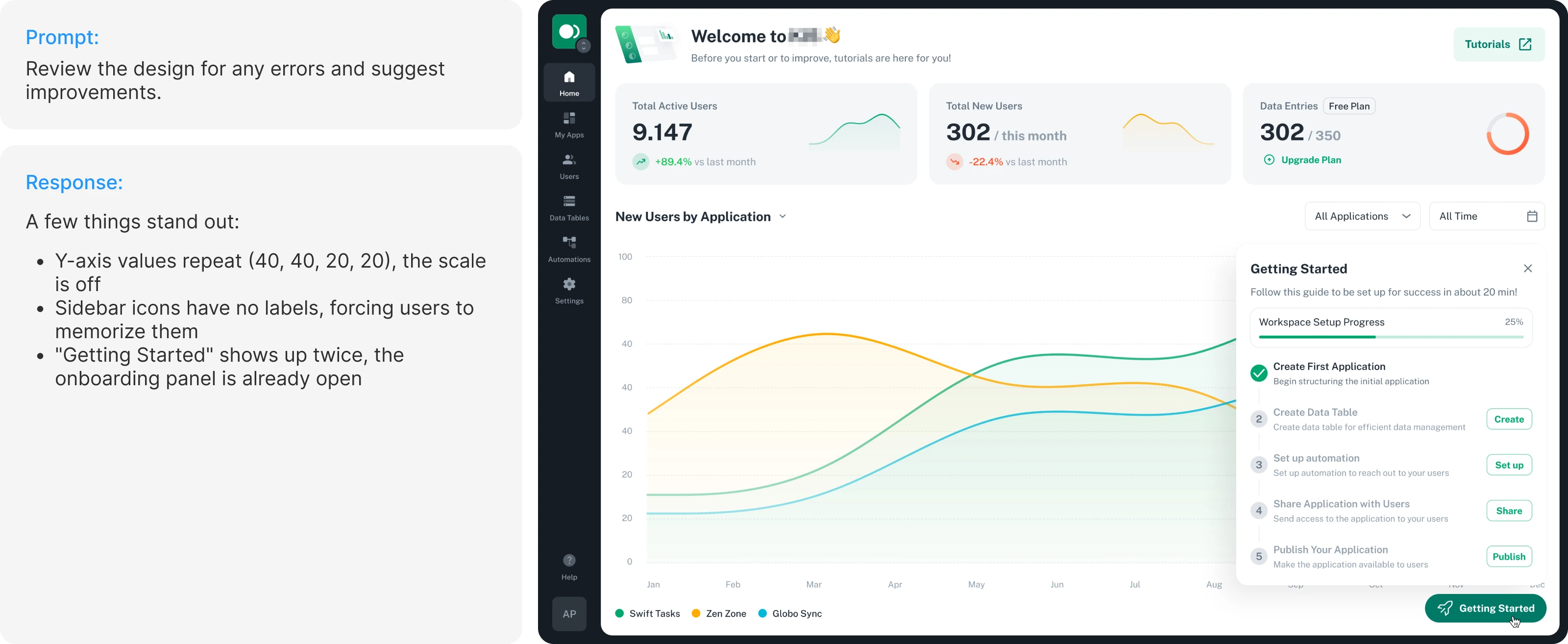
I can send a design screenshot directly into the chat and ask AI to review it.
This is the fastest approach, although without project context the feedback can sometimes be generic.
It still works well for checking things such as:
• Information hierarchy
• Interface logic
• Messaging clarity
• Spelling
• Visual emphasis
• Content completeness
• Navigation complexity
• Basic usability problems
Audit using a specialized Skill
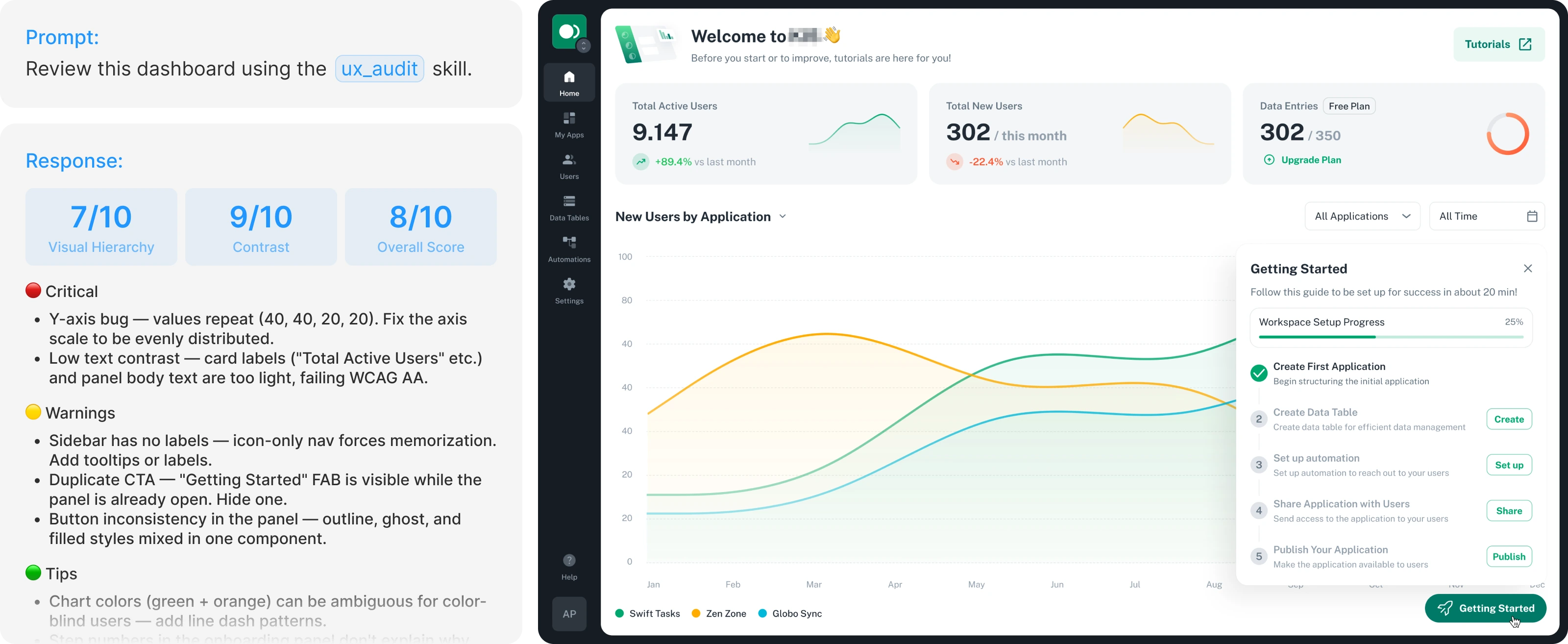
For deeper analysis, I use dedicated prompts or Skills based on professional UX and design materials.
This produces more detailed feedback and measurable criteria.
The output still requires professional judgment because not every recommendation will necessarily make sense within the context of a particular product.
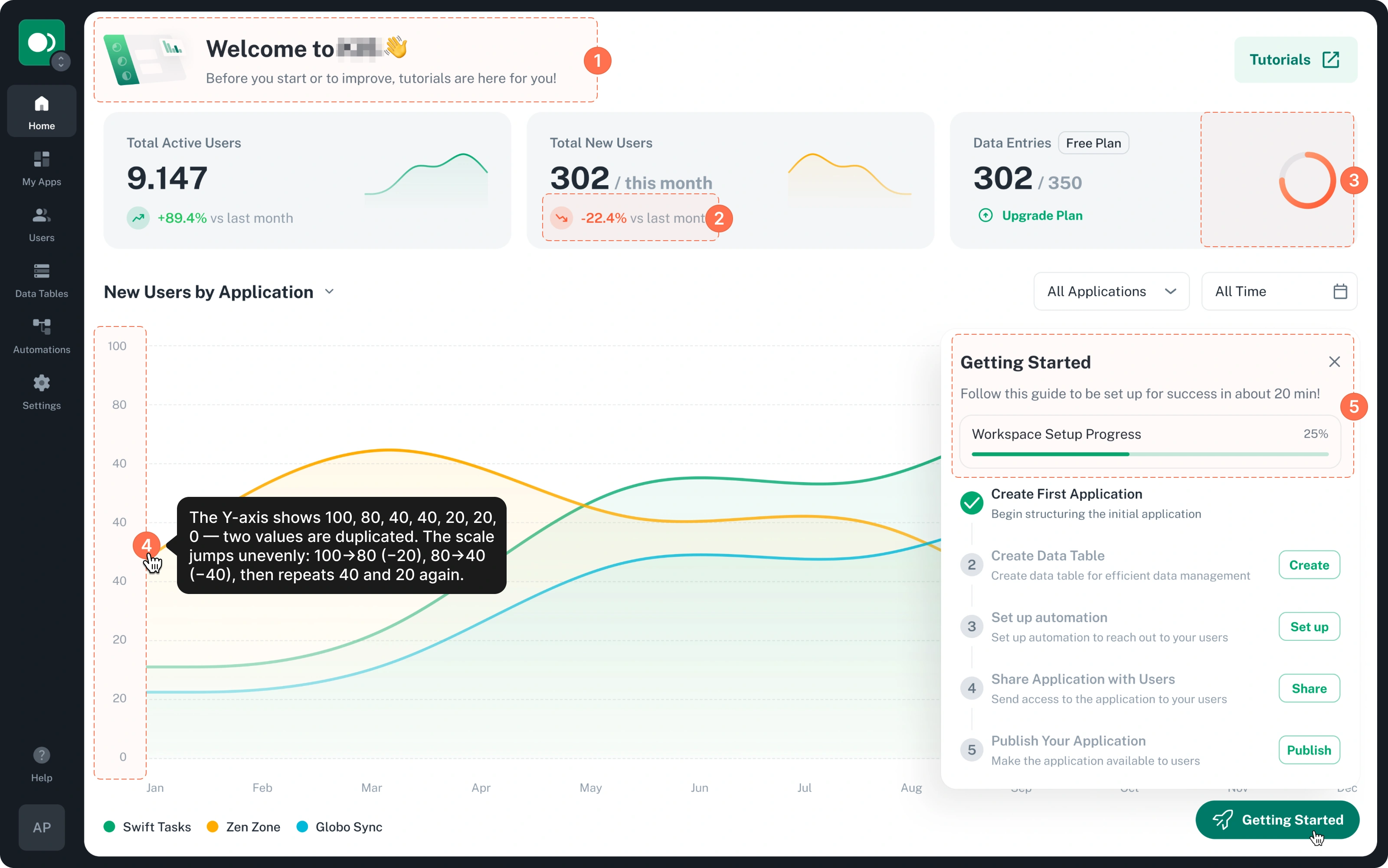
Interactive annotations
Another useful approach is asking AI to place comments directly over the screenshot.
This keeps every recommendation connected to the exact interface element where the issue was identified.
Result:
• I get an additional perspective during self review
• Small issues can be identified before presenting work to stakeholders
• I can generate a broad list of potential improvements within minutes
• Final design decisions still remain under my control
6. Image & Concept Generation
🛠 Tools: Figma Weave, Gemini Nano Banana, Midjourney, ChatGPT, Adobe Firefly
In some scenarios, AI allows me to solve visual tasks that previously required either additional production time or a dedicated specialist.
References and concepts
AI does not always need to generate the final asset. Sometimes I use it simply to establish an art direction. For example, if I need to show a client what a hero illustration might look like, I can generate several concepts first.
Once the style, composition, and mood are approved, the concept can be handed to an illustrator as a clear visual reference.
Instead of spending several rounds aligning on direction, the illustrator can start with something that has already been discussed and approved.
Final illustrations
For some tasks, AI generated visuals can be used directly in the final product.
Examples include:
• Icons
• Backgrounds
• Decorative elements
• Blog illustrations
• Landing page visuals
• Product imagery
Not every asset requires a dedicated illustrator.
For the right type of task, AI can produce the necessary result much faster.
In one of my projects, for example, all photos of people and products were generated with Gemini.

7. Interface Copy
🛠 Tools: Figma Rewrite, ChatGPT, Gemini, Claude
Copy is part of interface design. The words users see influence their understanding of the product just as much as layout, hierarchy, and visual design.
I use AI to work on interface copy without waiting for a separate copywriting stage.
How I use AI:
Microcopy
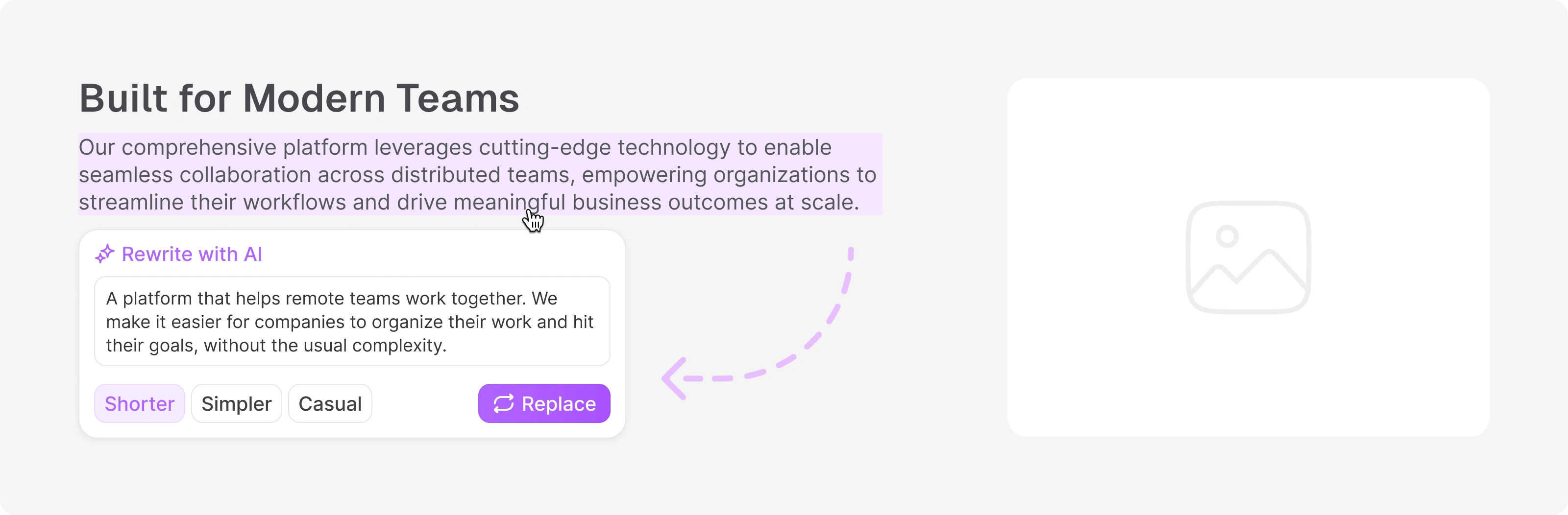
Tooltips, error messages, empty states, onboarding hints, confirmation messages.
Instead of using placeholder text, I can work with meaningful interface copy from the beginning.
Wording iterations
"Send" or "Submit Request?"
"Proceed" or "Continue?"
AI allows me to quickly explore multiple options and choose wording that best matches the action and context.
Starting without content
Sometimes a client comes with a product idea but no finished copy.
AI helps me establish the initial information structure and create a working content draft.
For example, one client only had a general direction:
"I want a page for selling weight loss supplements."
I used that input to create an initial content structure and copy draft that became the foundation for the layout.
Benefits
A good UX/UI designer needs to understand how to write interface copy.
But spending thirty minutes trying to perfect a single tooltip is not always the best use of project time.
AI allows me to generate alternatives quickly, refine them in context, and continue designing without interrupting the workflow.
Conclusion
AI does not replace the UX designer. It changes the tools and methods I use to achieve better results.
The tools used to define what was possible.
In 2016, designers used tools such as InVision to build basic clickable scenarios.
Today, I can create functional prototypes with actual interface behavior, complex states, validation, and realistic interactions before development even begins.
This accelerates several parts of my process:
• Faster product immersion. I can understand a new domain in hours instead of days.
• Earlier hypothesis validation. I can build and test a functional prototype before the final product is developed.
• Fewer unnecessary iterations. Copy, visual generation, research, basic audits, and prototyping can happen alongside the design process.
AI does not make product decisions for me.
It gives me additional tools to apply my experience, product thinking, and ability to structure complex systems more efficiently.
Ultimately, this allows me to reach decisions faster, produce more thoroughly validated solutions, and reduce unnecessary development time and budget.
📬 Closing
Follow my social media to see more of my design work, processes, and case studies. You may find some ideas useful for your own projects.
If you have a product idea or need help designing a complex web application, feel free to contact me.
I can review your project, discuss the scope, and provide an estimate.
Thank you for reading 🙏
Like this project
Posted Sep 22, 2026
I use AI across UX/UI design to speed up research, prototyping, audits, animations, visuals, copy, and product validation.
Likes
4
Views
56