Improve image quality with Canva’s AI Photo Enhancer

Bashir Sulaiman Dahir

Improve image quality with Canva’s AI Photo Enhancer
Fix dark, blurry, and oversaturated photos with Upscale, our free online image enhancer. Instantly improve image quality using AI for easy download or sharing on social media apps.
Upload your image
or drop it here
Learn about Canva's upload formats and requirements. See how we use your content in our Privacy Policy .
Upscale any image with AI
Before
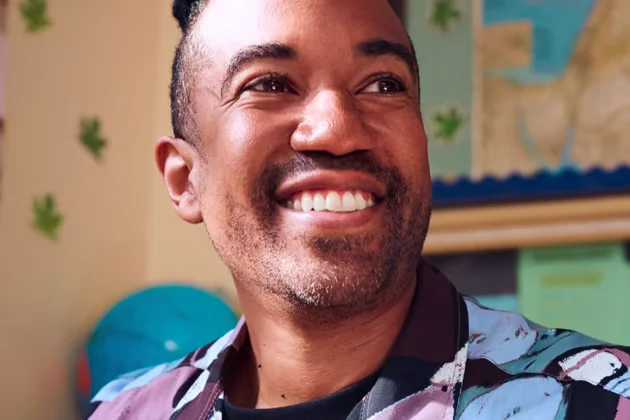
After
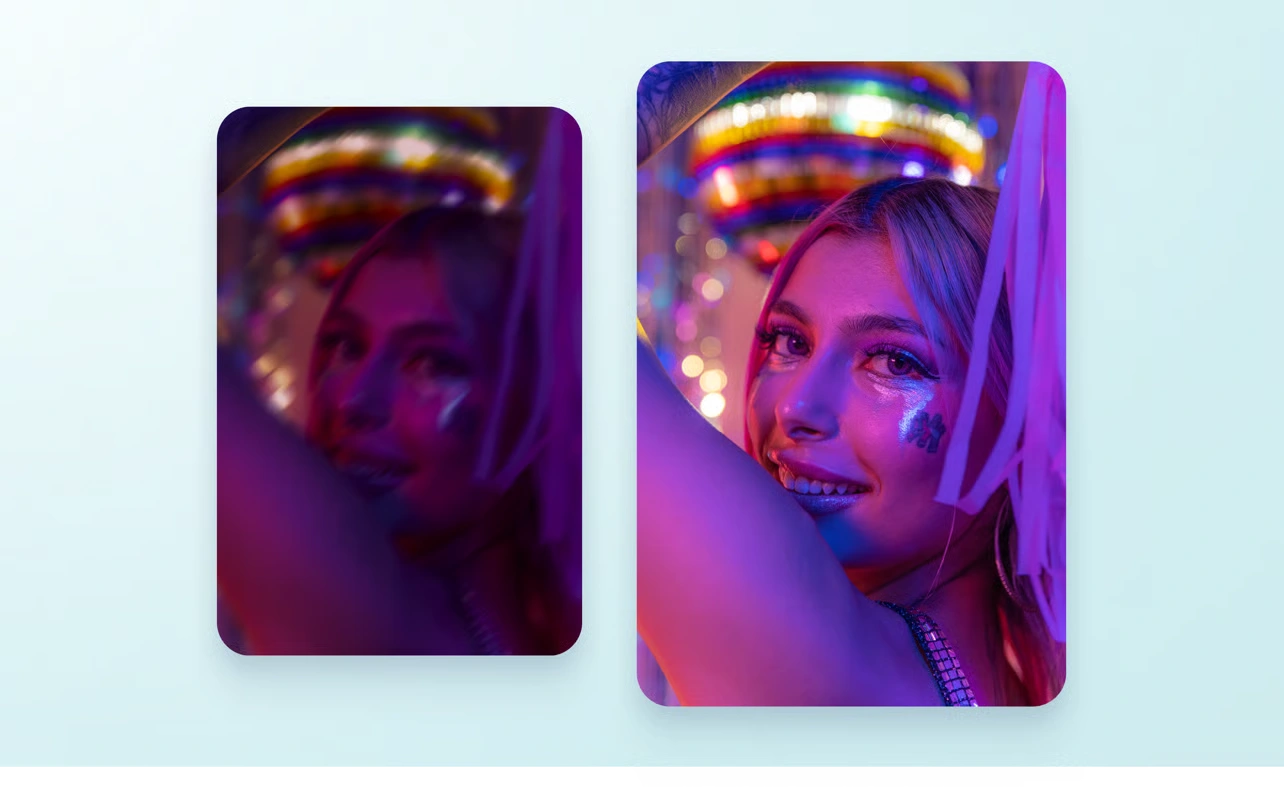
A picture is worth a thousand words, so don’t settle for mediocre photos. Use the free AI image enhancer to dramatically improve your pictures. From logos to product images to Instagram posts, upscale any image in just one click. Upload your image on Canva, then let Upscale enhance your image quality to create sharper, clearer photos. No more pixelation or blur—just stunning visual content.
Perfect your colors and lighting
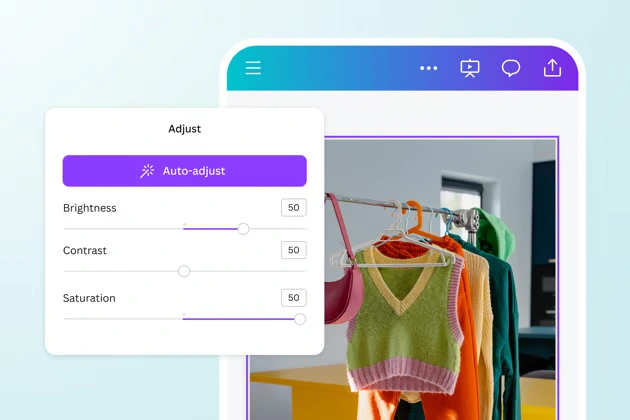
Effortlessly polish your photos with a versatile picture enhancer. After upscaling your image, enhance it further by fixing low lighting, adjusting the contrast, or boosting the saturation. Need a quick fix? Use Auto-adjust to beautify your images instantly in one click. Play with different image enhancements for free on Canva, then seamlessly add it to your design project.
Fine-tune with filters
Craft striking Facebook posts or YouTube thumbnails with various filters and effects(opens in a new tab or window) . Make your photo more vivid with the Belvedere filter, or convert it into a gorgeous black and white with Noir or Slate. You can also manually correct your photo using the slider tools, or fill in missing details with Pro’s Magic Expand(opens in a new tab or window) . Get your photo just right with Canva, then proudly show it off anywhere. Share your custom shortened URL(opens in a new tab or window) anywhere, from ads and flyers to social media posts.
How to enhance photo quality

Start of list: How to enhance photo quality
Skip to end of “How to enhance photo quality” list
Launch Canva
Open Canva on the app or a web browser. Choose a template or start a new design project from scratch. You can also open an existing design.
Open the Upscale tool
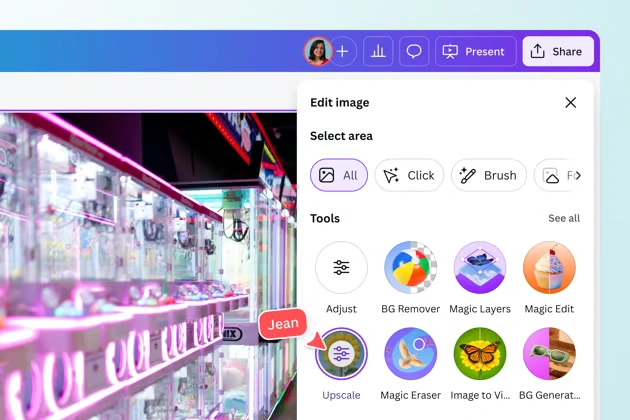
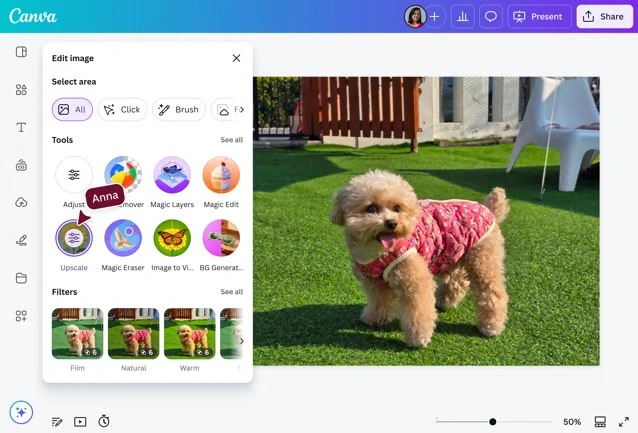
Click your image, then select Edit on the top horizontal panel. Under Tools, look for the Upscale feature.
Enhance photo quality in one click
Click the Upscale tool to enhance your image’s quality right away.
Explore filters and sliders
For more image enhancements, use filters and manual sliders. Adjust the intensity for more customized results, or select Auto-adjust to automatically create a balanced photo in one click.
Download and share
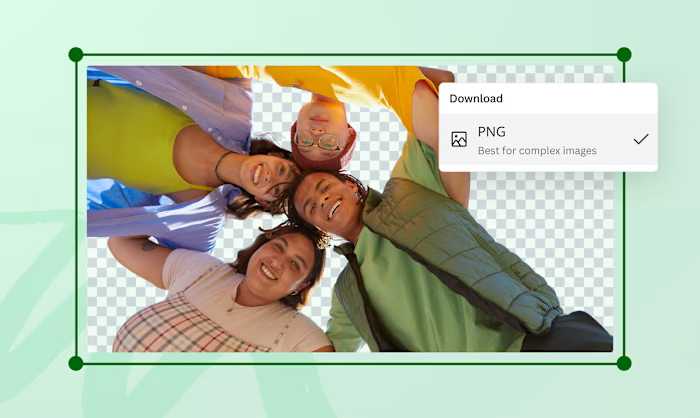
Download your enhanced image as a high-quality JPG, PNG, or PDF file. Add it to your designs and presentations, or share it via email or social media.
Skip to start of “How to enhance photo quality” list
End of list: How to enhance photo quality
Upload your image
Launch Canva
Open Canva on the app or a web browser. Choose a template or start a new design project from scratch. You can also open an existing design.
Open the Upscale tool
Click your image, then select Edit on the top horizontal panel. Under Tools, look for the Upscale feature.
Enhance photo quality in one click
Click the Upscale tool to enhance your image’s quality right away.
Explore filters and sliders
For more image enhancements, use filters and manual sliders. Adjust the intensity for more customized results, or select Auto-adjust to automatically create a balanced photo in one click.
Download and share
Download your enhanced image as a high-quality JPG, PNG, or PDF file. Add it to your designs and presentations, or share it via email or social media.
Upload your image
Frequently asked questions
Can AI enhance images?
Yes. Use Upscale, the AI photo enhancer tool on our platform to enhance your logos, icons, and social media images. Increase picture quality in one click—no complicated software or design background needed.
How to enhance a photo on mobile?
To enhance picture quality on your mobile device, just open the photo editor in the Canva mobile app. Upload and select your image, then select Upscale under Tools. Then, use other photo editor sliders to modify the brightness, contrast, saturation, and more. Once done, tap the x icon to return to the layout and save changes.
How to enhance resolution of a photo?
Photo resolution refers to the amount of detail in a photo. Using an image resolution enhancer, you can improve your image's resolution by increasing the pixel count. To do this, select your photo, then click Magic Resize on the upper portion of the design dashboard (available to Pro users). Select Custom size to enter your desired pixel dimensions and increase the resolution of your image.
How to enhance a blurry photo?
Use our online photo enhancer tools to enhance a blurry image. Upload and select your picture, then click Edit. Under the Adjust tab, scroll down to the Texture options. Drag the Sharpness slider to the right or enter a specific number in the gray box. Once you’re satisfied, tap on the layout, and voilà! Your photo is now sharper and clearer.
Quotation mark
@canva is such a life changing tool! One of the most well thought out websites I've ever seen. I use it to showcase my work with the community and it never ceases to amaze me! Kudos for all the love and effort you've put into its development! #canvadesigns
@mahimagirdhar
Omg I love you guys! Thanks for making it so easy for me to use your templates. There’s so many selections and your site and app are very easy to use and navigate !!! 🥇💓💓💓💓💓💓
@curlyfrosista
I don’t know where I was without @canva They have absolutely great graphics for any social media platform. Whether it be a YouTube thumbnail, an Instagram Post or whatever you want to create. Let @canva make the design process easier for you.
@IGchef_andrewb
@canva is an incredible app for designing pretty much anything you need! A huge selection of templates, fonts and colours; endless choices at the tip of your fingers; easy editing and sending/sharing. Best app I’ve used for a long time. If you haven’t tried it... try it!
@SpotOnDomain
@canva is simply outstanding as a tool to create designs. Using Canva is such a seamless experience that once you sit down to design, you don't feel like getting up. It's addictive and useful. Keep going Canva. I use Canva every day – I couldn’t do my job without it. The ability to style logos is my favorite
@navneet4
Explore more Photo Editor features
Upload your image
Like this project
Posted Jul 3, 2026
AI Image Enhancer (Upscale): improve photo quality, fix lighting and color, and export high-resolution images for social or print.
Likes
0
Views
25
Tags