Effortless editing. Unskippable videos.

Bashir Sulaiman Dahir


Effortless editing. Unskippable videos.
Try Canva's free online Video Editor.
Create a video
Upload from device
Powerful video editing, without the complexity. Discover the all-in-one editing suite made for creators on a mission to stand-out.
Grab attention, and keep it
Drag and drop clips on a multi-layered timeline
Trending Hook templates
Generate captions in a click
Pro
Make it unmistakably your brand
AI-powered tools to handle the hard edits
Skip the endless scrubbing
Instantly surface the best bits of your footage with Highlights.
Create social-ready content with Magic Video
Just drop in your clips with a quick prompt, and AI does the rest.
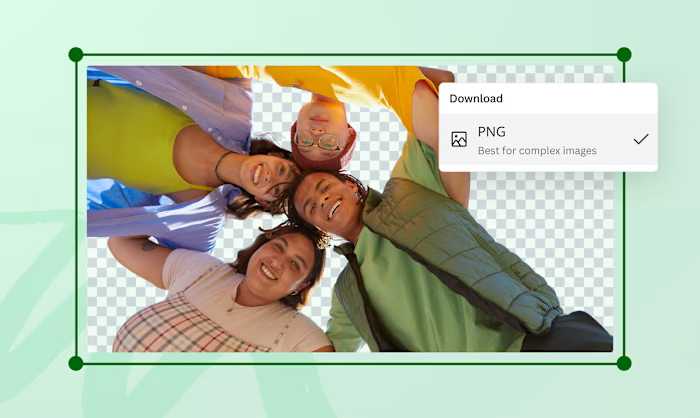
Click to remove backgrounds
Remove the video background instantly, no green screen needed.
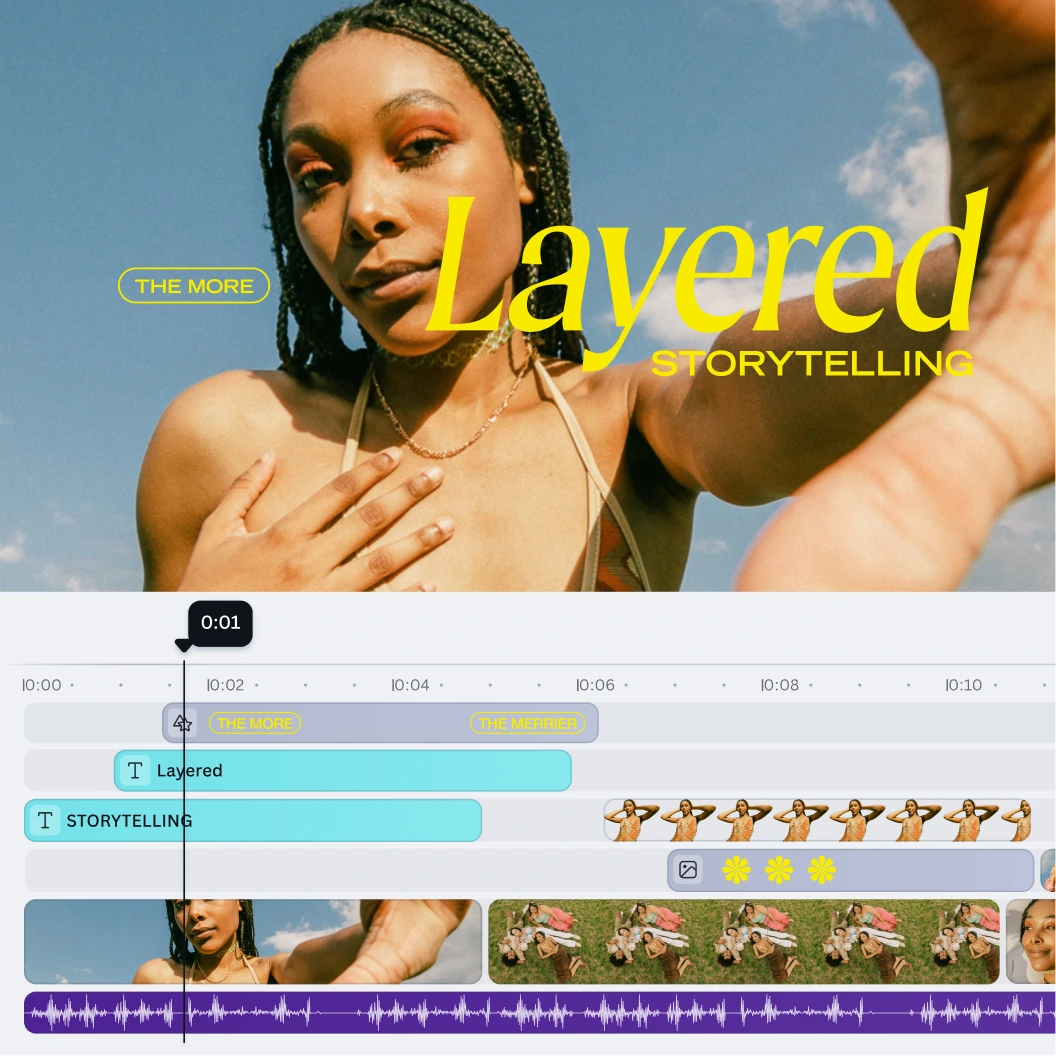
Catch the perfect timing
Trim, split, splice, and layer videos with precision.
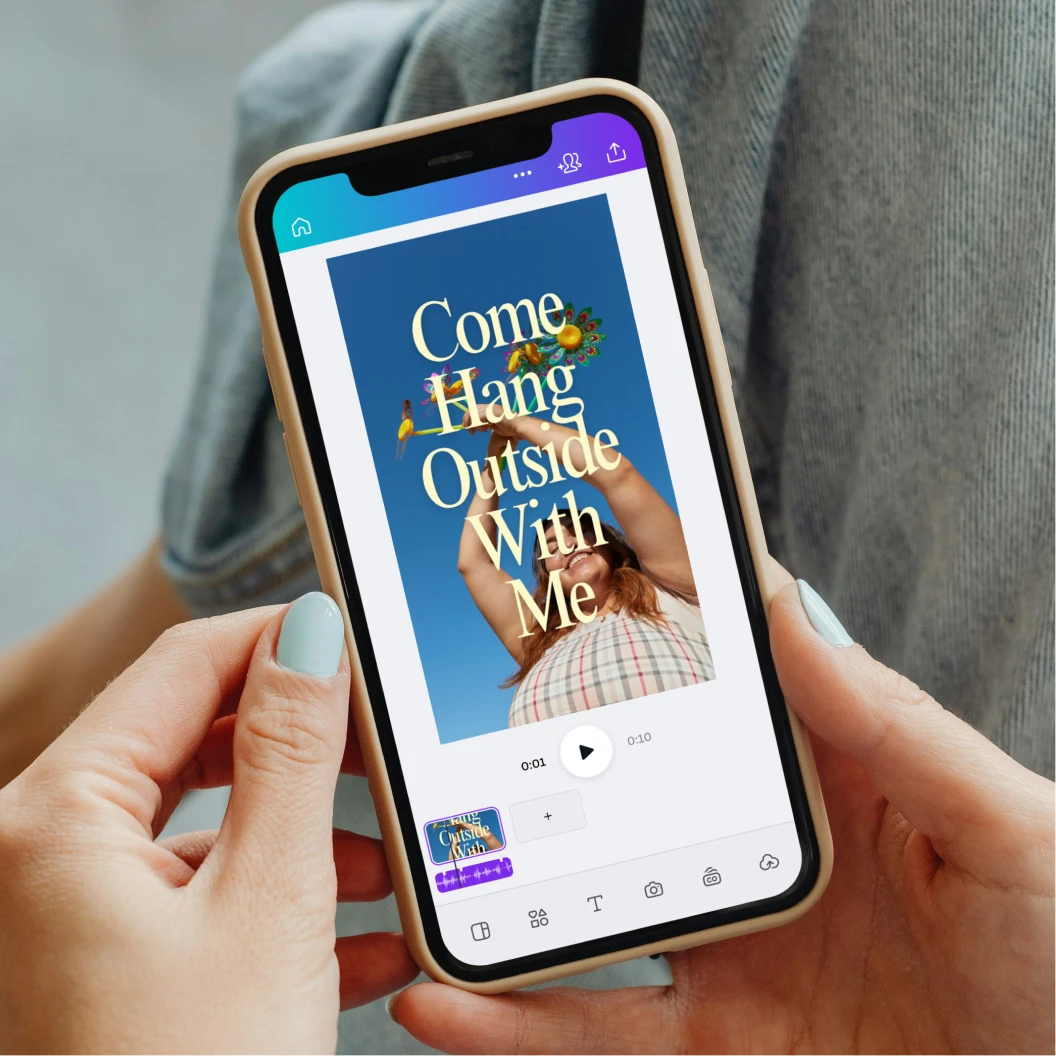
Made for every feed
Resize a video to share everywhere and create multi-channel campaigns.
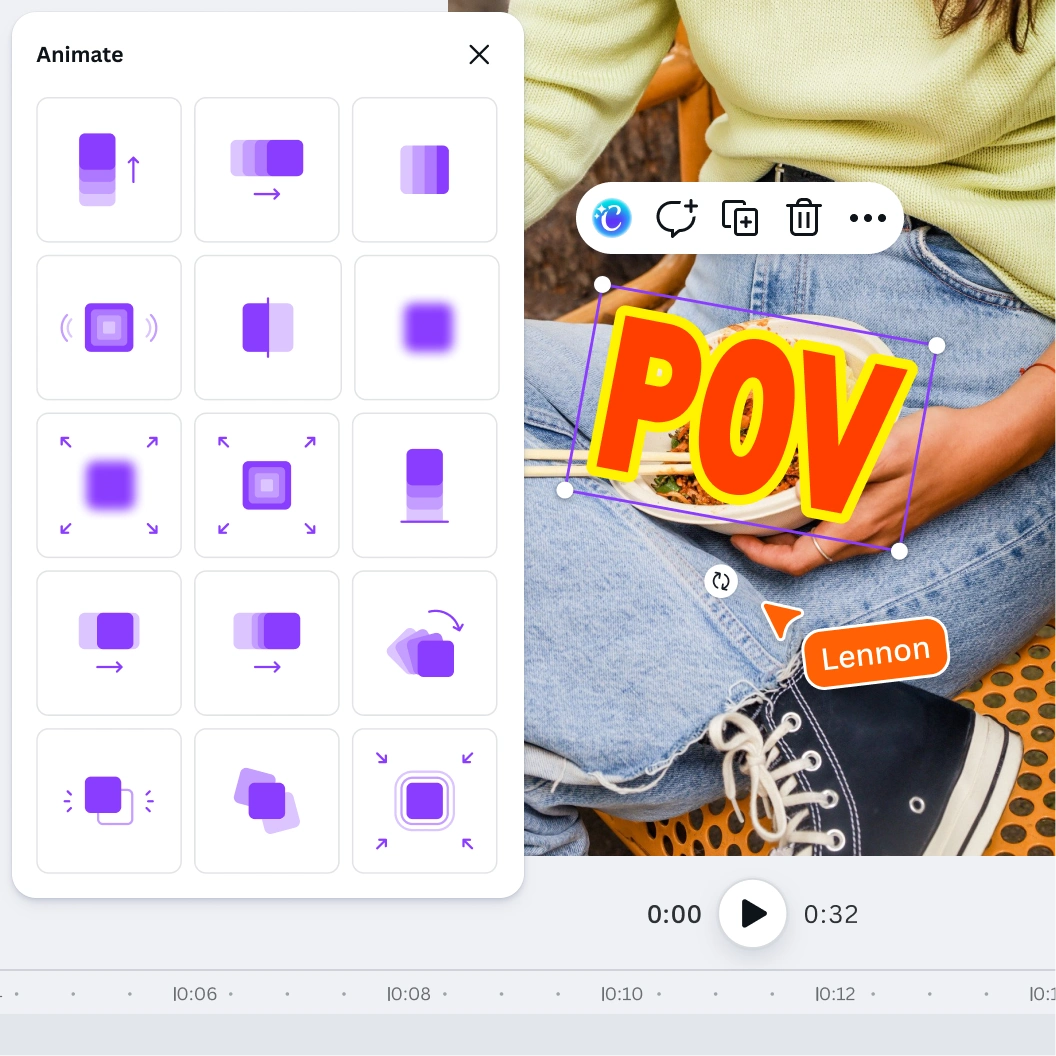
Be a motion maestro
Add one-click animation or create custom animations for graphics and text.
Skip the endless scrubbing
Instantly surface the best bits of your footage with Highlights.
Create social-ready content with Magic Video
Just drop in your clips with a quick prompt, and AI does the rest.
Click to remove backgrounds
Remove the video background instantly, no green screen needed.
Catch the perfect timing
Trim, split, splice, and layer videos with precision.
Made for every feed
Resize a video to share everywhere and create multi-channel campaigns.
Be a motion maestro
Add one-click animation or create custom animations for graphics and text.
Skip the endless scrubbing
Instantly surface the best bits of your footage with Highlights.
Create social-ready content with Magic Video
Just drop in your clips with a quick prompt, and AI does the rest.
Click to remove backgrounds
Remove the video background instantly, no green screen needed.
Catch the perfect timing
Trim, split, splice, and layer videos with precision.
Made for every feed
Resize a video to share everywhere and create multi-channel campaigns.
Be a motion maestro
Add one-click animation or create custom animations for graphics and text.
Skip the endless scrubbing
Instantly surface the best bits of your footage with Highlights.
Create social-ready content with Magic Video
Just drop in your clips with a quick prompt, and AI does the rest.
Click to remove backgrounds
Remove the video background instantly, no green screen needed.
Catch the perfect timing
Trim, split, splice, and layer videos with precision.
Made for every feed
Resize a video to share everywhere and create multi-channel campaigns.
Be a motion maestro
Add one-click animation or create custom animations for graphics and text.
Skip the endless scrubbing
Instantly surface the best bits of your footage with Highlights.
Create social-ready content with Magic Video
Just drop in your clips with a quick prompt, and AI does the rest.
Click to remove backgrounds
Remove the video background instantly, no green screen needed.
Catch the perfect timing
Trim, split, splice, and layer videos with precision.
Made for every feed
Resize a video to share everywhere and create multi-channel campaigns.
Be a motion maestro
Add one-click animation or create custom animations for graphics and text.
Create everyday movie-magic
Turn still images into cinematic moments with Image to Video - no motion skills needed.
Pro
Access free, high-quality stock footage from collections like Artlist Video.
Pro
Fill in footage gaps or go fantastical with AI-generated clips.
AudiOMG
Press record on professional voiceovers
Balance fluctuating audio in a click
Pro
Silence any background noise
Pro
Auto-match the rhythm of your music
Pro
Press play on the hottest tracks
Pro
Design with music-inspired feedback
Start with a trending template
Trending
Hook
TikTok
Instagram Reels
Youtube Shorts
Travel
Business
Start of list: templates and elements
Skip to end of “templates and elements” list
Pro
Pro
Pro
Pro
Pro
Pro
Pro
Pro
Pro
Pro
Pro
Pro
Pro
Pro
Pro
Pro
Pro
Pro
Pro
Pro
Pro
Pro
Pro
Skip to start of “templates and elements” list
End of list: templates and elements
Features that inspire creativity
Free
Pro
Multi-layered timeline editing
Drag-and-drop timeline editor over multiple layers
Captions
Unlimited usage of captions with color, stylings and animations.
Additional animation controls like intensity, color and brand fonts.
Animation effects and transitions
Animation and transition library
AI animation (Magic Animate) and additional controls intensity, color
Automatic clip highlights and trimming (AI)
Clip footage on timeline manually
AI-powered clipping (Highlights) and trimming (Auto-trim)
Text-to-video (AI)
Includes Magic Media
Includes Magic Media and Create a Video Clip, powered by Google Veo-3
Show all features
Edit videos once, share everywhere.
YouTube Clip Maker
TikTok Videos
Stories
Product Videos
Marketing Videos
Video Intros
Promo Videos
Slideshow Videos
Reels
See All
Your questions, answered
Can I export videos without a watermark?
Yes! Even if you have a free Canva account, you can export videos without a watermark as long as you use free elements, images, footage, and music. If you’re on Canva Pro, your videos won’t have any watermarks whether you’re using free or paid elements.
Watermarks will only appear if you use a Canva Free account and add Pro or paid elements to your videos.
Are captions supported?
Yes, you can automatically generate captions with Canva’s video editor. Just upload the video clip to which you want to add captions, select Text on the editor side panel, then select Dynamic text > Captions > Generate captions to auto-generate your subtitles.
You can also choose from a range of caption styles and edit them directly within the video timeline to give your content a unique look and feel.
Can I export my video in various formats and aspect ratios?
Yes, you can export your video as an MP4 or GIF. As you edit your video, use Magic Resize (Pro) to change the aspect ratio and resize it for different platforms.
How easy is it to publish directly from Canva to social platforms?
You can publish your videos directly from Canva to social platforms like Facebook, Instagram, X (formerly Twitter), TikTok, Pinterest, LinkedIn, and Tumblr. To do this, click Share on the top right corner above the editor, select See all and scroll down to Social, then select the app you want to use. If this is your first time using the app with Canva, you’ll have to connect your account first and give the app access to Canva.
If your file fails to share to your preferred platform, check our guide to social media upload limitations to see if it meets the supported file types, sizes, and conditions.
Does Canva’s video editor integrate with cloud storage?
Yes, Canva’s video editor integrates with different cloud storage and file-sharing apps. To choose an upload option, go to Uploads on the editor side panel and select the three dots beside the Upload files button. You can also search our Apps to connect your preferred cloud storage account to Canva.
Does Canva’s video editor offer AI-powered editing?
Yes, Canva’s video editor has AI-powered tools like Highlights, which identifies your videos’ best moments in seconds, Enhance Voice, which removes background noise from voice recordings, and Magic Video, which creates social-ready clips in seconds by styling, cutting, and sequencing clips for you. You can also generate videos with a simple text prompt using Create a video clip with Canva AI.
For even more powerful AI tools, try Image to Video to turn static images into five-second, high-quality videos, or apply AI Video Effects to place your images into immersive, pre-designed video scenes using AI-powered templates.
Can I edit videos on my phone with Canva?
Yes, you can edit videos on Canva’s free mobile video editing app . Just download Canva for mobile via the App Store or Google Play to get started.
Does Canva take any ownership of my content or use it to train AI?
No, we don’t claim ownership of your content. We don’t repurpose it, license it, or use it without your permission. Canva is built with creators at its heart.
In addition, we're committed to never training, selling, or repurposing your content without your explicit permission. Our proactive consent model means you can opt out of having your designs used to train our AI models at any time.
If you design something in Canva, it’s yours. Not ours. Not anyone else’s.
Start designing with

Photo editor
Create a video
Like this project
Posted Jul 3, 2026
Canva Video Editor: multi-layer timeline video editor with AI tools for highlights, Magic Video generation, background removal, and audio enhancement.
Likes
0
Views
10