Fashinza BOM Feature Design

Sourav Maity


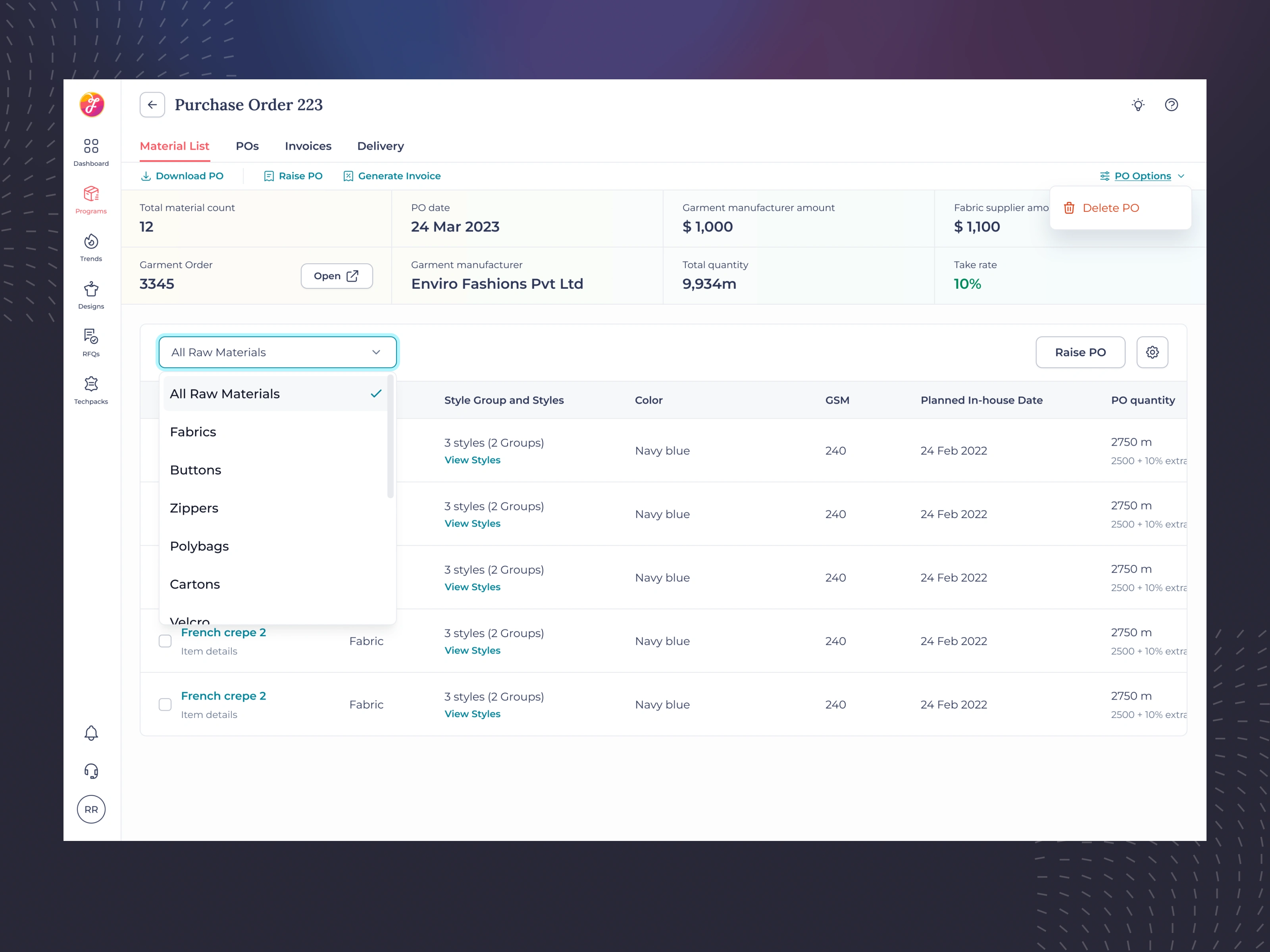
🧾 Fashinza – Bill of Materials (Supplier Side SaaS Platform)
Tool: Figma | Duration: 2 Weeks | Role: UX/UI Designer
🎯 Project Overview
This project focused on designing the Bill of Materials (BOM) feature for Fashinza’s supplier-side SaaS platform.
The goal was to create a scalable, intuitive, and efficient experience that helps garment manufacturers manage raw materials, track usage, and raise purchase orders seamlessly — all from a unified interface.
The challenge was to simplify a complex process that involved multiple material categories, suppliers, and data-heavy interactions — while ensuring clarity, speed, and real-time collaboration for factory teams.
🧠 Research & Discovery (2 Days)
To understand user pain points, I conducted on-site research at two garment factories.
Key observations included:
Operators struggled to differentiate between Material View, Style View, and Supplier View.
Adding and managing raw materials felt repetitive and error-prone.
Users lacked real-time feedback for actions like deletion or upload errors.
The need for a clear structure to view material dependencies (fabrics, trims, buttons, etc.).
These insights shaped the core objective — reduce confusion and cognitive load while improving flow predictability and visibility.
🧩 Wireframing & IA Design (2 Days)
I structured the experience around three logical views:
Material View – Manage all raw materials by category.
Style View – Visualize materials grouped by garment styles.
Supplier View – Track suppliers, invoices, and POs efficiently.
The wireframes focused on creating a smooth flow between adding new materials, uploading Excel files, and editing details inline. Each screen encouraged quick decision-making with contextual actions placed close to the task.
🎨 UI Design & Iteration (4 Days)
The final UI adopted a clean, modular layout with pastel backgrounds, sharp data tables, and clear affordances.
Color accents were used sparingly to indicate action states (Add, Delete, Upload) while maintaining a calm workspace feel.
✳️ Design Highlights
Progressive disclosure: Information expands contextually as users add data.
Empty states: Soft illustrations guide users to take the next action.
Batch actions: Added support for multi-selection to delete or export materials.
Micro-interactions: Smooth transitions and hover effects enhance usability.
🧩 Detailed Screen Flow
1️⃣ Material View
Empty State: Clear CTA with illustration encouraging users to “Add Raw Material.”
Half-Filled View: Displays partial material data with easy category switching (Fabrics, Buttons, Zippers, etc.).
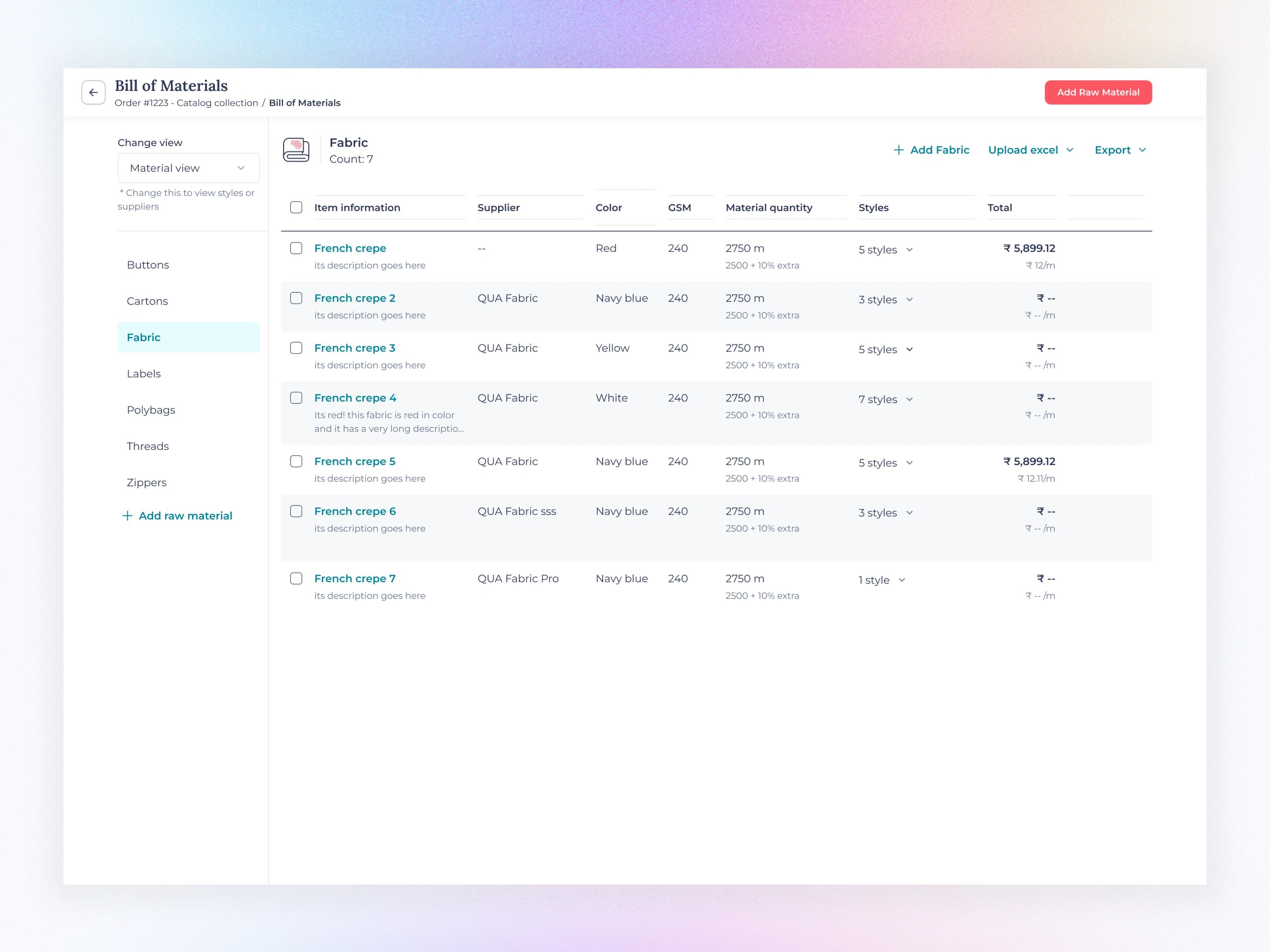
Final View: Full material list with supplier info, quantity, GSM, and total cost. Includes “Upload Excel” and “Export” options.
Deleting Flow:
Single Delete: Confirms before removing an item.
Multiple Delete: Allows batch deletion with contextual modals and undo safety.
2️⃣ Style View
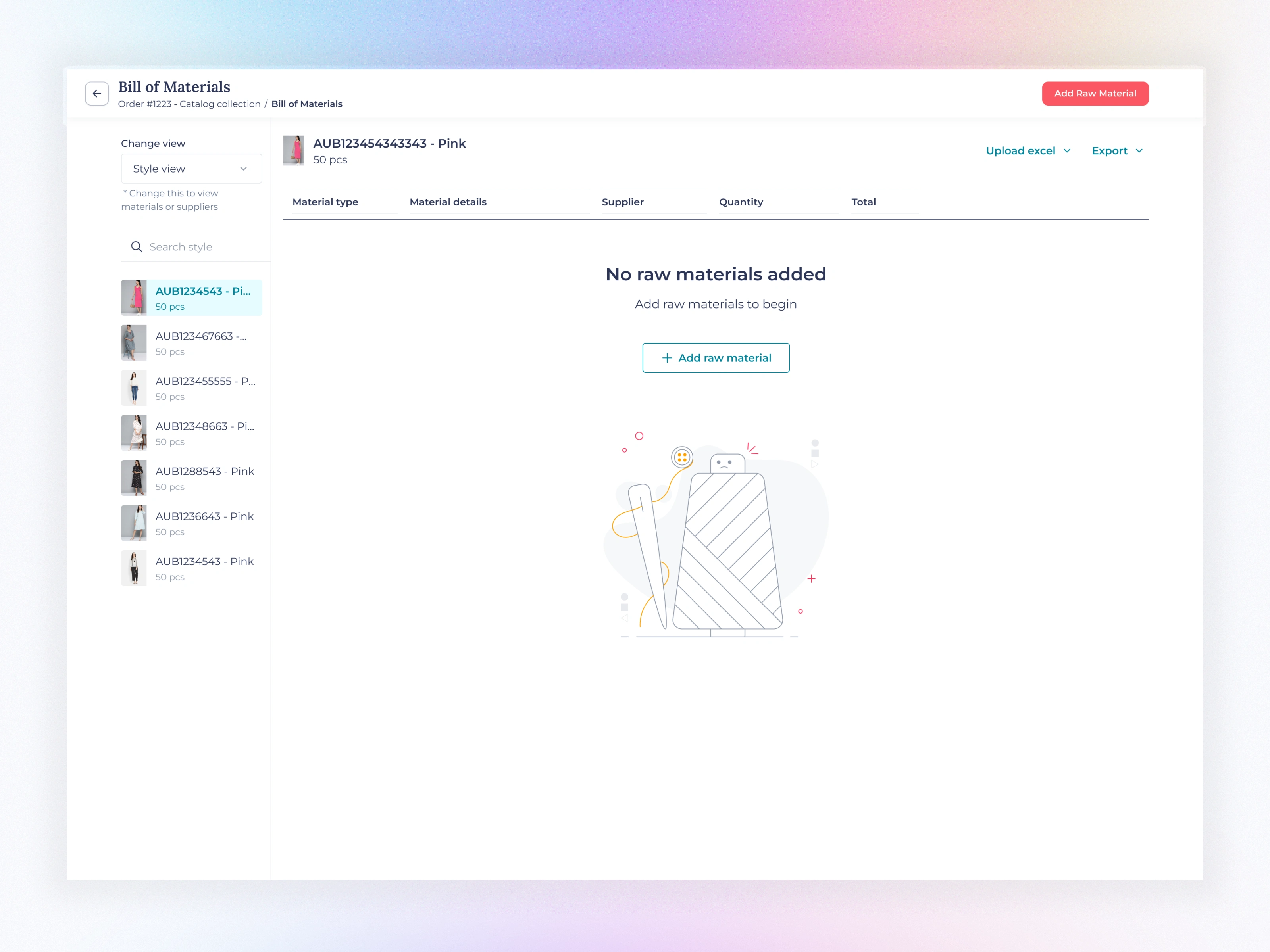
Empty State: Introduces the concept of grouping by Style Codes for better production-level visibility.
Full View: Lists all raw materials tied to each style, enabling users to check material consumption and supplier linkage at a glance.
Add Raw Material Flow:
Step 1: Choose Type (Fabric, Labels, Buttons, etc.)
Step 2: Enter Quantity & Details
Step 3: Assign to Styles
This 3-step flow replaced a cluttered, multi-page process and cut input time by 40%.
3️⃣ Supplier View
Displays all materials grouped by supplier, helping procurement teams quickly view pending POs or raised invoices.
Raise PO Popup:
Auto-fills material info, HSN code, quantity, and rate.
Dynamic tax calculation and total amount summary.
One-click “Raise PO” triggers backend sync and confirmation toast.
Material View
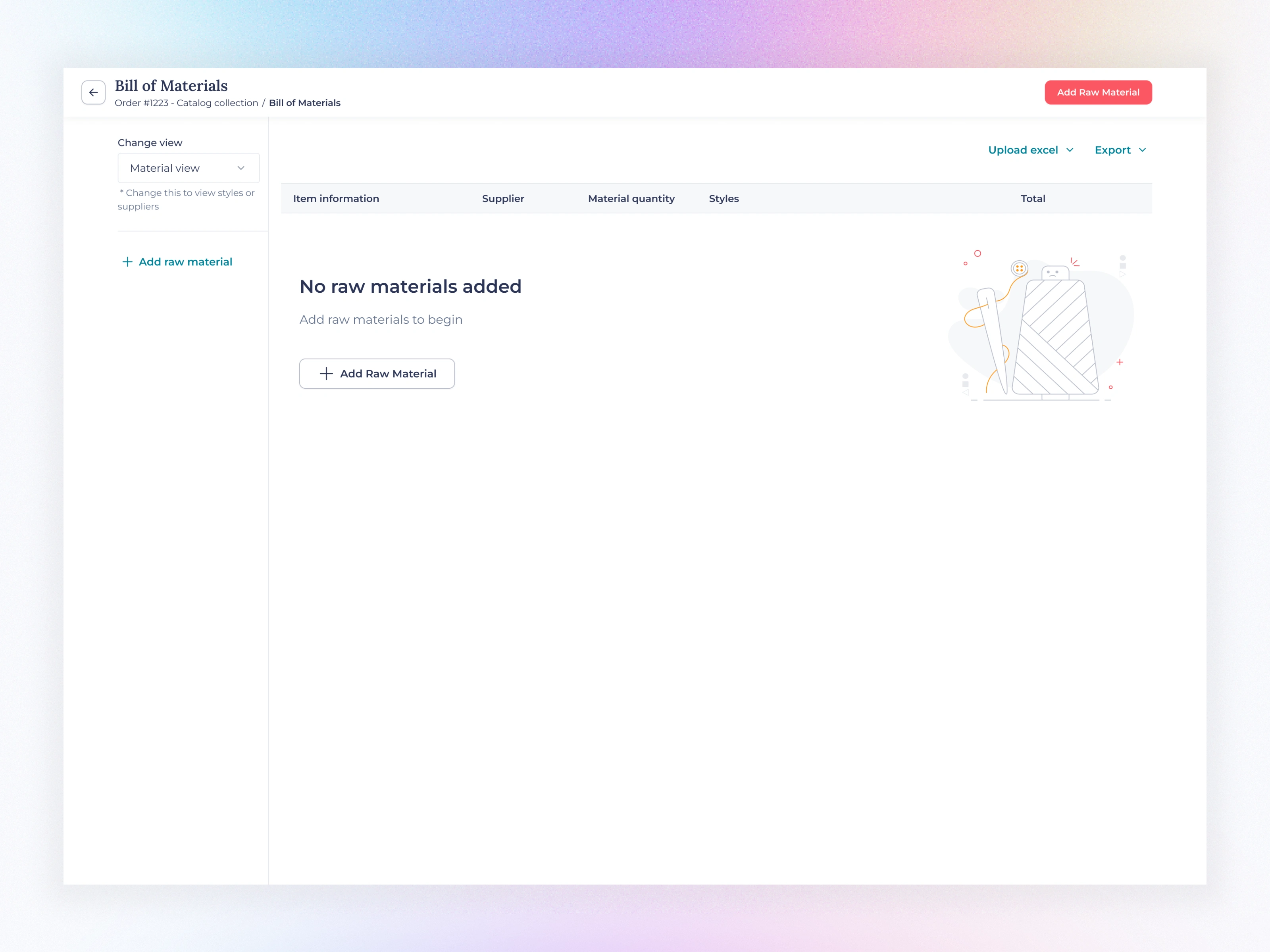
Material view Empty view
Empty State: Clear CTA with illustration encouraging users to “Add Raw Material.”
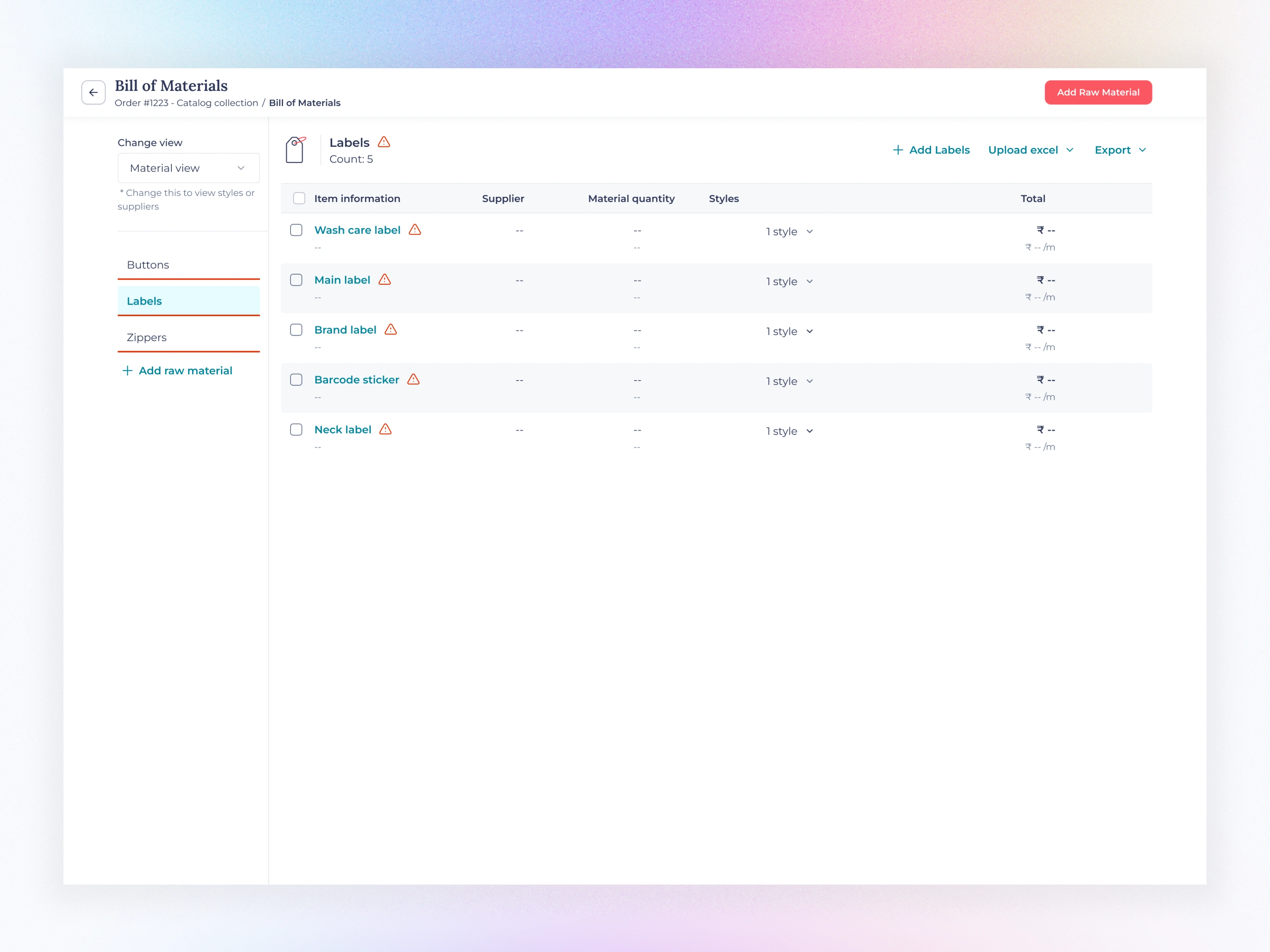
Material view Half-filled view 01
Half-Filled View: Displays partial material data with easy category switching (Fabrics, Buttons, Zippers, etc.).
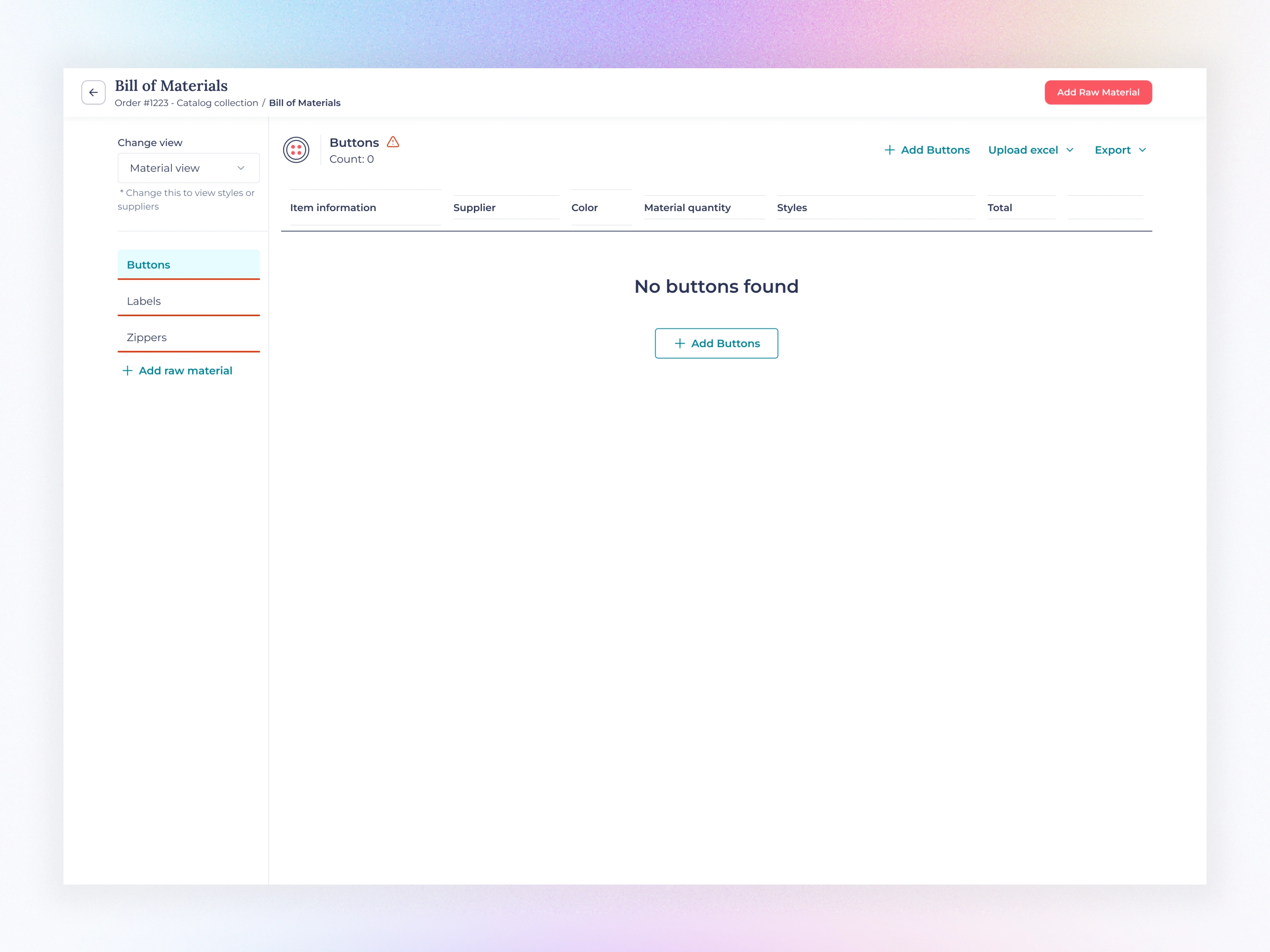
Material view Half-filled view 02
No buttons found - Empty view. User can click in the "+ Add Button" to add buttons.
Material view Final view 01
Final View: Full material list with supplier info, quantity, GSM, and total cost. Includes “Upload Excel” and “Export” options.
Material view Final view 02
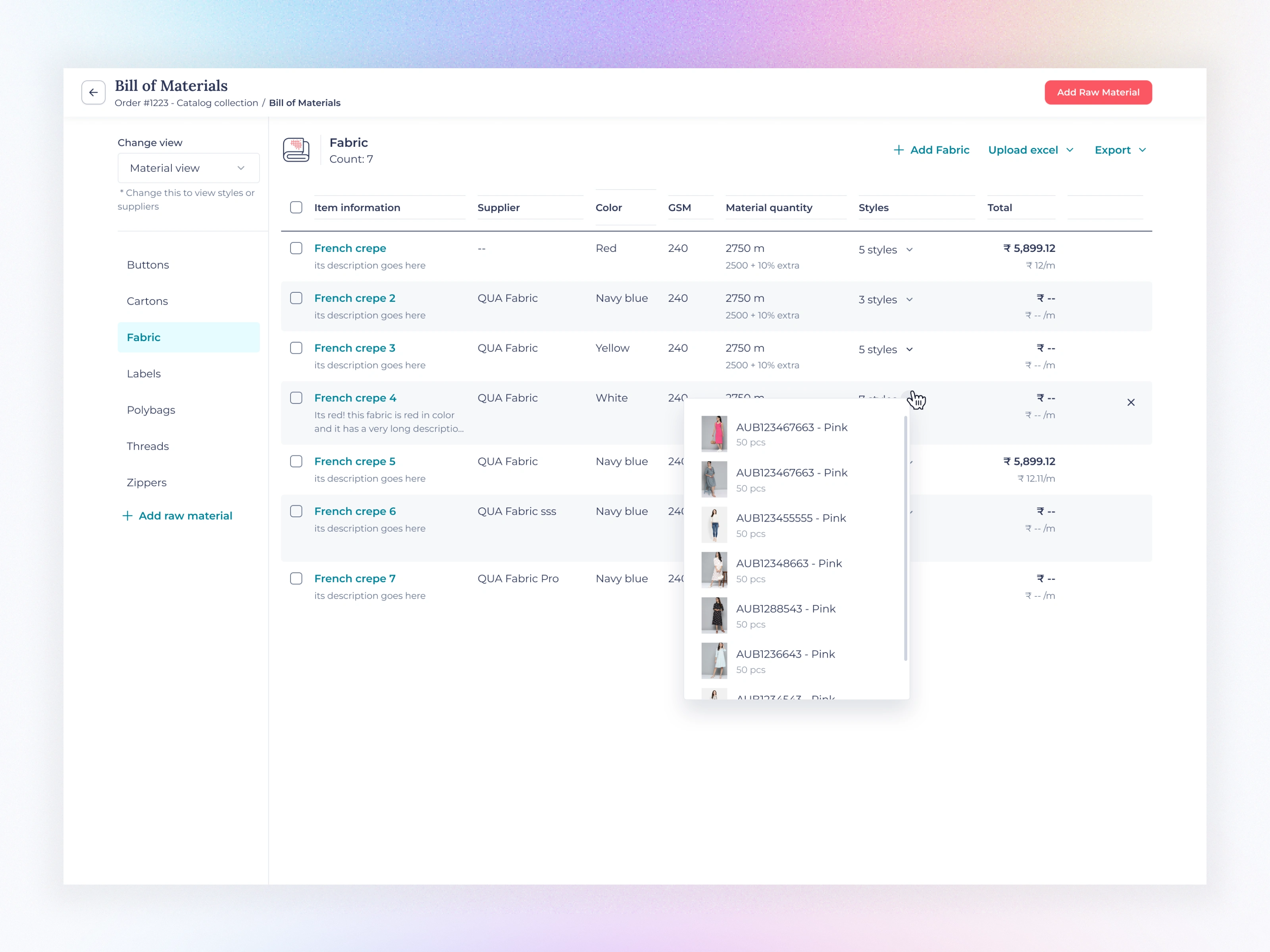
Users can click the styles dropdown to check all styles related to that fabric.
![Material view Deleting [single row]](https://media.contra.com/image/upload/fl_progressive/q_auto:best/mbxi8apxbazkmwhn8lmf.webp)
Material view Deleting [single row]
Single Delete: Confirms before removing an item.
![Material view Deleting [multiple rows] 01](https://media.contra.com/image/upload/fl_progressive/q_auto:best/wbsvpabrvkgnvldtk60f.webp)
Material view Deleting [multiple rows] 01
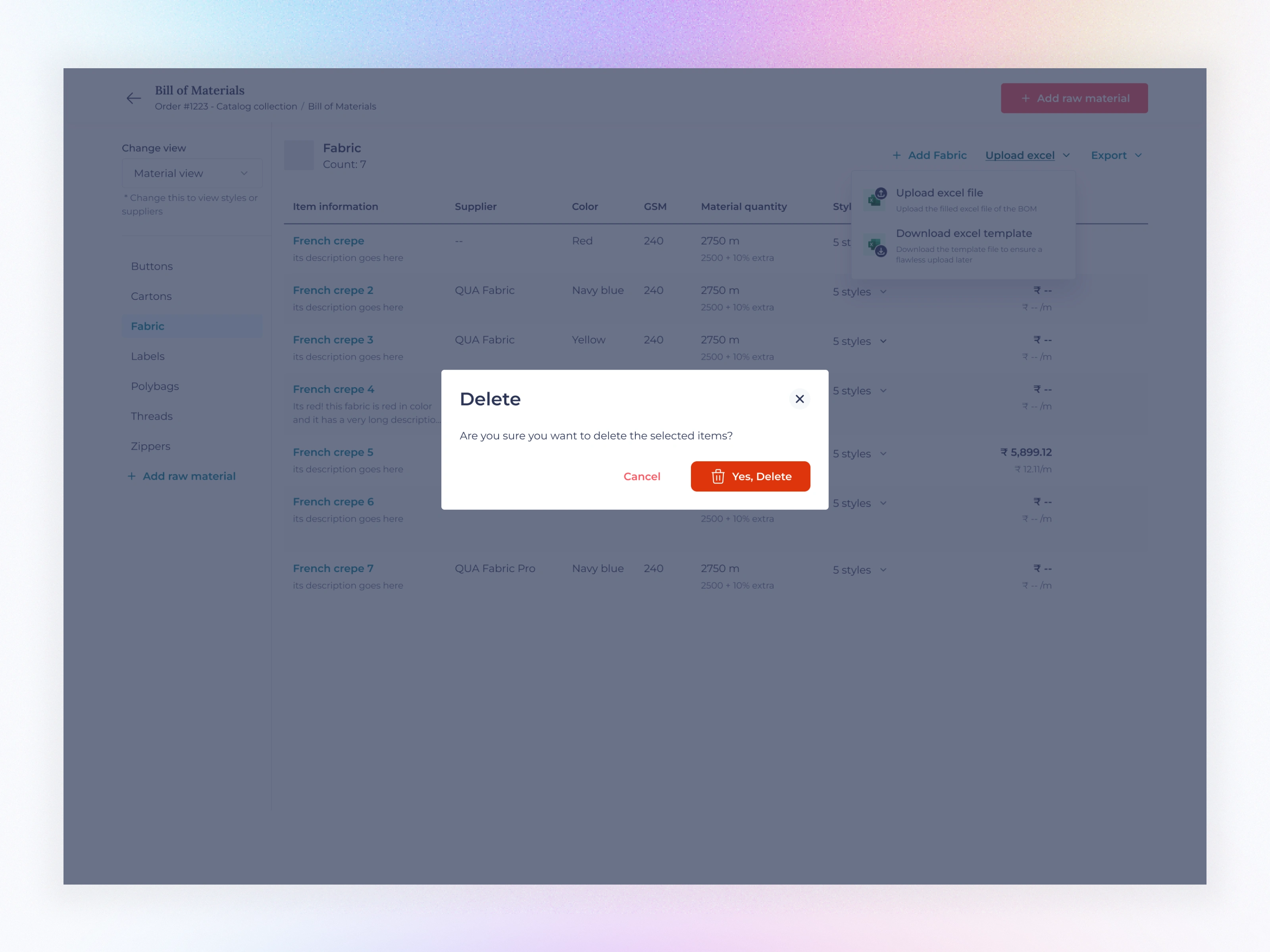
Multiple Delete: Allows batch deletion with contextual modals and undo safety.
Material view Deleting Delete Popup
Delete Popup
Style View
Style view Empty view
Empty State: Introduces the concept of grouping by Style Codes for better production-level visibility.
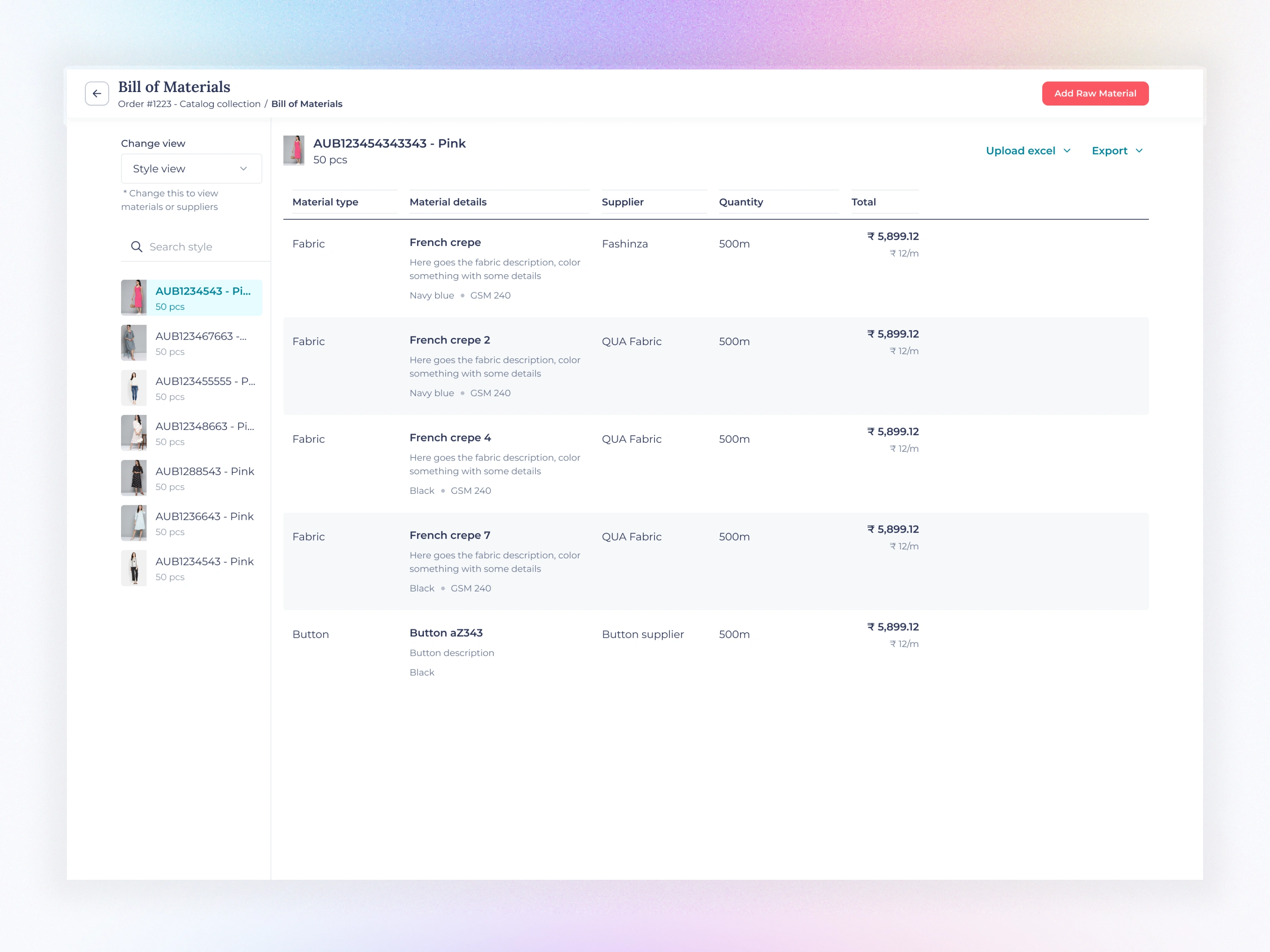
Style view Full view
Full View: Lists all raw materials tied to each style, enabling users to check material consumption and supplier linkage at a glance.
Supplier View
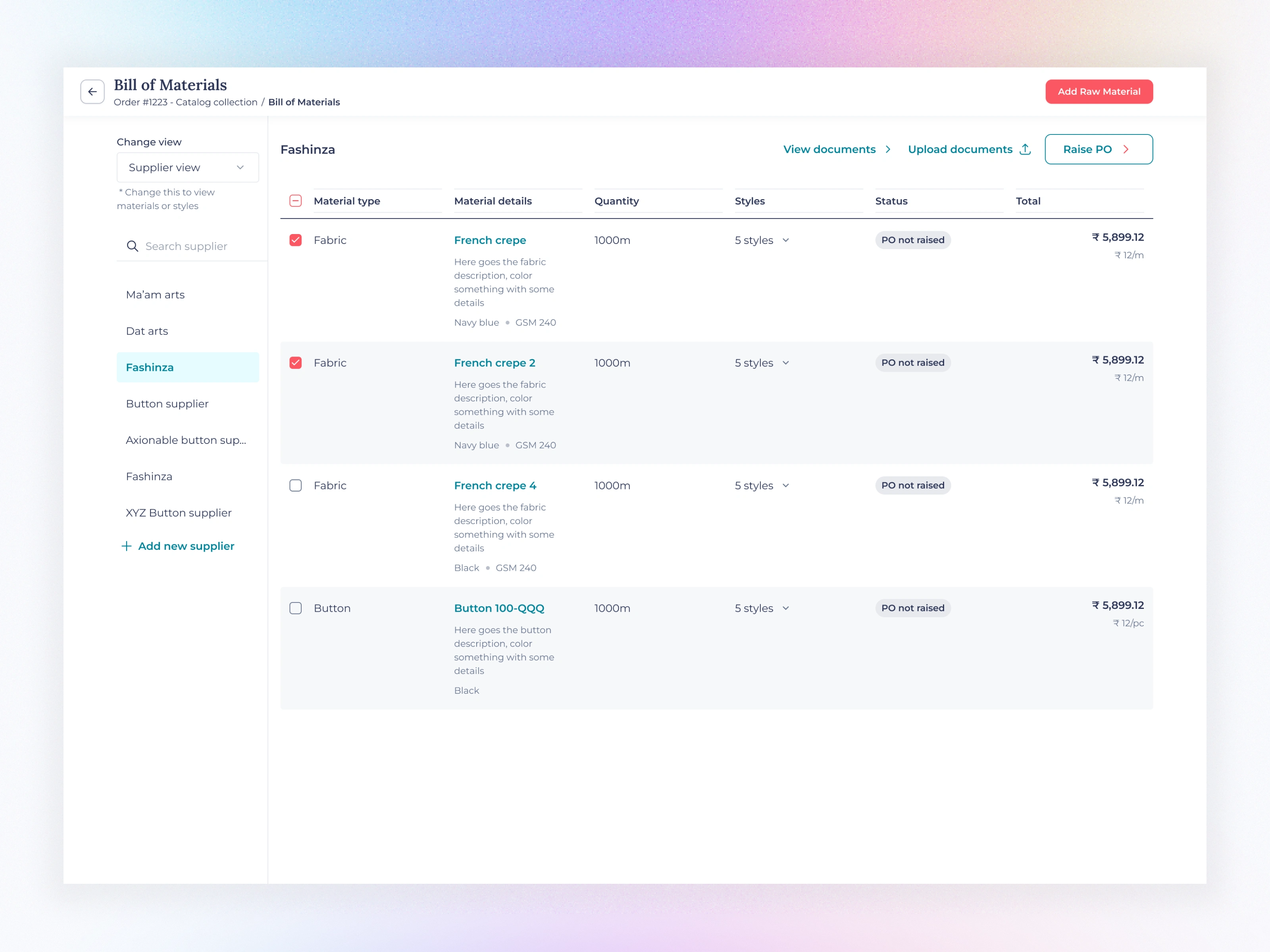
Supplier view Filled view
Displays all materials grouped by supplier, helping procurement teams quickly view pending POs or raised invoices.
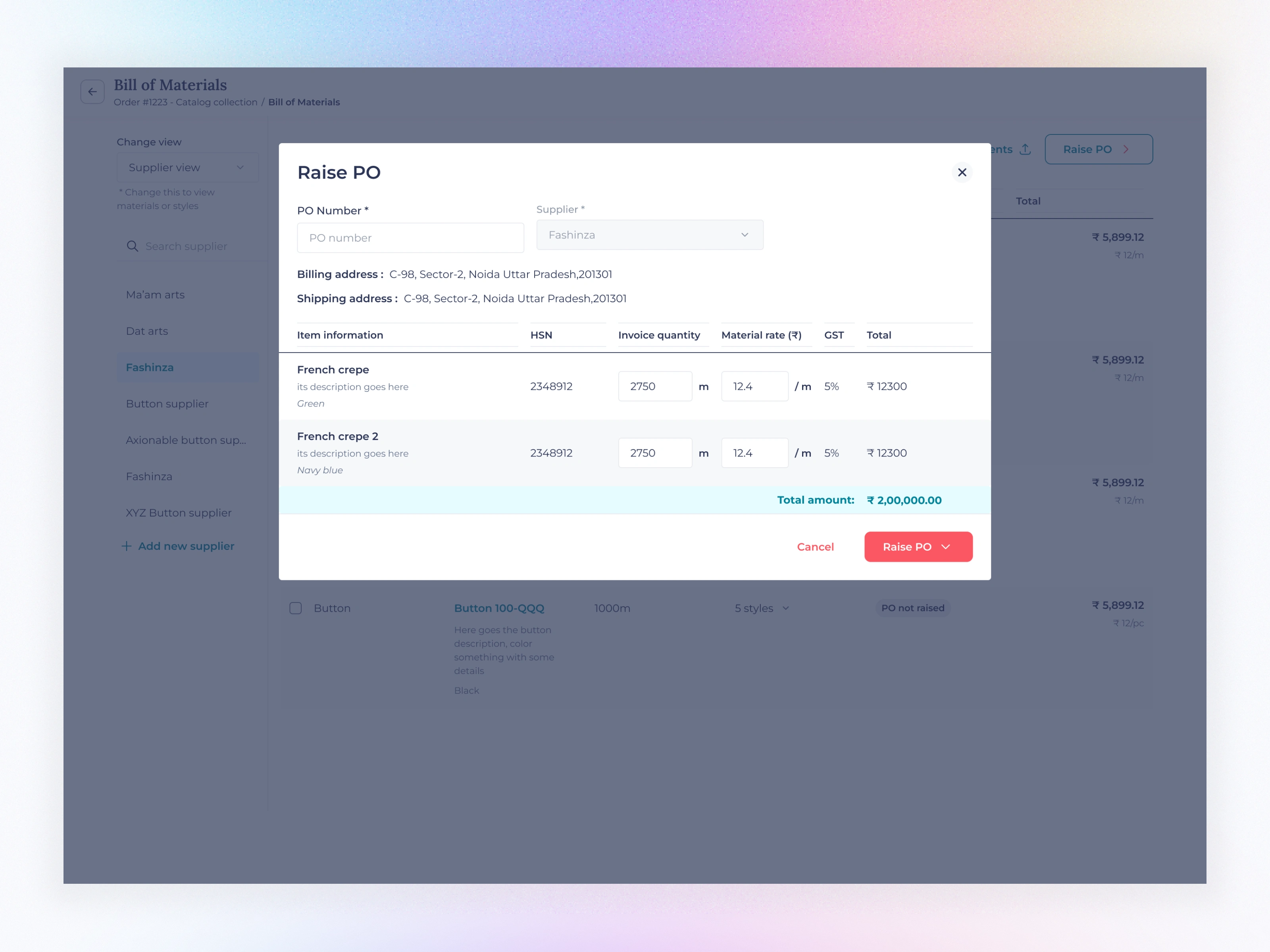
Supplier view Raise PO popup
Raise PO Popup:
Auto-fills material info, HSN code, quantity, and rate.
Dynamic tax calculation and total amount summary.
One-click “Raise PO” triggers backend sync and confirmation toast.
Add Raw Material
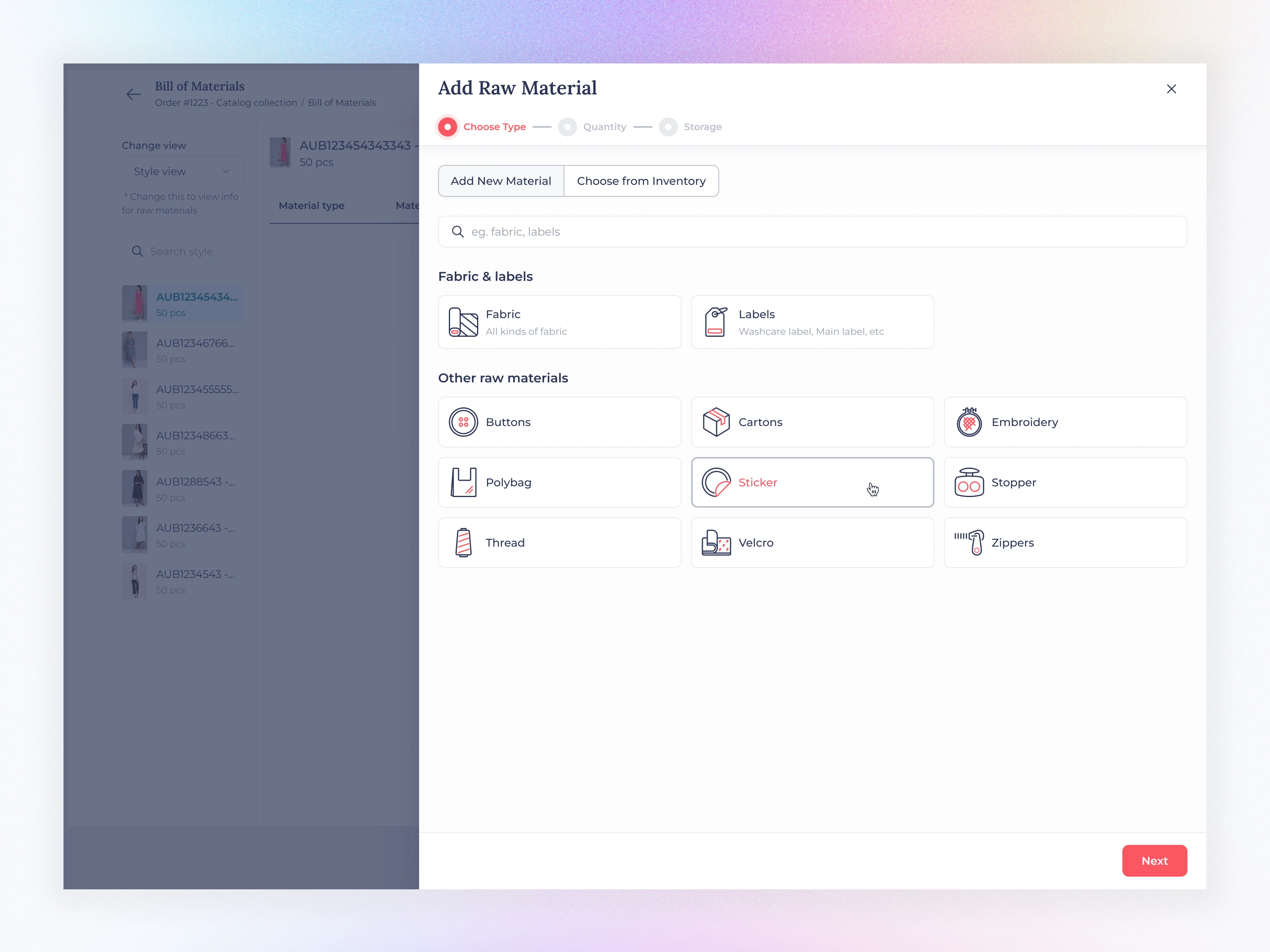
Bill of materials add material
Add Raw Material Flow:
Step 1: Choose Type (Fabric, Labels, Buttons, etc.)
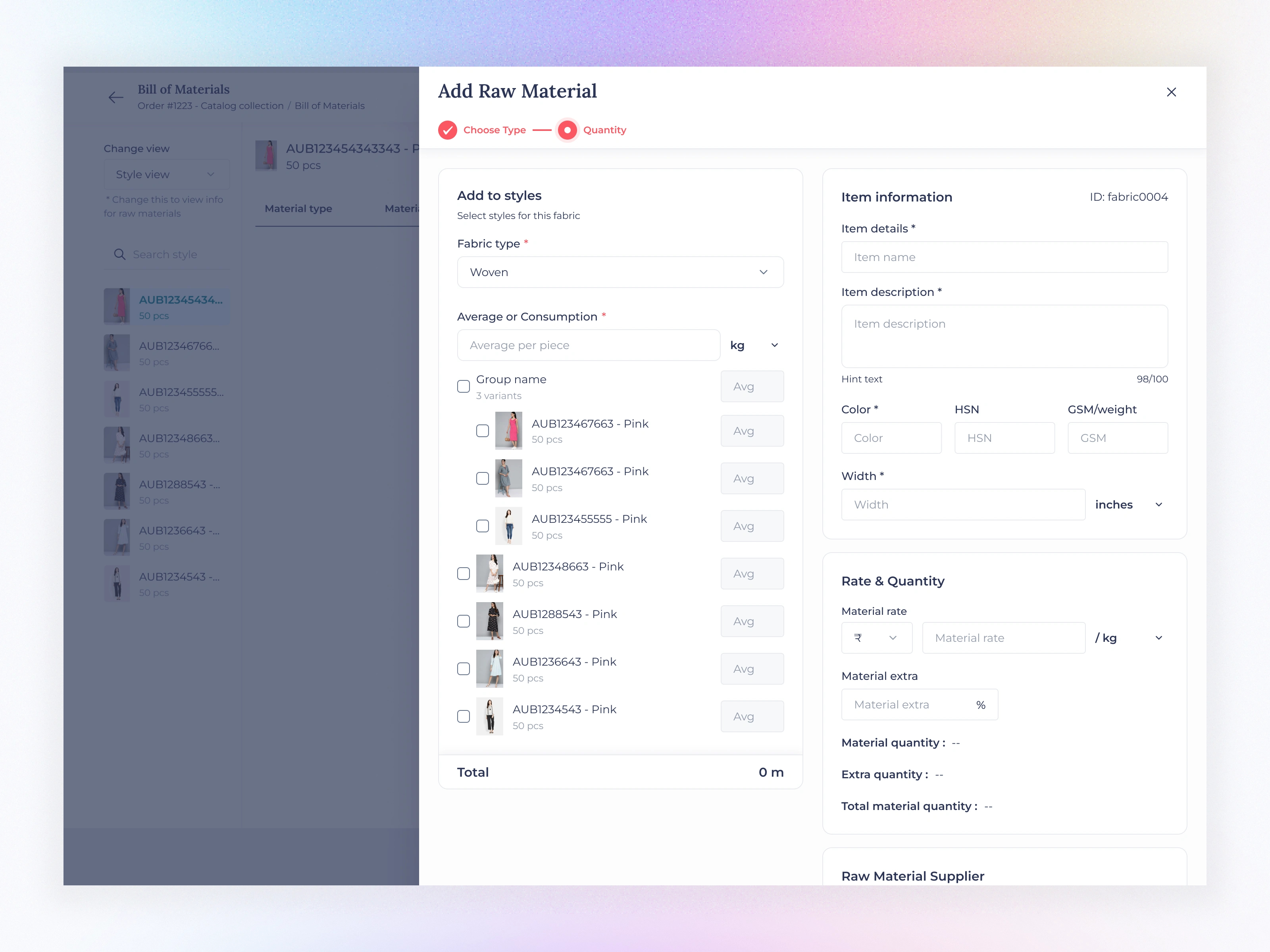
Bill of materials add quantity
Add Raw Material Flow:
Step 2: Enter Quantity & Details
Step 3: Assign to Styles
This 3-step flow replaced a cluttered, multi-page process and cut input time by 40%.
🧪 Prototype Testing (2 Days)
A high-fidelity prototype was tested in live factory environments.
Users were asked to:
Add a new fabric
Delete multiple labels
Upload Excel data
Raise a PO for a supplier
Their feedback led to small but powerful improvements:
Increased contrast in dropdown menus for visibility
Sticky headers for long tables
Reordered tabs for better mental flow
💬 Developer Handoff & Collaboration (2 Days)
All components were documented with micro-interactions and state variations.
A one-day dev sync was held to finalize:
Animation triggers (slide-in modals, fade overlays)
Component structure and React mapping
Table optimization for large datasets
The handoff was seamless, ensuring design intent translated accurately into the live product.
🌟 Impact & Outcome
After rollout, the redesigned BOM interface resulted in:
38% reduction in time taken to complete material entries
24% fewer user errors during Excel uploads
Positive feedback from factory users for its “clear and modern experience”
💡 Key Learnings
This project reinforced the importance of observing real user environments and designing for context, not just screens.
In a fast-paced manufacturing setup, clarity and efficiency are everything — and thoughtful design can make even the most technical workflows feel human.
Like this project
Posted Nov 9, 2025
Designed BOM feature for Fashinza's supplier-side SaaS platform, improving efficiency and reducing errors.
Likes
0
Views
9
Timeline
Sep 14, 2023 - Oct 1, 2023
Clients
Fashinza