Deployment of Show-1 Video Diffusion Model on Vultr Cloud GPU by Abraham Dahunsi Deployment of Show-1 Video Diffusion Model on Vultr Cloud GPU by Abraham Dahunsi

Deployment of Show-1 Video Diffusion Model on Vultr Cloud GPU

Abraham  Dahunsi

Abraham Dahunsi

Introduction

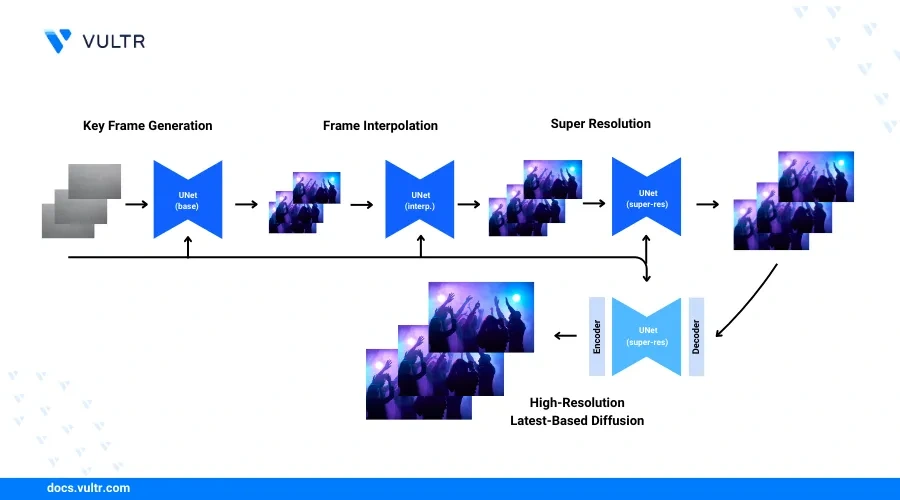
Show-1 is a deep learning model designed to generate realistic videos from text prompts. The model uses both latent-based and pixel-based text-to-video diffusion models (VDMs) to generate videos. While creating videos, the Show-1 model uses the pixel-based VDM to generate a low-resolution video that accurately matches the text prompt and applies the latent-based VDM to increase the video resolution.
This guide explains how to generate AI videos using the Show-1 model on a Vultr Cloud GPU server. You will set up the server environment with the necessary transformers, generative adversarial networks, and optical flow estimation libraries to generate high-quality videos that match your input text prompts.

Prerequisites

Before you begin:
Deploy a new Ubuntu 22.04 A100 Vultr Cloud GPU server with at least 80 GB of GPU RAM.
Access the server using SSH as a non-root user with sudo privileges.
Connect and allow your Hugging Face account to use the DeepFloyd model.

Set Up the Server

Follow the steps below to install all required Show-1 dependency packages such as Gradio to process multimedia content on the server using the model.
Clone the Show-1 generative-model repository using Git.
console
$ git clone https://github.com/showlab/Show-1.git

List your directory files and verify that a new Show-1 directory is available.
console
$ ls

Output:
Show-1
Switch to the Show-1 project directory.
console
$ cd Show-1/

Install the Python virtual environment package using APT.
console
$ sudo apt install python3-virtualenv

Create a new Python virtual environment such as show1-env.
console
$ virtualenv show1-env

Activate the virtual environment.
console
$ source show1-env/bin/activate

Update the Pip package manager.
console
(show1-env)$ pip install --upgrade pip

Install Gradio using Pip.
console
(show1-env)$ pip install gradio

Install the OpenCV library to export generated videos.
console
(show1-env)$ pip install opencv-python

Back up the original requirements file.
console
$ mv requirements.txt requirements_copy.txt

Open the requirements file using a text editor such as Nano.
console
$ nano requirements.txt

Add the following contents to the file.
diffusers==0.19.3
bitsandbytes==0.35.4
decord==0.6.0
transformers==4.29.1
accelerate
imageio==2.14.1
torch
torchvision
beautifulsoup4
tensorboard
sentencepiece
safetensors
modelcards
omegaconf
pandas
einops
ftfy
The above configuration removes the version restrictions for accelerate, torch, and torchvision modules. The original package versions may not be compatible with each other and removing the version specifications allows Pip to solve dependency conflicts.
Install all required Python packages using the requirements.txt file.
console
$ pip install -r requirements.txt

Enable Access to the DeepFloyd Super-Resolution Model

The Show-1 AI video generator uses pixel-based VDMs that include a DeepFloyd super-resolution model to transform the initial low-resolution to a high-resolution video. Log in to your Hugging Face account using your access token on the server to enable access to the DeepFloyd model repository.
Log in to your Hugging Face account using the huggingface-cli Transformers library.
console
$ huggingface-cli login

Enter your Hugging Face access token when prompted and press Enter to save changes.
Please enter your Hugging Face token (will be stored in a local file for future use):
When prompted to add the token as a Git credential, enter N and press Enter to apply changes. When successful, your output should look like the one below.
Your token has been saved to /home/user/.cache/huggingface/token

Login successful
Back up the original model application file app.py.
console
$ mv app.py app.ORIG

Create a new Python application file app.py.
console
$ nano app.py

Add the following code to the file.
python
import gradio as gr
import torch
from diffusers.utils import export_to_video

import os
from PIL import Image

import torch.nn.functional as F

from diffusers import IFSuperResolutionPipeline, VideoToVideoSDPipeline
from diffusers.utils import export_to_video
from diffusers.utils.torch_utils import randn_tensor

from showone.pipelines import TextToVideoIFPipeline, TextToVideoIFInterpPipeline, TextToVideoIFSuperResolutionPipeline
from showone.pipelines.pipeline_t2v_base_pixel import tensor2vid
from showone.pipelines.pipeline_t2v_sr_pixel_cond import TextToVideoIFSuperResolutionPipeline_Cond

# Set HF_HOME to the directory containing your Hugging Face credentials
os.environ["HF_HOME"] = "/path/to/your/huggingface/directory"


# Base Model
pretrained_model_path = "showlab/show-1-base"
pipe_base = TextToVideoIFPipeline.from_pretrained(
pretrained_model_path,
torch_dtype=torch.float16,
variant="fp16"
)
pipe_base.enable_model_cpu_offload()

# Interpolation Model
pretrained_model_path = "showlab/show-1-interpolation"
pipe_interp_1 = TextToVideoIFInterpPipeline.from_pretrained(
pretrained_model_path,
text_encoder=None,
torch_dtype=torch.float16,
variant="fp16"
)
pipe_interp_1.enable_model_cpu_offload()

# Super-Resolution Model 1
# Image super-resolution model from DeepFloyd https://huggingface.co/DeepFloyd/IF-II-L-v1.0
pretrained_model_path = "DeepFloyd/IF-II-L-v1.0"
pipe_sr_1_image = IFSuperResolutionPipeline.from_pretrained(
pretrained_model_path,
text_encoder=None,
torch_dtype=torch.float16,
variant="fp16",
)
pipe_sr_1_image.enable_model_cpu_offload()

pretrained_model_path = "showlab/show-1-sr1"
pipe_sr_1_cond = TextToVideoIFSuperResolutionPipeline_Cond.from_pretrained(
pretrained_model_path,
text_encoder=None,
torch_dtype=torch.float16
)
pipe_sr_1_cond.enable_model_cpu_offload()

# Super-Resolution Model 2
pretrained_model_path = "showlab/show-1-sr2"
pipe_sr_2 = VideoToVideoSDPipeline.from_pretrained(
pretrained_model_path,
torch_dtype=torch.float16
)
pipe_sr_2.enable_model_cpu_offload()
pipe_sr_2.enable_vae_slicing()

output_dir = "./outputs"
os.makedirs(output_dir, exist_ok=True)

def infer(prompt):
print(prompt)
negative_prompt = "low resolution, blur"

# Text embeds
prompt_embeds, negative_embeds = pipe_base.encode_prompt(prompt)

# Keyframes generation (8x64x40, 2fps)
video_frames = pipe_base (
prompt_embeds=prompt_embeds,
negative_prompt_embeds=negative_embeds,
num_frames=8,
height=40,
width=64,
num_inference_steps=75,
guidance_scale=9.0,
output_type="pt"
).frames

# Frame interpolation (8x64x40, 2fps -> 29x64x40, 7.5fps)
bsz, channel, num_frames, height, width = video_frames.shape
new_num_frames = 3 * (num_frames - 1) + num_frames
new_video_frames = torch.zeros((bsz, channel, new_num_frames, height, width),
dtype=video_frames.dtype, device=video_frames.device)
new_video_frames[:, :, torch.arange(0, new_num_frames, 4), ...] = video_frames
init_noise = randn_tensor((bsz, channel, 5, height, width), dtype=video_frames.dtype,
device=video_frames.device)

for i in range(num_frames - 1):
batch_i = torch.zeros((bsz, channel, 5, height, width), dtype=video_frames.dtype, device=video_frames.device)
batch_i[:, :, 0, ...] = video_frames[:, :, i, ...]
batch_i[:, :, -1, ...] = video_frames[:, :, i + 1, ...]
batch_i = pipe_interp_1(
pixel_values=batch_i,
prompt_embeds=prompt_embeds,
negative_prompt_embeds=negative_embeds,
num_frames=batch_i.shape[2],
height=40,
width=64,
num_inference_steps=50,
guidance_scale=4.0,
output_type="pt",
init_noise=init_noise,
cond_interpolation=True,
).frames

new_video_frames[:, :, i * 4:i * 4 + 5, ...] = batch_i

video_frames = new_video_frames

# Super-resolution 1 (29x64x40 -> 29x256x160)
bsz, channel, num_frames, height, width = video_frames.shape
window_size, stride = 8, 7
new_video_frames = torch.zeros(
(bsz, channel, num_frames, height * 4, width * 4),
dtype=video_frames.dtype,
device=video_frames.device)
for i in range(0, num_frames - window_size + 1, stride):
batch_i = video_frames[:, :, i:i + window_size, ...]

if i == 0:
first_frame_cond = pipe_sr_1_image(
image=video_frames[:, :, 0, ...],
prompt_embeds=prompt_embeds,
negative_prompt_embeds=negative_embeds,
height=height * 4,
width=width * 4,
num_inference_steps=50,
guidance_scale=4.0,
noise_level=150,
output_type="pt"
).images
first_frame_cond = first_frame_cond.unsqueeze(2)
else:
first_frame_cond = new_video_frames[:, :, i:i + 1, ...]

batch_i = pipe_sr_1_cond(
image=batch_i,
prompt_embeds=prompt_embeds,
negative_prompt_embeds=negative_embeds,
first_frame_cond=first_frame_cond,
height=height * 4,
width=width * 4,
num_inference_steps=50,
guidance_scale=7.0,
noise_level=250,
output_type="pt"
).frames
new_video_frames[:, :, i:i + window_size, ...] = batch_i

video_frames = new_video_frames

# Super-resolution 2 (29x256x160 -> 29x576x320)
video_frames = [Image.fromarray(frame).resize((576, 320)) for frame in tensor2vid(video_frames.clone())]
video_frames = pipe_sr_2(
prompt,
negative_prompt=negative_prompt,
video=video_frames,
strength=0.8,
num_inference_steps=50,
).frames

video_path = export_to_video(video_frames, f"{output_dir}/{prompt[:200]}.mp4")
print(video_path)
return video_path

css = """
#col-container {max-width: 510px; margin-left: auto; margin-right: auto;}
a {text-decoration-line: underline; font-weight: 600;}
.animate-spin {
animation: spin 1s linear infinite;
}

@keyframes spin {
from {
transform: rotate(0deg);
}
to {
transform: rotate(360deg);
}
}

#share-btn-container {
display: flex;
padding-left: 0.5rem !important;
padding-right: 0.5rem !important;
background-color: #000000;
justify-content: center;
align-items: center;
border-radius: 9999px !important;
max-width: 15rem;
height: 36px;
}

div#share-btn-container > div {
flex-direction: row;
background: black;
align-items: center;
}

#share-btn-container:hover {
background-color: #060606;
}

#share-btn {
all: initial;
color: #ffffff;
font-weight: 600;
cursor:pointer;
font-family: 'IBM Plex Sans', sans-serif;
margin-left: 0.5rem !important;
padding-top: 0.5rem !important;
padding-bottom: 0.5rem !important;
right:0;
}

#share-btn * {
all: unset;
}

#share-btn-container div:nth-child(-n+2){
width: auto !important;
min-height: 0px !important;
}

#share-btn-container .wrap {
display: none !important;
}

#share-btn-container.hidden {
display: none!important;
}
img[src*='#center'] {
display: inline-block;
margin: unset;
}

.footer {
margin-bottom: 45px;
margin-top: 10px;
text-align: center;
border-bottom: 1px solid #e5e5e5;
}
.footer>p {
font-size: .8rem;
display: inline-block;
padding: 0 10px;
transform: translateY(10px);
background: white;
}
.dark .footer {
border-color: #303030;
}
.dark .footer>p {
background: #0b0f19;
}
"""

with gr.Blocks(css=css) as demo:
with gr.Column(elem_id="col-container"):
gr.Markdown(
"""
<h1 style="text-align: center;">Show-1 Text-to-Video</h1>
<p style="text-align: center;">
A text-to-video generation model that marries the strength and alleviates the weakness of pixel-based and latent-based VDMs. <br />
</p>

<p style="text-align: center;">
<a href="https://arxiv.org/abs/2309.15818" target="_blank">Paper</a> |
<a href="https://showlab.github.io/Show-1" target="_blank">Project Page</a> |
<a href="https://github.com/showlab/Show-1" target="_blank">Github</a>
</p>

"""
)

prompt_in = gr.Textbox(label="Prompt", placeholder="A panda taking a selfie", elem_id="prompt-in")
#neg_prompt = gr.Textbox(label="Negative prompt", value="text, watermark, copyright, blurry, nsfw", elem_id="neg-prompt-in")
#inference_steps = gr.Slider(label="Inference Steps", minimum=10, maximum=100, step=1, value=40, interactive=False)
submit_btn = gr.Button("Submit")
video_result = gr.Video(label="Video Output", elem_id="video-output")

gr.HTML("""
<div class="footer">
<p>
Demo adapted from <a href="https://huggingface.co/spaces/fffiloni/zeroscope" target="_blank">zeroscope</a>
by 🤗 <a href="https://twitter.com/fffiloni" target="_blank">Sylvain Filoni</a>
</p>
</div>
""")

submit_btn.click(fn=infer,
inputs=[prompt_in],
outputs=[video_result],
api_name="show-1")

# Set share=True in launch() to generate a link to access the web interface
demo.queue(max_size=12).launch(show_api=True)

Save and close the file.
Below is what the above application functions do:
os.environ["HF_HOME"]: Sets up an environment variable with the Hugging Face home directory where your access token is stored.
TextToVideoIFPipeline.from_pretrained(): Initializes a pretrained text-to-video model. enable_model_cpu_offload(): Enables offloading of the model processes to the CPU to reduce the GPU load.
TextToVideoIFInterpPipeline.from_pretrained(): Sets up a pretrained model to interpolate between frames in a video based on the input text.
IFSuperResolutionPipeline.from_pretrained(): Creates a pipeline to enhance the image resolution using a pretrained super-resolution model.
TextToVideoIFSuperResolutionPipeline_Cond.from_pretrained(): Loads a pretrained model for super-resolution video frames based on the input text.
VideoToVideoSDPipeline.from_pretrained(): Loads a pretrained model for converting video formats.
enable_vae_slicing(): Enables Variational Autoencoder (VAE) model slicing to optimize performance.
infer(): Generates a video from a text prompt by encoding the text and creating keyframes from the encoded data.
export_to_video(): Exports the final video frames to a video file. The generated video is saved to /outputs within your project directory.

Set Up Show-1 as a System Service

Follow the steps below to create a new Show-1 system service to securely run and control the application on your server.
Create a new system service file.
console
$ sudo nano /etc/systemd/system/show-1.service

Add the following contents to the file. Replace linuxuser with your actual user and /home/linuxuser/Show-1/ with your project directory.
systemd
[Unit]
Description=My Show-1 Service
After=network.target

[Service]
User=linuxuser
Group=linuxuser
WorkingDirectory=/home/linuxuser/Show-1
Environment="PATH=/home/linuxuser/Show-1/show1-env/bin"
ExecStart=/home/linuxuser/Show-1/show1-env/bin/python /home/linuxuser/Show-1/app.py
Restart=always

[Install]
WantedBy=multi-user.target

Save and close the file.
Reload the systemd daemon to synchronize the service changes.
console
$ sudo systemctl daemon-reload

Enable the Show-1 system service file.
console
$ sudo systemctl enable show-1

Start the Show-1 system service.
console
$ sudo systemctl start show-1

View the Show-1 system service status and verify that it's running.
console
$ sudo systemctl status show-1

Output:
● show-1.service - My Show-1 Service
Loaded: loaded (/etc/systemd/system/show-1.service; enabled; vendor preset: enabled)
Active: active (running) since Mon 2024-04-22 00:26:12 UTC; 3s ago
Main PID: 2663 (python)
Tasks: 6 (limit: 72179)
Memory: 265.7M
CPU: 3.875s
CGroup: /system.slice/show-1.service
└─2663 /home/hum/Show-1/show1-env/bin/python /home/hum/Show-1/app.py

Apr 22 00:26:12 Show-1 systemd[1]: Started My Show-1 Service.
Wait at least 15 minutes before testing access to the Show-1 application to allow the model download process to complete.

Set Up Nginx as a Reverse Proxy To Enable Access to the Show-1 Application

Install Nginx on your server.
console
$ sudo apt install nginx -y

Create a new Nginx virtual host configuration show-1conf.
console
$ nano /etc/nginx/sites-available/show-1conf

Add the following configurations to the file. Replace show-1.example.com with your actual domain.
nginx
upstream show-1 {
server 127.0.0.1:7860;
}

server {
listen 80;
listen [::]:80;
server_name show-1.example.com;

proxy_set_header Host $host;
proxy_http_version 1.1;
proxy_set_header X-Real-IP $remote_addr;
proxy_set_header X-Forwarded-For $proxy_add_x_forwarded_for;
proxy_set_header X-Forwarded-Proto $scheme;
proxy_set_header Sec-WebSocket-Extensions $http_sec_websocket_extensions;
proxy_set_header Sec-WebSocket-Key $http_sec_websocket_key;
proxy_set_header Sec-WebSocket-Version $http_sec_websocket_version;
proxy_set_header Upgrade $http_upgrade;
proxy_set_header Connection "Upgrade";

location / {
auth_basic "closed site";
auth_basic_user_file /etc/nginx/.htpasswd;
proxy_pass http://show-1;
proxy_set_header Upgrade $http_upgrade;
proxy_set_header Connection "upgrade";
}
}

Save and close the file.
Activate the new virtual host configuration.
console
$ sudo ln -s /etc/nginx/sites-available/show-1conf /etc/nginx/sites-enabled/show-1conf

Test the Nginx configuration for errors.
console
$ sudo nginx -t

Restart Nginx to apply the configuration changes.
console
$ sudo systemctl restart nginx

Allow the HTTP port 80 through the default UFW firewall.
console
$ sudo ufw allow 80/tcp

Reload the UFW table to apply changes.
console
$ sudo ufw reload

Access the Show-1 Interface and Generate Videos

The Show-1 model uses Gradio to generate a web interface to run the model and generate videos. Follow the steps below to run the model and generate a sample video from a text prompt.
Access your Show-1 domain using a web browser such as Firefox.
http://show-1.example.com
Enter your text prompt in the Prompt field. For example, a rocket firing up to the sky.
Generate a Show-1 Video from Text Prompts
Click Submit to start the video generation process and monitor the model processing time.
Click the Download symbol in the top right corner of the generated video to preview and download the file on your computer.
Download a Generated Show-1 Video
Verify that the model saves your generated videos to the /output directory in your project files.

Conclusion

You have deployed the Show-1 Video Diffusion Model to generate realistic videos using text inputs on a Vultr Cloud GPU server. You can modify the application code to securely generate videos on your server using Show-1 with the super-resolution DeepFloyd model. For more information, visit the Show 1 project page.
Tags:
Related Content

Comments

No comments yet.
Like this project

Posted Jun 19, 2025

Deployed Show-1 model on Vultr Cloud GPU to generate videos from text prompts.