Resolving Complex WordPress Caching Issues

Gaurav Shukla


The Cache That Wouldn’t Die: Debugging a Stale WordPress Homepage Across Three Caching Layers

A client reached out with a problem that sounded simple: their WordPress news site’s homepage kept showing an old article — one from weeks ago — even though newer posts were published and clearly visible in the WordPress dashboard. Clearing the cache would fix it temporarily. A few hours later, the old post would be back.
This is the story of how a “just clear the cache” problem turned into a three-layer debugging exercise, and what it taught me about not trusting the first plausible explanation.
Starting with the obvious suspects
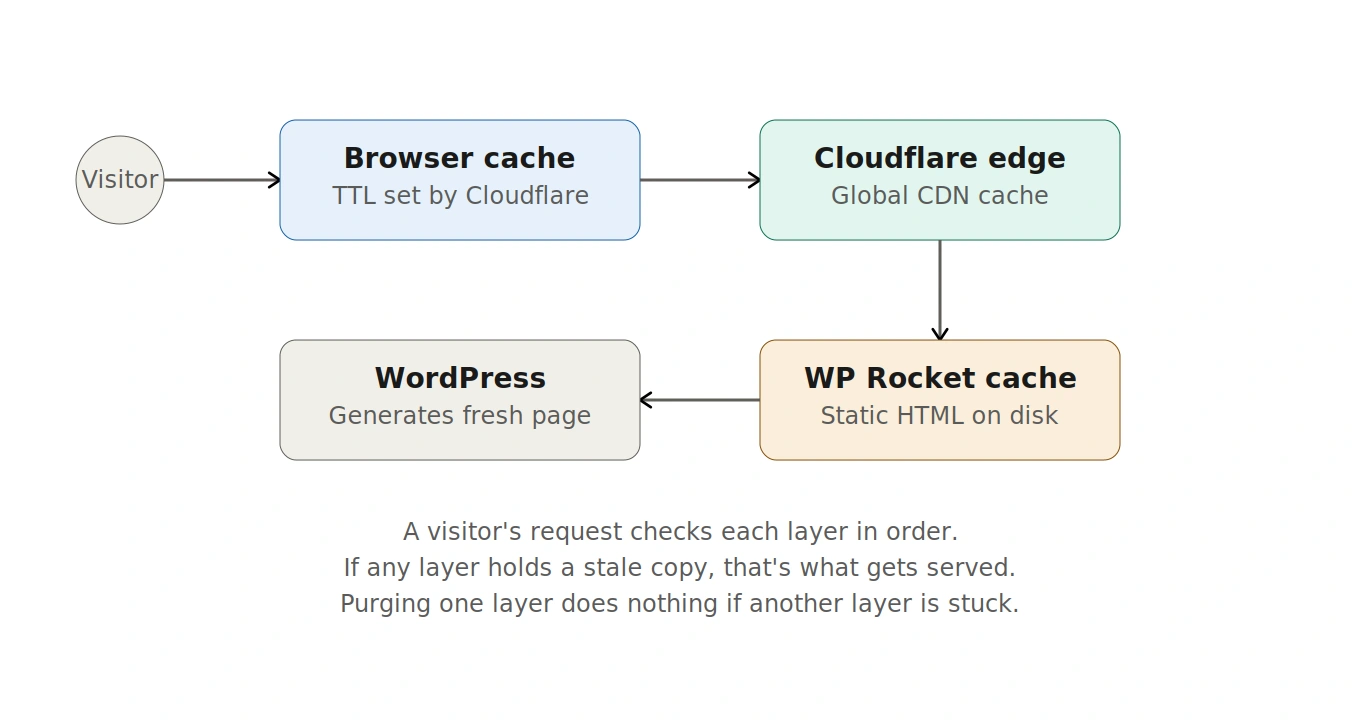
The site ran on WP Rocket for page caching and Cloudflare for CDN/edge caching — a very common WordPress performance stack. My first assumption was the standard one: WP Rocket clears its own cache on publish, but if the Cloudflare integration isn’t properly connected, the edge cache never gets the purge signal. Visitors keep getting served the old, cached HTML from Cloudflare’s servers around the world.
I checked WP Rocket’s Add-ons page. Sure enough — the Cloudflare add-on showed as disconnected.
I reconnected it with a valid Global API Key, Zone ID, and account email. WP Rocket confirmed the connection. I ran a manual “Clear All Cloudflare Cache Files.” No errors.
I opened an incognito window, expecting to see the fix.
The old post was still there.
When the obvious fix doesn’t work, verify your test
Before going further down the Cloudflare rabbit hole, I needed to rule out something simpler: was I even testing correctly?
One detail turned out to matter a lot. The client had been checking the site in a regular browser tab — where they were also logged into WordPress admin. Logged-in admins automatically bypass the cache, so of course that tab showed the latest content. It wasn’t proof anything was fixed; it was a blind spot in the test itself.
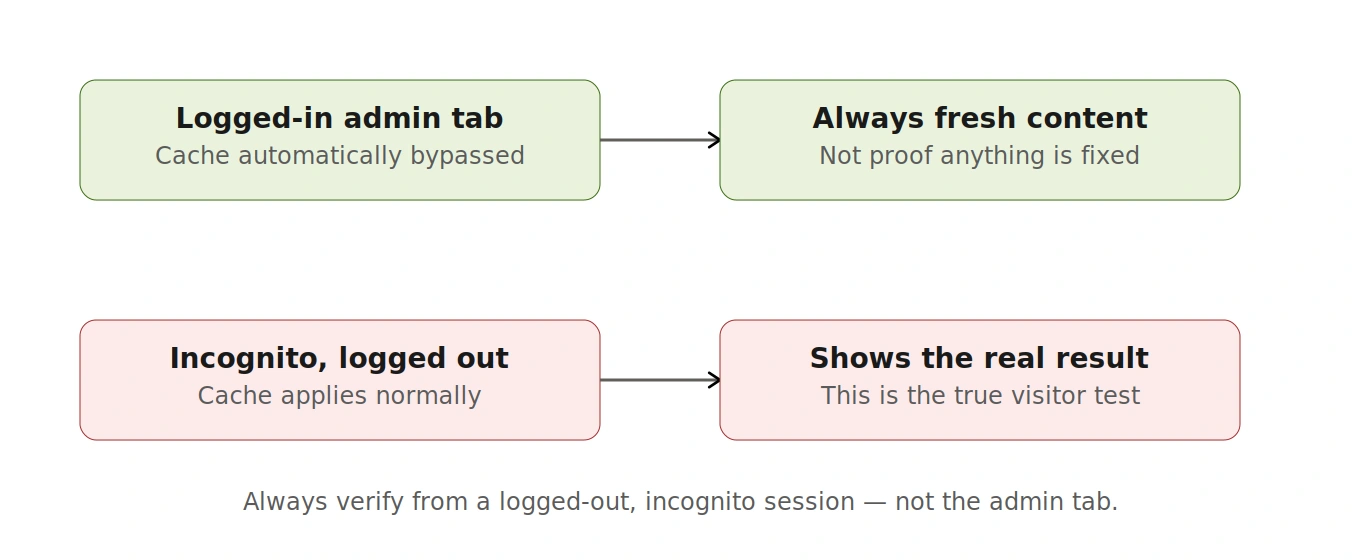
Lesson: always test as a real visitor would — incognito, logged out, no assumptions.
With that corrected, the real symptom was clear and consistent: incognito, every time, stale content.
Peeling back another layer: Browser Cache TTL
Next I checked Cloudflare’s Browser Cache TTL setting — a separate setting from edge caching that tells visitors’ own browsers how long to hold onto a page before re-checking. It was fixed at 4 hours, regardless of what the origin server said the content’s actual freshness should be.
I changed it to “Respect Existing Headers,” letting WordPress and WP Rocket — which understand the content is a frequently-updated homepage — dictate the correct caching duration instead of a blanket 4-hour rule.
Tested again. Same result. Old post.
The plot thickens: viewing the actual page source
At this point, clearing cache after cache after cache wasn’t working, so I stopped guessing and went straight to evidence: I pulled the raw HTML source of the page.
W3 Total Cache — a different caching plugin entirely, one the client hadn’t mentioned and believed was inactive. And the timestamp matched exactly: the date the problem had started.
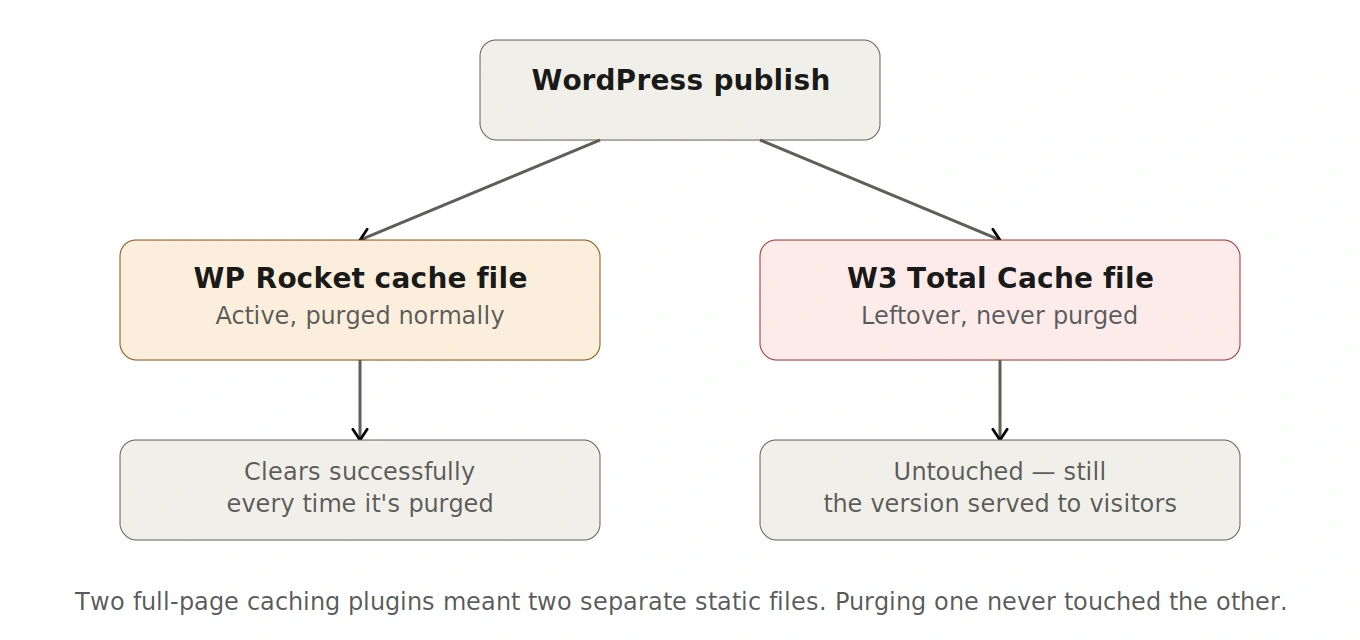
This was the actual smoking gun. Two full-page caching plugins had been active on the same WordPress install at some point, each generating and storing their own static HTML copy of the homepage. WP Rocket’s purge commands were clearing WP Rocket’s cache — but a separate, static file generated by W3 Total Cache was sitting on disk, untouched by any of the purge attempts, and something was still serving it.
Chasing a file that wouldn’t delete
The plugin itself showed as deactivated. But deactivating a plugin doesn’t always clean up everything it left behind on disk — old cache directories, leftover config folders, and in some cases, “drop-in” files that WordPress loads automatically regardless of plugin state.
I went into the server’s file manager to manually clear the leftover
wp-content/cache directory and an old w3tc-config folder. Straightforward in theory. In practice, the delete operation would spin and simply never complete — no error, just stuck.On a high-traffic production site, this mattered: I couldn’t take shortcuts like disabling the whole site to force cache regeneration, or blindly deleting files without knowing what was holding a lock on them.
The actual fix: forcing a clean state
The breakthrough came from a different angle entirely. Instead of fighting with locked files, I renamed the WP Rocket plugin folder itself via the file manager. WordPress detects a missing plugin folder and automatically deactivates the plugin — a safe, built-in mechanism, not a hack.
I renamed it back, reactivated WP Rocket from the dashboard, and it rebuilt its entire caching pipeline from scratch.
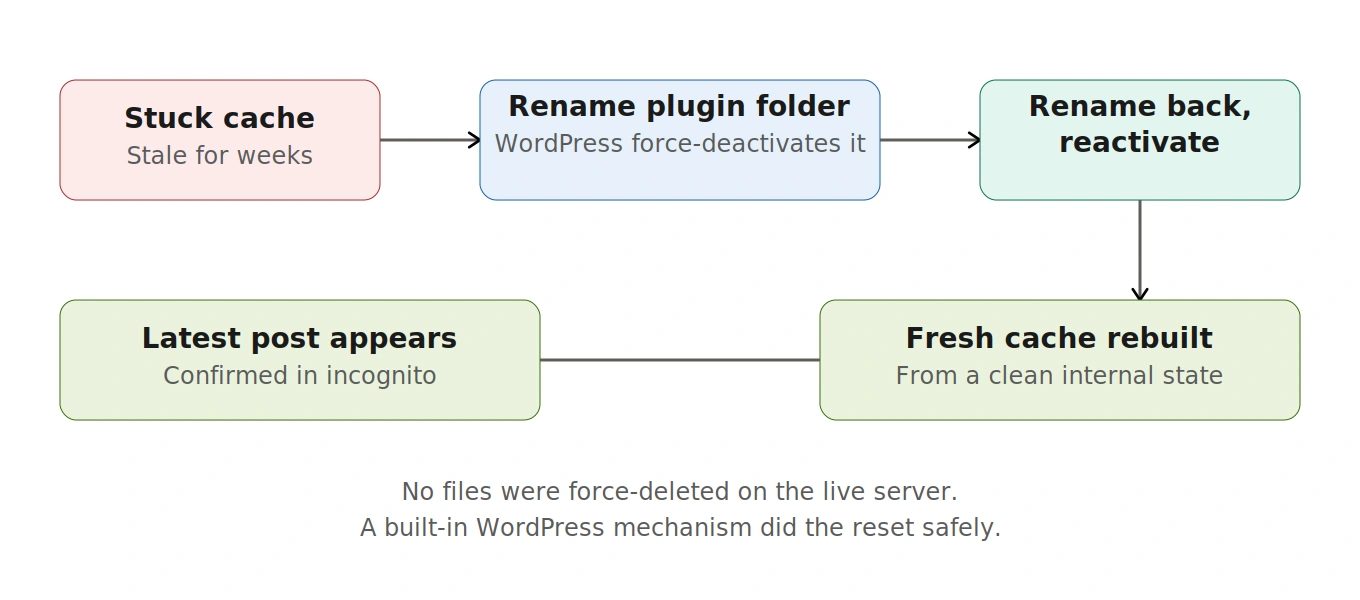
Fresh incognito test: the latest post appeared immediately.
What was actually going on
Piecing it together after the fact: WP Rocket’s own cache generation had silently stalled on the exact date the problem began. Every subsequent “clear cache” call was clearing an empty slot, while a single stuck copy of the old homepage kept being re-served underneath it. No amount of purging downstream — Cloudflare, browser cache, even the leftover W3 Total Cache files — could fix a problem sitting at the origin. Deactivating and reactivating WP Rocket forced it to discard whatever corrupted internal state it was stuck in and generate a completely fresh cache.
The Cloudflare disconnection and the 4-hour browser TTL were real issues too — worth fixing regardless — but they were symptoms riding alongside the real cause, not the cause itself.
Takeaways for anyone debugging WordPress caching issues
Test like a real visitor. Logged-in admin sessions bypass cache and will hide the problem from you.
Multiple caching plugins are a liability, even “inactive” ones. Fully delete unused caching plugins rather than just deactivating them.
When purging doesn’t fix it, check the raw page source. An HTML comment revealed which caching system had actually generated the stale page — information no dashboard setting would have shown me.
Sometimes the fastest fix is forcing a clean restart, not chasing every downstream symptom. Renaming and reactivating the plugin took two minutes and solved what an hour of layer-by-layer purging couldn’t.
On high-traffic production sites, always have a rollback-safe method. Renaming a plugin folder is reversible and low-risk; bulk-deleting live cache files under load is not.
If you’re dealing with a similar stale-cache mystery on your WordPress site, feel free to reach out — I work with WordPress performance, WooCommerce, and plugin development for clients across the UK and EU.
Like this project
Posted Aug 20, 2026
Debugged and resolved a complex caching issue on a WordPress site causing stale content display.