How to Make a Website: Create your First Website from Scratch

Yusuf Kareem


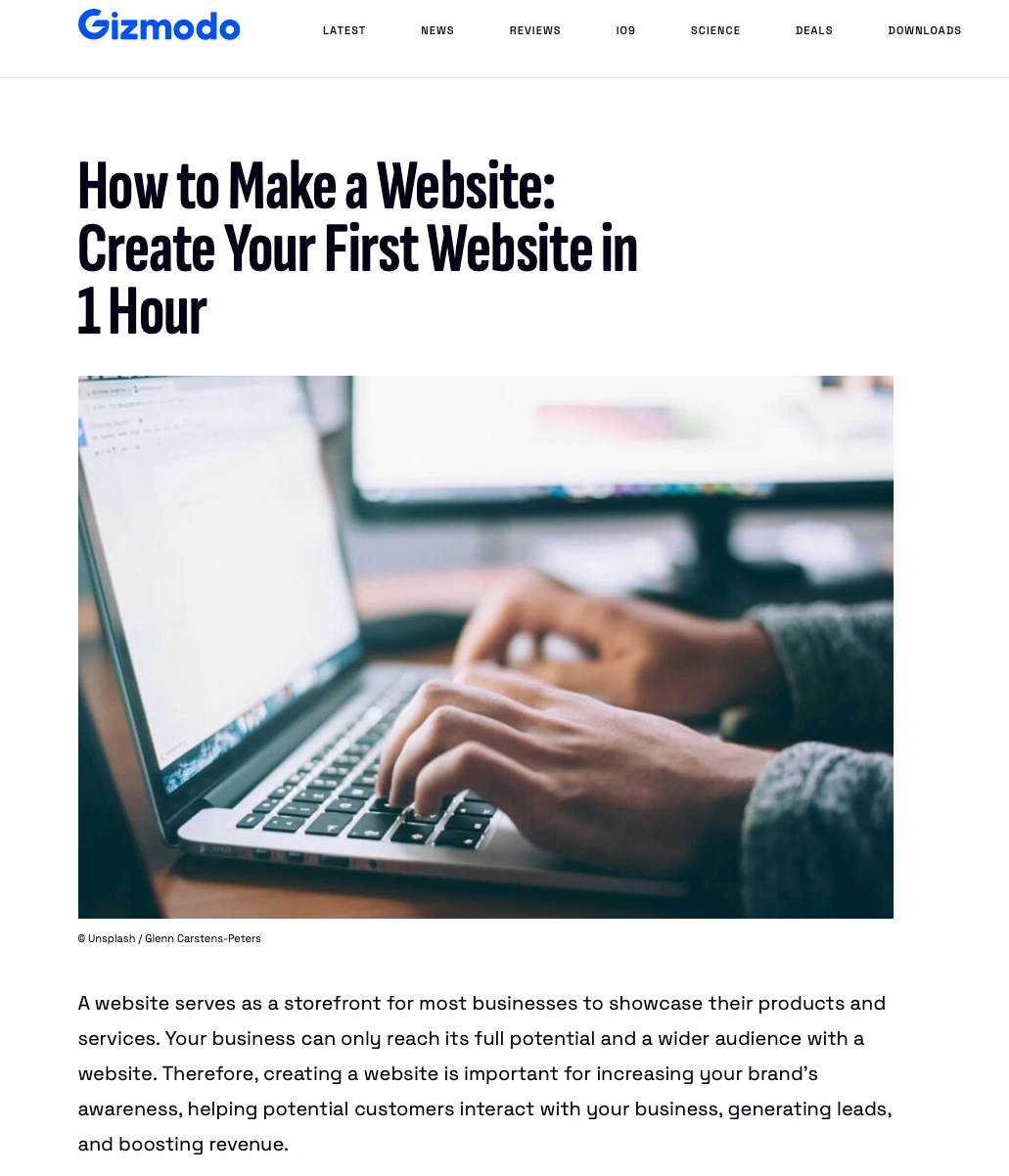
Despite these benefits, many people still find creating their first website challenging due to a lack of coding skills, budget constraints for hiring a web developer, and the time needed to build a website. However, building a website is now easier, thanks to the advent of cost-effective and user-friendly web development platforms and tools. In fact, you can make a professional website in just one hour.
This comprehensive guide explores how to make a website using a website builder and Hosting + WordPress, with the pros and cons clearly highlighted. Keep reading as we walk you through the website building process from start to publish using these two options.
Key Requirements for Creating Your Website
To make your first website, you need to meet a few prerequisites. Here are the 3 most important requirements for building a website:
Website Building Platform
Website building platforms enable you to create a website without needing manual coding skills. These platforms can be either content management systems (CMS) or website builders.
WordPress, for instance, is a content management system that allows you to create and manage a website effortlessly. It's highly customizable with themes and plugins, making it a favorite choice for many users.
Another option is using website builders. Website builders are tools or platforms that simplify the website creation process. Popular examples include Wix, Squarespace, Weebly, Webflow, and Shopify.
To use a website builder, you simply choose a template, customize it by adding your content and images, and then publish your site. The intuitive drag-and-drop interfaces make it easy for anyone to build a professional-looking website quickly.
Web Hosting Provider
Web hosting is a service that makes your website accessible to customers online. Hosting providers rent out a portion of their physical servers, allowing you to store your site files and data.
In addition to storage space, most hosting providers manage your website’s security and performance. They allow you to host your site in a data center close to your audience, ensuring fast loading times, more conversions, and better SEO performance.
Choosing the right hosting type and plan to suit your site’s needs is also important. For example, a web hosting provider like Hostinger offers everything you need to create a website, including a free website builder and a free domain. That's why Hostinger is our top choice for the best web hosting service.
Domain Name
A domain name is where your website points at (address), like Gizmodo.com, that users type into their browser to access your site. It's a crucial part of your branding strategy, building brand recognition and credibility.
Choosing a good domain name makes your site address memorable and easy to find, which is essential for attracting and retaining visitors. You can buy a domain name from registrars like GoDaddy or Namecheap or from your chosen hosting provider.
We’ve found that most web hosting providers, like Hostinger and SiteGround, offer a free domain name with many of their plans. This can be a cost-effective way to get your website up and running.
There are various top-level domains (TLDs) to choose from, each serving different purposes. For example, .com is best for commercial businesses and is the most used TLD, while .org is ideal for non-profit organizations and projects.
We recommend carefully choosing both the hosting platform for your site and the type of website building platform. A website builder like Wix is one of the top options to consider, allowing you to build a website for free or with the help of AI.
Using A Website Builder to Make A Website
In this section, we will explain how you can use a website builder to create a site without worrying about manual code editing. Let’s review the steps required to build a site in under one hour.
1. Choosing the Right Website Builder
When starting your website, the first step is to choose the right website builder. From our experience, a good website builder should offer customizable templates, an intuitive and user-friendly editor, and a variety of features to suit your needs.
Another key feature to look out for is AI integrations, which have significantly accelerated the website creation process. For example, a leading website builder like Wix offers built-in AI tools that help create SEO-friendly content, templates, layouts, images, and sections and refine key elements of your site.
Wix's drag-and-drop editor is incredibly intuitive, making it easy for anyone to create a professional-looking website without coding skills.
Some of the reasons why we highly recommend Wix as the best website builder for making a website from scratch in less than 1 hour include:
Free website builder option
Pre-designed templates tailored to various industries
AI tools
User-friendly editor
SEO tools to optimize your site
1000s of built-in design features
Free web hosting with 99.9% uptime
Now that we've chosen Wix as our example for building a website, let's explore the next steps you need to take.
If you want to learn more about its strengths and weaknesses, we recommend reading our comprehensive review of Wix.
2. Select and Customize a Template
Knowing how to design a website can be challenging at the beginning. That's where website templates come in handy.
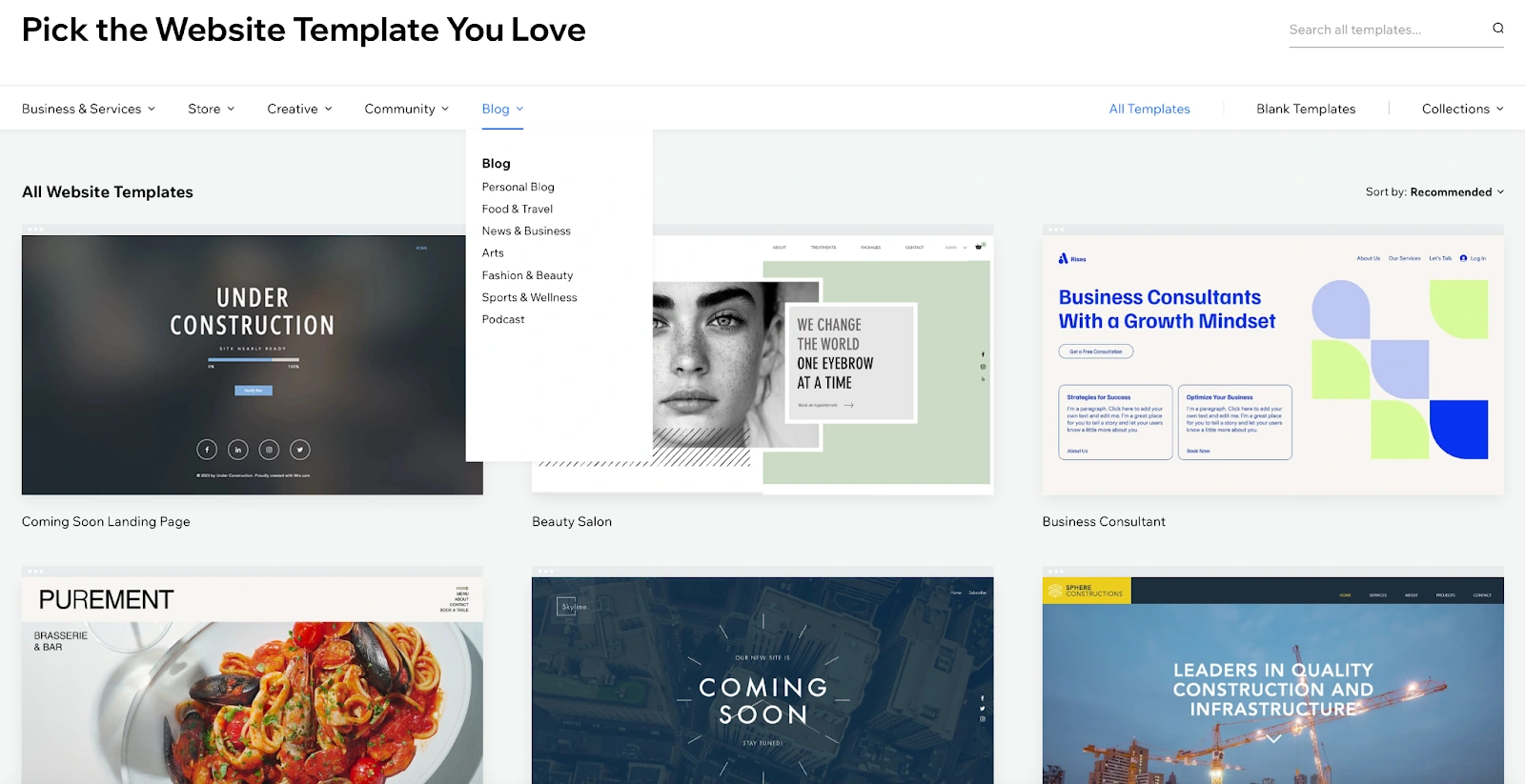
A template is a pre-designed layout structure that helps you quickly create your website. It determines the look and feel of your site, so it's important to choose a customizable template that fits your brand and industry.
Wix offers over 900 templates, each carefully researched and tailored for various industries. You can browse this extensive collection and customize any template to perfectly reflect your brand’s identity.
Alternatively, you can use AI website builders to generate a template for your site, offering a new and innovative way to create websites. Based on our experience, the Wix AI website builder can transform your business idea into a custom site.
Alternatively, you can use AI website builders to generate a template for your site, offering a new and innovative way to create websites. Based on our experience, the Wix AI website builder can transform your business idea into a custom site.
It allows you to interact with an AI website creator by responding to prompts, which are then used to create a tailored site profile. Here is how you can create a site design for your website in less than 1hr using Wix artificial intelligence creator:
Go to the Wix website and click on Create with AI.

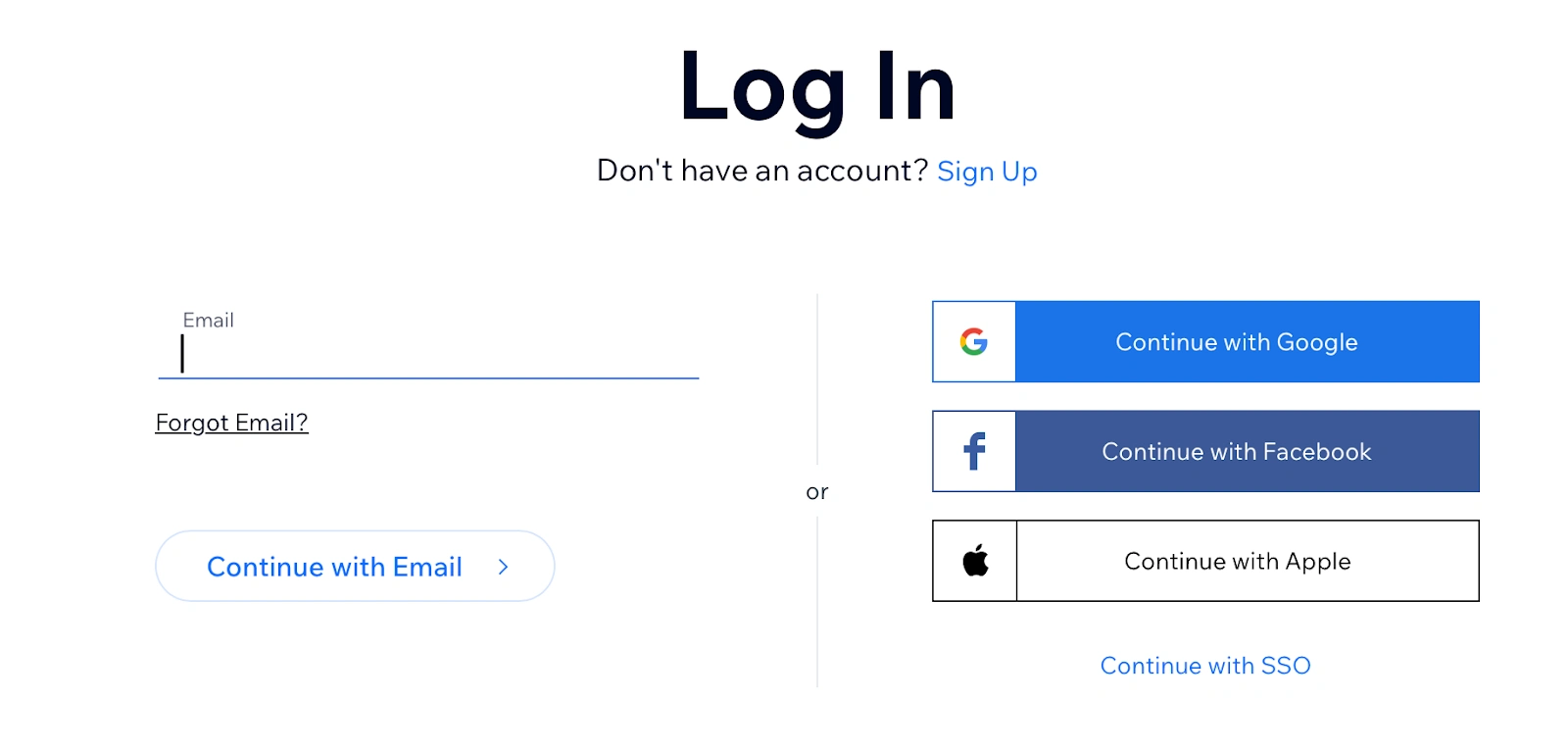
Sign up or log in to your Wix account to continue.
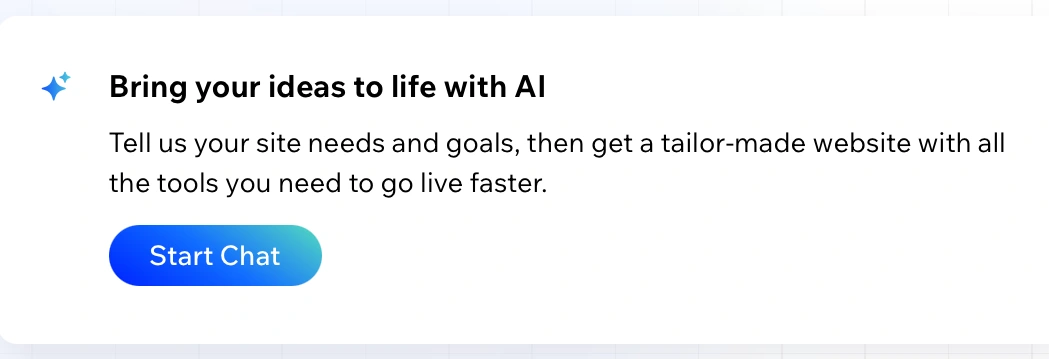
Click on Start Chat to begin the onboarding process.
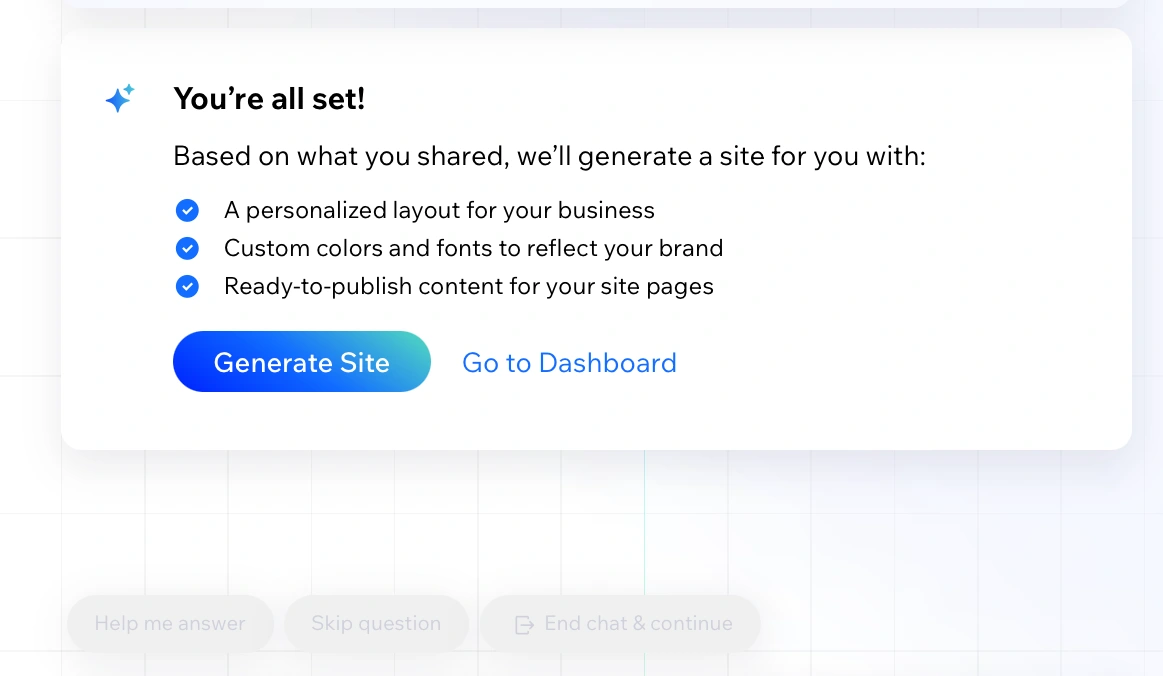
Click on Generate Site after the chat has ended.
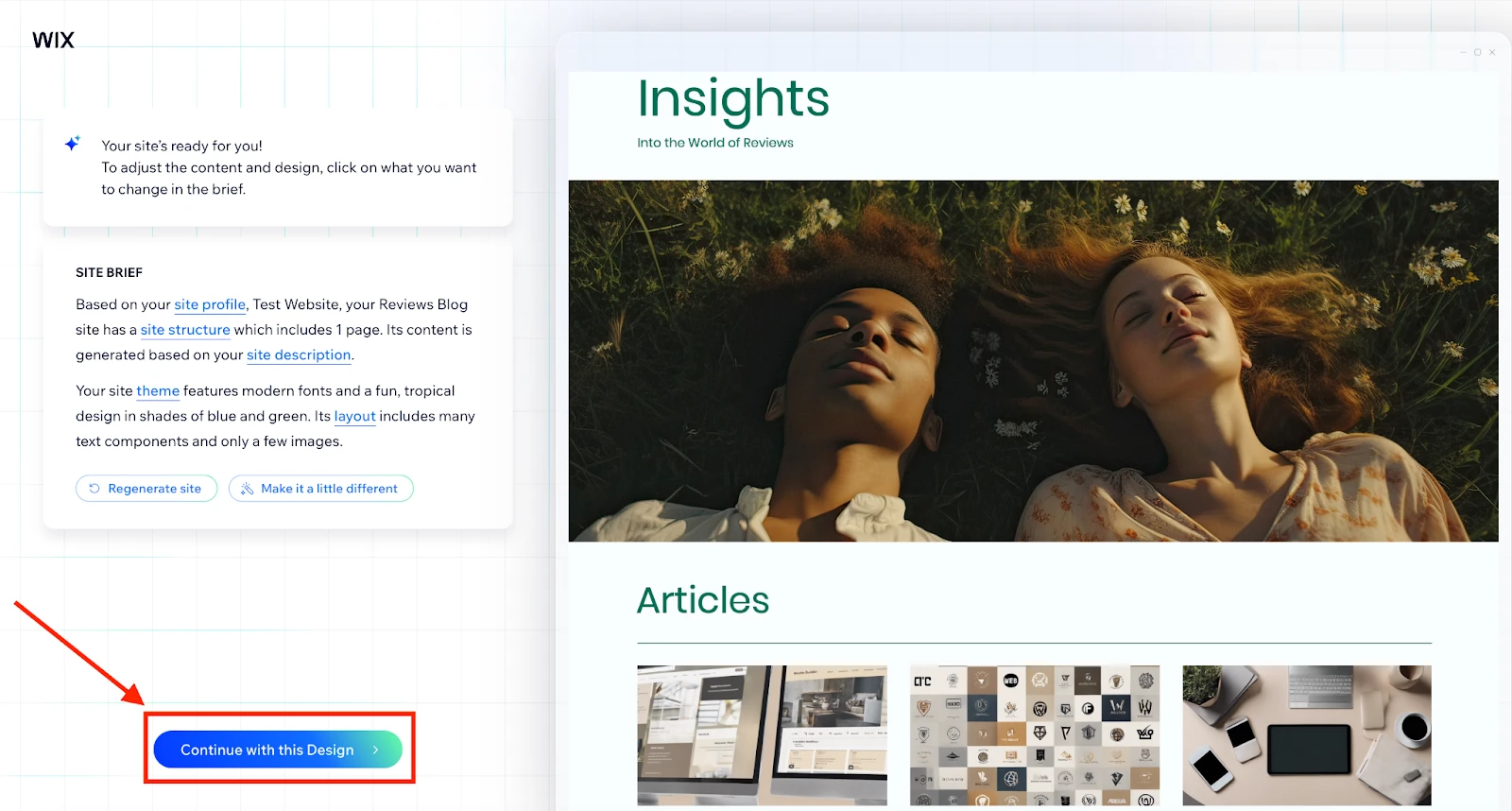
Wix AI provides a site brief and generates a template. You can further customize your site design by editing the site brief, clicking on Regenerate Site, or selecting Make it a little different. Once you are satisfied with the look of your generated site, click Continue with this design to proceed.
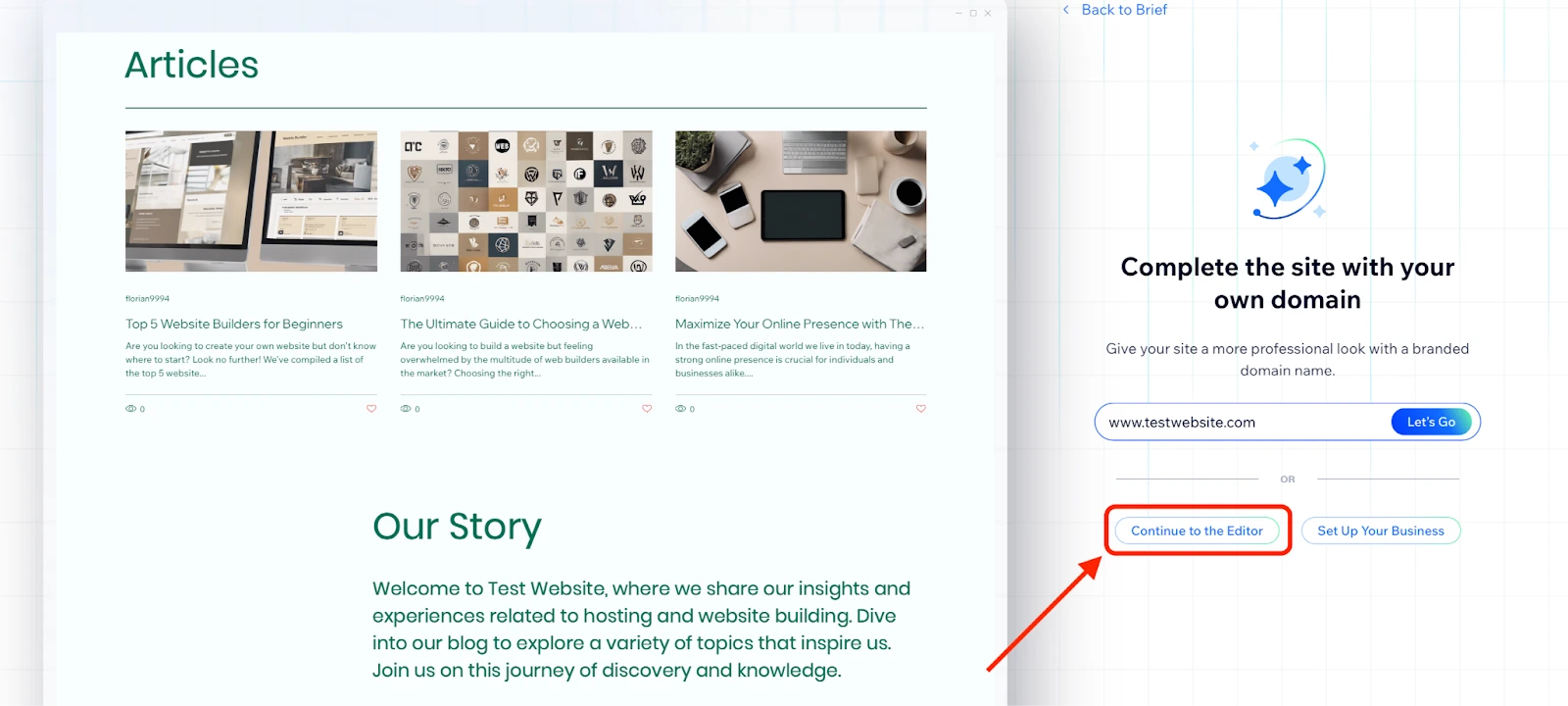
If you are not satisfied with the AI-generated design, the next step is to Continue to the Editor to customize your template to reflect your brand.
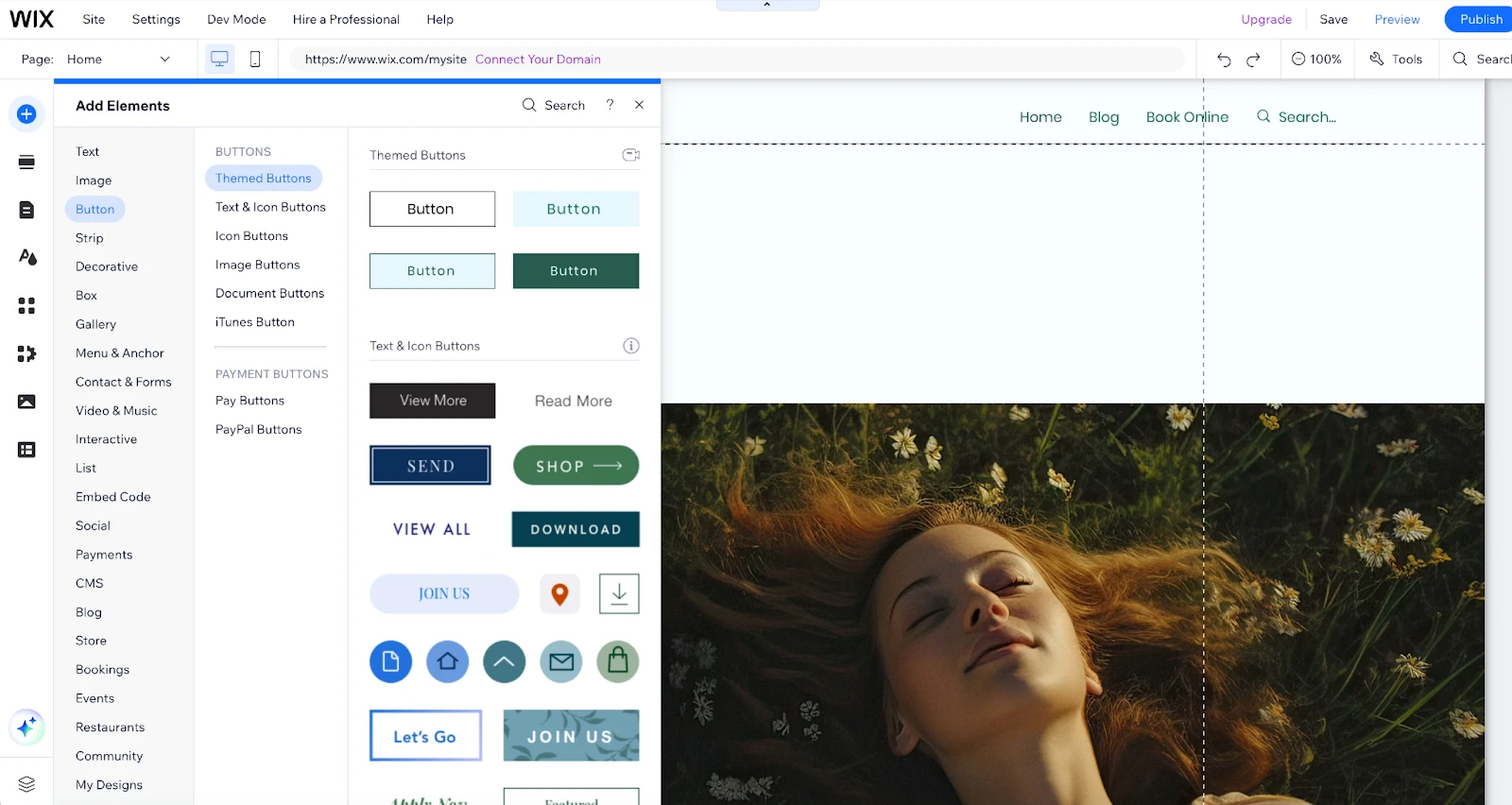
In the Wix site editor, you can enhance your AI-generated site template by adding new elements. Simply click on the element of your choice, then drag and drop it using the toolbar to move it up and down the page. To insert any element, click the ➕ sign on the left-hand panel and navigate to your preferred choice.
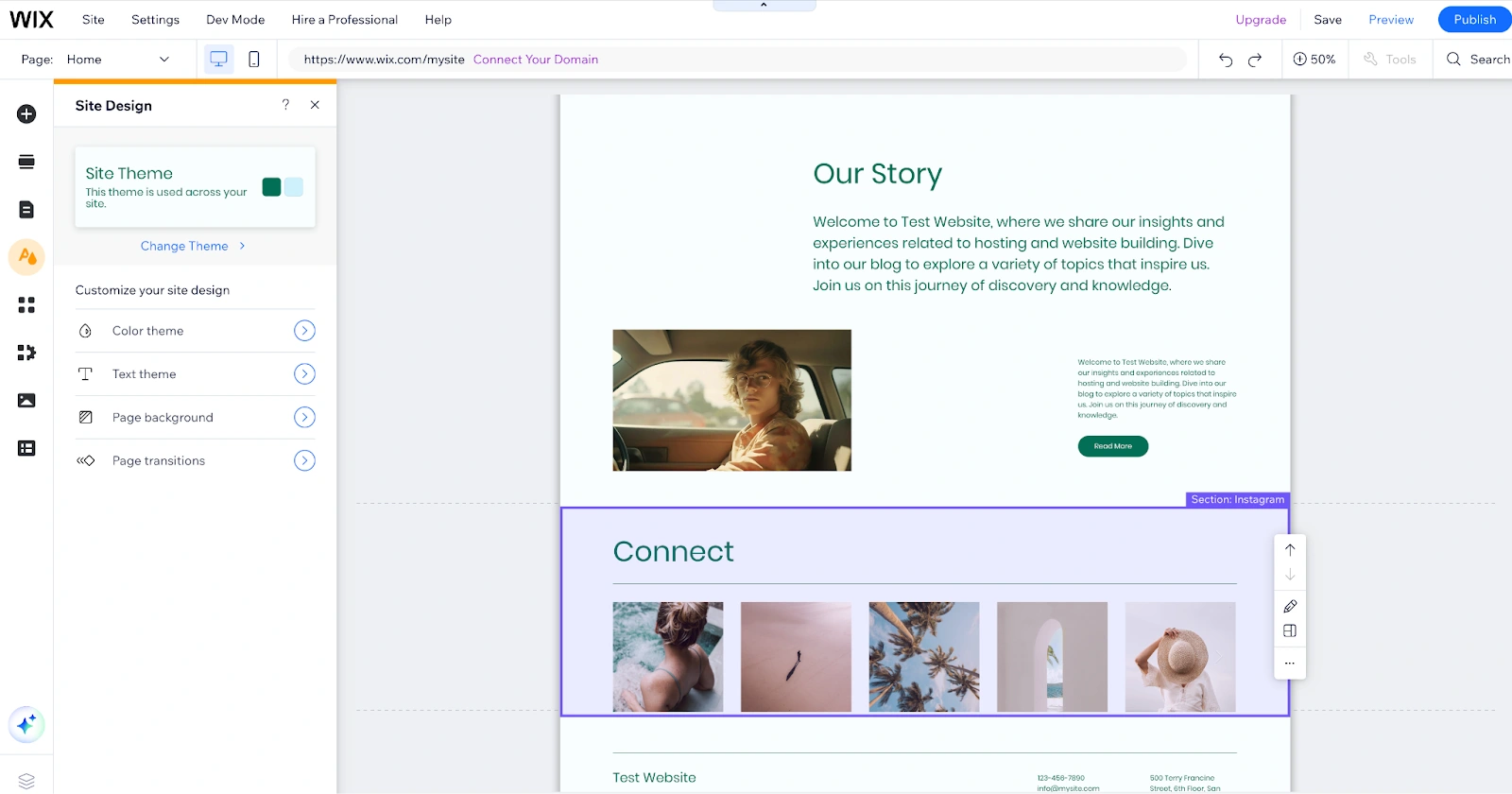
Change your site theme to customize your site design. Wix allows you to edit your color and text theme, page background, and transitions. You can also use AI to create images for unique backgrounds or generate a new theme.
3. Create New Sections, Site Pages and Menu
Another advantage of using website builders to create a site from scratch is the ability to add new sections, pages, and menus with just one click. The generated AI site design includes relevant pages tailored to your type of site based on your input during the onboarding process.
To further customize your site, you can create new pages about yourself, services, projects, contact information, landing pages, or blank pages to add your content. Here is how to make a new section, page, or menu for your site:
To add a new section, click the second icon on the left-hand panel. You can let AI do the work for you or choose one of the already customized sections. To add the chosen section from the available options, drag and drop it where you want on the page.
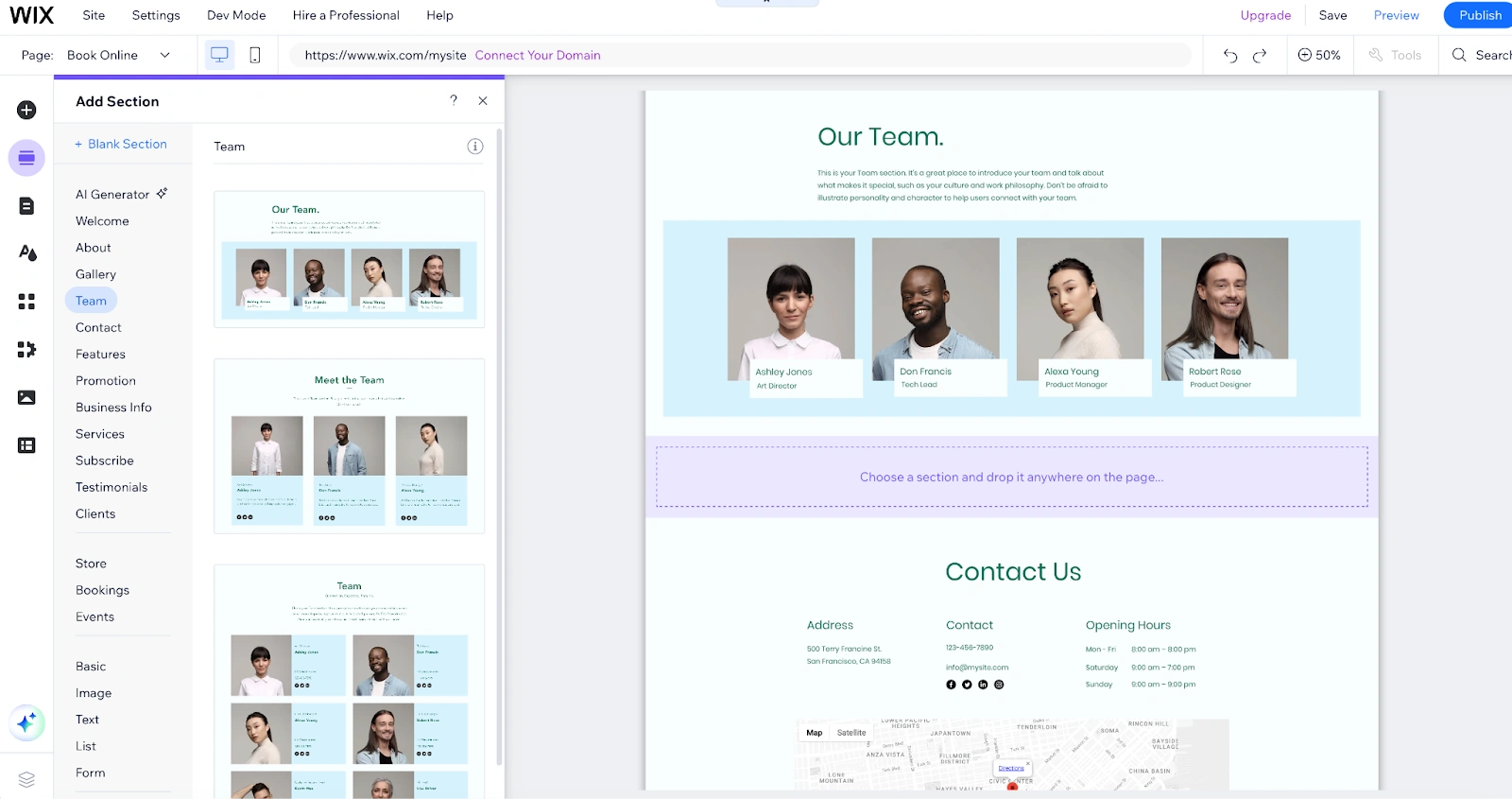
One of the reasons we love Wix is its AI section generator, which allows you to quickly add ready-to-use sections with text and images to any page on your site. Simply use the form to choose the section type, describe what the text should include, and click Generate Section.
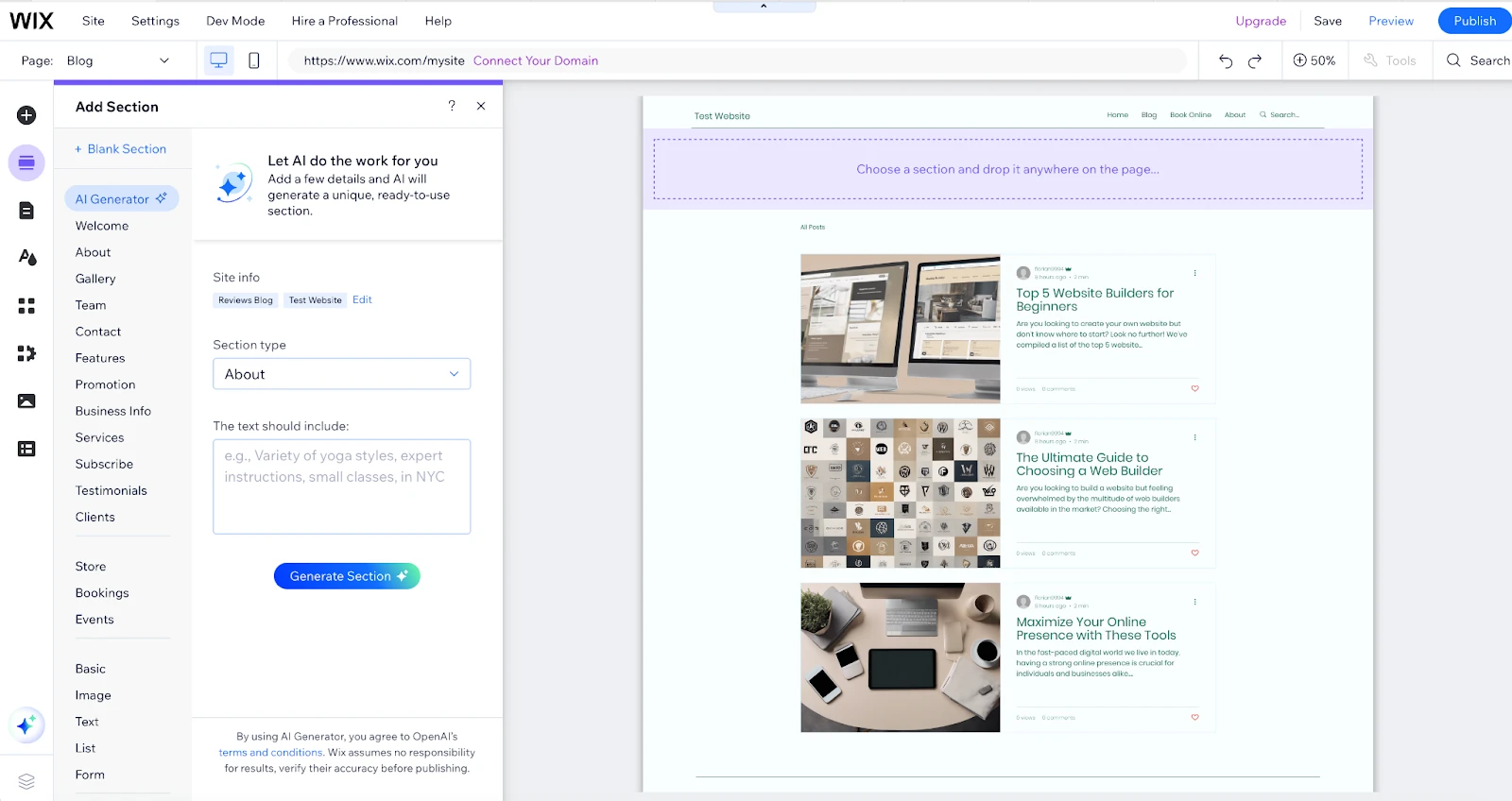
AI will write your text, design your images, and create a layout. You can then choose your favorite from the generated sections and add it to your site page.
To create new site pages, navigate to and click on Add a Page. A pop-up window will appear, displaying a list of ready-to-use page templates you can add or preview.
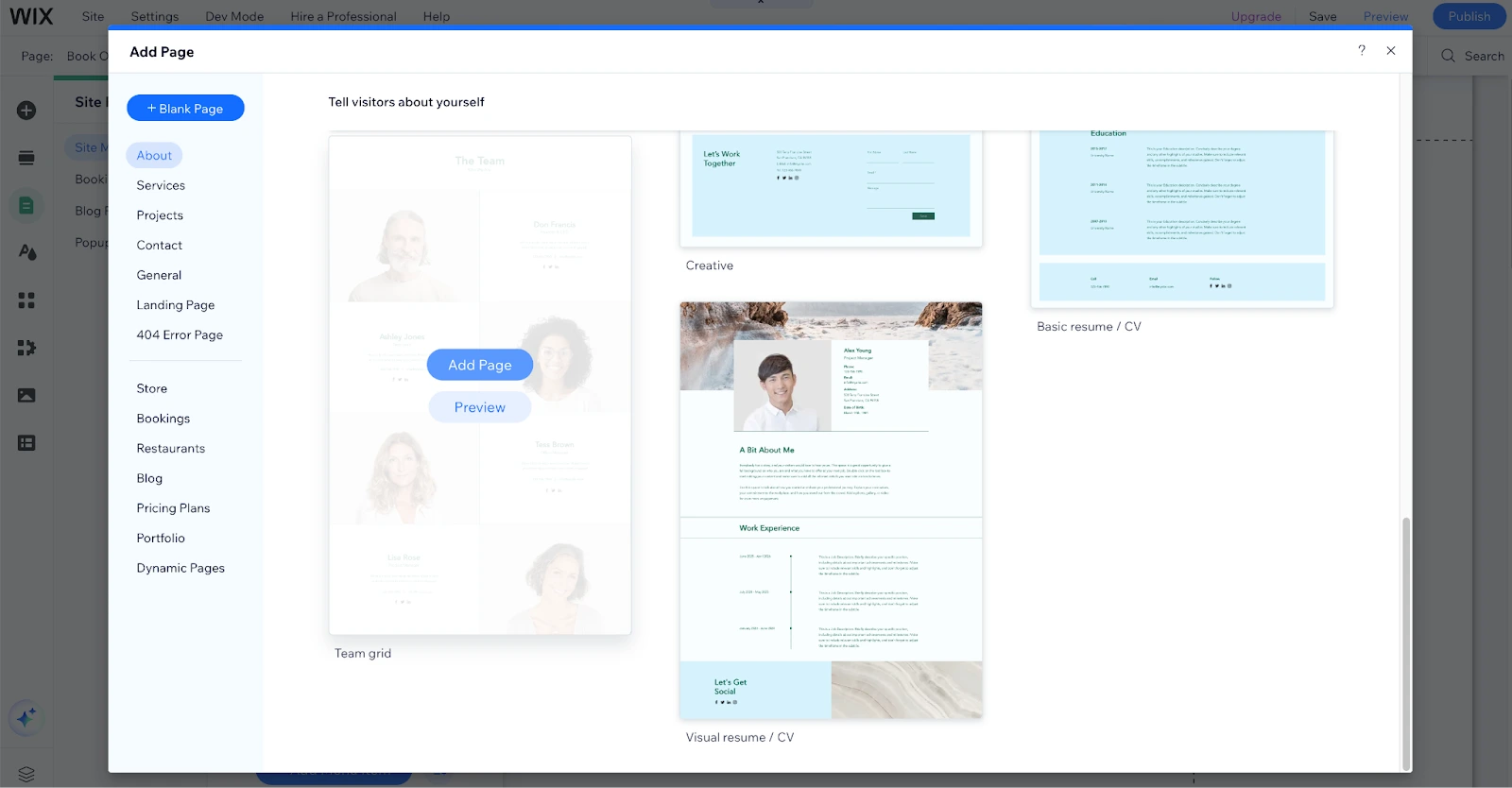
The new page is automatically added to your site menu. You can also create a dropdown submenu with subpages by clicking on the icon indicated by the red arrow below.

When adding new sections and pages to a template design or AI-generated design, ensure consistency in design elements, such as colors, and styles, to maintain a cohesive brand identity throughout the website. For example, a landing page must tell the brand story and establish communication with the visitors.
We recommend making your website navigation intuitive and user-friendly with a logical menu structure. Content should be relevant, clear, and valuable to the audience, while visuals must be high-quality and properly aligned. Finally, adding only important pages and sections is important to ensure users understand the necessary information.
4. Enhance Your Website’s Functionality
After setting up your pages, you can integrate essential features to enhance your website. In addition to providing valuable information, many websites include functionalities like contact forms to convert visitors into customers.
Wix forms and payments, for example, allow you to create customizable forms to collect the information you need to capture leads and grow your business. With eCommerce functionalities like Wix Store, you can offer a seamless shopping experience for customers who prefer to buy online. Another fantastic feature to consider is the Wix blog, which lets you share your expertise by creating stunning blog content.
Here is how to add site or standalone forms to your website using Wix website builder:
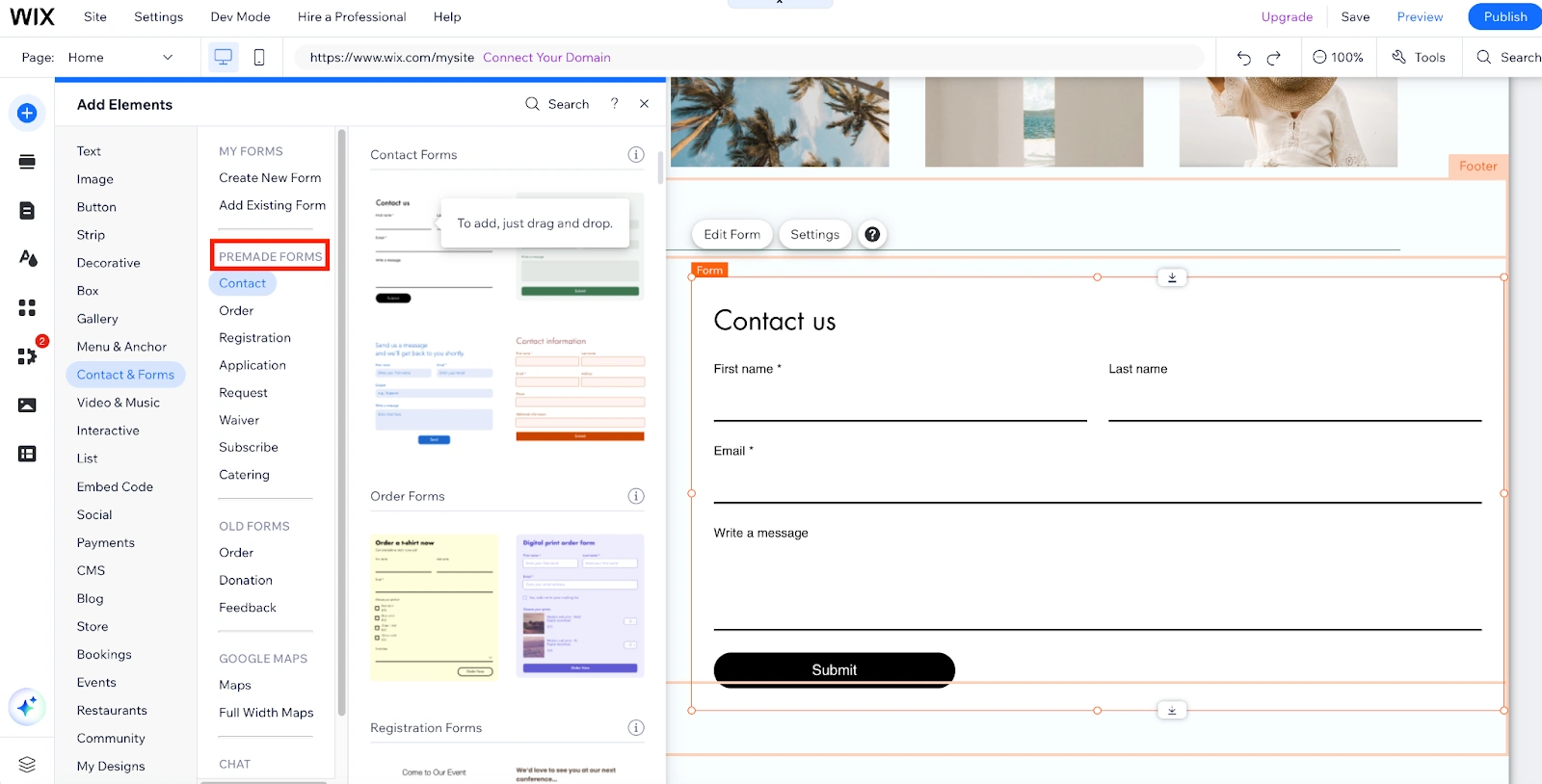
To integrate a site form on your website, click on Add Elements + from the left-hand panel of the editor.
Navigate to Contact and Forms
Choose Create New Form if you prefer to add a form from scratch
Select Add Existing Form to use or edit an already saved form on your site

Add your form fields by clicking on the form in the Editor. Then click Edit form to open the form builder. You can drag and drop contact fields to create your form.
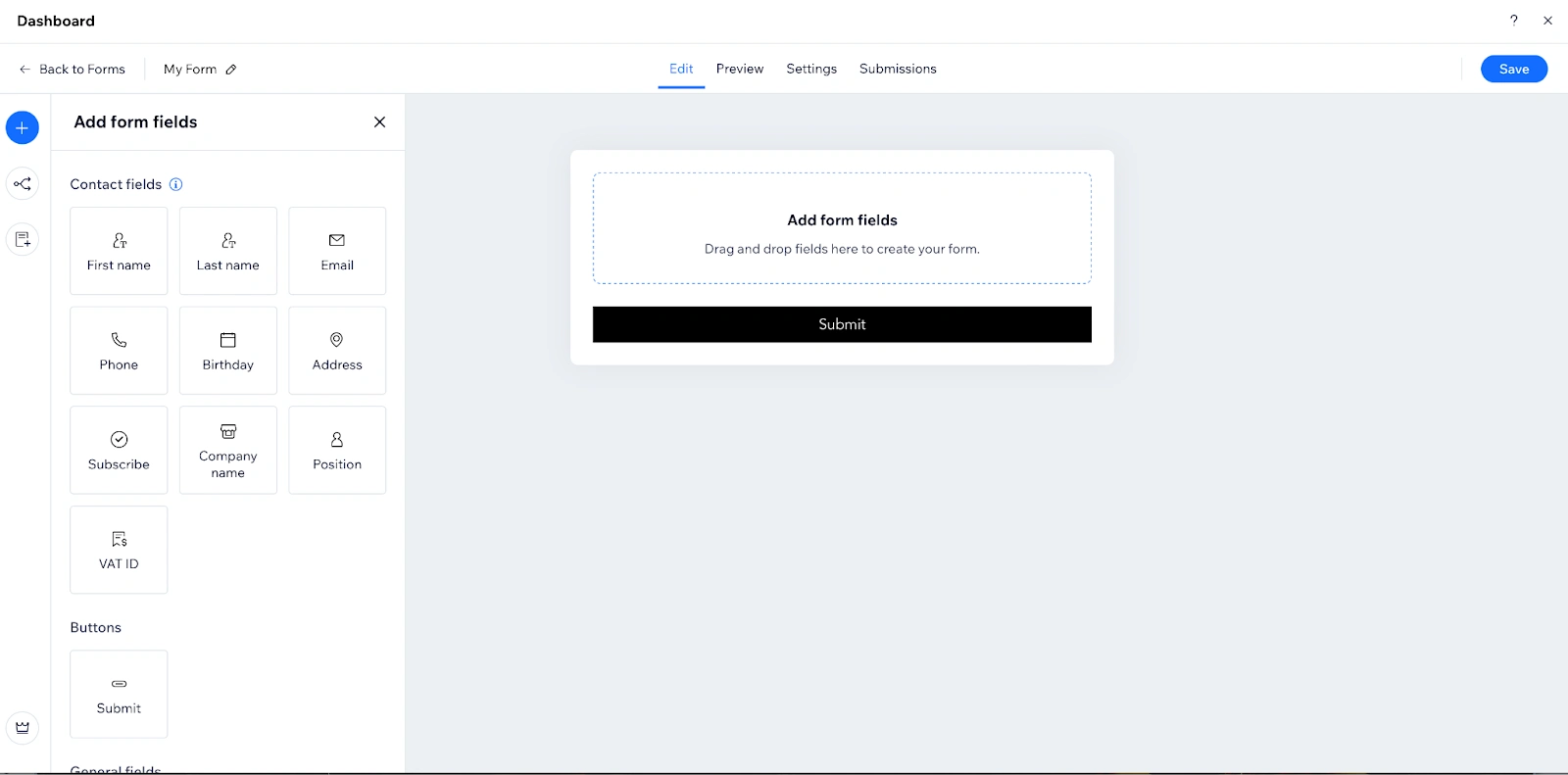
Click on the Edit icon at the top left, follow the instructions to adjust your form settings, and then save.
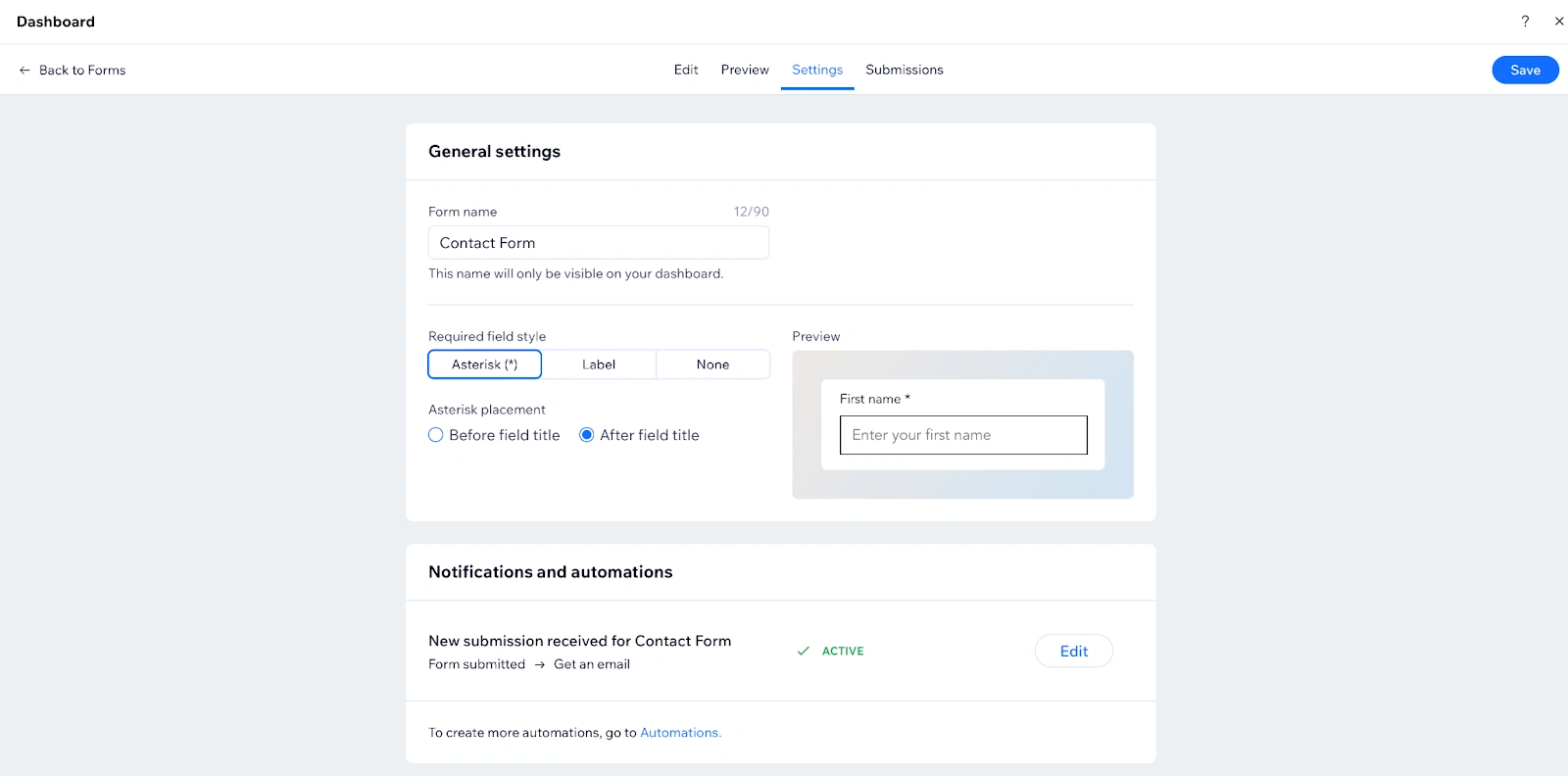
To save time, we recommend that you drag and drop Premade forms, Old forms, Google Maps and Wix chat on your site.
Next, follow these steps to add a Wix store and integrate eCommerce functionalities into your site:
Go to Add Elements on the left side panel
Click on Store from the list of elements
Select Add to Site to set up an online store
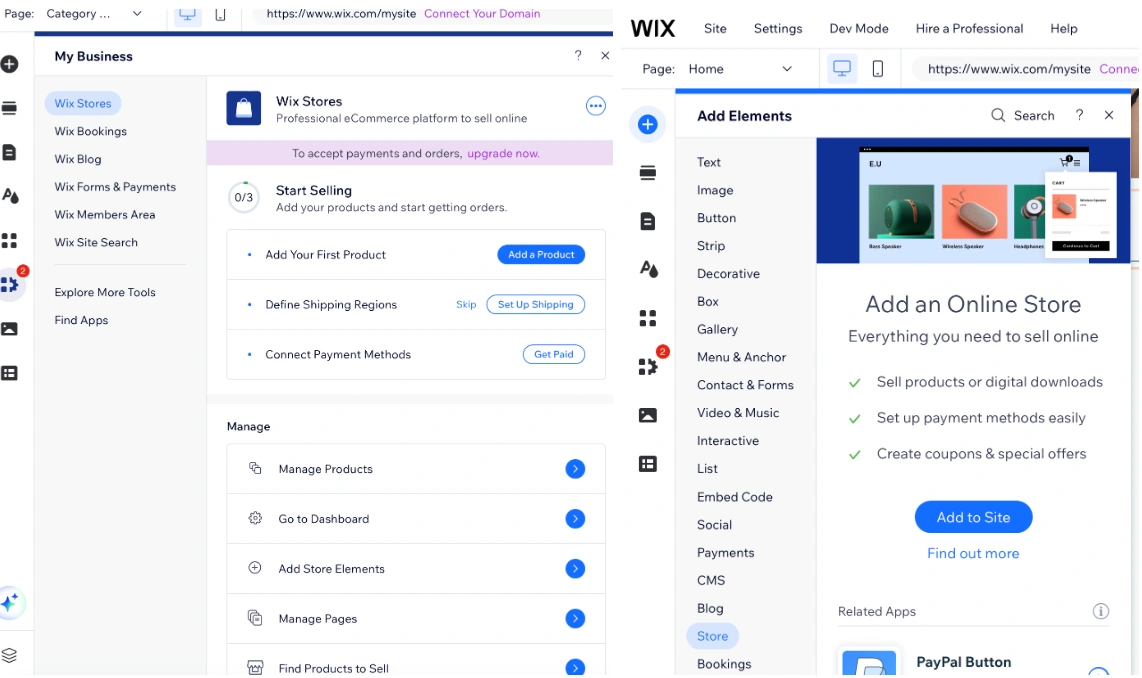
Go to My Business, add your first product, set up shipping, and connect payment methods.
Go to Wix Dashboard to manage products and find products to sell
Wix also recommends several tools to enhance the functionality of your online store. One particularly useful tool is Email marketing, which allows you to promote your products and offers through email campaigns. You can also add Coupons to encourage customers to shop by providing promotional and one-time offers.

5. Use AI to Create Engaging Content
Now that your website pages are set up and enhanced with additional functionalities, it's time to start populating your site with content.
You have learned how to add new elements, tools, and apps in the initial steps. The following steps will show you how to use Wix AI tools to generate engaging content for your site.
Click the star icon located at the bottom left of the website editor.
Select Create text for page to get new content on an entire page at once using AI.
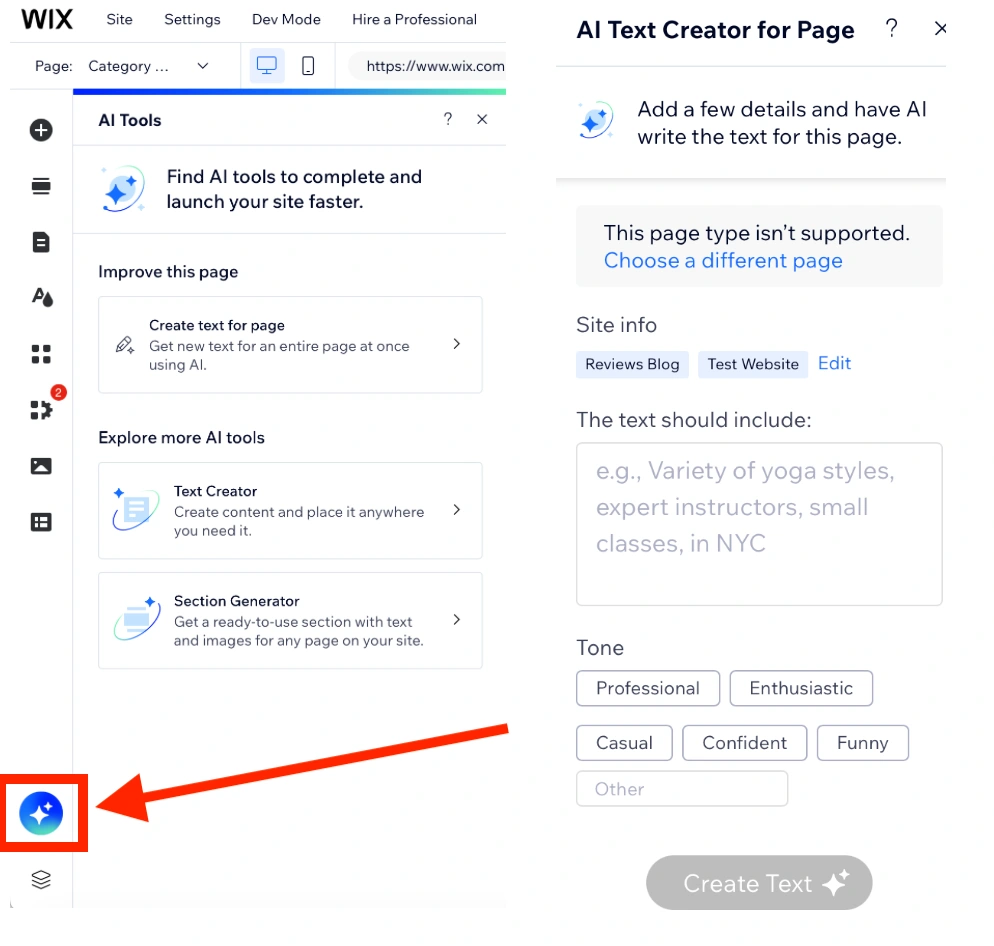
Drag and drop the AI Text Creator to generate content anywhere on the page. When you click on the Text Creator in the editor, a dialog box will appear where you can describe the type of text you want the AI to create.
Note that we believe it is better to write your content yourself rather than using AI. That said, you are free to do what you want; it's your website after all.
6. Optimize your Website for SEO
Your website will only reach potential customers if it is search engine optimized. Making your site from scratch with a website builder is incomplete without SEO, as it ensures your site appears in search results for your target keywords.
Even without spending money on ads, a well-optimized website will attract traffic and drive conversions if done correctly. For example, SEO has been a cost-effective way to grow our business reach and help more people find our site.
One important benefit of SEO is that it enhances your brand awareness. For instance, if you want to create a new website with a storefront for your business and don't know where to start, you might type in 'how to create an online store' in a search engine like Google.
From the result above, Wix is on the first page for that keyword. This clearly shows that by popping up in search results for that term, Wix is an industry leader in website building. So, whatever product or service you are selling, you need to write people first content that adheres to Google's E-E-A-T guidelines.
Nowadays, website builders have built-in SEO settings and optimization steps to enhance your site's performance. You can also access real-time insights about your site's performance in search results, which can be used to further improve your SEO.
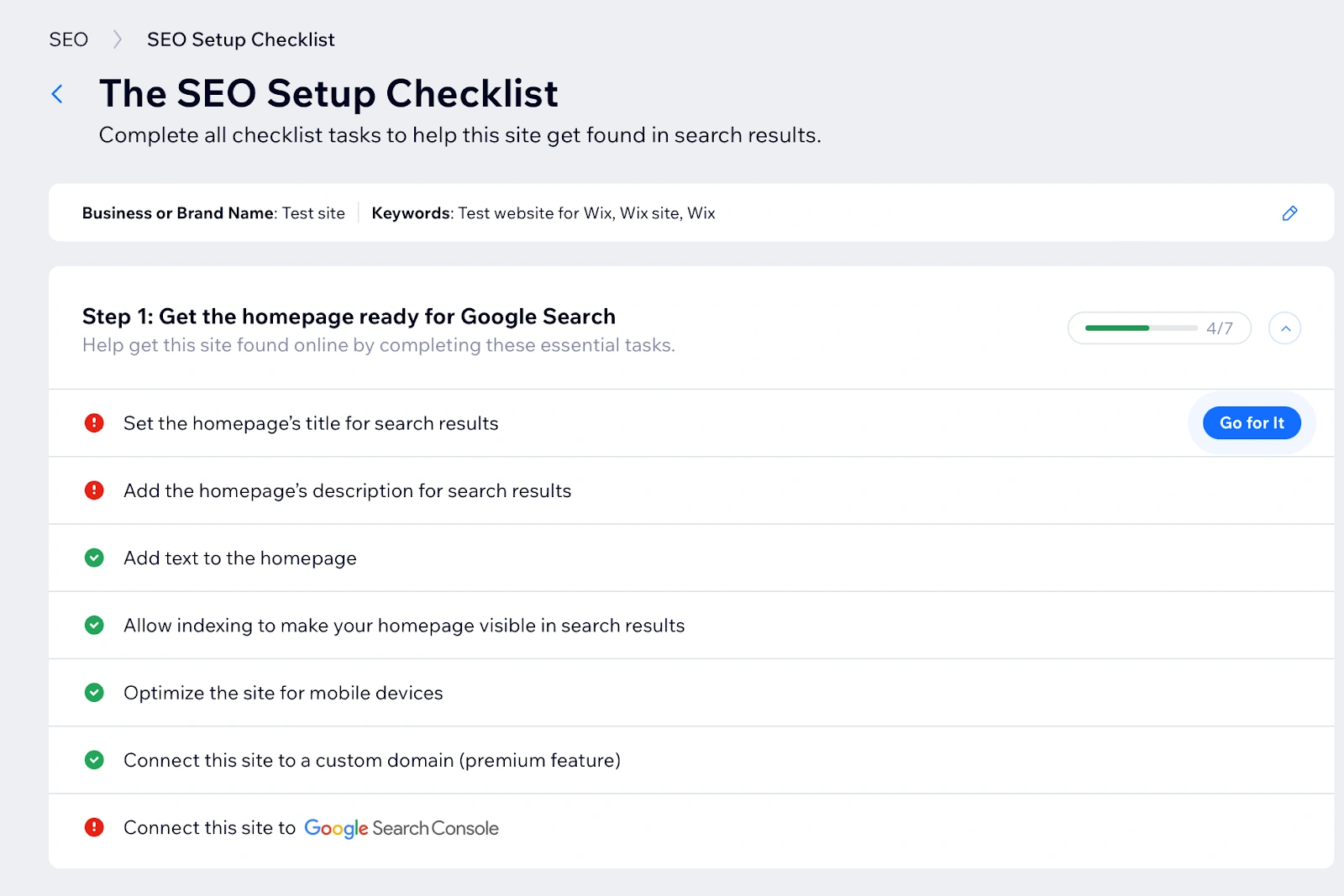
With Wix, you can follow a personalized SEO setup checklist to edit all your website's SEO settings in one place.
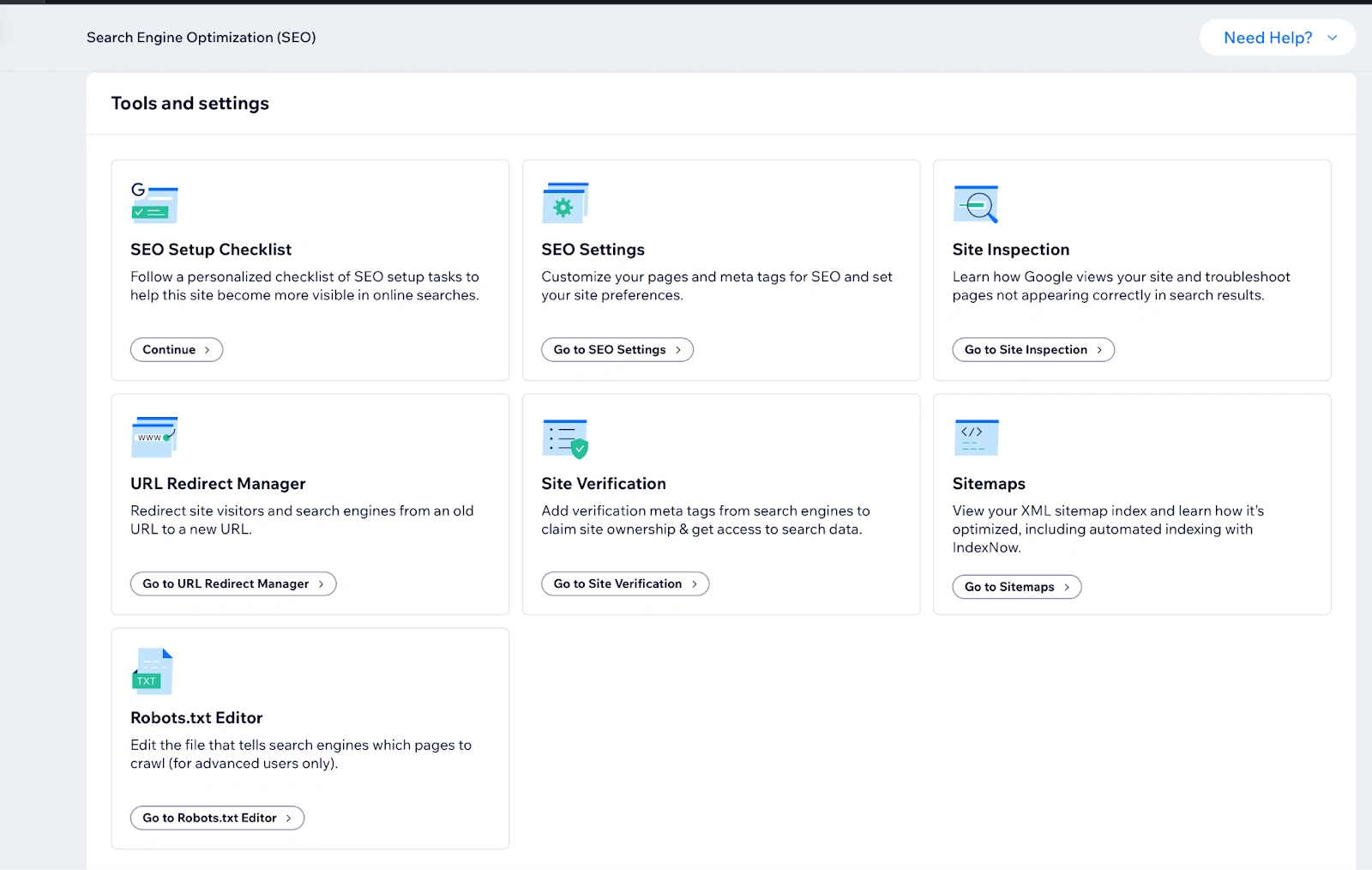
Once you finish setting up your site, use the following Wix SEO tools and data to fine-tune your site:
From the Wix dashboard, click on SEO and explore the range of capabilities to optimize your reach even further.
Resolve issues and follow the optimization steps recommended by the SEO assistant.
Complete the SEO setup checklist to help your site get found in search results.
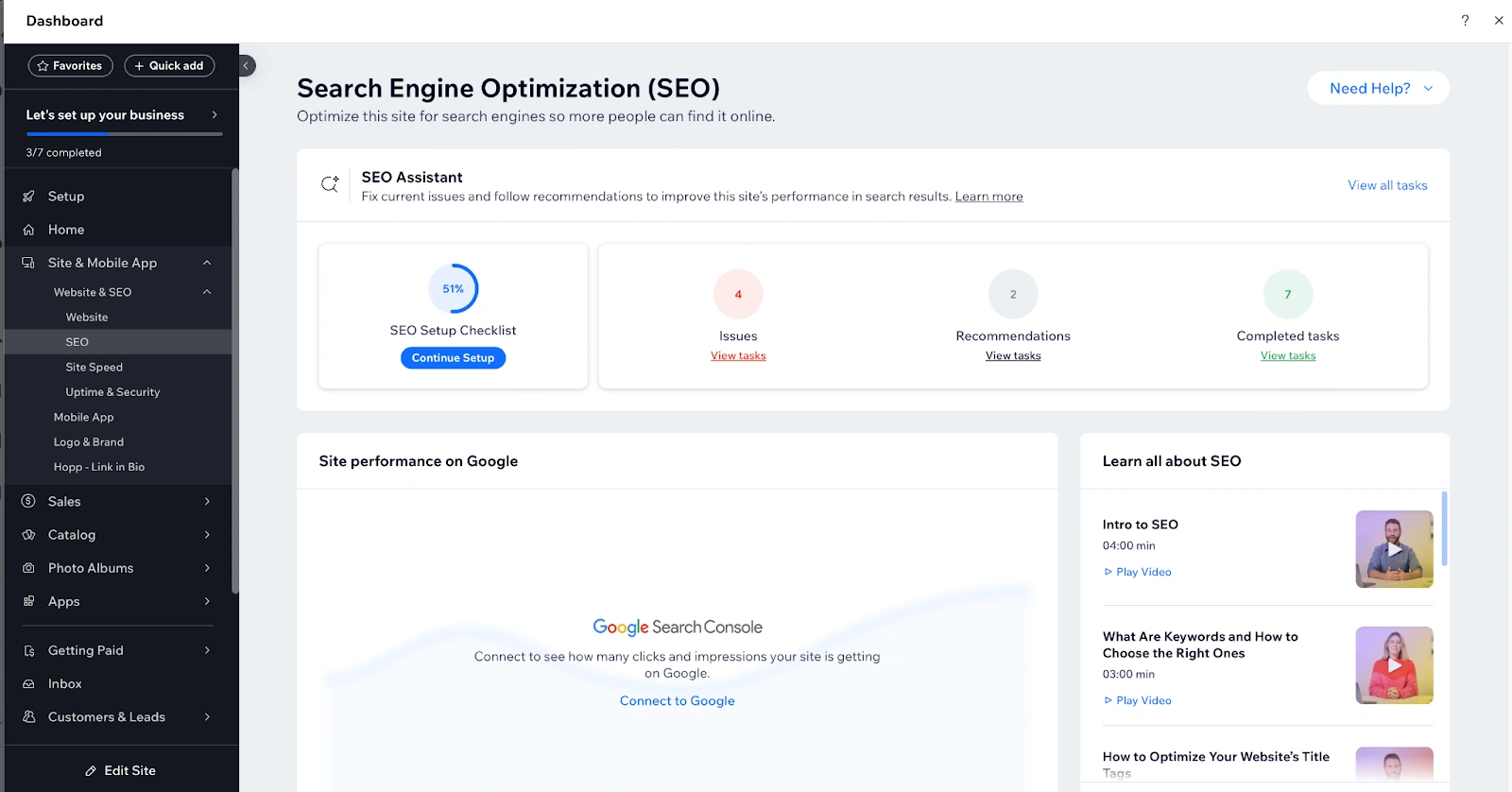
Complete the SEO setup checklist to help your site get found in search results.
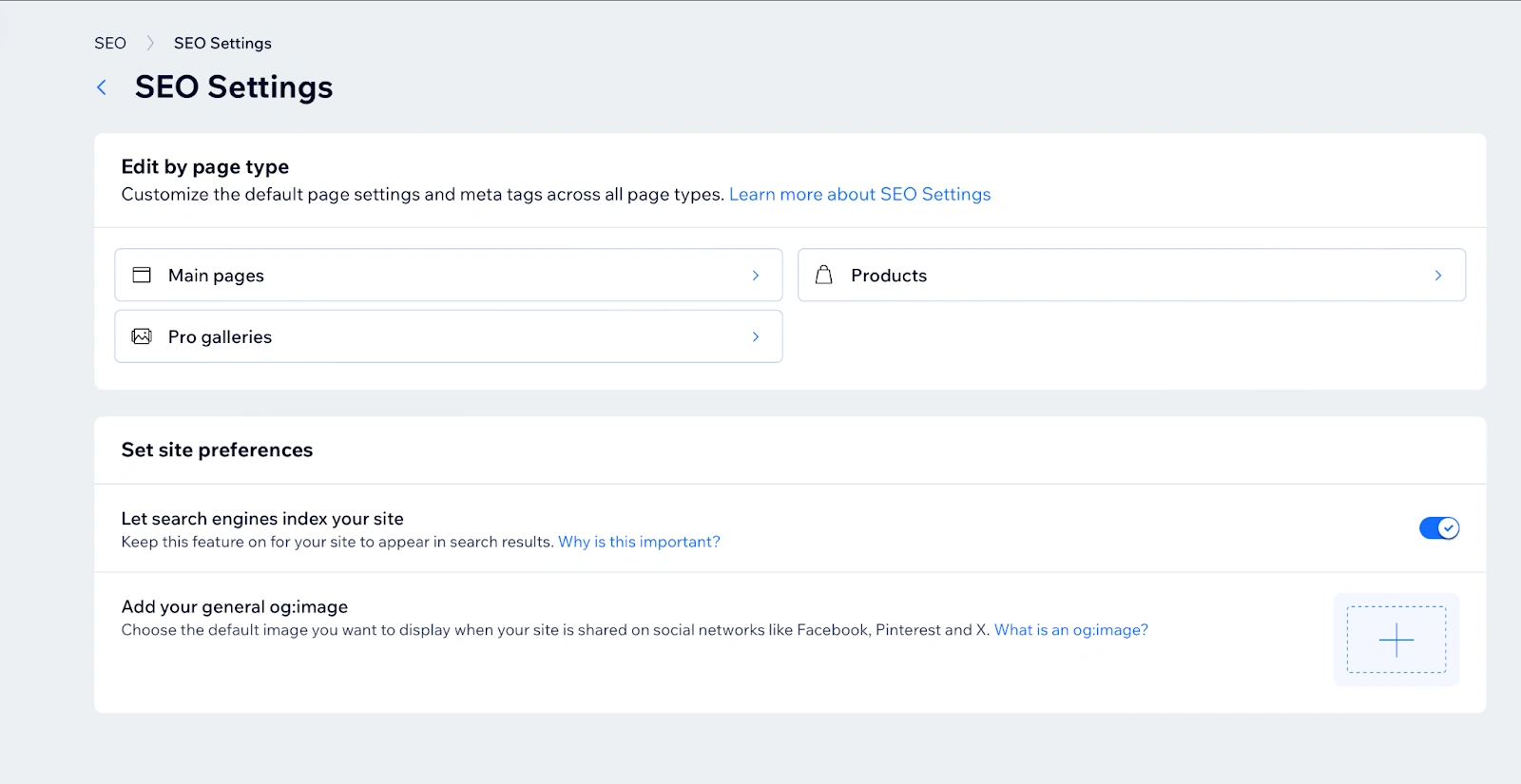
Edit SEO settings to customize your pages and meta tags for SEO.
One of the reasons why we have used Wix in our guide to make a website is that you have the necessary optimization tools at your disposal. Wix offers additional SEO tools and settings, including:
Keyword Research Tools: Use these tools to discover relevant keywords for your site content.
On-Page SEO: Optimize meta titles, descriptions, and headers to improve your site's SEO.
Image SEO: Enhance page loading times by optimizing your images with alt tags and compressing them.
AI Image Tag Creation: Use AI to create optimized title tags and descriptions for your pages.
Mobile Optimization: Ensure your site is mobile-friendly for better search rankings.
Generate Sitemap: Create a sitemap to help Google crawl and index your site.
Built-in SEO Analytics: Check your site's performance using Google Search Console.
In addition to all of that, we highly recommend using complementary SEO tools. Specifically, we're thinking of Semrush, SE Ranking, or Mangools.
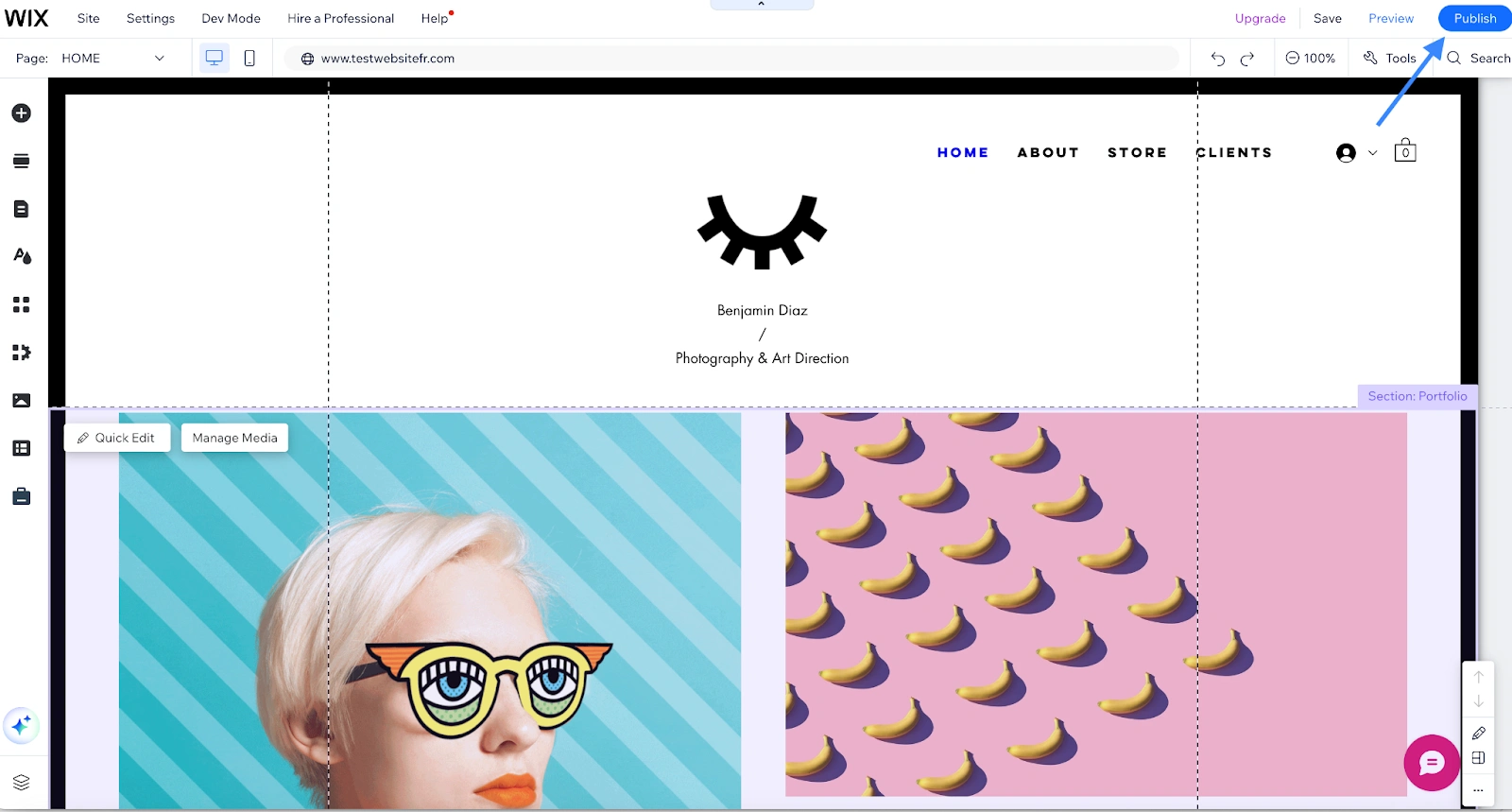
7. Publish your website
We have covered the basic steps to make a website using a builder. Before going live, you can preview your site to see how it looks on both desktop and mobile.
Website Builder vs. WordPress: Which Is the Best Way to Build a Website?
Now that your website is live, we will explore the pros and cons of using a website builder versus a web hosting provider with WordPress.
Pros of Using Website Builders
User-friendly interface: Website builders are designed for ease of use, with intuitive interfaces that allow you to make a website.
No technical skills required: You don’t need to know how to code or have any technical expertise.
Quick setup and launch: You can have your website up and running in a matter of hours if not minutes.
Built-in web hosting and domain registration: Most website builders offer integrated hosting and domain services.
Well-designed templates: Access to a variety of professionally designed templates that you can customize.
User support and tutorial videos: Extensive support resources and tutorials are available to guide you through the process.
Drag and drop functionality: Easily add and arrange elements on your website without coding.
Cons of Using Website Builders
Less control over website performance and security: You rely on the platform’s performance and security measures, and you have limited ability to customize.
Possible limited scalability: As your site grows, you might find the builder’s capabilities limiting.
Higher long-term costs: Subscription fees can add up over time.
Pros of Using Hosting + WordPress
Greater customization and flexibility: WordPress offers extensive customization options through plugins and themes.
Wide range of plugins and themes available: Thousands of free and premium plugins and themes to enhance your site’s functionality and appearance.
Better control over website performance and security: You can optimize and secure your site according to your needs.
More scalable for future growth: WordPress can handle the growth of your website with the right hosting plan.
SEO-friendly: WordPress is built with SEO in mind and offers plugins to enhance your site’s visibility.
Community support: A large community of users and developers offers support and resources.
Ownership: Full ownership of your content and the ability to move your site to different hosts.
Cons of Using Hosting + WordPress
Steeper learning curve: It can be challenging for beginners to learn how to use WordPress effectively.
Requires some technical knowledge: Basic knowledge of web hosting, domain management, and WordPress is needed.
Initial setup can be time-consuming: Setting up hosting, installing WordPress, and configuring your site takes time.
Separate hosting and maintenance costs: You need to pay for hosting, domains, and possibly premium themes or plugins.
In our experience, website builders are faster and less technical to set up. They are the best choice if you need a website quickly and with minimal hassle. However, if you’re looking for more control, customization, and scalability in the long term, using hosting + WordPress is worth the initial investment of time and effort to build a website.
Your Website is Now Live - What Next?
Whether you used a website builder for a quick and easy setup or opted for the flexibility of hosting with WordPress, you're ready to share your site with the world.
Choosing the right method depends on your needs and preferences: website builders are great for beginners seeking simplicity while hosting with WordPress, which offers greater customization and scalability.
Now, it’s time to take the next steps. Begin by enhancing your website’s visibility with SEO improvements, such as refreshing your content regularly with up-to-date information. This helps keep your site relevant and engaging for visitors and search engines alike.
Consider monetizing your site through advertising platforms like Google AdSense, where you can earn money based on site traffic and ad clicks. This is a straightforward way to generate income from your online presence.
Monitor your website’s performance using Hostinger’s performance score metrics or Google Analytics. These tools help you track essential metrics, understand user behavior, and make data-driven decisions to improve your site’s effectiveness.
Boost your marketing efforts by leveraging social media platforms and email marketing campaigns to increase conversions. Implement blog marketing strategies to promote your website content and attract a wider audience.
Ensure your site’s security and maintenance by using automated security monitoring provided by Hostinger. Regularly update WordPress, plugins, and themes, and install SSL certificates to protect your site and build trust with your visitors.
Creating your first website is just the beginning. Keep refining and growing your online presence to achieve your business goals.
FAQs about How to Make A Website
To conclude this guide, we will answer some of the most frequently asked questions.
Can a Beginner Create a Website?
Yes, beginners can create a website by following our step-by-step guide, making it easy to have your first website up and running in just one hour. After testing numerous methods and services, we believe that Wix is the simplest option if you have no prior knowledge.
How to Get a Domain Name?
Most website builders and hosting providers offer free domain names for the first year. Alternatively, you can purchase a domain from popular registrars like GoDaddy and Namecheap.
How Much Does It Cost to Make a Website?
Website builders like Wix offer free basic plans, with premium plans starting at below $20. Hostinger provides affordable hosting at $3 per month for a 48-month plan, totaling less than $150. You can start with these plans to host your first website and then upgrade to higher plans as your needs grow.
Which is Better: WordPress or Wix for Making a Website?
Both WordPress and Wix have their benefits. WordPress offers greater customization and flexibility, while Wix is more user-friendly, making it ideal for beginners. We recommend Wix for its ease of use.
Which Provider is Most Reliable for Hosting a Website?
Hostinger is known for its reliability, offering affordable and eco-friendly servers to host the website you create using either a website builder or WordPress.
Like this project
Posted Oct 2, 2025
I wrote this comprehensive guide about how to make a website using a website builder and Hosting + WordPress, with the pros and cons clearly highlighted.
Likes
0
Views
33
Timeline
Jul 14, 2024 - Jul 27, 2024
Clients
Gizmodo