SVGator Template Design: Alignment and Flexibility

EnergyI Studio


A case study on building an editable template for the #SVGator challenge on Contra
The Brief
The challenge was simple on paper. Design a template in SVGator.
But “design a template” can mean two very different things. One is a nice animation with placeholder content that looks great in a thumbnail. The other is something a stranger opens, swaps in their own content, and ends up with something that still looks like it was made on purpose.
I went for the second one. It’s a harder brief, and honestly the only one worth entering.
Walk thorugh of the template and replacement. Three Sizes, 4:3, 16:9, 9:16. Either Portrait or Landscape sorted
What is SVGator?
SVGator is a browser-based tool for animating vector graphics. You build on a timeline, set keyframes, control easing, and export animations that run on the web, in apps, or as video, without writing the animation code yourself. the people using it aren’t all motion designers. a lot of them are marketers, developers, and small business owners who need something to move and don’t want to open after effects.
That last part shaped everything. The template had to work for someone who has never touched a keyframe.
What a template actually is
Template is a design someone else finishes.
when you design for one client, you know the copy, the logo, the image, the mood. with a template you know none of it. you’re designing for content you’ve never seen, from a person you’ll never meet, in a format you can’t predict.
So the question changes. it stops being “does this look good” and becomes “does this still look good when it isn’t mine anymore.”
that one question ended up deciding almost every choice i made.
The four things i couldn’t skip
i kept coming back to the same four. editing had to be easy, because nobody wants to dig through layers to change a headline. text swapping had to work without wrecking the layout, since a longer line of copy shouldn’t push everything out of place. image swapping had to work without stretching or cropping the subject into nonsense. and asset replacement had to be painless, so a logo or graphic could be swapped without the rest of the animation falling apart.
Miss any one of these and the template is just a finished design with a sticker on it.
Alignment was the foundation
This is where I spent most of my time, and it’s the part the final result barely shows.
Before anything moved, I built the structure around alignment. every element sits in relation to something else, not floating wherever it looked nice. that’s what lets content change without the layout losing its logic.
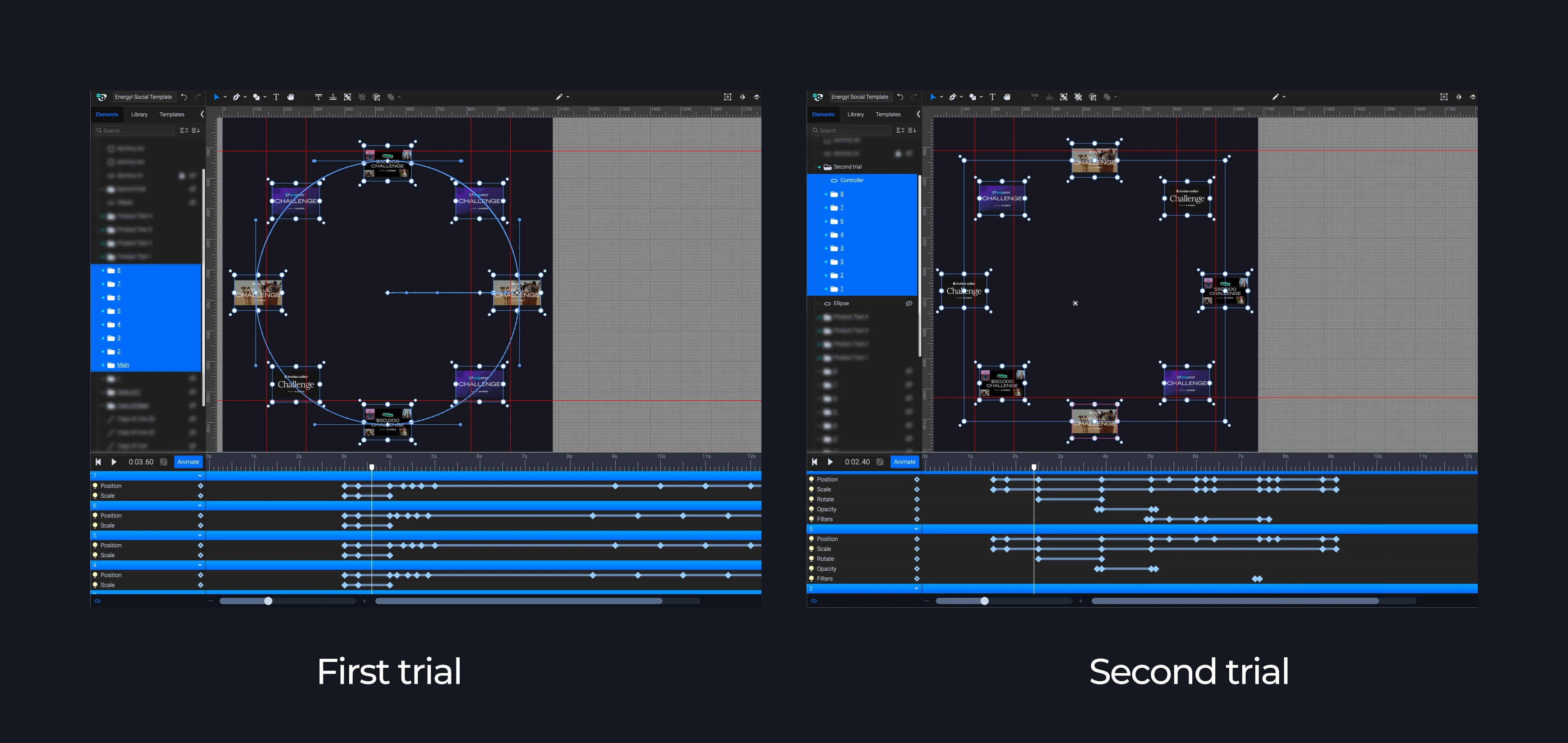
Trial 1 vs Trial 2, Difference in the keyframe connected to achieve smooth flow
The screenshot above shows the setup. It looks like the boring part, and it is the boring part, but it’s the reason the template survives other people’s content. Alignment decides what happens when the text is short, when it’s long, when the image is wide, when it’s tall.
Designing for content I’d never see
This is the part I’d point to if someone asked what made the entry different.
A template gets used with whatever the user has lying around. One person’s image is 4:3, another’s is 16:9. Someone else drops in something nearly square. If the template only handles one of those, it breaks for everyone else, and they’ll blame the template, not their image.
So I didn’t design one layout and hope. I checked how the structure behaved across different image ratios and made sure each one still looked intentional, not just “technically fits.” The goal was never editable but weird. It was editable and still right.
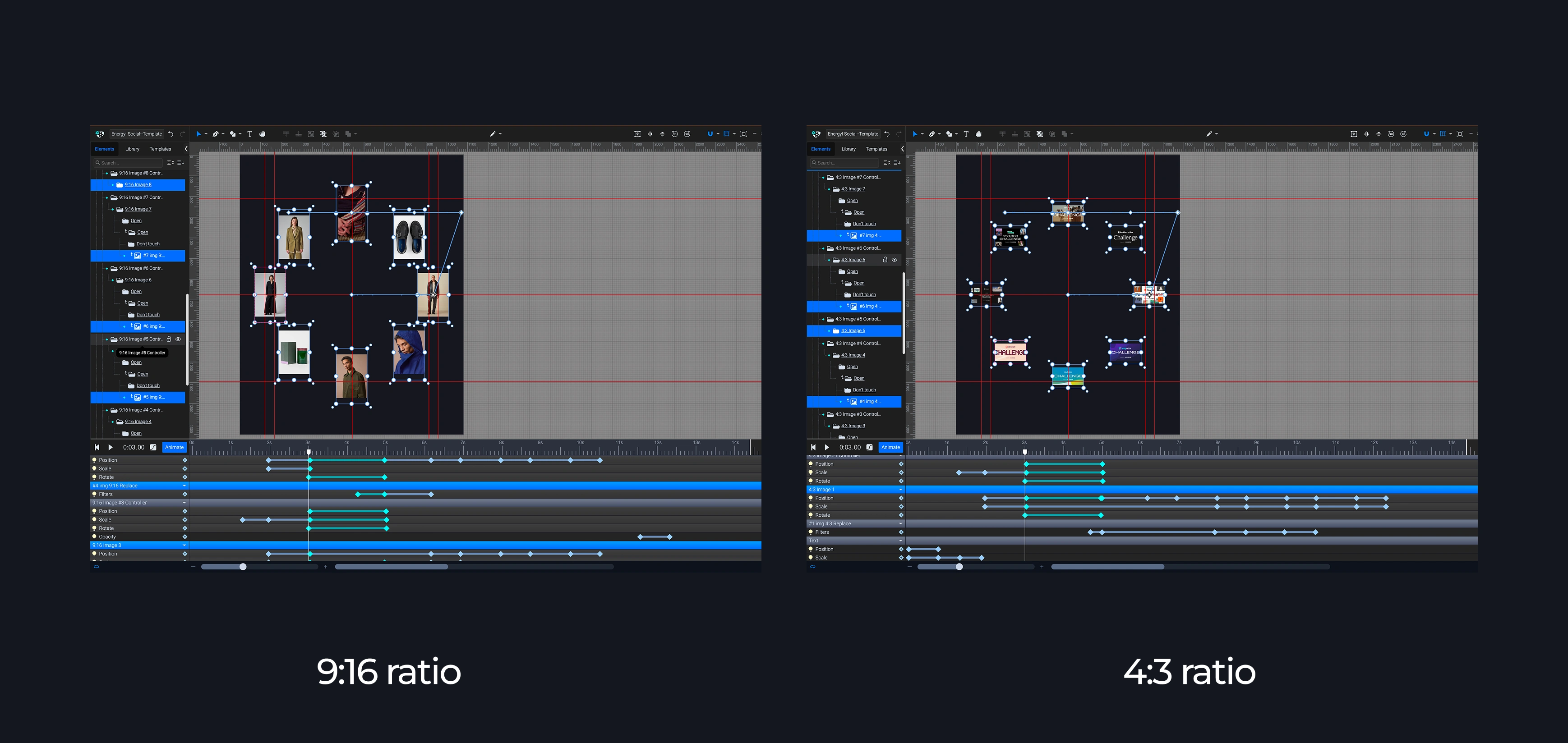
Comparing 9:16 and 4:3 ratio side by side
Structure first, tool second
The biggest lesson from this entry, and the one i’d give anyone entering something similar.
Understand your design first. Know why every element sits where it sits, what depends on what, what’s allowed to move and what isn’t. Then learn what the tool lets you do and adapt the design to it.
The other order is common, and you can feel it in the result. When the tool’s features decide the design, everything looks like what the tool makes easy. When the design decides, you end up bending the tool to fit, and that’s where the interesting work is.
The constraints
Svgator accepts SVG, PNG, JPG, GIF, WebP, and Lottie JSON files. That’s the pool users can pull from, so the template had to behave across all of them.
And they don’t behave the same. An SVG logo scales cleanly at any size. A PNG has a fixed resolution and shows it. A GIF already carries its own motion, so it can fight with the animation around it. i couldn’t treat them as interchangeable, so the template had to be built with the least forgiving format in mind.
What I’d ask SVGator to add
Native image corner radius and cover fit
You cannot round the corners of an image. You must draw a separate rectangle, apply a clipping mask, and manually change the image size inside the mask. Designers who build web UI components need a direct corner radius control and a standard object-fit setting. With native image controls, you could drag a slider to fit new images into placeholder frames. I used the clipping mask workaround. But template buyers will break the layout when they insert an image of a different size. This feature would solve image replacement errors.
Fixed boundary text boxes
Text fields operate as single lines. If you replace a short placeholder word with a long sentence, the text goes outside the screen. People who build templates need text to move to the next line automatically. With a fixed text box that wraps, you could define safe text areas. I used the return key to break lines manually. But a functional template needs text fields that stay inside their defined containers.
Non-scaling stroke checkbox
When you make an icon smaller, the outline thickness also becomes smaller. You must open the final code to add a specific stroke attribute. Designers who build responsive web components need outlines to stay at exactly two pixels at all times. With a simple checkbox in the outline panel, you could keep icons correct on small screens. I edited the code manually. But anyone who builds reusable UI assets will hit this problem constantly.
Keyframeable anchor points
The pivot point of an object does not move across the timeline. If you move the pivot at second two, it changes the pivot at second zero. Motion designers who create complex UI movement need the pivot to change location. A card must rotate from the bottom edge, and then scale from the center. With keyframeable anchor points, you could build complex motion. I put objects into multiple folders to fake the pivot change. But this method makes the file structure too complex.
Component variants and states
You must build hover states and click states on the main timeline. If you have three identical buttons, you must copy the animation keyframes for all three buttons. Designers need a master component. With component variants, you could animate one button and place instances of it across the canvas. I duplicated the layers to make it work. But a project with multiple interactive elements becomes very difficult to update later.
Enabling Multiple artboards.
Right now, a template lives on one canvas, so one aspect ratio. But the people using templates need the same design in 16:9 for web, 4:3 for older formats, and 9:16 for stories and reels. With multiple artboards in one project, you could build all three side by side, keep them in sync, and hand the user a complete set instead of one format and a workaround.
i worked around it, but anyone making templates for real use would hit the same wall, and I think it would change how people build on the platform.
True video export dimensions.
A design built on a 1920x1080 landscape canvas does not keep its original size when you export it as a video. The system changes the output to a 1080x1350 vertical frame and fills the empty areas with blank space. People who create standard landscape videos need the final file to exactly match the canvas resolution. With true video export dimensions, the software would lock the export ratio to the project settings automatically. I had to crop the final video in a different software tool to get the landscape format back. But template buyers expect a file they can use immediately, and requiring a second software tool breaks the workflow.
What I took from it
A template isn’t judged by how it looks in the preview. It’s judged by what happens in the first five minutes after someone else opens it.
did they find the text? Could they swap the image without breaking something? Did it still look good with their content, not mine?
If the answer’s yes to all three, the template did its job. Everything else is decoration.
Result
SVGator Template sample
Ecommerce Portrait size for social posting
Landscape Template incase if other social posting
Contra Sample
Like this project
Posted Oct 20, 2026
A case study on designing an editable SVGator template that adapts to any image ratio, text, or asset, built on alignment, flexibility, and ease of editing.
Likes
0
Views
3
Timeline
Oct 19, 2026 - Oct 20, 2026
Clients
SVGator