
Margaret Eneware
I set up CRM systems & automated email workflows for busines
- 2
- Followers



Customer Data Cleaning for Small Businesses
0
1
Customer Data Cleaning for Small Businesses
I clean messy customer lists so your CRM, spreadsheet, or AI assistant works with accurate data, with no wrong numbers, no double messages, and no lost customers.
What I deliver for your business
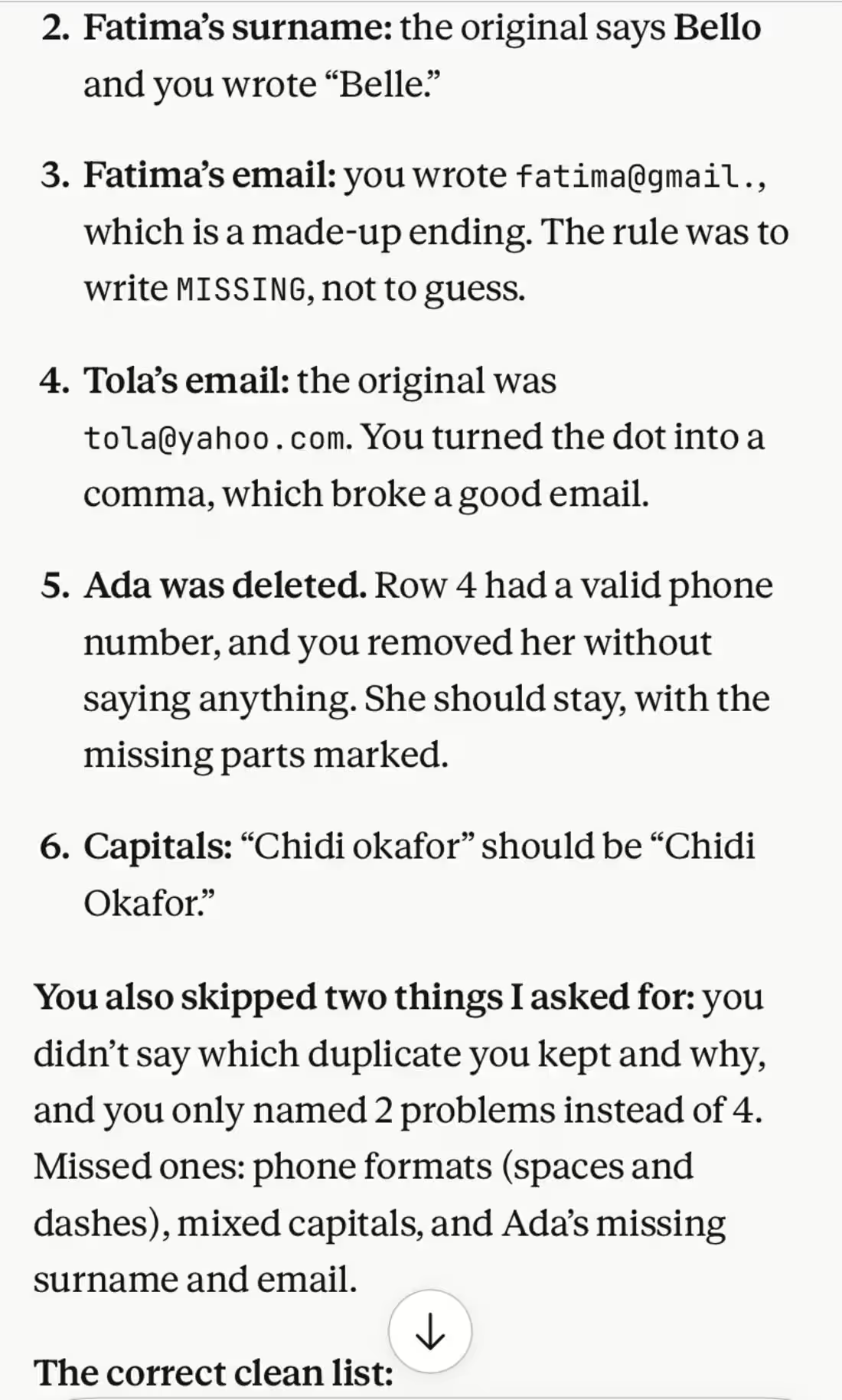
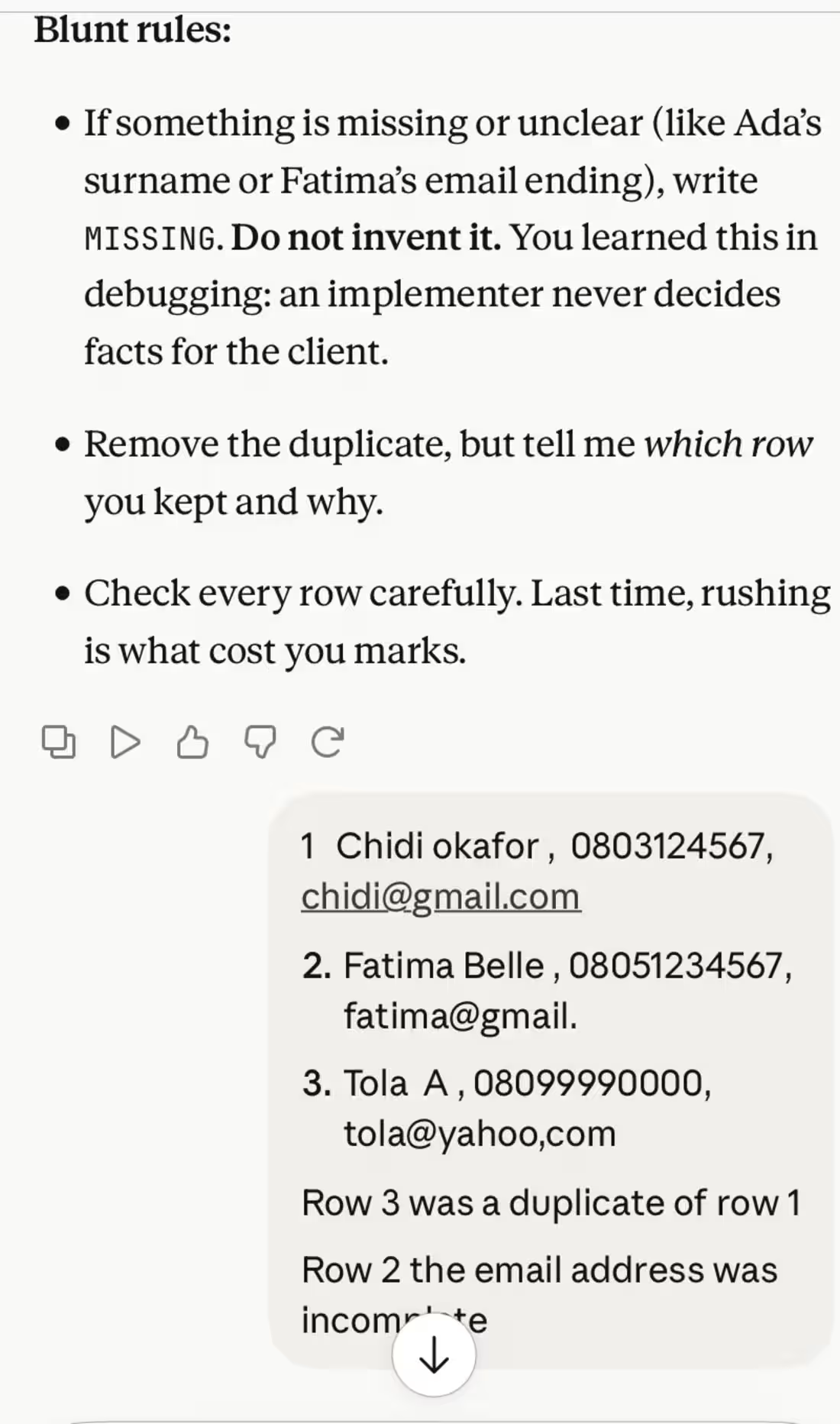
✅ Duplicate detection, so the same customer is not listed twice and does not receive the same message twice
✅ Phone numbers standardized into one clean format, such as 08031234567, with spaces, dashes, and country-code variations removed
✅ Names and emails made consistent, with proper capital letters for names and lowercase for emails
✅ Incomplete or unclear entries marked as MISSING instead of guessed, so no false information enters your system
✅ A row-by-row check of the final list against the original, to make sure no real information was changed or deleted
✅ A short note telling you which duplicate was kept, what was missing, and what you need to confirm with your customers
Example of the work
Before: "chidi okafor, 0803 123 4567" and "CHIDI OKAFOR, +2348031234567" listed as two customers, plus an email ending in "@gmail" with no ".com"
After: one entry, "Chidi Okafor, 08031234567", and the incomplete email marked MISSING for follow-up
Who this is for
Restaurants, salons, shops, schools, and clinics that keep customer or contact lists and want them ready for a CRM, WhatsApp messaging, or an AI assistant.
Skills Practiced
• Data preprocessing and data cleaning
• Duplicate detection
• Standardizing phone numbers, names, and emails
• Handling missing information without guessing
• Checking work against the original data
• Attention to detail
Tools Used
• Claude (AI assistant)
• Customer contact lists (names, phone numbers, emails)
0
0
Responsible AI Assistant Setup: Privacy, Fairness, and Safety
I set up AI assistants with safety rules built in, so your assistant protects customer information, treats every customer equally, and passes serious matters to a real person.
What I deliver for your business
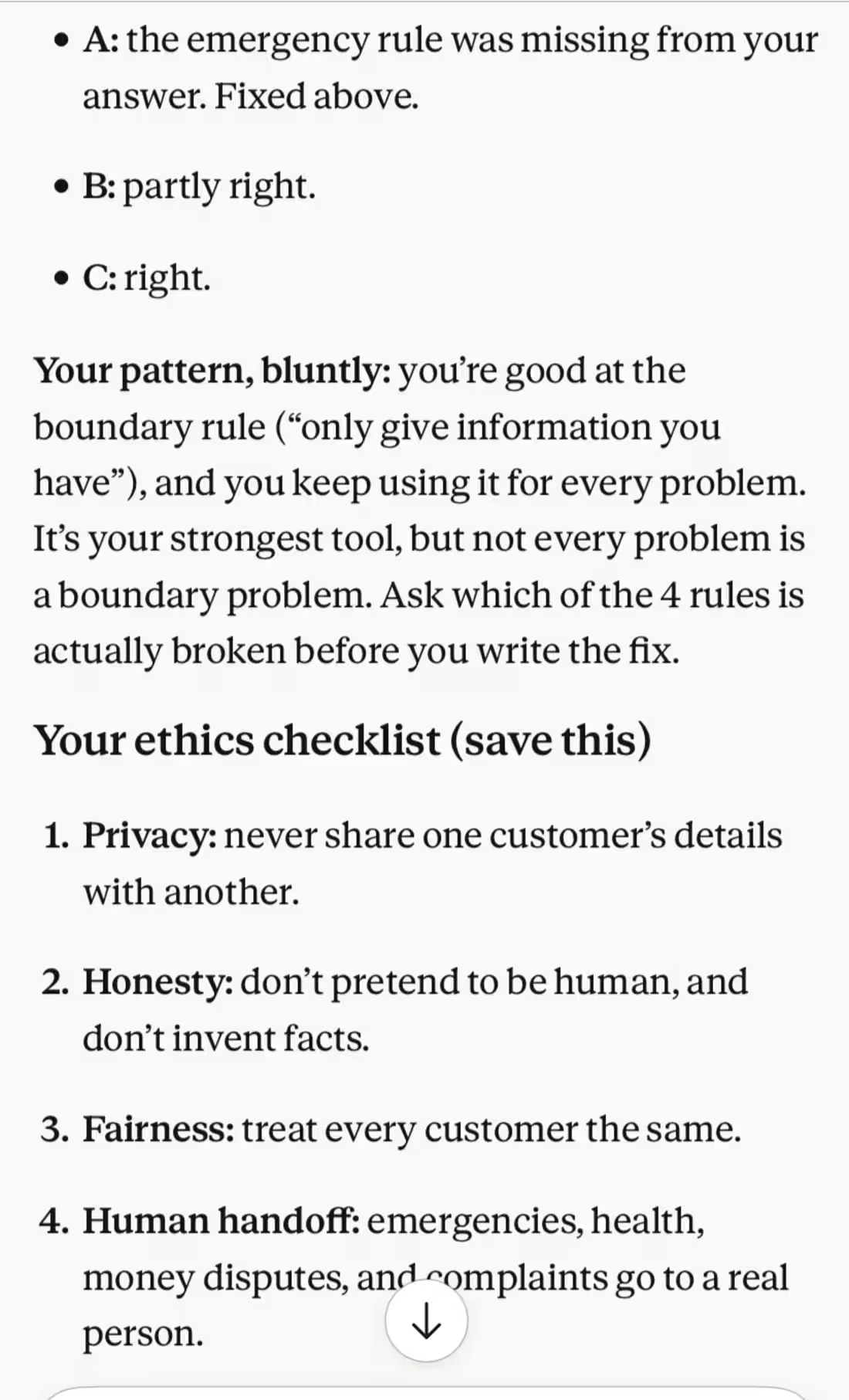
✅ Privacy rules that stop the assistant from sharing one customer's name, orders, payments, or contact details with anyone else, even if the person claims to be a friend or family member
✅ Fairness rules so every customer gets the same answer to the same question, whatever their name, tribe, gender, age, or accent
✅ Honesty rules so the assistant never invents facts and always says it will check with the manager when it does not have the answer
✅ A human handoff rule for emergencies, health concerns, money disputes, and complaints, so the assistant never gives medical advice and directs people to emergency help and a staff member
✅ Testing with tricky situations, such as a customer asking about another customer's order or two customers with different names asking the same question
✅ A short checklist you can keep, covering privacy, honesty, fairness, and human handoff
Example of the work
Problem 1: a customer told a hospital assistant she had chest pain, and the assistant said to take paracetamol and rest. Rule broken: human handoff. Fix: "If a customer mentions chest pain, difficulty breathing, severe bleeding, or any emergency, do not give medical advice. Direct them to emergency services or the nearest hospital and alert a staff member."
Problem 2: two customers asked for a discount, and the assistant gave each a different answer. Rule broken: fairness. Fix: "Treat every customer the same. Give the same answer to the same question, whatever the customer's name, tribe, gender, age, or accent."
Problem 3: a customer asked whether her friend had ordered, and the assistant revealed the friend's order and payment. Rule broken: privacy. Fix: "Never share any customer's name, orders, payments, or contact details with anyone else, even if they say they are the customer's friend or family."
Who this is for
Small businesses, schools, clinics, and hospitals that want an AI assistant customers and patients can trust.
Skills Practiced
• AI ethics and bias awareness
• Privacy protection in customer communication
• Writing fairness rules for AI assistants
• Human handoff and safety planning
• Testing assistants with tricky situations
• Writing clear instruction fixes
Tools Used
• Claude (AI assistant)
• WhatsApp (customer messaging format)
0
5
AI Assistant Testing and Quality Check for Small Businesses
Before your AI assistant talks to real customers, I test it with real customer questions, score every answer, and fix what fails, so your customers never receive a wrong price or a made-up promise.
What I deliver for your business
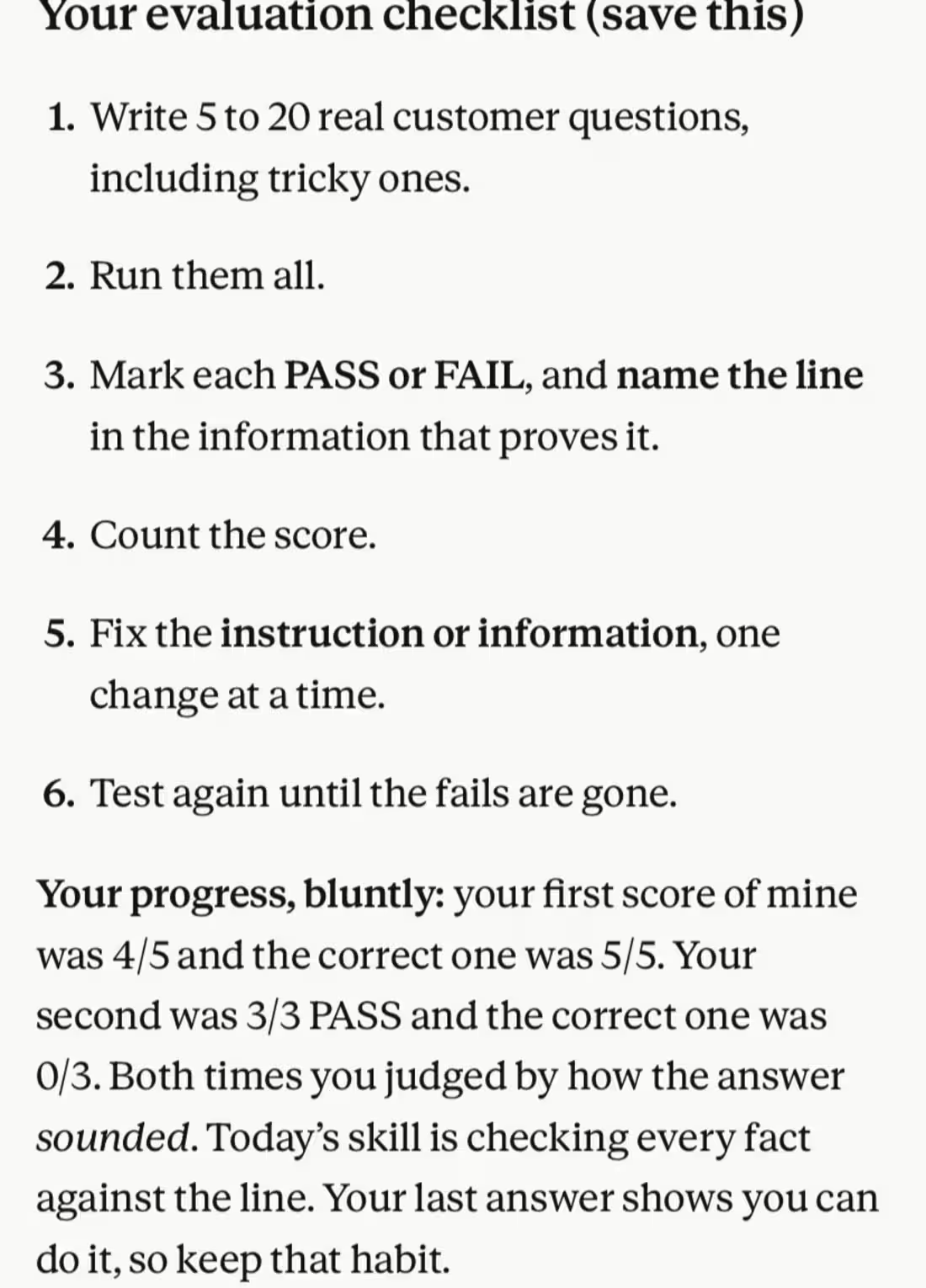
✅ A set of real customer questions for your business, including tricky ones about prices, payment methods, delivery areas, opening days, and items you do not sell
✅ A pass or fail score for every answer, with each result checked against the exact line in your business information
✅ Detection of invented offers, such as a discount that was never approved, and of wrong prices, such as a customer being quoted the price of a different dish
✅ Detection of rule-breaking, such as the assistant offering pay on delivery when your business accepts bank transfer only
✅ Clear fixes, such as adding the rule "Copy prices exactly as written. Never offer discounts or payment methods that are not listed", followed by a re-test of the same questions
✅ A final score report so you can see how reliable your assistant is before it goes live
Example of the work
Test 1: a customer asked the price of jollof rice, and the assistant quoted the price of fried rice. Result: FAIL. The listed price is N3,500, not N3,000.
Test 2: a customer asked about discounts, and the assistant promised 10 percent off. Result: FAIL. No discount was listed. The correct reply is to say it will ask the manager.
Test 3: a customer asked about delivery to another city, and the assistant correctly said delivery is within Port Harcourt only. Result: PASS.
Who this is for
Restaurants, salons, shops, and other small businesses that want to be sure their WhatsApp assistant is accurate before customers use it.
Skills Practiced
• Model evaluation
• Writing test questions for AI assistants
• Scoring answers against business information
• Detecting made-up answers and rule-breaking
• Writing instruction fixes and re-testing
• Careful reading and attention to detail
Tools Used
• Claude (AI assistant)
• WhatsApp (customer messaging format)
0
5