
Ann Syombua Peter
Administrative Virtual Assistant | AI Automation of workflow


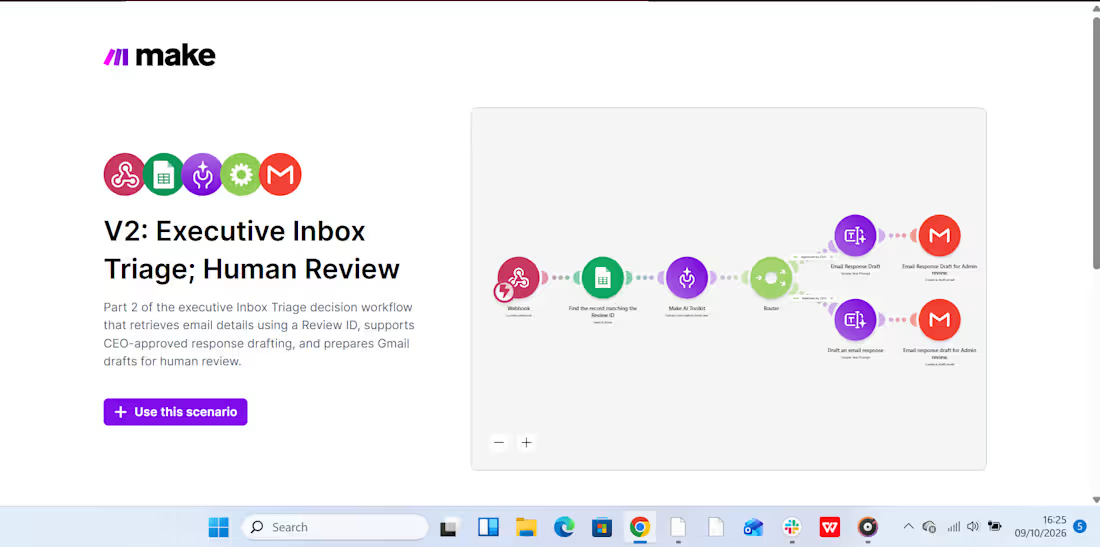
This week, I have been working on automating my boss's inbox management, delegating email triage to AI while I handle reviews and approvals that require sound judgment. Because one wrong response to a client can cost a business revenue, I wanted to build a system that saves time without handing over critical decisions to AI.
How I built it:
I created two connected automation scenarios in Make.com (http://Make.com).
Scenario 1: Intelligent Inbox Triage:
AI analyzes incoming emails, categorizes them by priority, summarizes their content, and recommends the next action. This makes it easier to identify urgent messages and decide what needs attention first.
Scenario 2: Human Review & Approval:
The workflow supports the review and approval process before an email is sent. Slack notifications help bring relevant updates to my attention, so I can review the proposed action and approve the response before it goes out.
Below are snippets of the two scenarios, including a Slack notification, showing how the workflow operates.
My takeaway? AI can help manage the inbox, but when a response could affect revenue or a client relationship, the final decision should remain human.
2
4
583
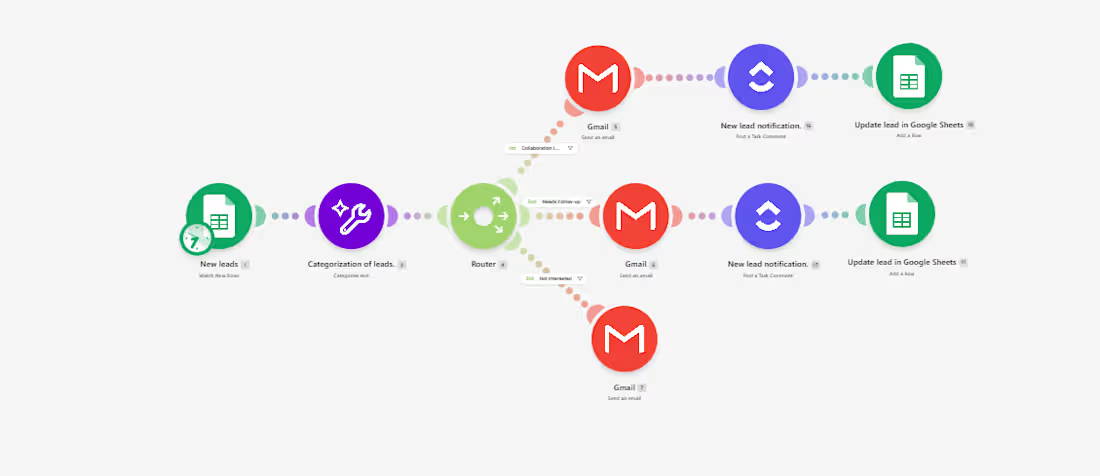
AI-Powered Lead Follow-Up & Management for Miale
I automated lead follow-up and management for Miale to reduce the manual work involved in reviewing enquiries, categorizing leads, responding to prospects, and keeping the team informed.
The problem:
When leads come in, manually reviewing each response, deciding how to handle it, sending emails, and notifying the team can take time, and makes it easier for follow-ups to slip through the cracks.
The solution:
I built an AI-powered workflow in Make that automatically processes new lead submissions.
Here’s how it works:
Google Form → Google Sheets → AI Classification → Router → Email + Slack → Lead Tracking
When a prospect submits the form, AI analyzes their collaboration interest and categorizes the lead as Collaboration Lead, Needs Follow-up, or Not Interested.
The workflow then automatically:
- Routes the lead based on their response.
- Sends a relevant email to the prospect.
- Notifies the team in Slack when a new lead needs attention.
- Updates the lead record for easier tracking.
Tools used:
Make · Make AI Toolkit · Google Forms · Google Sheets · Gmail · Slack
The workflow can also be adapted for client enquiries, sales leads, service requests, bookings, applications, and other repetitive lead-management processes.
The goal isn't simply to automate tasks. It's to build a system that helps businesses respond faster, stay organized, and reduce manual follow-up work.
2
266
AI-Powered Gmail Inbox Assistant: Turning Email Overload into an Organized Workflow
A busy inbox can become a productivity problem.
For a VA or business owner handling a high volume of emails, manually reading every message, deciding its priority, summarizing it, determining what action is needed, and organizing it takes time.
And when everything sits in one inbox, important messages can easily get lost among routine notifications and newsletters.
I built an automation to solve that problem.
The Solution
I created an AI-powered Gmail inbox assistant that captures, analyzes, organizes, and records incoming emails automatically.
The workflow starts when a new email arrives in Gmail.
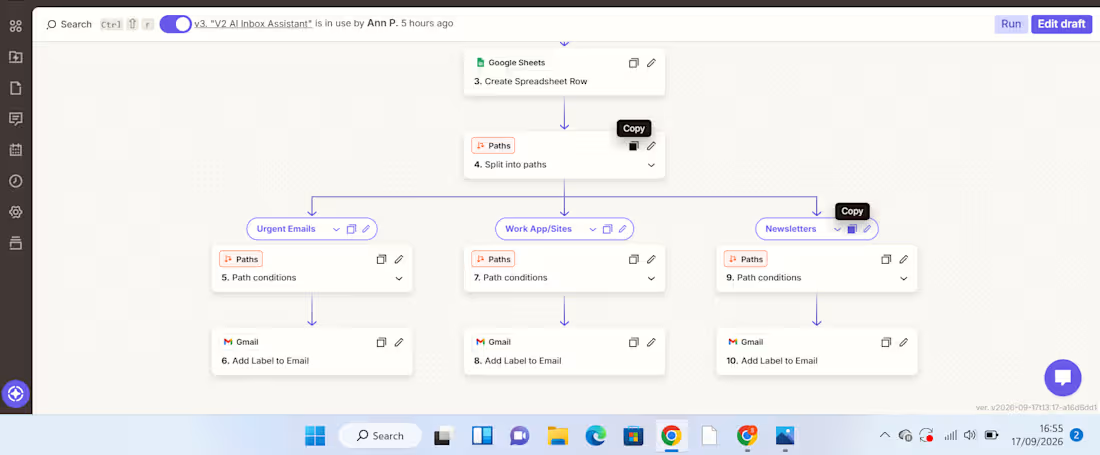
New Gmail → AI analyzes the email → Information is recorded in Google Sheets → Zapier Paths route the email → Gmail label is applied
The AI extracts useful information from each email, including:
Priority – how urgently the email needs attention
Email summary – a concise explanation of what the message is about
Recommended action – what should be done next
Service/category – used to determine how the email should be handled
The information is then captured in a Google Sheet, creating a structured record that can be reviewed, tracked, and used for further workflows.
From there, Zapier Paths use the classification to route the email to the appropriate action.
For example:
Urgent email → AI identifies the priority and summarizes the message → information is recorded in Google Sheets → Urgent Path runs → Gmail applies the Urgent label.
WorkApp/Sites notification → AI identifies the category → details are recorded in Google Sheets → WorkApp/Sites Path runs → the corresponding Gmail label is applied.
Newsletter → AI classifies and summarizes it → information is recorded in Google Sheets → Newsletter Path runs → the Newsletters label is applied.
What Problem Does This Solve?
This automation addresses several repetitive administrative tasks at once.
Instead of manually opening emails, interpreting them, recording important details, and organizing them, the workflow handles the first layer of processing automatically.
It helps create:
Less manual sorting
Emails are categorized automatically.
Better visibility
The Google Sheet provides a structured overview of incoming messages, their priority, summaries, and recommended actions.
Faster prioritization
Users can identify emails requiring attention without reading through the entire inbox first.
A searchable record
Important email information is captured in one place instead of remaining buried inside an inbox.
How Businesses Can Use It
The workflow can be adapted to different businesses and inboxes.
For example, a company could create categories such as:
Client enquiries | Leads | Support requests | Finance | Internal communication | Urgent | Newsletters
The Google Sheet can then become a simple operational dashboard or the starting point for additional automations.
For example, a business could later extend the workflow to:
Urgent email → notify the responsible team member
Client enquiry → create a lead in a CRM
Follow-up required → create a task
Support request → route to the appropriate team
This makes the workflow more than an inbox organizer. It can become part of a wider business process automation system.
Tools Used
Gmail – captures incoming emails and applies labels
AI by Zapier – analyzes and classifies email content
Google Sheets – stores the email priority, summary, recommended action, and category
Zapier Paths – applies conditional logic and routes emails based on their classification
What This Project Demonstrates
My approach to automation is simple:
Find the repetitive problem first. Then build the system around it.
This project started with a common administrative problem—too much email and too much manual sorting—and turned it into a workflow that can analyze information, structure it, make routing decisions, and trigger actions automatically.
I'm building my skills in AI automation with a VA mindset: understanding the business problem first, then creating practical systems that reduce manual work and improve how information flows.
2
283
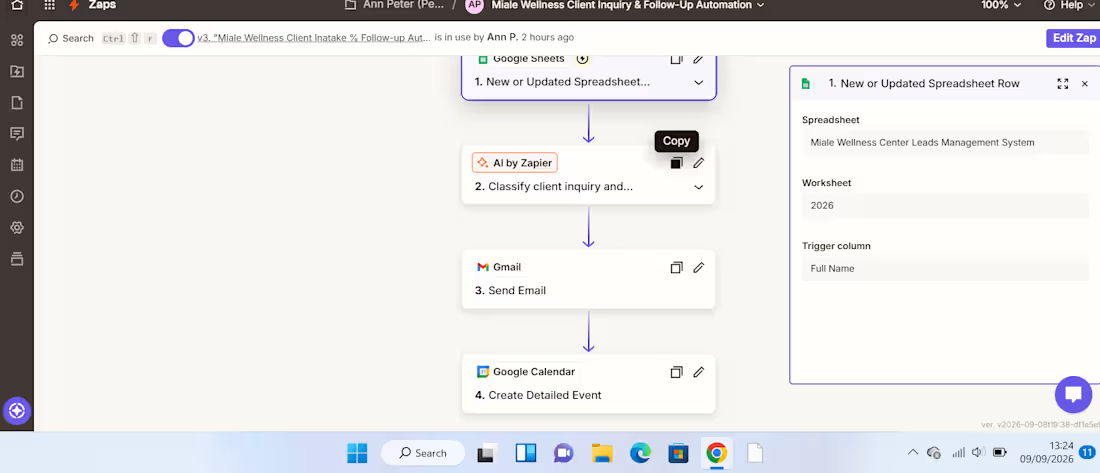
AI-Powered Client Enquiry Automation
Project Overview:
I built an AI-powered client enquiry automation workflow using Zapier, Google Forms, Google Sheets, AI by Zapier, Gmail, and Google Calendar.
The goal was to automate the initial handling of client enquiries from receiving the enquiry to understanding the client's needs, sending an acknowledgement, and creating a follow-up task.
The Problem:
Managing client enquiries manually can be repetitive and time-consuming. Each new enquiry needs to be reviewed, categorized, summarized, responded to, and followed up.
Without a structured process, it's easy for enquiries to be delayed or follow-ups to be missed.
The Solution:
I designed a workflow that automates these repetitive administrative tasks while using AI to analyze the information provided by the client.
The automation follows this process:
Client submits enquiry
↓
Google Sheets captures the enquiry
↓
AI analyzes the enquiry
↓
Gmail sends an acknowledgement
↓
Google Calendar creates a follow-up
How It Works:
1. Enquiry Collection.
The client submits their details and enquiry through a Google Form. The information is automatically recorded in Google Sheets.
2. AI Analysis.
AI by Zapier reviews the enquiry and extracts key information such as the service category, priority, concise summary of the client's needs, and recommended next action.
This eliminates the need to manually review every enquiry just to determine what it is about and how it should be handled.
3. Automated Client Response.
After the enquiry is processed, Gmail automatically sends the client an acknowledgement, ensuring they receive a timely response.
4. Follow-Up Management.
The workflow creates a Google Calendar follow-up, helping ensure that the enquiry doesn't get lost after the initial response.
Result:
The completed workflow turns a manual enquiry process into a structured automated system:
Capture → Analyze → Respond → Follow Up
The key improvement is the use of AI as a decision-making layer, rather than simply moving information from one application to another.
This demonstrates how AI automation can reduce repetitive administrative work, improve response consistency, and help businesses stay organized with client enquiries.
Tools Used:
Zapier | AI by Zapier | Google Forms | Google Sheets | Gmail | Google Calendar
Skills Demonstrated:
AI Automation • Workflow Design • Administrative Automation • AI Prompting • Client Enquiry Management • Email Automation • Calendar Automation • Process Optimization
4
4
1.3K