Shopify CSV: orders, line items and checkable totals

Brandon Gatlin

Self-initiated technical writing sample. The full tutorial follows, with example tables presented as labeled lists. This is instructional work, not a commissioned project, live integration or customer result.
AI disclosure: This tutorial was written by an AI assistant using the linked documentation. Its example is fictional, and it does not report hands-on testing of a live Shopify or Make integration.
A Shopify order export can contain several rows for one order. Before removing anything that looks duplicated, decide what one row should represent: an order, a line item, or an incoming notification.
Shopify documents that additional line items occupy separate CSV lines and that many order fields are blank on those lines. A repeated order identifier therefore does not, by itself, identify a duplicate. Shopify: exporting orders
Start with a small example
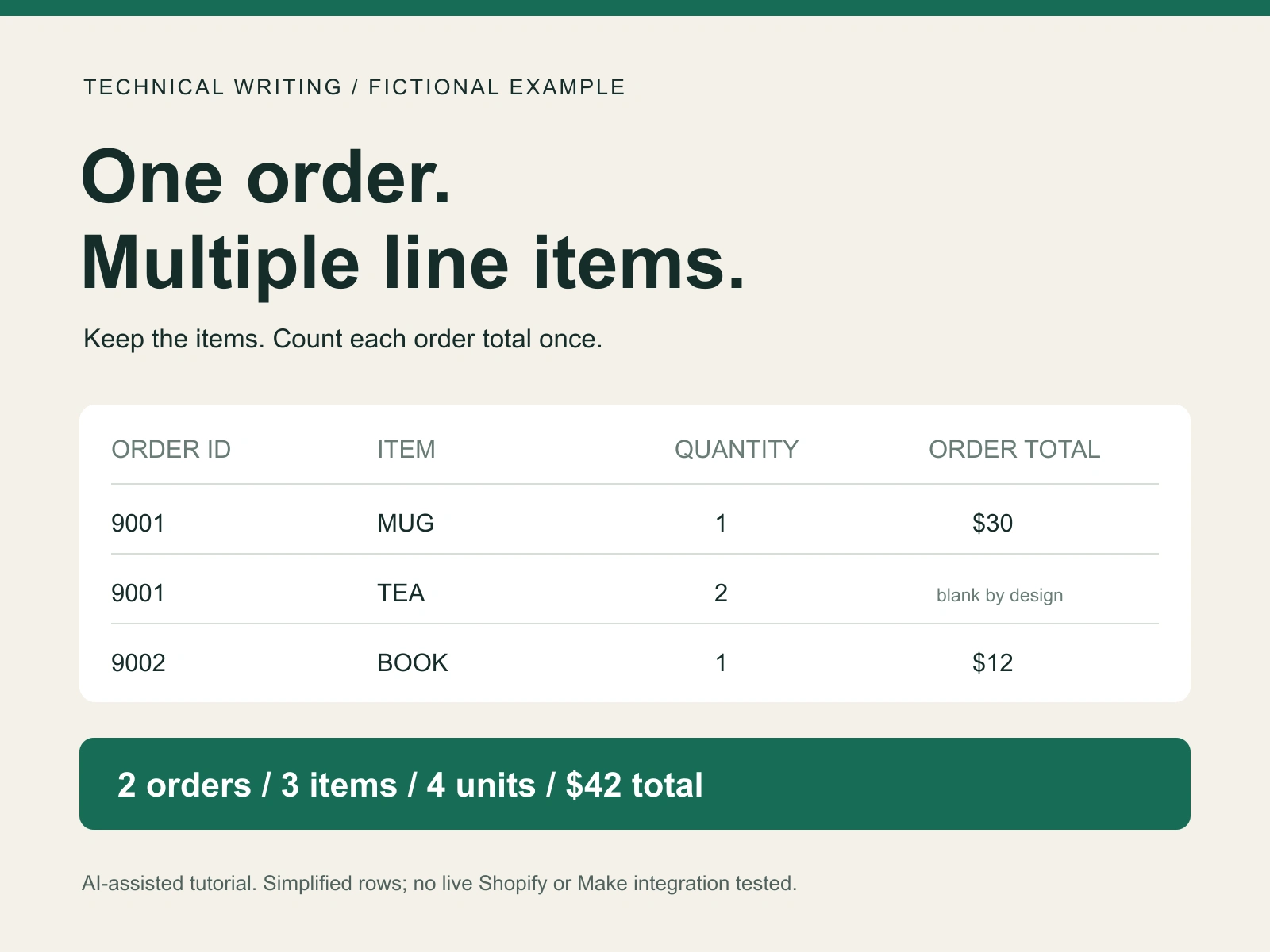
This fictional working table represents one store and one currency. Its columns have been selected and reordered, and order identifiers have already been checked; it is not an exact, untouched Shopify export. The empty total cell is deliberately empty. There are no shipping charges, discounts, taxes or refunds in this example.
Order 9001, MUG: quantity 1, unit price 10.00, recorded order total 30.00.
Order 9001, TEA: quantity 2, unit price 10.00, order-total cell deliberately blank.
Order 9002, BOOK: quantity 1, unit price 12.00, recorded order total 12.00.
There are two orders, three line items and four units. An order summary should look like this:
Order 9001: 2 line items, 3 units, order total 30.00.
Order 9002: 1 line item, 1 unit, order total 12.00.
Deleting the second row because
9001 appears twice would lose the tea. Filling its order total with 30.00 and then summing that column would produce 72.00, instead of 42.00.Make the spreadsheet checkable
Keep the original export. Work in a separate copy and retain the original row order. Note the store, export time and selected date range so that overlapping exports are not silently combined.
Identify the order key. Shopify documents
Id as the order ID and Name as the displayed order number. Keep IDs as text. For several stores, retain the store identifier too. If a continuation row lacks its key, verify its parent in the original group before filling that key; do not fill every blank column indiscriminately.Keep separate views. The line-item view preserves every legitimate item row. The order summary contains one row per verified order key, with order-level amounts recorded once. A SKU is not a unique order or line-item identifier.
Check conflicts. If the same order key has different populated totals, investigate the source and export times. Do not silently choose the largest amount or assume one row is disposable.
The five spreadsheet headers, in A:E order, are Order ID, SKU, Quantity, Unit price and Order total.
To reproduce the example in Google Sheets, put its five headers in A1:E1 and its three data rows in rows 2–4. Leave E3 empty. In separate cells, use:
=COUNTUNIQUE(A2:A4) gives 2 orders.=SUM(C2:C4) gives 4 units.=SUM(E2:E4) gives 42.00 in recorded order totals.These formulas apply to this prepared example. For a real file, verify the keys, range and amount placement first. Google's documentation explains COUNTUNIQUE and SUM.
An order total is not a bank payout or profit. Keep currencies separate and review refunds, cancellations and payment status before using a summary for a financial decision.
When automation introduces a different kind of duplicate
A repeated webhook delivery is different from two products belonging to the same order. Shopify documents
X-Shopify-Webhook-Id for detecting repeated deliveries. When multiple subscriptions cover the same topic, their separate deliveries have different webhook IDs but share an X-Shopify-Event-Id, which relates them to the same merchant action. Neither identifier is the order key used in the summary above. Shopify: verifying deliveriesFor an order summary, later legitimate updates must update the existing order's state; treating every notification for an already-seen order as a duplicate could discard a cancellation or other change.
If you use Make, its instant webhook scenarios process requests in parallel by default. The documented Process data in order setting makes executions of that scenario wait for the preceding execution. It does not itself remove repeated deliveries or coordinate other scenarios writing to the same sheet. Make: webhooks
A search-then-add workflow can still create duplicate rows if independent writers both search before either has written. Treat the order key, retry handling and writer coordination as explicit design decisions, not a promise of exactly-once processing.
Before trusting an automation, use an isolated test destination: send one two-item order, repeat the same delivery, then send a legitimate update. Confirm that item quantities remain intact, the replay creates no extra order row, and the update appears. Compare the resulting summary with the source orders. These are verification steps, not a claim that a live integration was tested for this article.
Related service
For a bounded non-personal catalog or inventory cleanup, see the proposed offline preparation pilot. Start with a short non-sensitive description; suitability, scope, timing and processing permissions are agreed before starting.
Like this project
Posted Oct 1, 2026
Self-initiated, AI-assisted tutorial with fictional data: preserving line items, counting orders and checking totals.
Likes
0
Views
2