
Bookmark landing page
This is a solution to the Bookmark landing page challenge on Frontend Mentor. Frontend Mentor challenges help you improve your coding skills by building realistic projects.
Table of contents
Overview
The challenge
Users should be able to:
View the optimal layout for the site depending on their device's screen size
See hover states for all interactive elements on the page
Receive an error message when the newsletter form is submitted if:
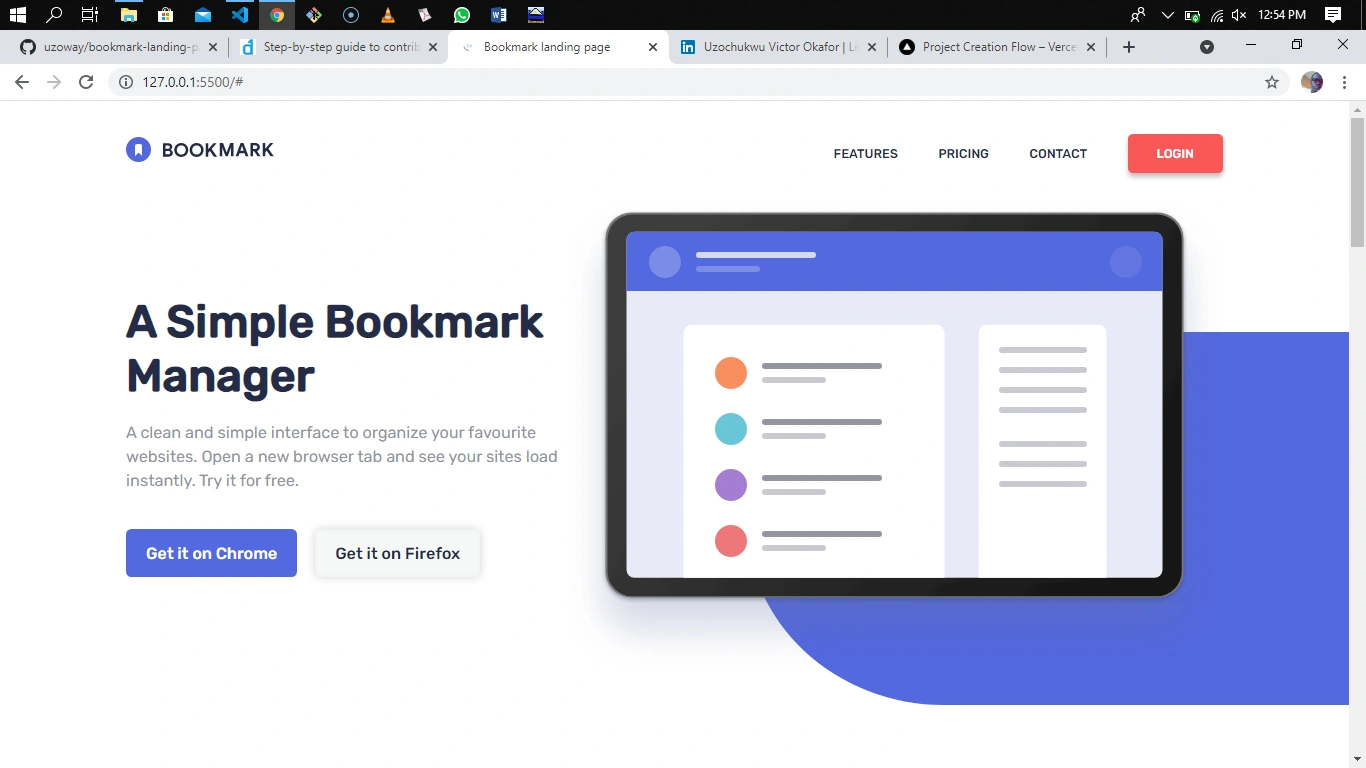
Screenshot
Links
My process
Built with
Semantic HTML5 markup
CSS properties
Flexbox
JavaScript
Desktop-first workflow
What I learned
Completing this challenge has helped me improve my Frontend development skills such as:
Responsive web design
Writing semantic HTML5 markup
Adding various web functionalities using JavaScript by manipulating the DOM
I've also been able to learn new things while completing the challenges, they include:
Toggling a dropdown menu using vanilla javascript
changing the color of an image using vanilla javascript
Properly format a form using javascript
Below is a code snippet of how I was able to format the form:
function validateForm() {
let email = document.getElementById("email");
let alert = document.getElementById("alert");
let form = document.getElementById("formbox");
let error = document.getElementById("img");
let pattern = /^[a-zA-Z0-9.!#$%&'*+/=?^_`{|}~-]+@[a-zA-Z0-9]+(?:\.[a-zA-Z0-9-]+)*$/; // Email address pattern
if (email.value.match(pattern)){
form.classList.add("valid");
form.classList.remove("invalid");
email.style.borderTop = "2px solid hsl(231, 69%, 60%)";
email.style.borderLeft = "2px solid hsl(231, 69%, 60%)";
email.style.borderRight = "2px solid hsl(231, 69%, 60%)";
email.style.borderBottom = "25px solid hsl(231, 69%, 60%)";
alert.innerHTML = " ";
error.style.opacity = "0";
document.getElementById("formbox").reset(); // Resets form - input field after successful submission
return true
}
else{
form.classList.remove("valid");
form.classList.add("invalid");
email.style.borderTop = "2px solid hsl(0, 94%, 66%)";
email.style.borderLeft = "2px solid hsl(0, 94%, 66%)";
email.style.borderRight = "2px solid hsl(0, 94%, 66%)";
email.style.borderBottom = "25px solid hsl(0, 94%, 66%)";
alert.innerHTML = "Whoops, make sure it's an email";
error.style.opacity = "1";
return false
}
}
<form action="#" autocomplete="off" id="formbox" onsubmit="return validateForm()">
<input type="text" required placeholder="Enter your email address" id="email" class="input">
<img src="images/icon-error.svg" alt="error icon" class="error" id="img">
<button type="submit">Contact Us</button>
<span id="alert"></span>
</form>
Below is the code snippet of how I was able to toggle the drop down menu onclick:
const controls = document.getElementsByClassName("text");
const dropMenu = document.getElementsByClassName("drop-down-text");
controls[0].onclick = function(){
if(dropMenu[0].style.display == "none"){
dropMenu[0].style.display = "block";
}
else{
dropMenu[0].style.display = "none";
}
}
controls[1].onclick = function(){
if(dropMenu[1].style.display == "none"){
dropMenu[1].style.display = "block";
}
else{
dropMenu[1].style.display = "none";
}
}
controls[2].onclick = function(){
if(dropMenu[2].style.display == "none"){
dropMenu[2].style.display = "block";
}
else{
dropMenu[2].style.display = "none";
}
}
controls[3].onclick = function(){
if(dropMenu[3].style.display == "none"){
dropMenu[3].style.display = "block";
}
else{
dropMenu[3].style.display = "none";
}
Continued development
For my next projects, I'll be focusing on learning how to implement animations on drop down menus and change of image onclick.
Author
LinkedIn - Uzochukwu Victor Okafor
Frontend Mentor - @uzoway
0 likes · 5 views · Oct 11, 2024
Contribute to ISHAN8585/Countries-of-the-World-main development by creating an account on GitHub.
