Dockerizing a Node.js Web App

Gaurav Vohra


Dockerizing-a-NodeJS-web-app
Create a simple nodeJs application and deploy it onto a docker container.
Create a working directory
mkdir <working_directory_name>
Running this command in working directory will initialize your project
npm init
This will create a package.json file in the folder, that file contains app dependency packages.
Replace the following code of package.json
Running this command will install all the dependencies from package.json
npm install
Lets create a server.js file that defines a web-app using an Express framework.
Lets test the application, run the below command
node server.js
If you followed the above steps on your system, you will see the same output as below image: http://localhost:3000/
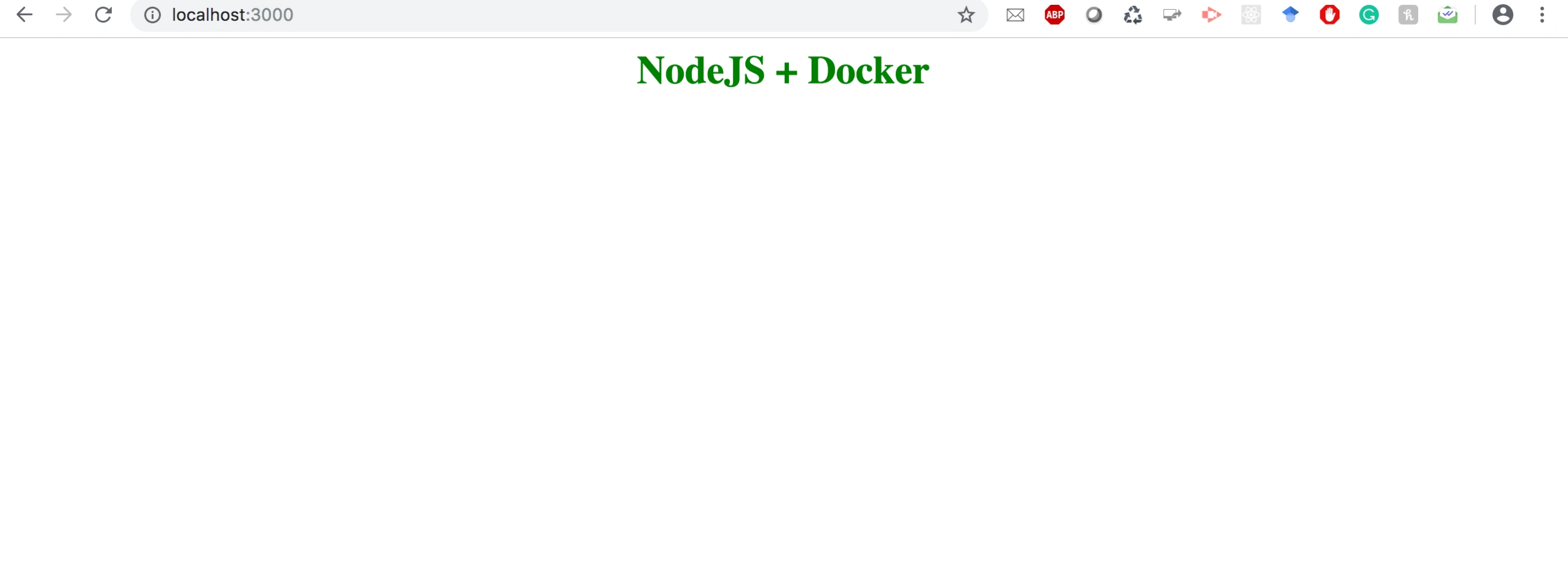
Now node.js app is running successfully.
Lets try running the same node.js application running on the docker container. To run the application on the docker conatiner we need a docker image.
First, we will create a docker image for the application.
Create a Dockerfile
touch Dockerfile
Dockerfile should look like this
Create .dockerignore file with following content
This will prevent from copying onto docker image.
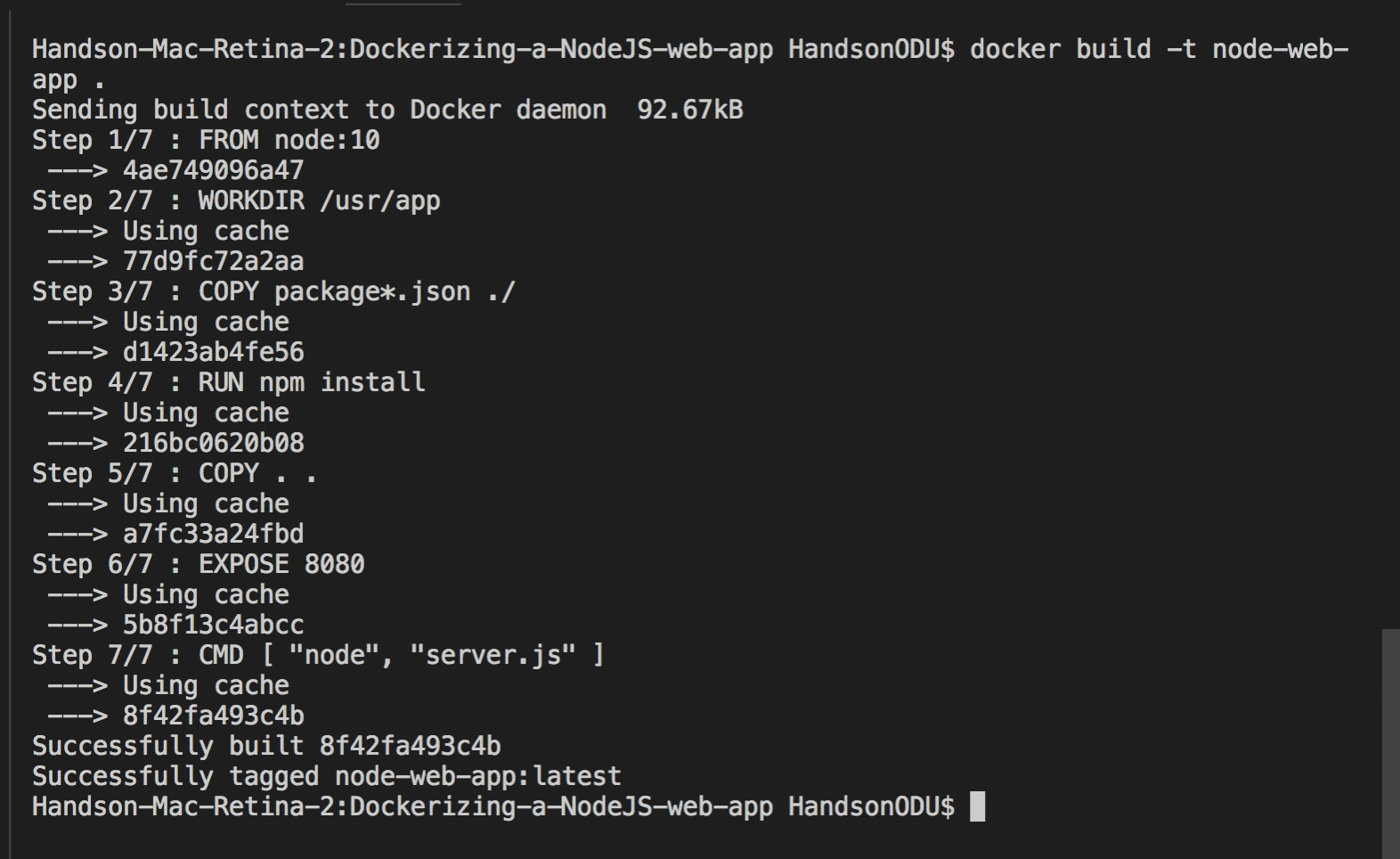
Building Docker image
docker build -t node-web-app .
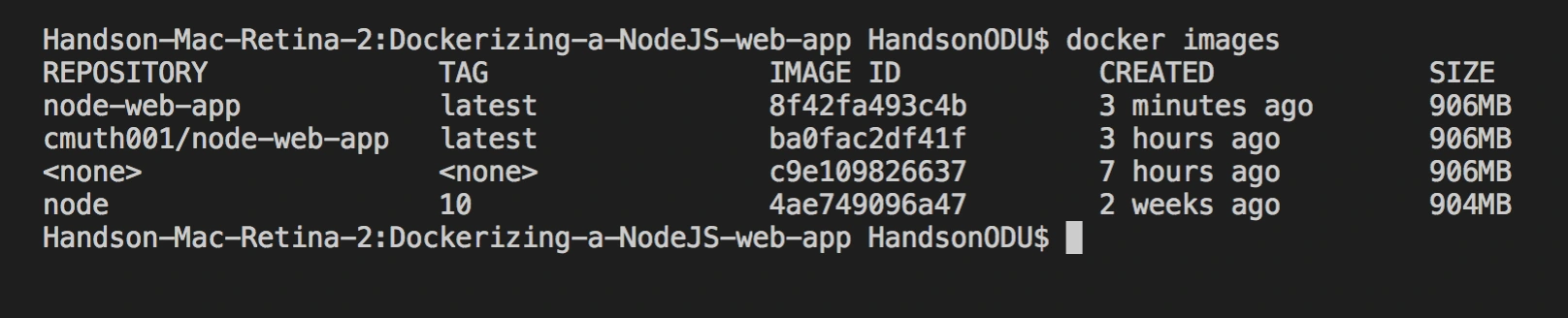
Check the Docker images
docker images
Run the docker image
docker run -p 49160:3000 -d node-web-app
Get the container id
docker ps

Lets know where it is running on
docker logs <container_id>
If you followed the above steps on your system, you will see the sam output as below image: http://localhost:49160/
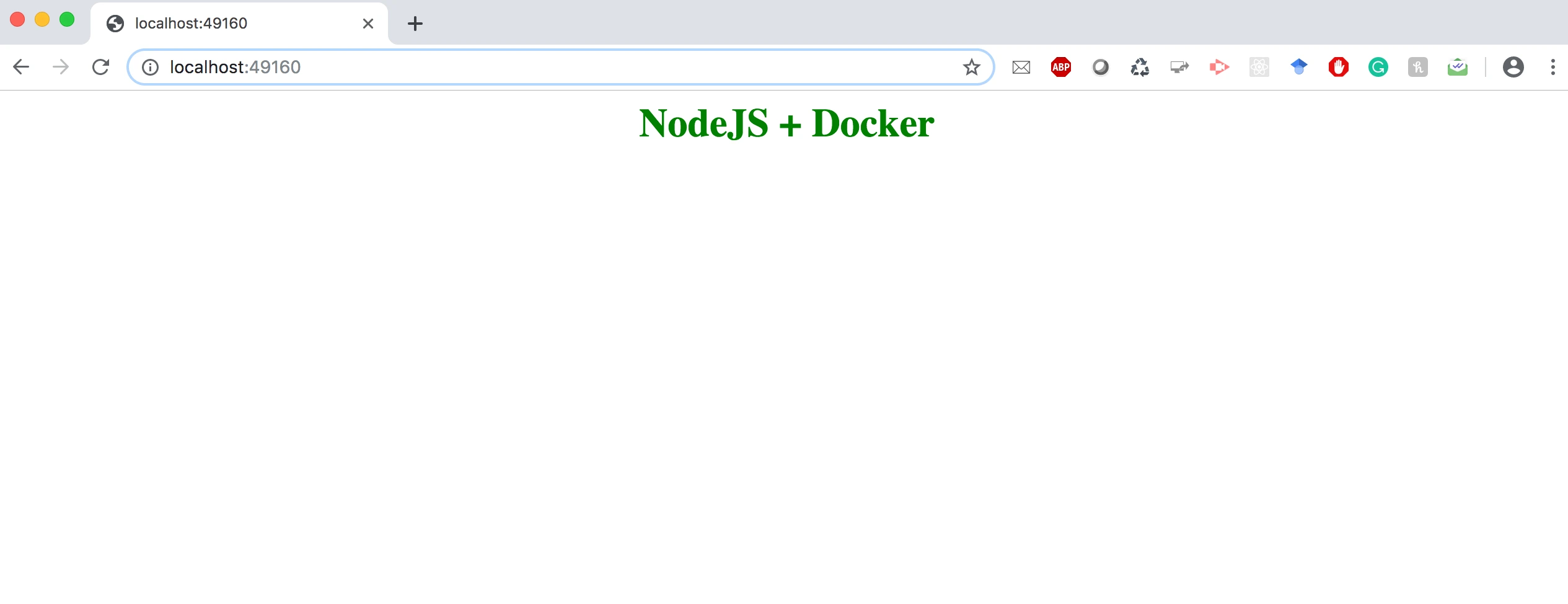
I hope this tutorial helped you get up and running a simple Node.js application on Docker container.
Like this project
Posted May 25, 2025
Dockerized a Node.js web app for deployment.
Likes
0
Views
2