Sketch up your ideas with Draw

Bashir Sulaiman Dahir

Sketch up your ideas with Draw
Create your way with Draw, a free online drawing tool. Made for all ages, kickstart your ideas right with Canva.
Introducing Draw
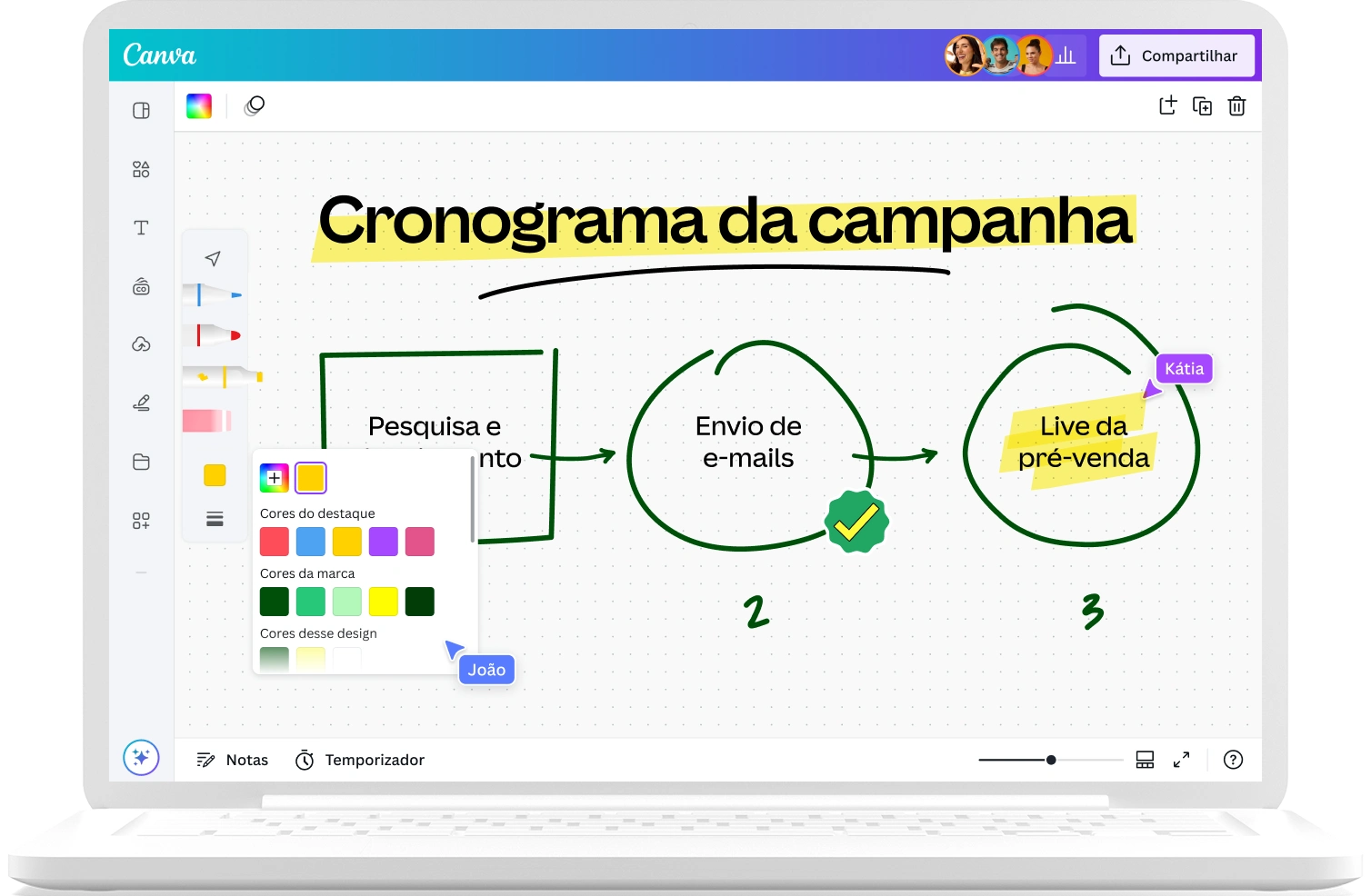
Unleash your creativity with Draw, Canva’s free drawing tool. Draw lets you add customized drawings and graphics to your designs, so they stand out from the crowd. Or, you can use it to mark up designs and leave notes for your team. Draw even has Shape Assist, an automatic shape detection feature, to help you create professional diagrams and flowcharts quickly.
Unleash your creativity

Add a personal touch
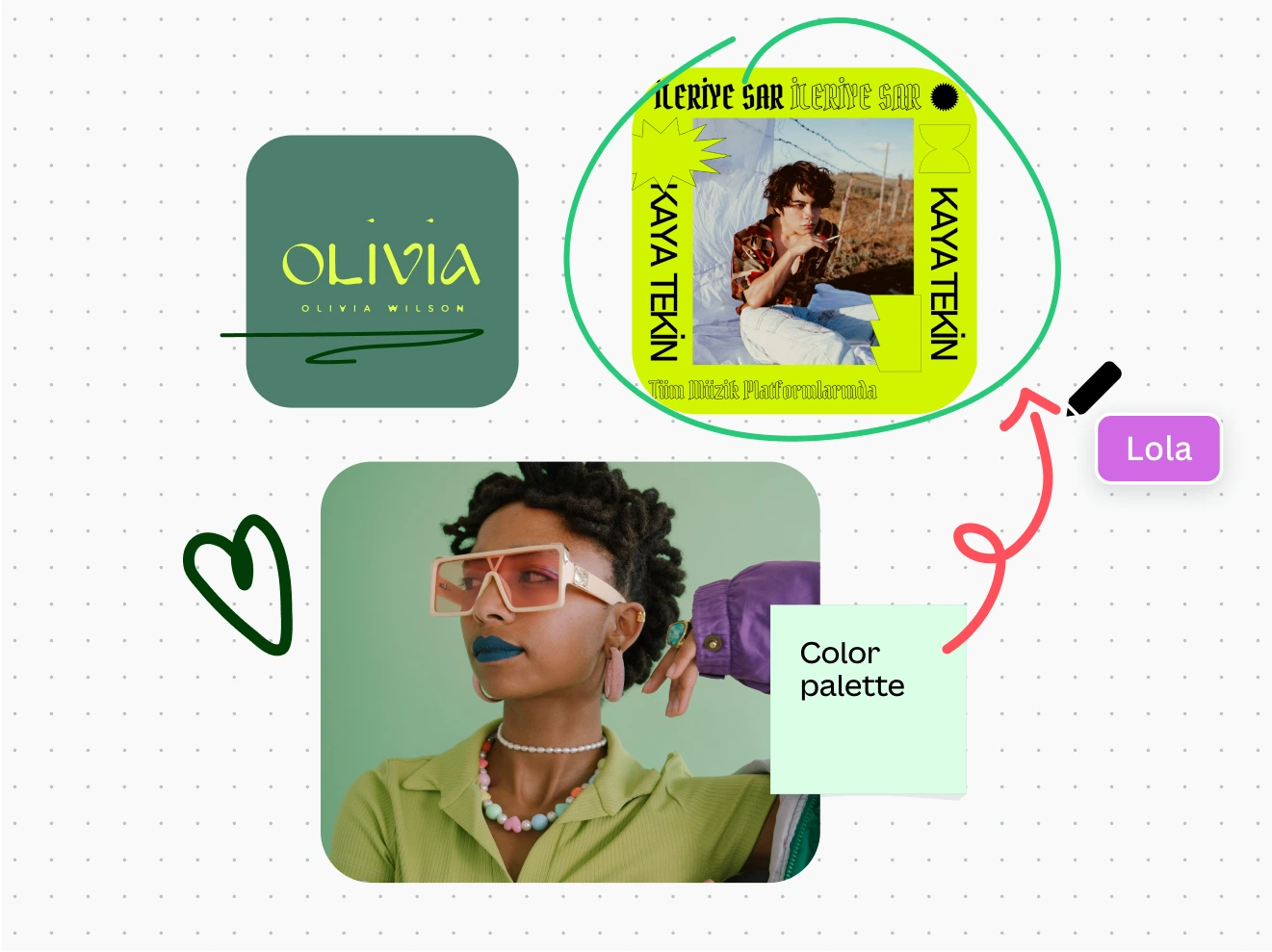
Use Draw to sketch on all your Canva designs. It’s a fun way to add your personality, call attention to something, or even just doodle on your designs.
All the drawing tools you need
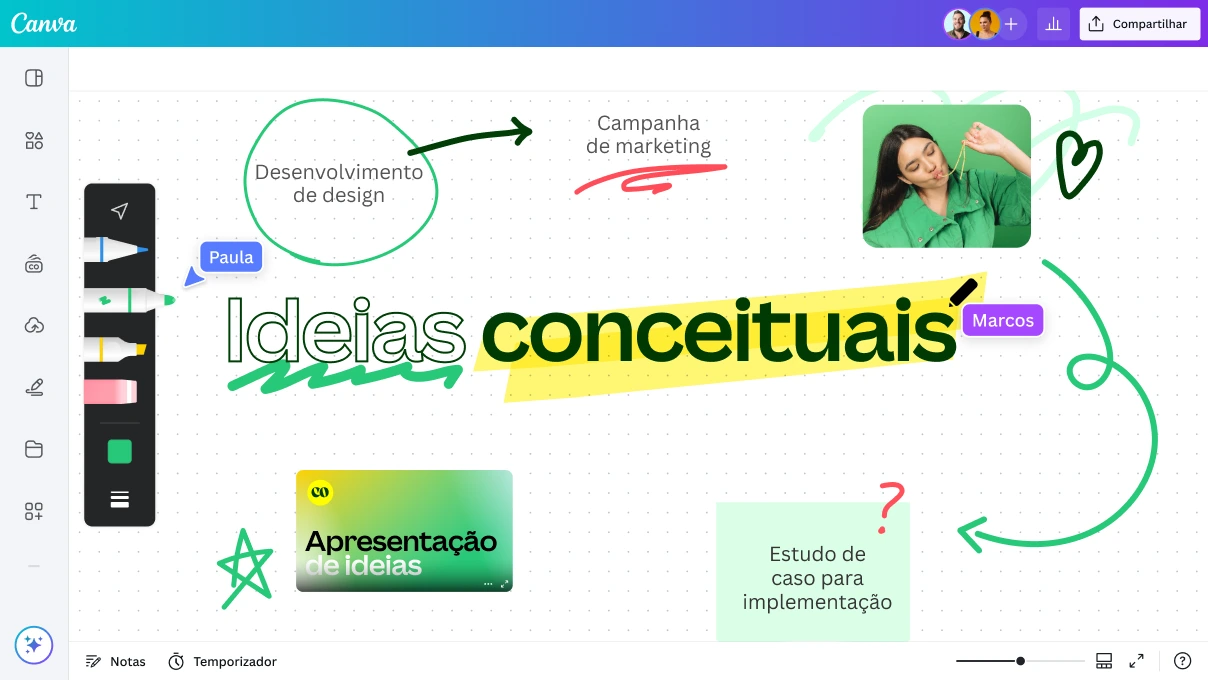
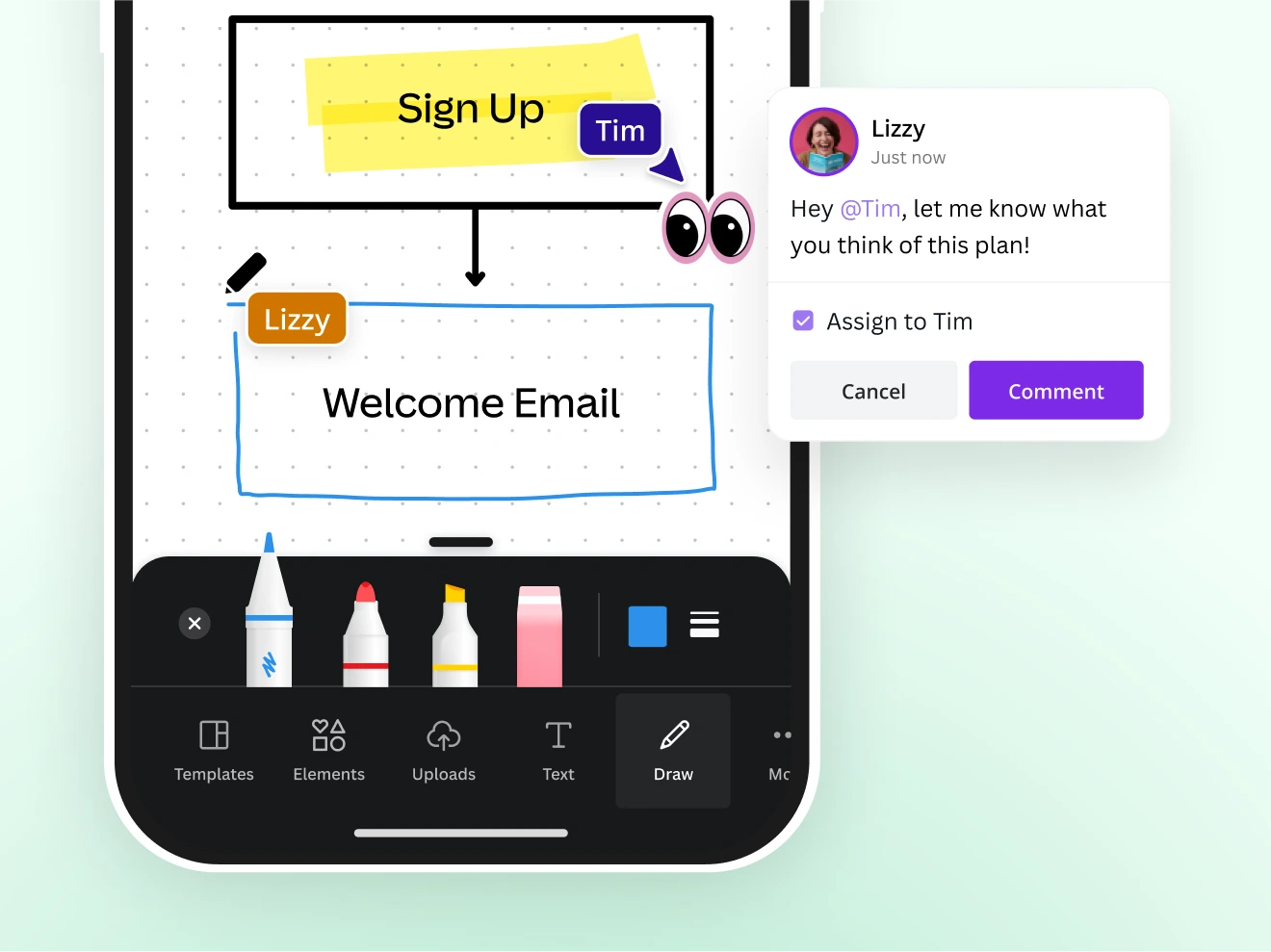
The Draw tool includes a pen, marker, highlighter, and eraser. Once you’ve selected your pen type, you can adjust colors and line thickness. Draw has you covered whether you want to highlight a point in your presentation or add a custom graphic to your Instagram story.
Adjust and customize your drawings, anytime
All your drawings can become Canva graphics, so you can adjust size and color to ensure they fit your design every time. You can even copy & paste your drawings.
Let your ideas flow
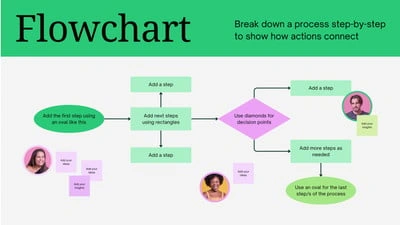
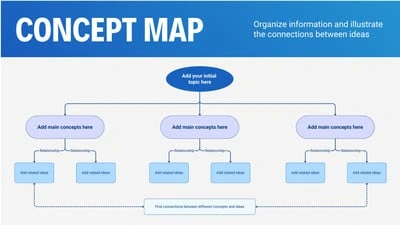
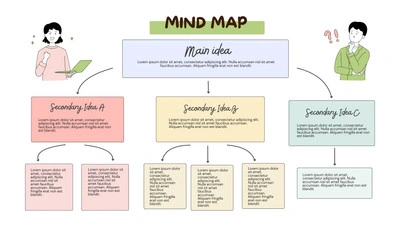
Quickly create flow charts, mind maps, and more
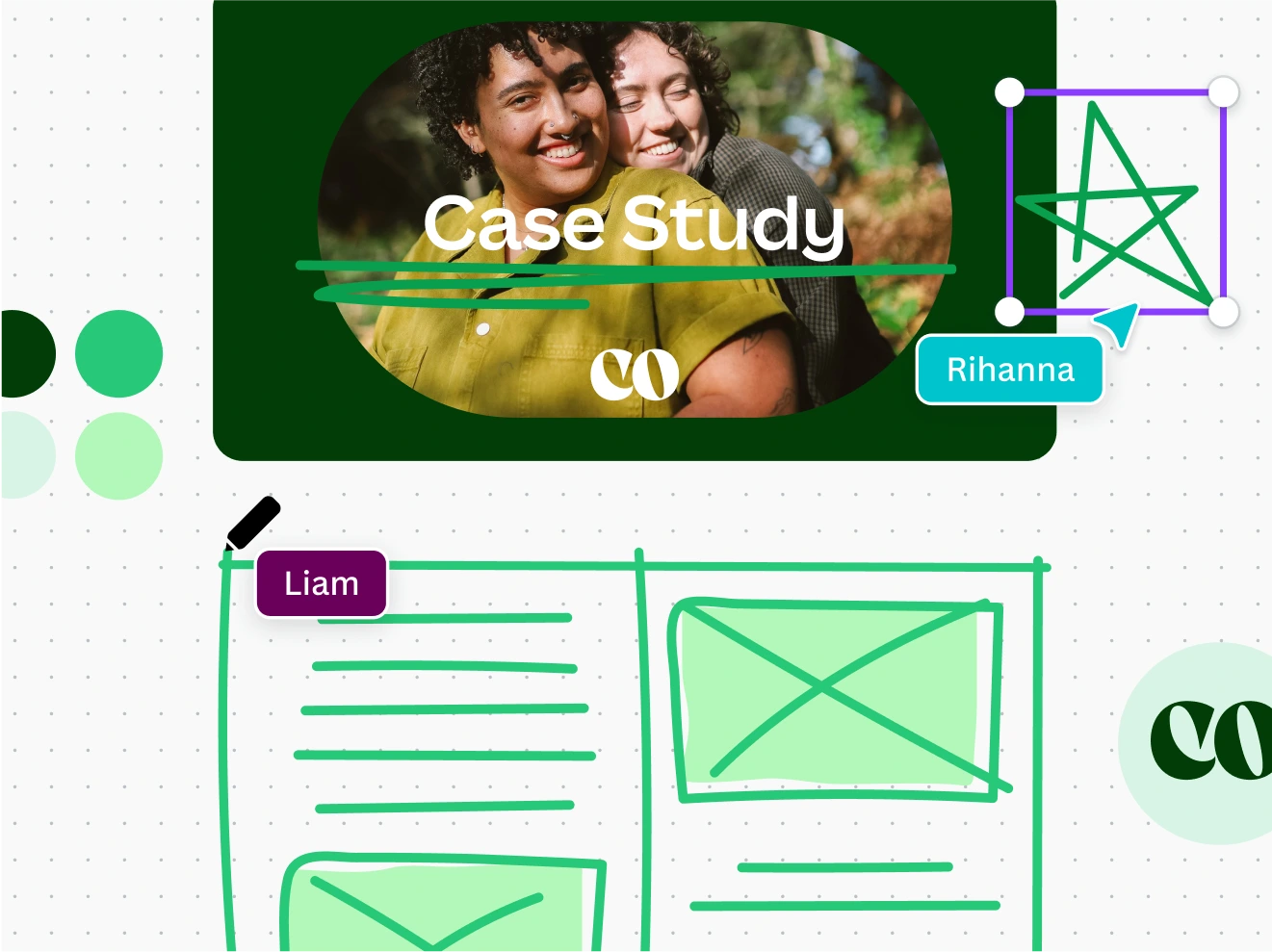
Draw has built-in Shape Assist to make sketching flow charts and diagrams a breeze. Simply sketch a basic shape or line and hold your pen down. You’ll have a hand-drawn Canva shape that lets you adjust colors and borders, add text, and more.
Quickly annotate and highlight
Use Draw to collaborate with your team and quickly markup designs. Circle, highlight, and underline like you would with a real pen and paper.

Use Draw on any device
Draw, customize, and annotate from wherever you are, on any design. The Draw tool works on Canva Apps, mobile, and web browsers.
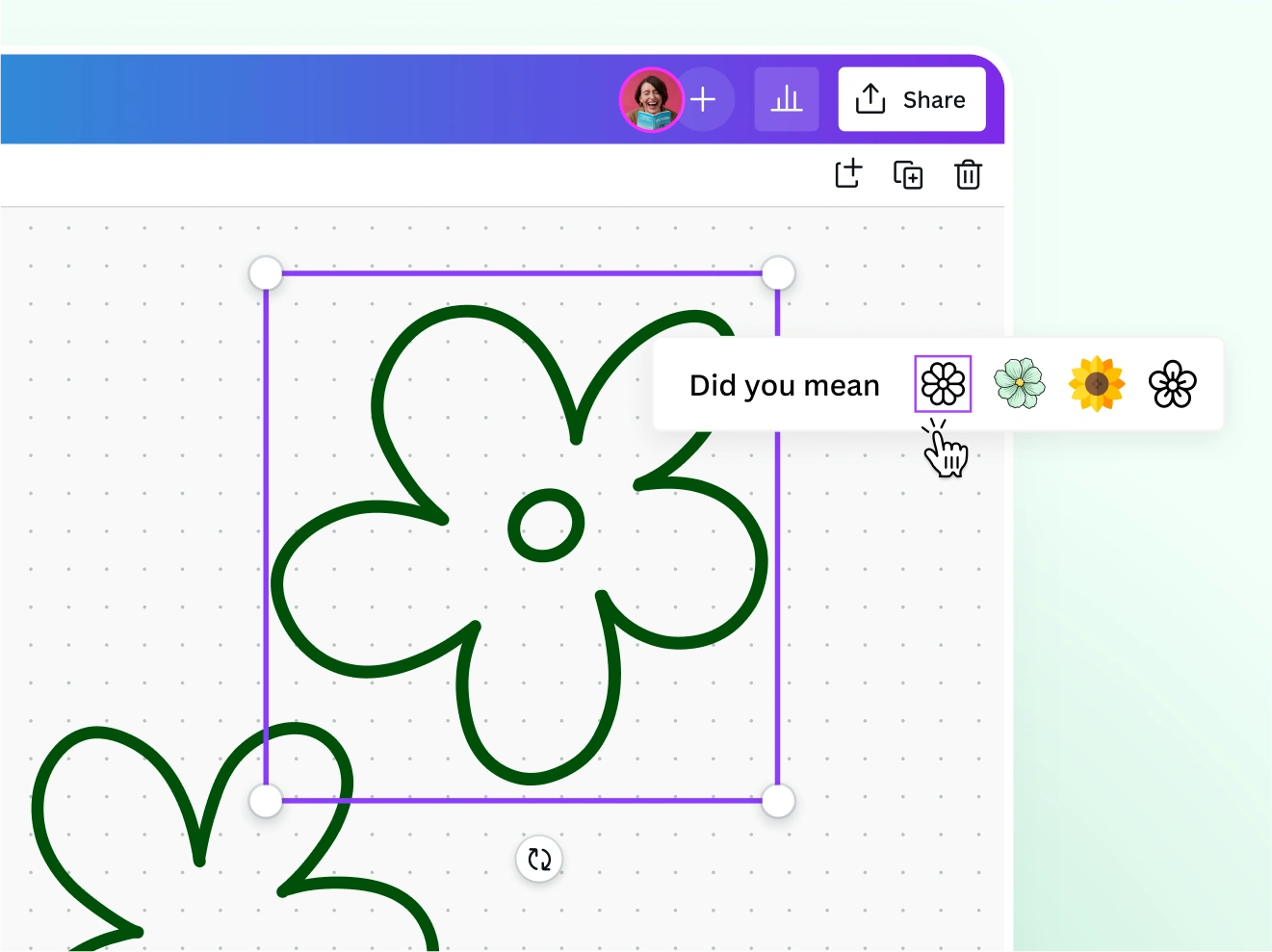
Add some Magic (Coming Soon)
Use Draw's Sketch to Graphic mode to sketch out ideas and find your perfect graphic match. Work your magic across projects, creative ideas, and pitches.
Made for artists of all ages
Students
With intuitive elements and automatic drawing tools, it’s easier to rekindle creativity and increase design confidence for students of all ages.

Teachers
Improve communication and creativity in the classroom with automatic syncing to your whiteboard for class brainstorming.

Professionals
Make your team process collaborative, with easy drawing & editing and a tool designed for brainstorming and project inspiration.
Start inspired
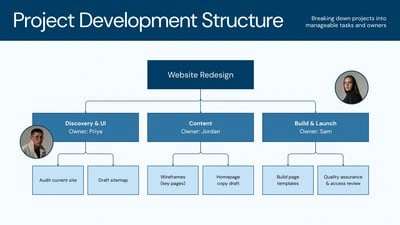
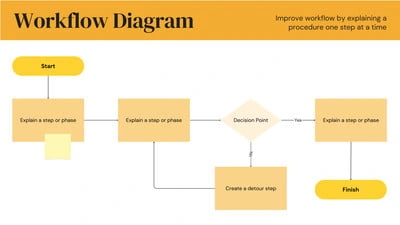
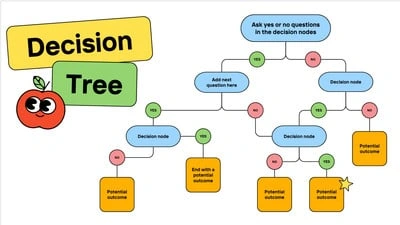
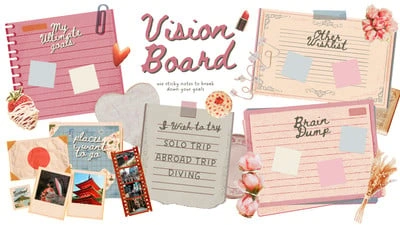
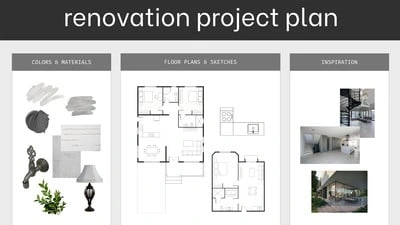
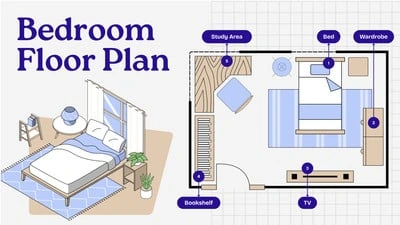
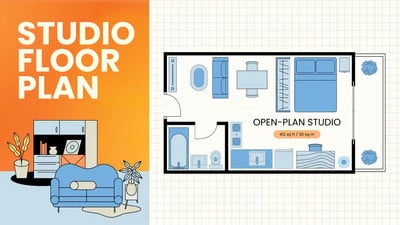
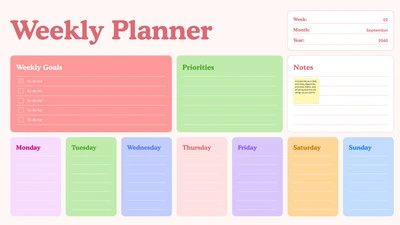
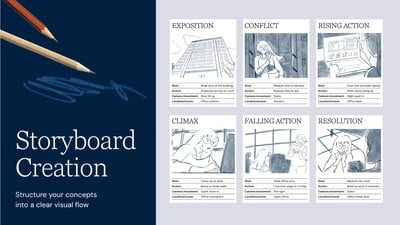
Get a head start with free templates you can customize in a few clicks.







Pro




Pro

All the features you need
Canva’s free drag-and-drop design tools make it easy to create any design, fast!

Thousands of free templates
Thousands of free templates
Plenty of template design inspiration for any occasion, no need to start from scratch and 100% customizable.
Millions of free images, icons, and graphics
Millions of free images, icons, and graphics
Get access to our entire library of millions of photos, icons, graphics, media elements, audio, sound effects, and more.
Real-time collaboration
Real-time collaboration
Create, collaborate, comment on designs, and get everyone on the same page, at the same time, from anywhere.
Customizable charts and tables
Data visualization made beautiful, interactive, and easy—no complicated software to learn.
Access on any device
Access on any device
Jump from mobile to desktop—design how you work best!

Your entire workflow in one tool
Uncover your next idea and create anything from social media campaigns to strategy presentations without leaving Canva.
Easy sharing and exporting tools
Easy sharing and exporting tools
Share and export designs as a JPG, PNG, PDF, and PPTX. And when you embed a doc, you can customize which page will be displayed.

Assign tasks and gather feedback
Easily assign tasks by adding comments, tagging team members, and gather feedback just as quickly.
Folder organization
Save, repurpose, share, and store assets safely in team or personal folders.
Color palette generator
Color palette generator
Generate a color palette from any image that inspires you.
Autosave
Autosave
Canva autosaves your progress so you can update anything, anytime.
Cloud storage
Cloud storage
Get free 5GB storage or upgrade to Canva Pro and get unlimited folders with up to 1TB storage for all your designs.
How to sketch your ideas with Draw
Launch Canva and start your project by selecting a design type on the Canva homepage. Choose from whiteboards, posters, presentations, and more.
Open a pre-made template that fits your needs, or start with a blank slate.
Begin drawing and customizing your template with Draw on the side panel. With our free drawing tool, you can adjust your pen’s color, thickness, and style to make your design your own. Don’t forget to include shapes, line connectors, blocks, and icons to truly perfect your mindmaps or projects.
Edit solo, or grant editing access to others so you can update and create at the same time.
Add your drawings to other Canva projects, save to a shared folder, and share with clients and teammates for their inspired feedback. Or, download your design in PDF, PNG, or JPG file formats.
Your questions, answered
What makes Draw the best free online drawing tool?
Draw is Canva’s free drawing tool, with everything you need to inspire your team to develop exciting creative brainstorms and build zesty new projects. The floating draw tab simplifies your starting point with options to customize the color, thickness, and style of your pen and a one-touch eraser at hand.
Draw is made for all levels of confidence. Elevate your sketches with shape assist. Start by sketching a simple shape, like a freehand circle, and it will be transformed into a perfectly polished circle. You can even collaborate with your team or class in real-time.
What can I use Draw for?
Draw is made to support creativity everywhere! Freehand drawing is great for anything that requires visual thinking. A few classroom-based ideas to get you started include:
Brainstorm with your class
Give feedback on classwork
Diagram, mindmap, and more
Annotate, highlight, and interact with classwork
And a few professional use ideas include:
Markup, highlight, and annotate designs to give feedback
Brainstorm ideas on your own, or with your team
Diagram, mindmap, and more
Add custom graphics to your designs
Is Draw free for everyone?
Draw is completely free for all users and available across all Canva doctypes, except Canva Docs. You can use it for freehand drawing, sketching, and diagramming on posters, invitations, presentations, whiteboards, social media posts, and more.
How can I sketch on a whiteboard?
To sketch on your Canva whiteboard, access and use Draw. Go to the left sidebar and click Draw. You’ll have three different pen options, with customizable colors and thicknesses, so you can truly make your design your own.
More resources
Learn how to use Whiteboards while playing with fun tools.
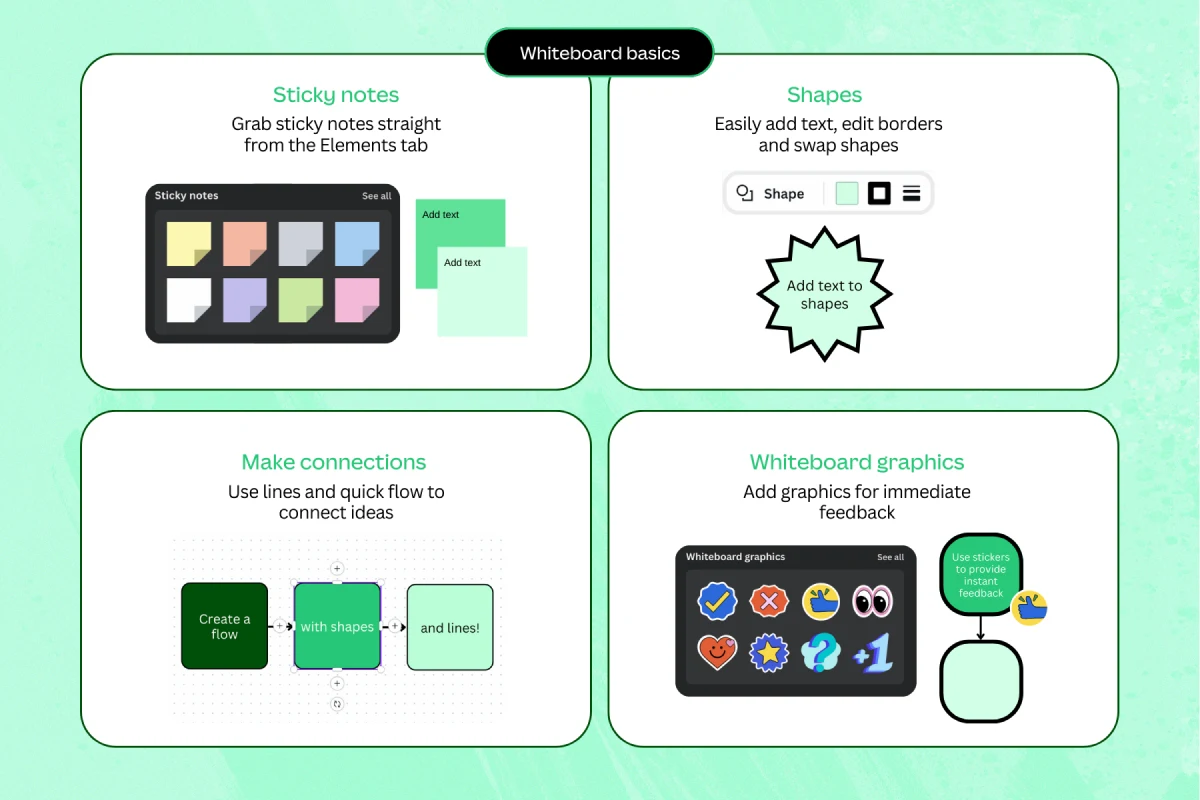
A cheat sheet to get you started in using Whiteboards for lessons.
Level up brainstorms and workshops with Canva Whiteboards.
A guide on collaborative moodboards and project planning.
Discover more products
Online Whiteboard
Presentations
Text to Image
PDF Editor
Magic Design
Video Editor
Sketch up your ideas with Draw
Create your way with Draw, a free online drawing tool. Made for all ages, kickstart your ideas right with Canva.
Like this project
Posted Jul 3, 2026
Draw: a freehand drawing tool for sketching, annotating, and shape-assist across Canva designs and whiteboards.
Likes
0
Views
19
Tags