Threat Intelligence Feed Manager Development

Mohammad Junayd



Threat Intelligence Feed Manager
A powerful desktop application that helps security professionals automatically collect, organize, and manage threat intelligence data from multiple sources. Think of it as a smart assistant that continuously monitors the internet for potential security threats and keeps everything organized for you.
What is Threat Intelligence?
Threat intelligence is information about potential security threats that could harm your organization. This includes things like:
Malicious IP addresses that might attack your systems
Suspicious websites that could steal information
Harmful file signatures that indicate malware
Phishing email addresses that try to trick users
Why This Application is Useful
In today's digital world, security threats are constantly evolving. Security teams need to:
Stay updated with the latest threat information
Organize large amounts of security data efficiently
Automate repetitive tasks like downloading threat feeds
Quickly search and filter through thousands of threat indicators
Keep sensitive information secure with encryption
This application solves all these challenges by providing a centralized, automated system for threat intelligence management.
Key Features
Automated Data Collection
Automatically downloads threat intelligence from multiple sources
Runs on a schedule you set (default: daily at 4:00 AM)
Handles different data formats (JSON, CSV, XML, text)
Retries failed downloads automatically
Security & Privacy
Encrypts sensitive API keys to keep them safe
Optional master password protection
All data stored locally on your computer
No data sent to external servers
Smart Organization
Automatically categorizes threats by type (IPs, domains, URLs, etc.)
Advanced filtering and search capabilities
Tagging system for custom organization
Threat level scoring and analysis
Comprehensive Monitoring
Detailed logs of all activities
Download status tracking
Error reporting and troubleshooting
Export capabilities for reporting
User-Friendly Interface
Modern, dark-themed interface
Intuitive navigation
Real-time statistics and updates
Responsive design that works on different screen sizes
Application Pages
Feeds Page - Managing Your Data Sources

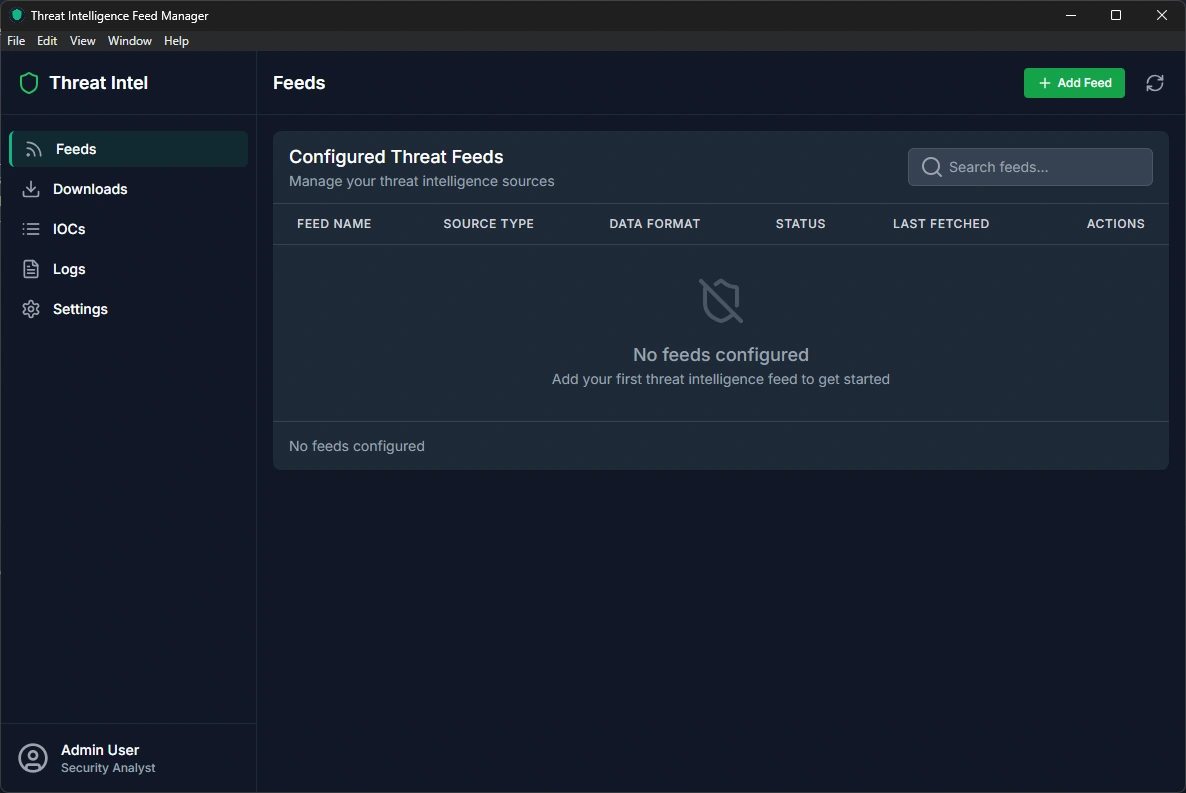
The Feeds page is your command center for managing where the application gets its threat intelligence data from.
What You Can Do Here:
View All Your Data Sources
See a complete list of all threat intelligence feeds you've configured
Each feed shows its name, type, format, status, and when it was last updated
Color-coded status indicators show which feeds are active (green) or disabled (gray)
Add New Data Sources
Click the "Add Feed" button to configure a new threat intelligence source
Choose from popular sources like AlienVault, Abuse.ch, or VirusTotal
Or add custom sources with your own URLs
Set up API keys securely (stored encrypted if you enable security features)
Manage Existing Feeds
Edit feed settings anytime by clicking the edit button
Enable or disable feeds without deleting them
Delete feeds you no longer need
See detailed information about each feed's performance
Supported Feed Types:
AlienVault OTX: Community-driven threat intelligence
Abuse.ch: Malware and botnet tracking
VirusTotal: File and URL reputation data
Custom: Any threat feed with a public URL
Data Formats Supported:
JSON: Most common format for modern APIs
CSV: Spreadsheet-style data
XML: Structured data format
Text: Simple text-based feeds
Downloads Page - Monitoring Data Collection
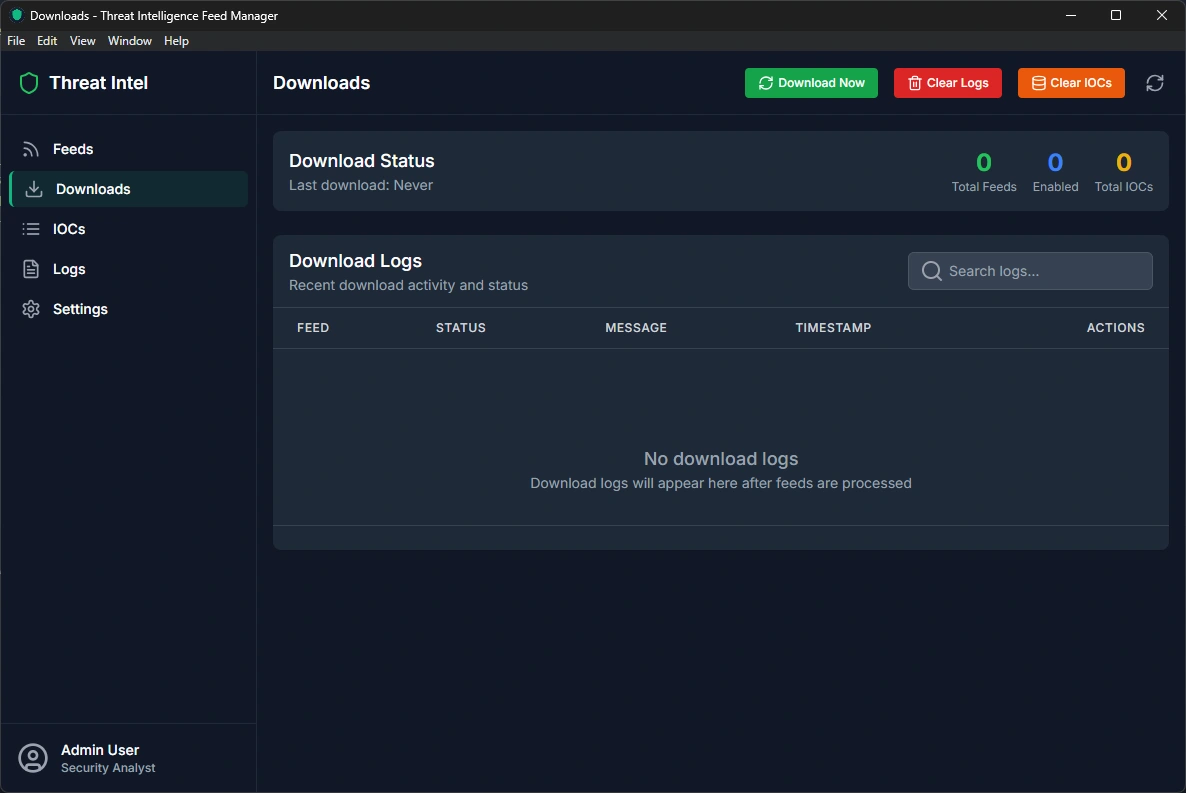
The Downloads page gives you complete visibility into how your threat intelligence data is being collected and any issues that might arise.
Key Features:
Download Status Overview
See when the last download occurred
View total number of feeds configured
Count of enabled feeds actively collecting data
Total number of threat indicators collected
Real-Time Download Logs
Chronological list of all download attempts
Color-coded status indicators:
🟢 Green: Successful downloads
🔴 Red: Failed downloads with error details
🟡 Yellow: Warnings or partial failures
Timestamps for every activity
Detailed error messages for troubleshooting
Manual Controls
Download Now: Manually trigger all enabled feeds to download immediately
Clear Logs: Remove old download history to keep the interface clean
Clear IOCs: Remove all collected threat data (useful for fresh starts)
Refresh: Update the display with latest information
Download Progress Tracking
When you start a manual download, a progress window appears
Shows percentage completion
Displays which feed is currently being processed
Provides real-time status updates
Troubleshooting Features
Click on any failed download to see detailed error information
Retry individual failed feeds
View network connection issues
Check API key problems
IOCs Page - Exploring Your Threat Data
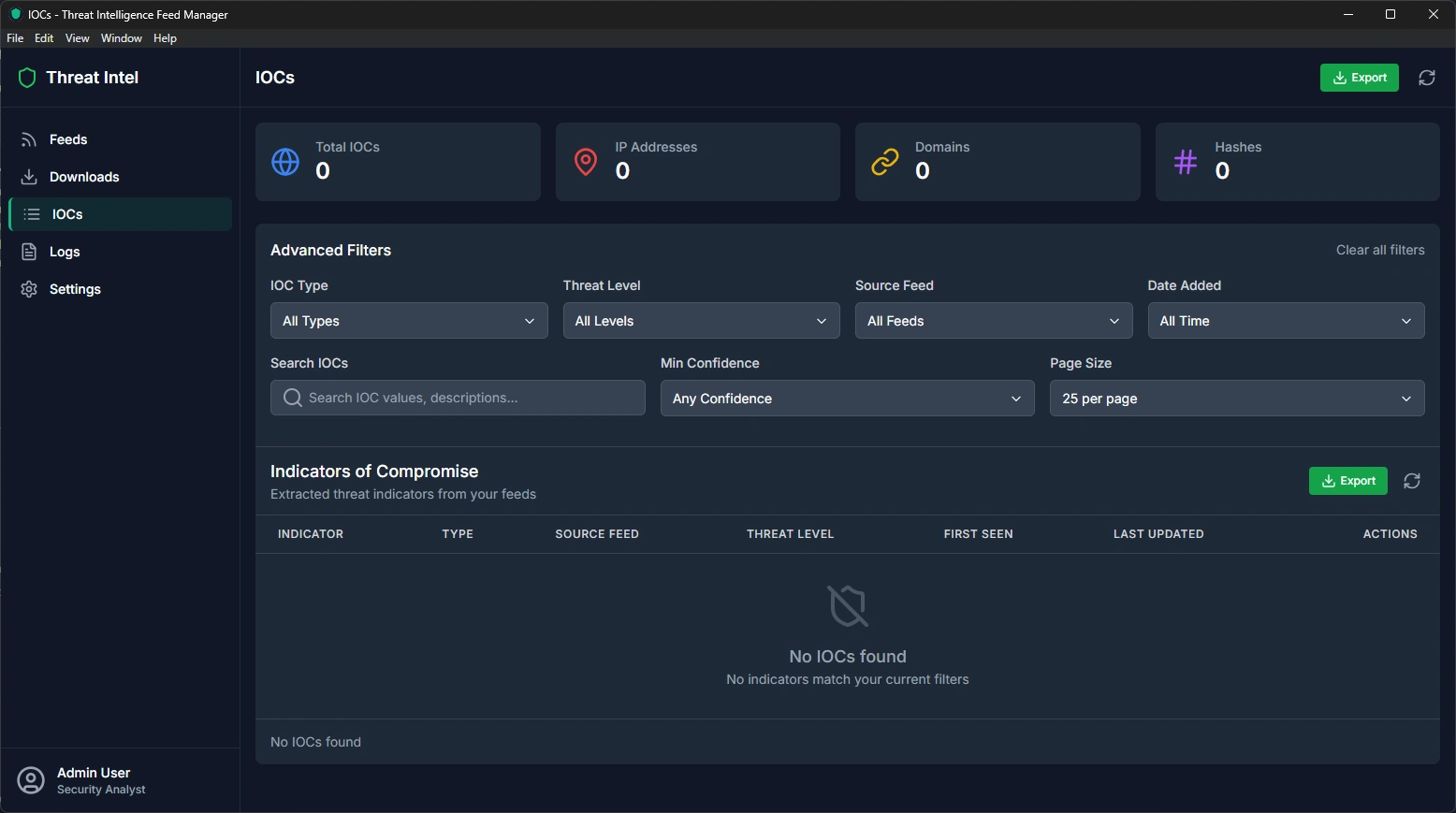
The IOCs (Indicators of Compromise) page is where you explore, search, and analyze all the threat intelligence data that has been collected from your feeds.
What You'll Find Here:
Statistics Dashboard
Total IOCs: Complete count of all threat indicators
IP Addresses: Number of malicious IP addresses
Domains: Count of suspicious websites and domains
Hashes: Number of malicious file signatures
Advanced Search & Filtering
Search Bar: Find specific threats by typing any part of the indicator
Type Filter: Filter by threat type (IPs, domains, URLs, hashes, emails)
Threat Level Filter: Show only high, medium, or low-risk threats
Source Feed Filter: View threats from specific data sources
Date Range Filter: Focus on recent or historical threats
Comprehensive Threat Table Each threat indicator shows:
Value: The actual threat (IP address, domain, etc.)
Type: What kind of threat it is
Source: Which feed provided this information
Threat Level: Risk assessment (High/Medium/Low)
Tags: Categories and labels
Date Added: When this threat was first discovered
Confidence: How reliable this threat information is
Threat Analysis Features
Automatic Scoring: Each threat gets a risk score based on multiple factors
Feed Reputation: Threats from more reliable sources get higher scores
Recency Analysis: Newer threats are scored higher than old ones
Tag Analysis: Threats with specific tags (like "malware" or "ransomware") get higher scores
Export Capabilities
Export all threat data to CSV format
Filter data before exporting
Include all threat details and metadata
Perfect for reports or sharing with other security tools
Interactive Features
Click on any threat to see detailed information
Sort table by any column
Bulk operations on selected threats
Quick actions for common tasks
Logs Page - System Activity Monitoring
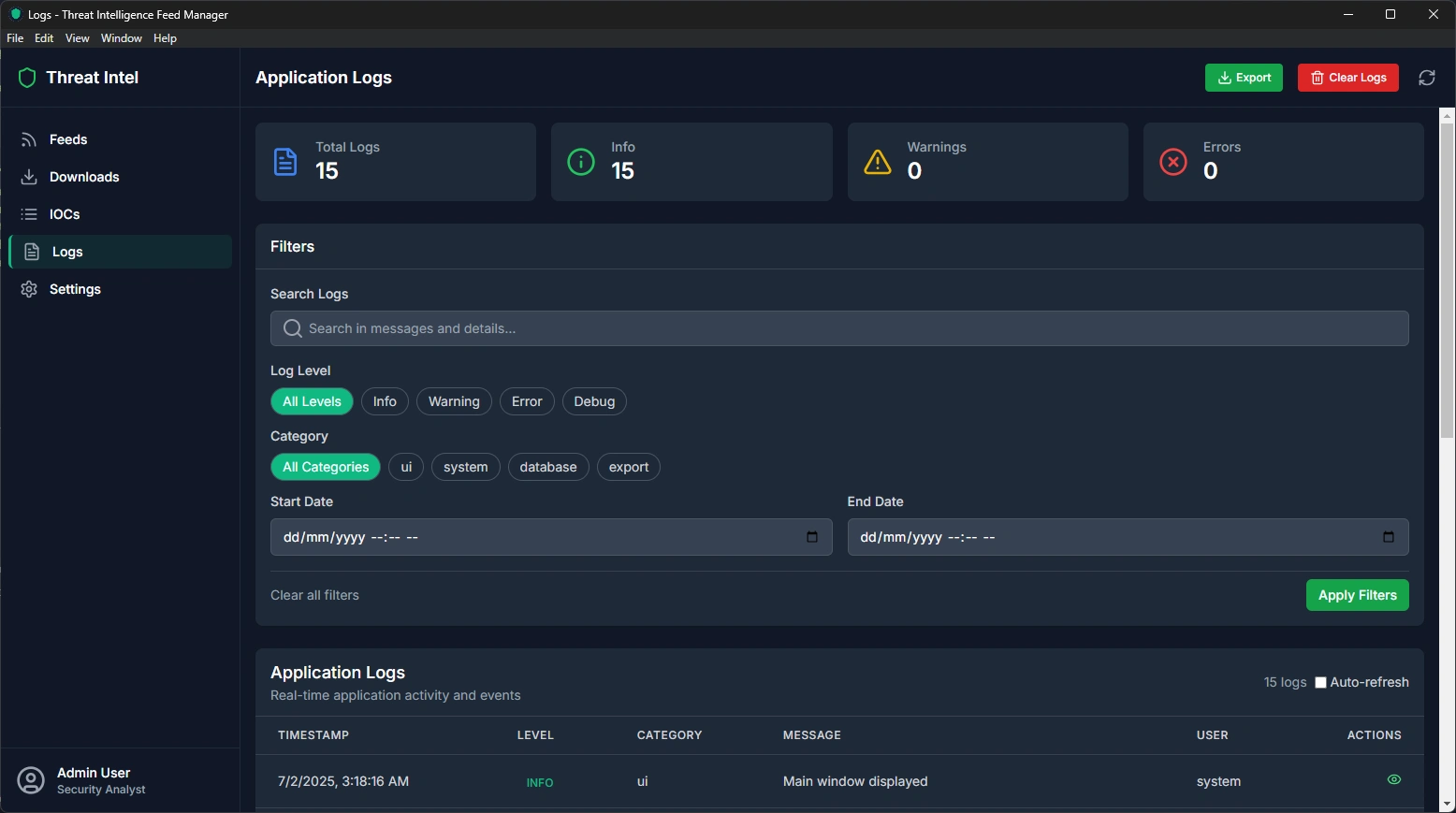
The Logs page provides detailed insights into everything happening within the application, helping you understand system performance and troubleshoot any issues.
Log Categories:
Statistics Overview
Total Logs: Complete count of all system activities
Info Logs: Normal operations and successful activities
Warning Logs: Potential issues that need attention
Error Logs: Problems that need immediate attention
Comprehensive Filtering
Search: Find specific log entries by typing keywords
Log Level Filter: Show only errors, warnings, info, or debug messages
Category Filter: Focus on specific areas (database, downloads, security, etc.)
Date Range: View logs from specific time periods
User Filter: See activities from different user sessions
Detailed Log Information Each log entry shows:
Timestamp: Exact time the event occurred
Level: Importance of the message (Error, Warning, Info, Debug)
Category: What part of the system generated the log
Message: Human-readable description of what happened
Details: Technical information for troubleshooting
User: Which user or system process triggered the event
Log Categories Include:
System: Application startup, shutdown, and core operations
Database: Database connections, queries, and data operations
Download: Feed download attempts, successes, and failures
Security: Encryption, authentication, and security events
UI: User interface interactions and page loads
Export: Data export operations and file operations
Export and Management
Export Logs: Download all logs as a CSV file for external analysis
Clear Logs: Remove old log entries to free up space
Auto-Cleanup: System automatically removes old logs to prevent database bloat
Troubleshooting Features
Error Details: Click on error logs to see technical details
Stack Traces: For developers, see the exact code path that caused issues
Context Information: Each log includes relevant system information
Session Tracking: Follow user sessions to understand workflow issues
Settings Page - Application Configuration
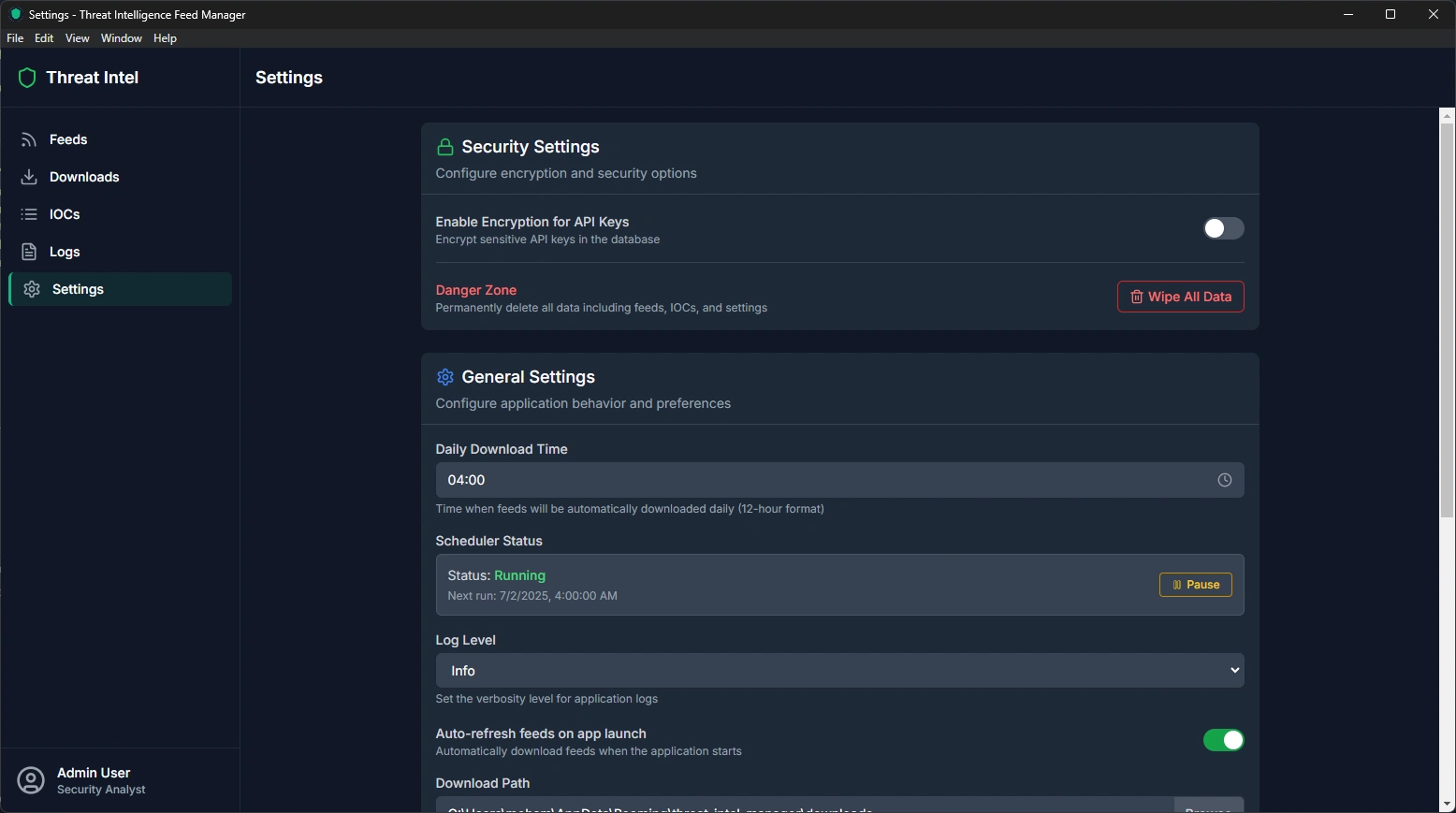
The Settings page allows you to customize how the application works, manage security features, and configure automated behaviors.
Security Settings:
Encryption Options
Enable Encryption: Toggle to encrypt sensitive API keys in the database
Master Password: Set a password to protect encrypted data
Password Visibility: Show/hide password when typing
Encryption Status: See whether encryption is currently active
Data Protection
API Key Security: When enabled, all API keys are encrypted using your master password
Session Management: Encryption keys are only stored in memory during active use
Secure Storage: All sensitive data is stored locally with industry-standard encryption
Danger Zone
Wipe All Data: Permanently delete all feeds, IOCs, logs, and settings
Confirmation Required: Multiple confirmations prevent accidental data loss
Complete Reset: Returns the application to a fresh installation state
General Settings:
Download Schedule
Daily Download Time: Choose when automated downloads should run (default: 4:00 AM)
Time Picker: Easy-to-use interface for selecting hours and AM/PM
24-Hour Format: Option to use 24-hour time format
Time Zone: Uses your system's local time zone
Application Behavior
Download Interval: How often feeds should be checked (default: 60 minutes)
Auto-Refresh: Automatically refresh data when the application starts
Log Level: Choose how detailed the logging should be:
Verbose: All activities logged (for debugging)
Info: Normal operations and important events
Warning: Only warnings and errors
Error: Only error messages
Data Management
Log Retention: How long to keep log entries (default: 10,000 entries)
Database Location: Where data files are stored (usually automatic)
Backup Options: Manual backup and restore capabilities
User Interface
Theme: Dark mode (currently the only theme available)
Language: Interface language (currently English only)
Notifications: System notification preferences
Accessibility: High contrast and screen reader support
Getting Started
Installation
Download the Application
Download the latest version for Windows
Windows:
.exe installerInstall and Launch
Run the installer and follow the setup wizard
Launch the application from your start menu or applications folder
The application will create its data folder automatically
First-Time Setup
The application will guide you through initial configuration
Set up your master password if you want to use encryption
Add your first threat intelligence feed
Adding Your First Feed
Navigate to the Feeds Page
Click on "Feeds" in the sidebar
Click the "Add Feed" button
Configure the Feed
Name: Give your feed a descriptive name (e.g., "AlienVault OTX")
Source Type: Choose from the dropdown (AlienVault, Abuse.ch, etc.)
Feed URL: Enter the URL where the threat data is located
API Key: If required, enter your API key (will be encrypted)
Data Format: Select the format of the data (JSON, CSV, etc.)
Enable Feed: Check this to start collecting data immediately
Save and Test
Click "Add Feed" to save your configuration
The feed will appear in your feeds list
You can manually test the feed by going to the Downloads page
Understanding Your Data
Threat Types Explained:
IP Addresses: Malicious servers or computers on the internet
Domains: Suspicious websites that might host malware or phishing pages
URLs: Specific web pages that are known to be dangerous
Hashes: Digital fingerprints of malicious files
Emails: Phishing email addresses or malicious sender addresses
Threat Levels:
High: Immediate threat that requires attention
Medium: Potential threat that should be monitored
Low: Suspicious activity that might be worth investigating
How Threat Level is Calculated
The "Threat Level" (High, Medium, Low) helps you quickly understand how dangerous a threat might be. The application calculates this automatically for each threat using a combination of simple rules:
Source Reputation: If the threat comes from a highly trusted source (like a well-known security feed), it is considered more serious.
Confidence Score: Each threat has a confidence score (0–100) that shows how sure we are that it's real. Higher confidence means a higher threat level.
Recency: Newer threats are considered more dangerous, because attackers often use new tricks to avoid detection.
Type of Threat: Some types of threats (like malware or phishing) are more dangerous by nature, so they may be rated higher.
In simple terms:
If a threat is new, comes from a trusted source, and has a high confidence score, it will be marked as High.
If it's older, or the confidence is not as strong, it may be Medium.
If it's just a little suspicious or comes from a less reliable source, it will be Low.
You don't need to do anything—this is all automatic! The goal is to help you focus on the most important threats first.
Where Does the Confidence Score Come From?
The confidence score is a number (from 0 to 100) that shows how certain the system or the original data source is that a particular threat is real and not a false alarm.
From the Feed: Most threat intelligence feeds (like AlienVault OTX, Abuse.ch, etc.) include a confidence score for each threat. This score is provided by experts or automated systems running those feeds, based on their own analysis and criteria.
For example, a feed might say: "We are 95% sure this IP address is malicious," so the confidence score is 95.
If Not Provided: If a feed does not provide a confidence score, the application assigns a sensible default (for example, 50 or 60), or estimates a score based on other available information (such as the reputation of the source, how recent the threat is, or the type of threat).
Manual or Custom Feeds: If you add a custom feed or enter data manually, and there's no confidence score, the app will use its default or estimation method.
In summary:
Most of the time, the confidence score comes directly from the threat feed itself.
If not, the app uses a sensible default or makes an educated guess.
Confidence Scores:
90-100: Very reliable threat information
70-89: Reliable information from trusted sources
50-69: Moderate confidence, may need verification
Below 50: Low confidence, should be investigated further
Troubleshooting
Common Issues
Feeds Not Downloading
Check your internet connection
Verify the feed URL is correct
Ensure API keys are valid (if required)
Check the Downloads page for specific error messages
Application Won't Start
Ensure you have the latest version
Check that your system meets minimum requirements
Try running the database diagnostic tool
Reinstall the application if problems persist
Slow Performance
Clear old logs from the Logs page
Reduce the number of enabled feeds
Increase the download interval in settings
Check available disk space
Encryption Issues
Make sure you remember your master password
Try disabling and re-enabling encryption
Contact support if you can't recover encrypted data
Getting Help
Built-in Diagnostics
Use the database diagnostic tool for technical issues
Check the Logs page for detailed error information
Export logs for technical support
System Requirements
Operating System: Windows 10 or later
Memory: 4GB RAM minimum, 8GB recommended
Storage: 1GB free space for application and data
Network: Internet connection for downloading threat feeds
Security and Privacy
Data Protection
All data is stored locally on your computer
No information is sent to external servers
API keys are encrypted when security features are enabled
Database files are protected by your operating system's security
Encryption Features
AES Encryption: Industry-standard encryption for sensitive data
Salt Generation: Additional security for password protection
Session Management: Encryption keys are cleared when the application closes
Secure Storage: Encrypted data is stored in your system's secure location
Best Practices
Use a strong master password if enabling encryption
Keep your API keys secure and don't share them
Regularly update the application for security patches
Back up your data regularly
Use the application on a secure, trusted computer
Advanced Features
Automation
Scheduled Downloads: Set up automatic daily downloads
Retry Logic: Failed downloads are automatically retried
Progress Tracking: Monitor download progress in real-time
Error Handling: Comprehensive error reporting and recovery
Data Analysis
Threat Scoring: Automatic risk assessment of all threats
Feed Reputation: Weighting based on source reliability
Recency Analysis: Newer threats get higher priority
Pattern Recognition: Identify trends in threat data
Integration Capabilities
CSV Export: Export data for use in other security tools
API Support: Connect to external threat intelligence platforms
Custom Feeds: Add any threat feed with a public URL
Data Formats: Support for JSON, CSV, XML, and text formats
Note: This application is designed for security professionals and organizations that need to manage threat intelligence data. Always follow your organization's security policies and procedures when using threat intelligence tools.
Like this project
Posted Jul 9, 2025
Developed a desktop app for threat intelligence data management.
Likes
1
Views
0