Effective Management of Status Pages with Instatus

Fase Eniola


Meta Title: How to Manage a Status Page | Instatus
Meta Description
Users can forgive downtime, but not silence. Learn how to set up and manage a status page with Instatus so that your team stays ahead of every incident.
Imagine your API suddenly goes down at 1 pm on a Thursday. Not the whole product, but an important endpoint that your on-call engineer can fix in less than an hour. Now, instead of reaching out to your engineer, you decide to be silent about it. Then, you turn less than an hour of downtime into several support tickets, angry tweets, and a very unhelpful customer service call you had no intention of having on a Friday morning.
Having to fix the problem is not the issue; the silence afterwards is. One factor that differentiates a team that looks like they have things under control from one that looks like it's very confused is a well-managed status page. This is regardless of whether you are running a SaaS or e-commerce store. Incidents are expected to occur, and this does not prevent them. However, it makes sure your users hear back from you before they open a support ticket in frustration.
By the end of this guide, you will know how to successfully set up and manage a status page. This will be done using Instatus, trusted by teams at Sketch, Harvard, Wistia, Airbyte, and Deno. Getting a live page takes about 30 seconds, and the rest is about knowing the things that make it useful when things don't go well.
Why You Need a Status Page
Most teams do not realise the value of a status page until an incident happens. By then, it becomes one of the most relevant communication tools a company possesses. Here's why:
Builds Customers' Trust:
Customers do not expect perfection in your services as an organisation, but they do expect transparency. According to an Atlassian survey, 67% of organisations after using Statuspage reported that clear and proactive communication increases their customers’ trust in their company. Companies that have an increase in user relationships are not the ones whose systems are perfect, but those that carry users along the entire time. A status page makes this possible. It should not be considered as a technical tool, but a tool that involves technology.
Give Your Team Coordination Hub:
A lot of teams have the same perception when it comes to status page and insurance. They consider it to be less important and more of what they can deal with later. Then an incident occurs, and suddenly everyone is wondering why there's no single place to communicate what is going on. Disorganisation occurs as someone is trying to update the good doc, and another is just copy-pasting the same messages several times into the office’s Slack channel. A well- maintained status page handles this. It provides a structured place where your team can coordinate communication during incidents.
Reduces Support Ticket Volume:
Another reason why you need a well-maintained status page, is that it reduces the volume of support tickets. When users have access to a particular source for updates, they stop emailing your team or calling you out on social media. Therefore, your team spends less time responding to every ticket sent and spends more time on work that actually moves things forward.
Protects Your SEO and Discoverability
When a user experiences an issue, they will search your brand name plus the words “status” or “down”. When your status page appears in search results, users can easily get the information they need instead of guessing what's happening and contacting support.
Now that the ‘why’ has been addressed, here's the ‘how’. The five steps below discuss everything you need so that your status page is ready for work before the next incident finds you.
Step 1: Set Up Your Status Page Before You Need It
Figuring out your configuration during an active incident can lead to a lot of disorganisation and can be overwhelming. The decision you make during a calm moment determines how efficiently and effectively you communicate during chaotic times. Here is what to get right from the beginning.
Be specific with your components.
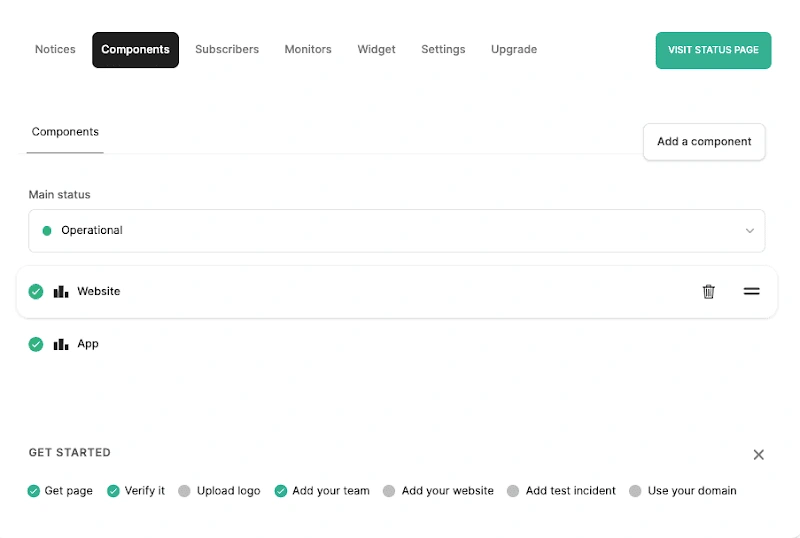
On your Instatus page, components are the individual services displayed on your dashboard. These components should not be kept as “API”, “Dashboard”, or “Billing”. These are too broad, and users experiencing a webhook failure do not care whether your dashboard is operational or not. Instead, they want to know if their integration was affected. Therefore, the more precisely your components portray your actual product structure, the more relevant your status page is to someone currently bothered about an incident at 2 am.
Configure monitoring from day one
Instatus supports monitoring across websites, APIs, cron jobs, ping checks, TCP and UDP connections, and DNS. On the Pro plan, checks run every 30 seconds. On the free Starter plan, they run every two minutes. Whatever plan you are on, configure monitoring for every component from the beginning so incidents surface automatically rather than waiting for a user to tell you something is wrong. Set up alerts to reach the right people via email or SMS the moment something goes sideways.
Set up subscriber notifications before the first incident
Instatus allows users to subscribe to updates via various channels, including email, SMS, Slack, Microsoft Teams, Discord, Google Chat, and webhooks. You get 200 subscribers for a Starter plan, 5000 subscribers for a Pro plan, and 25000 subscribers for a Business plan. Configure these channels during setup, instead of struggling to do so when you have your first incident, and you actually need them working.
Host it on your own domain
Using a custom domain like status.yourcompany. com feels like part of your product. Instatus Pro plan and above provides several custom domains that you can use. It also hosts your status page on a separate system from your main services, so your page stays online even when everything else is down. Note that the period where your users need to reach your status page is when there's an outage, and it is important that you are reachable.
Step 2: What to Actually Do When an Incident Hits
A lot of teams do not post their first update soon enough because they want answers before saying anything. While that is understandable, it is also wrong. Immediately your users know you are aware that something is wrong, their worry reduces significantly, and the support tickets reduce too. Here's what to do if an incident occurs:
Post the first update within five minutes
When your first update happens, you must first focus on three things. These are what is affected, what you know right now, and when the next update is coming. A simple post such as ‘We are looking into the high error rates affecting the Authentication API. Our team is actively working on it, and an update will be provided within an hour. Does everything need to be done at that moment? It informs the users of the scope, that you are on it, and how long they have to wait.
Use Instatus incident templates
With Instatus, you can build templates for an incident response in advance so that your communication team is not writing under pressure at 11 pm. Working under pressure can lead to inconsistent communication. When an incident happens, the last thing your on-call engineer should be doing is staring at a blank text box while trying to figure out how to start his first draft. Write the templates when everything is alright, and they will be useful during chaotic moments.
Instatus incident template editor where teams can pre-write response updates before an incident occurs.
Update every 30 minutes, even when nothing has changed
You shouldn't stop at the first update. There should be ongoing updates until the issue is resolved. A response that says ‘Our team continues to look into this issue and we will share more information within 30 minutes’ will go a long way. Silence after a first update makes it easier for your users to conclude that the team either does not know what they are doing or they do not think it is worth communicating. Neither is the impression you want.
Manage the incident from Slack or Teams
Instatus integrates directly with Slack and Microsoft Teams, so your team can share updates and make changes to component statuses without leaving the tool they are already working in. When an incident occurs, every minute is valuable, and you would not want your engineer to lose time and energy going back and forth between apps.
Step 3: After the Incident Closes, the Work Is Not Done
When an incident occurs, we might be tempted to close it out and move on, and that is a mistake. What you do in the 24 hours after has a big influence on how your users remember the experience, and that determines if they will stay.
Publish a real post-mortem
Once a resolution has been made, accountability is important. Post a detailed update on your Instatus page explaining what happened, the reason behind the incident, how it was fixed, and what steps you are taking to prevent it from happening again. It's important to be specific because users will only read it as a cover-up if it is vague. For instance, a response that says ‘On November 12th, a database configuration error caused 45 minutes of downtime on the Data Sync API. We are including automatic checks in our deployment process to make sure this does not happen again’ tells users that you know what you're doing and have a plan.
Use the Instatus activity log for internal review
Instatus keeps an up-to-date activity log of every change made to your status page and monitoring configuration. You can rely on it for your internal post-mortem during an incident, instead of putting together what happened from memory or Slack history. Instatus gives you an accurate and precise record of every update, including a timestamp.
Close the loop with every subscriber
When you post a resolution update on your Instatus page, your subscribers are automatically notified through their chosen channels. Users who subscribed during the incident did so to be kept in the loop about any status changes. Closing the loop with them is not an option, because updating your subscribers is the final act of the communication process.
Step 4: Scheduled Maintenance Is a Test of How Much You Respect Your Users
It is easier for users to forgive a planned downtime that was well communicated. However, when a sudden downtime hits your users without warning, users are likely to be frustrated. In these two scenarios, there are both downtimes, but what makes them different is the user's experience.
With Instatus, you can prepare earlier by scheduling maintenance windows and configure them to notify subscribers automatically when the window opens or closes. Give users at least 48 hours for routine maintenance and a full week for anything that's going to affect your important services. You should also schedule during your lowest-traffic period to reduce the number of users affected. Instatus also acknowledges multi-language status pages, so users get notifications in the language they are more comfortable reading.
When maintenance ends, it's important to send a completion confirmation immediately, to inform users waiting and wondering if everything is going fine.
Step 5: Keep Your Status Page Accurate and Up to Date
An outdated status page is very misleading. If your page shows components that no longer exist or misses services that are very important, it makes your users question if you have the problem under control internally. They will most likely assume that your team does not care or that your company is not to be trusted. Both conclusions will cost you more than not having a page at all.
Keep your components updated whenever you launch a major feature or stop a service. Another option is connecting monitoring tools like Datadog, Pingdom, or New Relic through Instatus to show uptime and performance data automatically. This helps users see a clear picture of how your service is doing and helps build trust.
Sketch's status page built on Instatus showing 100% uptime across all components over the past 30 days
Get Started with Instatus
With Instatus, you can get a free forever plan that includes 15 monitors, two-minute checks, email alerts, five team members, and 200 subscribers. There's also a Pro plan that offers 50 monitors, 30-second checks, and 5,000 subscribers. It takes about 30 seconds to set up, and no credit card is required during this process. Teams like Stytch already use it to make things easier by communicating incidents. The best time for you to set up was before your last incident, and the second best is today.
Like this project
Posted Oct 12, 2026
Created a guide on managing status pages with Instatus for proactive incident communication.