How To Remove Ceph OSD

Diogo Santos


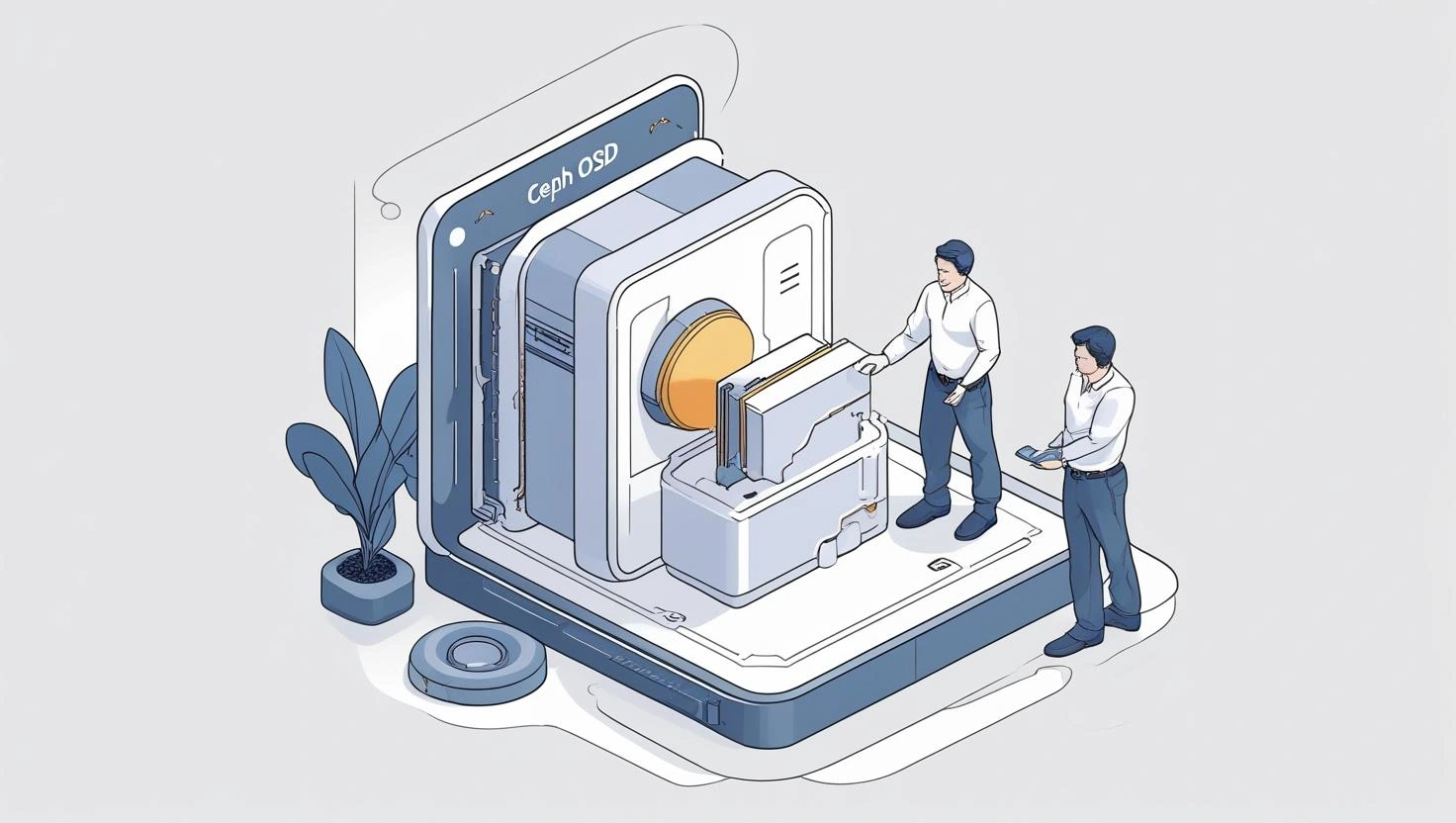
How To Remove an OSD Disk for Replacement
Overview
This guide explains how to remove an OSD disk from Ceph facing a physical failure and breakdown the steps preceding an on-site intervention. Following these instructions will allow you to achieve the goal safely without data loss and less impact on the performance of the cluster as possible.
Before you start
Before you start removing an OSD from the Ceph cluster, ensure to have:
Granted ssh access to the site with your LDAP user account.
Monitor ceph status.
Make sure the ceph won't try to write any data to faulty osd anymore.
Decide to proceed with operations whenever the cluster is slower on demand.
Remove an OSD from Ceph
1. Identify the faulty OSD
A failed osd disk is characterized by having the osd object in
down state, when launching the command ceph osd tree | grep down from inside the ceph-mon node. As an example:2. Find the corresponding Storage Node
2.1. Keeping it connected with the ceph-mon you'll be able to fetch the node's hostname by looking to the top branch where the osd was deployed.
2.2. Login into the storage node(s) where a faulty disk was acknowledged and find out more details about the physical drive executing:
Which in turn will provide such output similar to the one example below:
2.3. The command
dmesg -T | less will allow you to explore what was the root cause of the disk's demise.2.4. You can confirm if the drive is still mounted as a filesystem:
3. Cluster stability
3.1. You may confirm if the the osd object was already taken out of the cluster automatically by the CRUSH mechanism, by checking if the ceph status health equals to HEALTH OK from inside one of the monitor units by launching:
3.2. Otherwise a degradated status will be shown and in that case you can proceed with the removal of the osd from the cluster by forcing it out:
3.3. Further rebalance will help keeping the cluster's integrity in place:
3.4. Review the osd's status launching the
ceph osd tree command one more time:And finally wait until the entire reweight operation finishes and the cluster is steady with HEALTH OK status.
4. Identify a flapping OSD
The term stems from the briefly change of an osd status been marked constantly up and then down in short time.
4.1. Inside the ceph-mon you may launch the following commands to stabilize the anomaly:
4.2. In case the same occurrence keep going for a long period of time you shall check the default log collection from ceph to have a reading of what is happening and which osd's are bouncing between states. The official log location can be found in
/var/log/ceph/ inside any ceph-mon node.5. Safely halt the OSD
5.1. First start with stopping the dedicated daemon systemd service from the target storage node:
5.2. Identify and unmount the filesystem partition from the osd:
5.3. Safely zap the device by using the block device value found in the previous step
ceph-volume lvm list.6. Erase OSD entry from CRUSH
Here you'll continue using the id from the faulty osd as before, cleaning all track from the authentication key set for the systemd daemon.
7. Cluster stability - final check
7.1. Check the cluster's status for the last time, where you should see HEALTH OK flag:
Optional: You can confirm the target osd was successfully removed from CRUSH map:
See also
Like this project
Posted Jun 24, 2025
This project aims for demonstrating my capacity to write accurate guidance in an user-friendly manner supporting a Ceph operation.
Likes
0
Views
8