The network for creativity
Join 1.25M professional creatives like you
Connect with clients, get discovered, and run your business 100% commission-free
Creatives on Contra have earned over $150M and we are just getting started
Back to feedPost

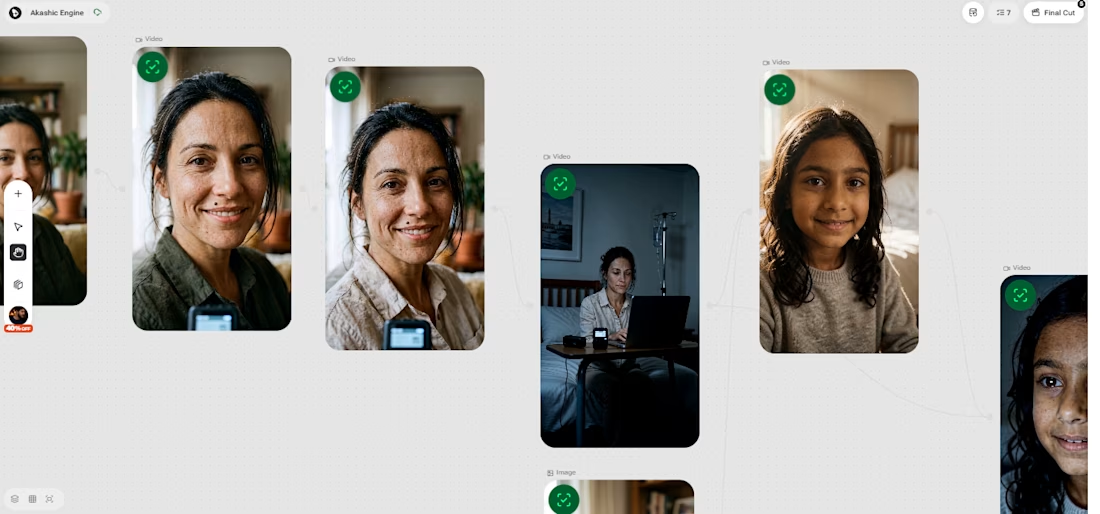
Rehearsal — a woman keeps re-recording the same loving message to camera. By the end, you understand why: she's training an AI of herself before she dies, so her daughter is never alone in the morning. Built in Renoise, using FacePass to keep her face consistent across every shot.
I built this amazing masterpiece with #Renoise using their powerful canvas for the #RenoiseChallenge powered by #Contra
Worfklow
1. Login to Renoise.ai
2. Look at left sidebar - click on canvas
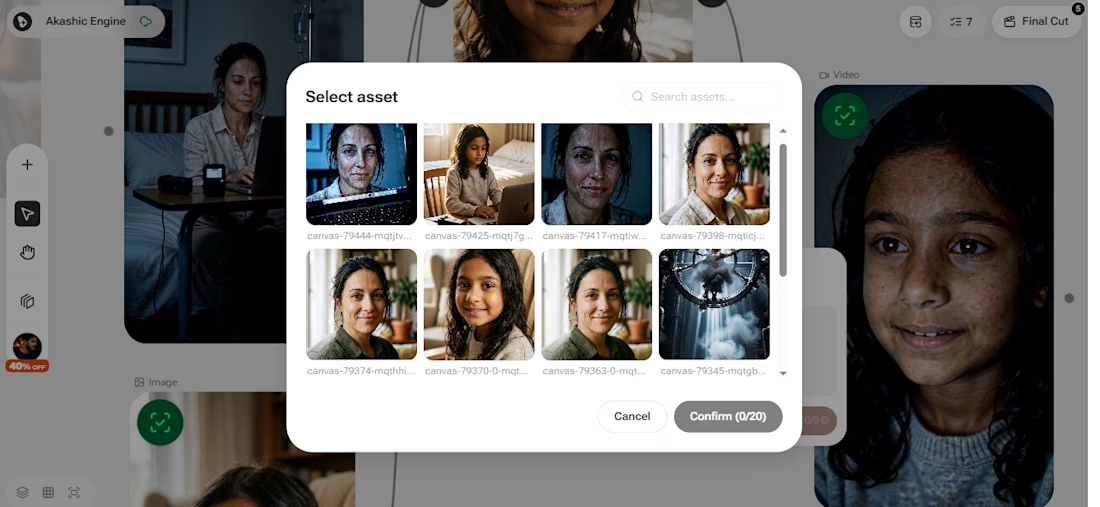
3. Right click or double click on canvas to see the node and choose the one that is needed. In my case, I first selected image.
4. Prompt to Generate images of main characters and register their faces to keep the faces consistent throughout video
Example: My prompt for Mother face
Cinematic close-up portrait of a warm woman in her late 30s, gentle tired eyes, soft natural smile, defined cheekbones, a small beauty mark above her lip, long dark hair loosely tied back, minimal makeup, realistic detailed skin with subtle texture, soft window light from one side, shallow depth of field, neutral home background, photorealistic, emotional and kind expression.
5. In each node (either image/video) you'll see an icon for face registration in top left corner- click that and follow the step
6. Once face is registered you'll see Green Checkbox
7. Now, click on + icon on right side of image to create a new node. I selected video node as I wanted to create my first clip.
8. Keep doing the same work for rest of clips. Choose AI Credit wisely.
BTW: One image takes: 8 credit and one video takes (around 100-400 credits for every 5 seconds)
9. If you have to use multiple faces in a single clip Don't FORGET TO CONNECT ALL NEEDED IMAGES TO THAT VIDEO NODE.
10. After generating all clips- go to each click click on heart icon to put it to Final Cut Box and hit download.
11. Track file location- extract zip folder
12. Import all files to a video editor
13. Edit video as per need and export

The network for creativity
Join 1.25M professional creatives like you
Connect with clients, get discovered, and run your business 100% commission-free
Creatives on Contra have earned over $150M and we are just getting started
Trending
retrofuturism
Share your favorite designs from the past exploring the distant future. Or your own take on the aesthetic 🚀
halftone
Dots. Texture. Grain. Let's see your designs using the halftone technique.

Midjourney
Creatives are showing off what they're making with Midjourney.
colorgrade
Video editors sound off: How do you enhance the mood of your video in color grading?


Related posts

Contra Submission — Dragon Video
Title: The Heart of Color
Description:
A young girl follows a mysterious red thread into a dark room, where a terrifying knitted dragon guards a glowing magical heart. After a dramatic battle, she retrieves the heart and returns it to her damaged bunny, restoring it to its original colorful form. The entire story unfolds as one continuous cinematic one-take.
Created with: CapCut Video Studio + Seedance 2.5
Format: 30-second continuous one-take AI film.


The fight was intense🔥
Cinematic Surfer 🌊
A cinematic continuous-take journey following a surfer through an unpredictable ocean adventure, blending realistic action, dramatic scale, and surreal visual moments into one seamless shot.
Created in CapCut Video Studio using Seedance 2.5 as a continuous one-take AI film.
Workflow: Created the visual references first, then used them as locked assets in Seedance 2.5 to generate the continuous cinematic sequence with dynamic camera movement, environmental effects, music and sound design.
#contraseedancechallenge #CapCutCPP

Love the waves, wind and sunset!

The Sandwich 🥪😂
A completely ordinary businessman walks through an ancient city eating a sandwich, only to find himself inexplicably followed by a growing crowd, a knight, and a marching band. When a tiny poodle eats a fallen piece of the sandwich, everyone reacts as if the world has ended—leading to an equally ridiculous final twist.
Created in CapCut Video Studio using Seedance 2.5 as a continuous one-take AI film.
Workflow: Created the visual references first, then used them as locked assets in Seedance 2.5 to build the continuous cinematic sequence with absurdist storytelling, camera movement, music and sound design.
#CapCutCPP
@contra
@capcut

That was just a lettuce😭