The network for creativity
Join 1.25M professional creatives like you
Connect with clients, get discovered, and run your business 100% commission-free
Creatives on Contra have earned over $150M and we are just getting started
Back to feedPost

1/
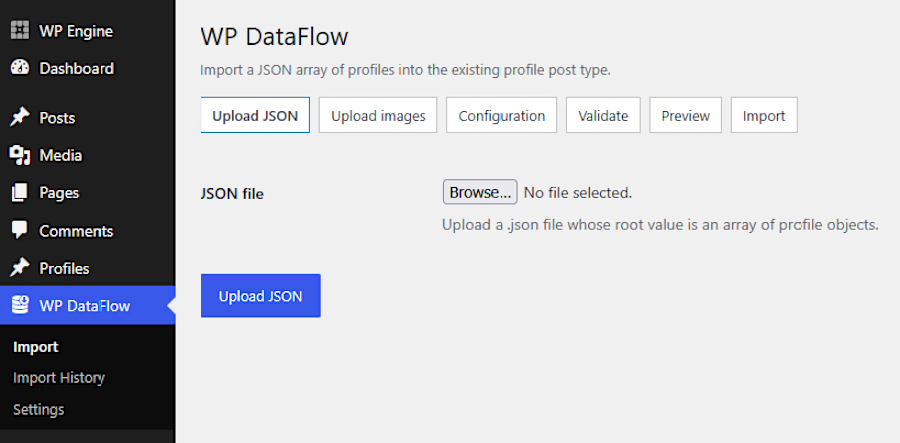
I recently built WP DataFlow, a custom WordPress JSON importer to solve a real project requirement — importing profile data into a CPT with taxonomies, ACF fields, content, and images.
2/
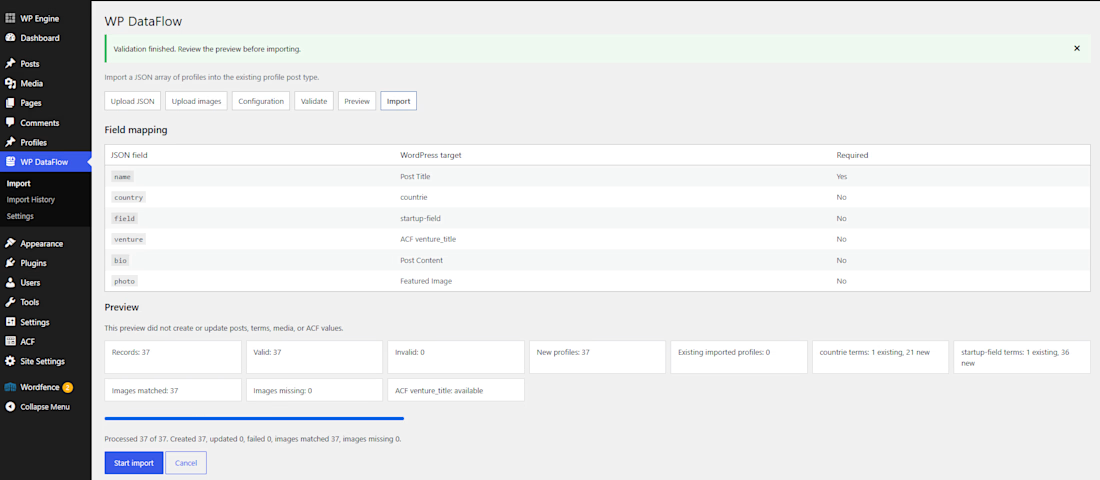
The plugin takes JSON data, maps the fields to WordPress, automatically handles existing/new taxonomy terms, and imports profile images from a ZIP directly into the Media Library as Featured Images.
3/
I also added preview/validation, duplicate detection, re-import/update support, batch processing, progress tracking, error handling, and import history — while keeping the process non-destructive.
4/
The first test successfully processed 37 profiles, matched all 37 images, and had 0 failures. 🚀
5/
Built with WordPress standards in mind, and I’m keeping the architecture documented with AGENTS.md so the project can continue evolving cleanly.
Building tools to solve real problems > building features just for the sake of it.

The network for creativity
Join 1.25M professional creatives like you
Connect with clients, get discovered, and run your business 100% commission-free
Creatives on Contra have earned over $150M and we are just getting started



Related posts

🚀 What if you could launch a professional WordPress website with just ONE click?
Building a website shouldn't mean spending hours choosing layouts, installing page builders, configuring plugins, and designing every page from scratch.
Whether you're launching a small business, agency, restaurant, portfolio, or startup, getting started shouldn't be this complicated.
That's why we built bBlocks – a lightweight WordPress Block Theme.
Here's what makes it different:
✨ 25 One-Click Starter Websites – Import a ready-made website and start customizing.
🎨 200+ Ready-Made Block Patterns – Build beautiful pages without starting from zero.
⚡ Lightweight & Performance-Focused – Built with WordPress Core Blocks, without depending on heavy page builders.
🧩 30 Style Variations – Give your website a completely different look.
🏗️ Ready-Made Headers, Footers & Mega Menus – Get the essential website structure ready.
🛍️ WooCommerce Compatible – Build your online store with the block editor.
And the best part?
You can customize everything visually using the native WordPress Site Editor. No coding required.
One theme. One click. A website ready for your ideas.
💬 A question for designers, freelancers, and business owners:
If you could launch a complete website instantly, which starter website would you choose?
1️⃣ Agency / Business
2️⃣ Portfolio / Personal Brand
3️⃣ Restaurant / Cafe
4️⃣ Online Store
5️⃣ SaaS / Startup
I'd love to know what kind of website you build most often!
#WordPress #Gutenberg #WordPressThemes #WebDesign #WebsiteDevelopment



5 issues I see in almost every AI-built SaaS screen.
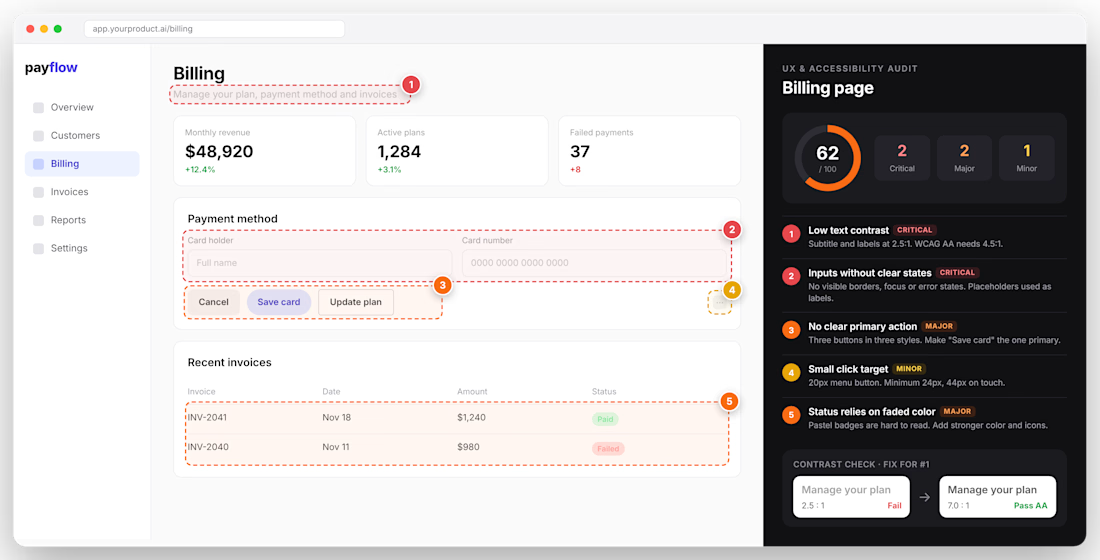
I ran a quick UX and accessibility audit on a sample billing page:
1. Gray helper text at 2.5:1 contrast. WCAG AA needs 4.5:1.
2. Inputs with no visible borders or focus states, placeholders used as labels.
3. Three buttons in three styles and no clear primary action.
4. A 20px menu button that is hard to hit.
5. Pastel status badges you can barely read.
Each one is a quick fix, and together they make a product feel unfinished. Which one do you run into most?


How to Set Up Your First WooCommerce Products Step by Step
Your first WooCommerce product doesn’t need to be complicated but it shouldn’t look unfinished either. A product page is where a curious visitor decides whether your offer is worth buying.
Here’s a simple step-by-step setup:
1️⃣ In your WordPress dashboard, go to Products → Add New.
2️⃣ Give the product a clear name and write a description that explains its benefits, key details, and who it’s for.
3️⃣ Choose the right product type: Simple for a single item, or Variable if customers select options such as size or colour.
4️⃣ Add your regular price and, if relevant, a sale price. Set stock status or quantity if you track inventory.
5️⃣ Upload a sharp product image and add gallery photos showing useful angles or details.
6️⃣ Assign a relevant category so shoppers can find it easily. Add a short description if your layout displays one.
7️⃣ Click Publish, then open the product page and check it on both desktop and mobile.
Don’t stop at “product published.” Make sure the price, images, options, and Add to Cart button are clear and working.
💬 What’s the hardest part of adding your first product writing the description, choosing images, or setting up variations?