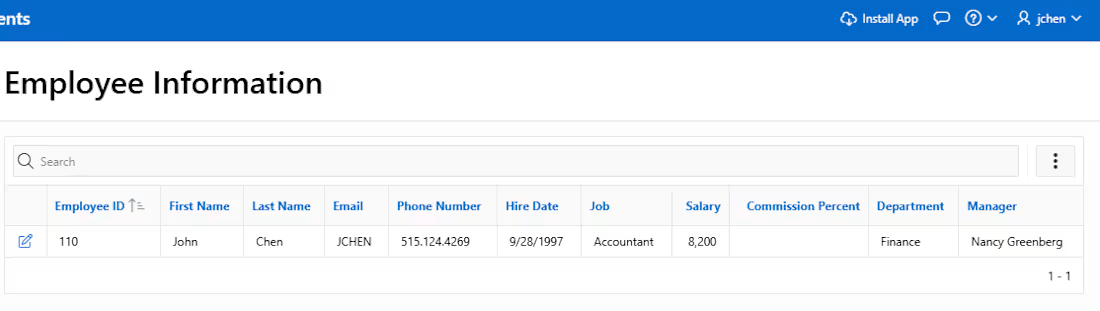
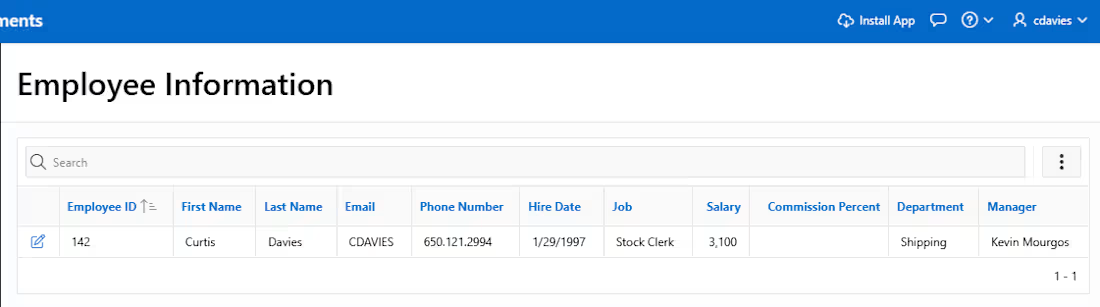
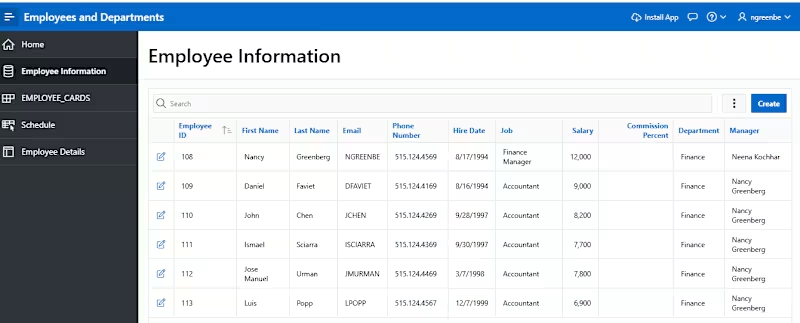
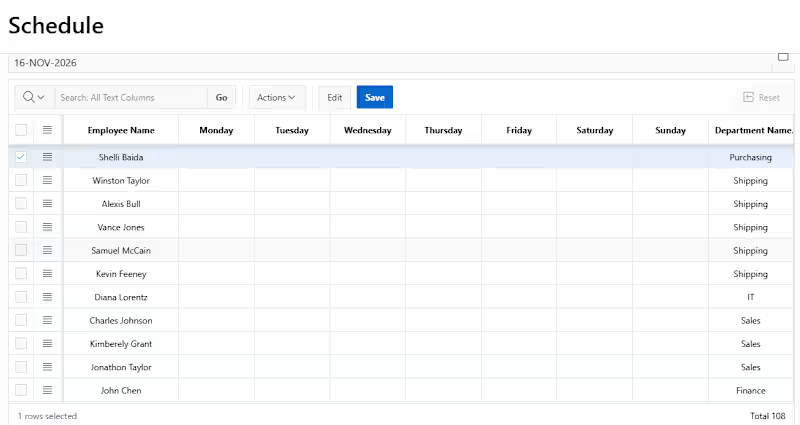
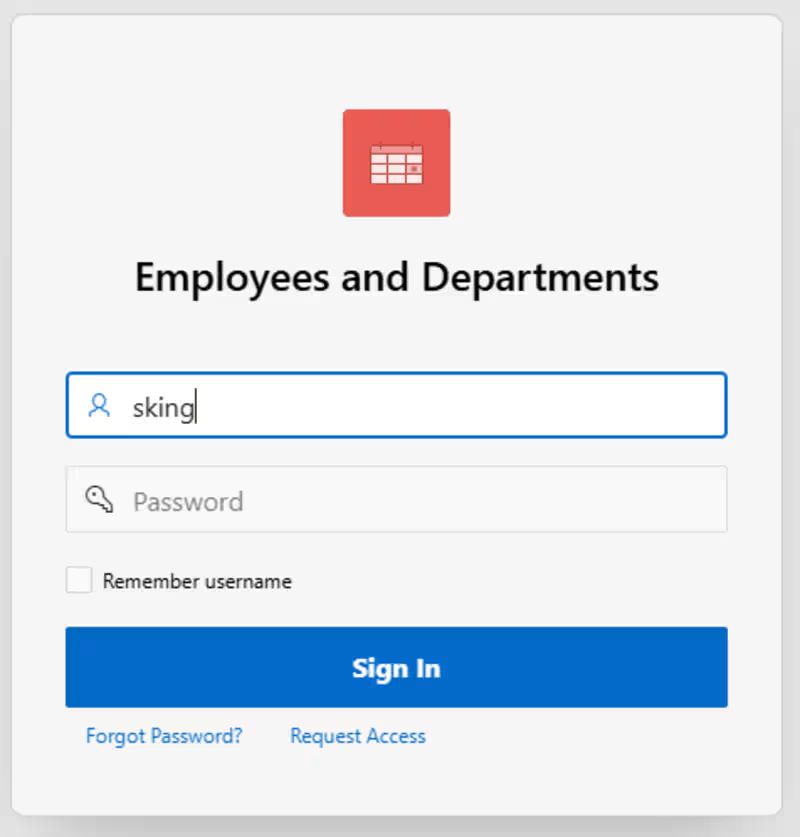
When an employee from any department logins into their account, they can only view their profile and work schedule. They are only allowed to update their name , phone number and email, but cannot update or make changes to their work schedules unless they contact or meet with their manager.
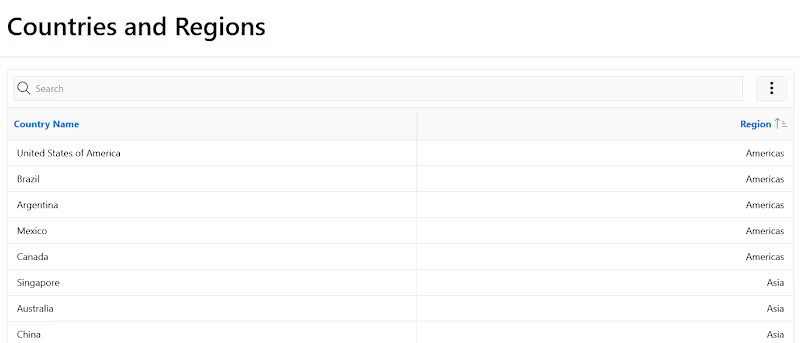
Last but not least of my Employees and Departments App is the Countries and Regions Section, where a district manager or manager can review and filter each row they would like to save as a report or print each one. (This section cannot be edited or deleted.)
0
144
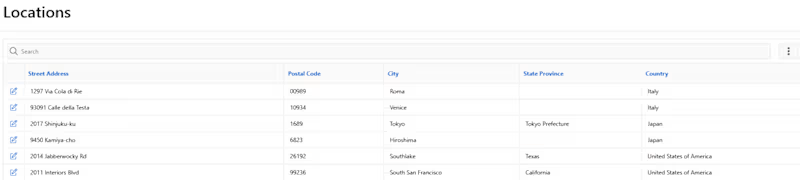
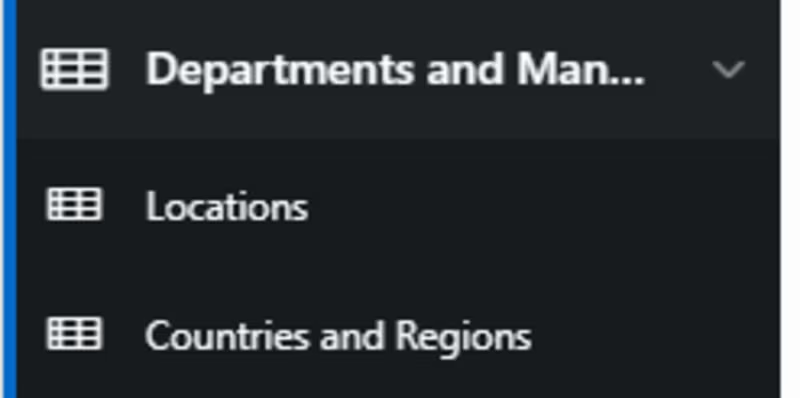
For the locations section under the Department and Managers navigation bar, if you would like to change the location of each department, you click on the locations, and you can only edit the address, city, state and zip code. (It cannot be deleted and no new row can be added unless I add a new row based on a request.)
0
165
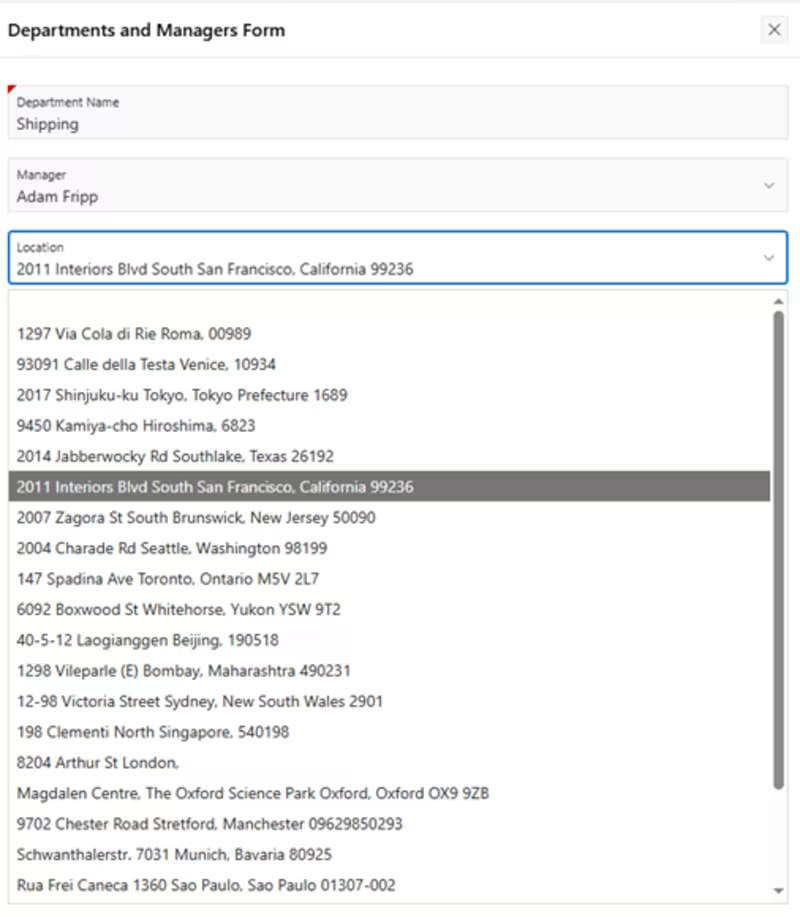
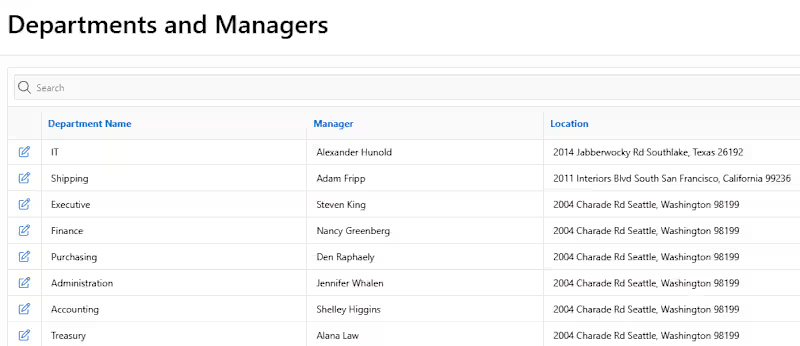
Also, when you click the edit button from a row, you can only make a selection and apply changes, no new row can be created or deleted. (Only the CEO or human resources can assign a manager to each department.)
0
150
In the Departments and Managers section, the columns list the departments, managers, and locations.
0
148
The last parts of the Employees and Departments App include the Departments and Managers section where you click on, and the dropdowns show the locations and countries & regions.
0
110
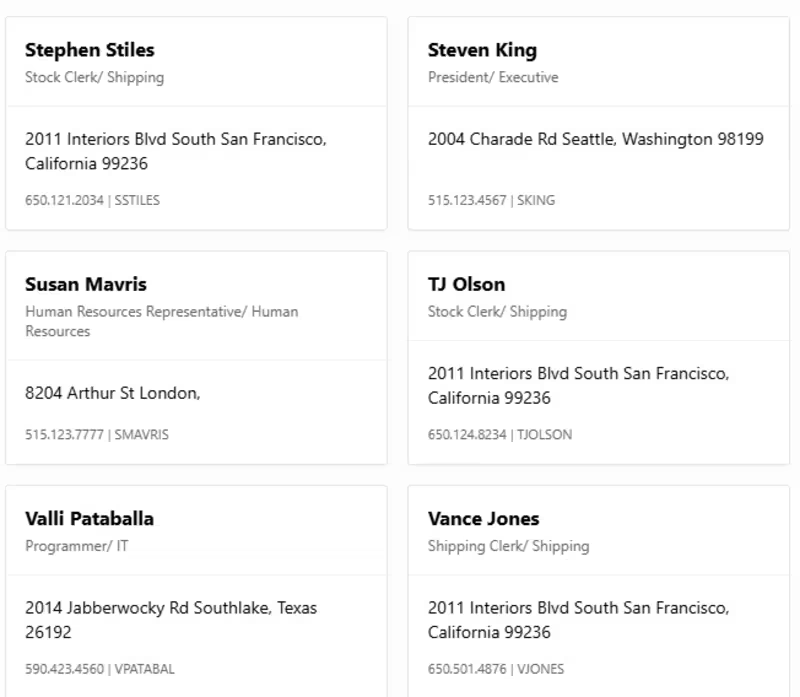
For my current app on Oracle App, I made each employee card if a manager or employee would like to have one printed out to give to each person.
0
144
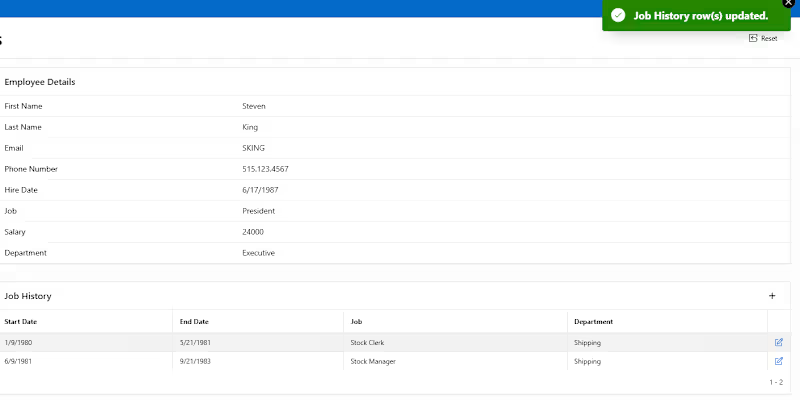
This is the part of the Employee Details section from my Employees and Departments app where I previously posted. After clicking the plus symbol (which is the create button), it will take to the form where you can add an employee's job history. Once the required fields are filled out, hit the create button and the result will display under the job history of the selected employee. You also edit a row by clicking the blue edit symbol beside it.
0
118
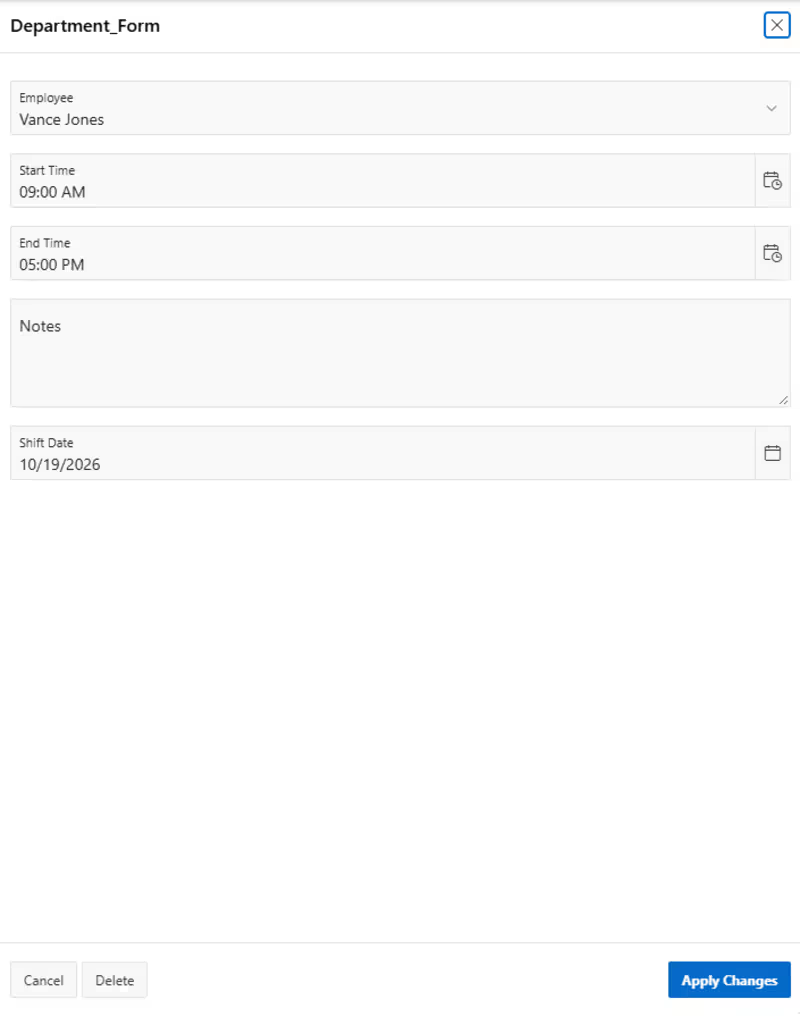
Once you click the edit symbol, this is where you can make changes, and then hit apply changes after finishing.
0
127
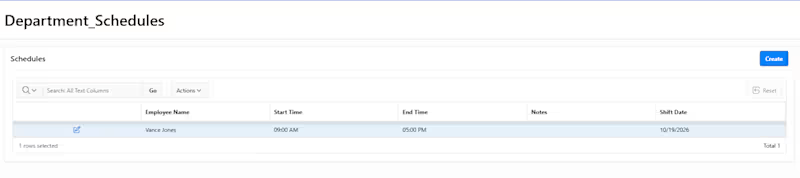
Once the form is all formed, you press the create button; the shift will be displayed under schedules, and right behind the name of the employee is the blue edit button where you can change the time or date.
0
112
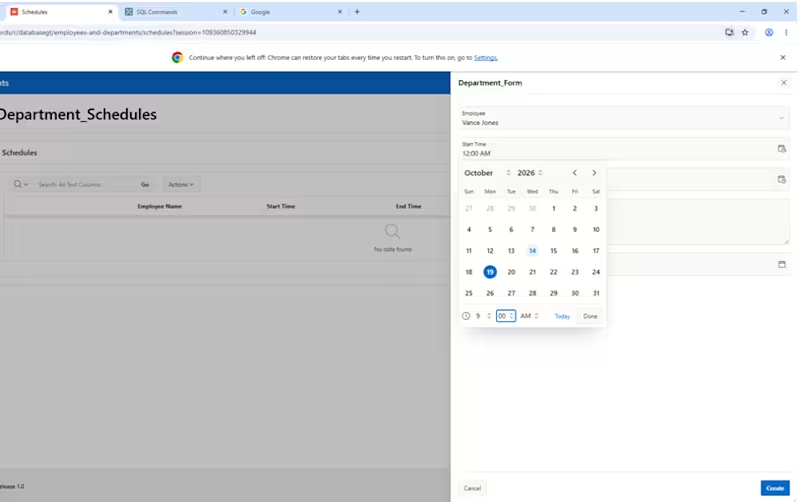
After selecting an employee, down below is the start time where the manager will select the right date before setting the actual time an employee starts his or her shift.
0
97
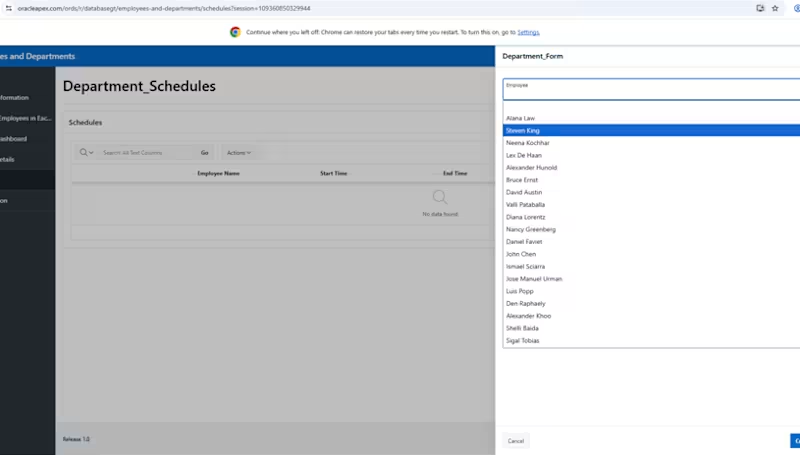
After clicking the create button in the schedules section, the department form opens up, and this is where a manager gets to each employee for a new shift.