The network for creativity
Join 1.25M professional creatives like you
Connect with clients, get discovered, and run your business 100% commission-free
Creatives on Contra have earned over $150M and we are just getting started
Back to feedPost

Three Shopify theme problems that show up in almost every support thread we see — and what actually fixes them.
1. You edit the theme and nothing changes on the live site.
Why it happens: Shopify keeps one published theme and any number of unpublished copies sitting in your theme library. It's very easy to open a duplicate or an old draft in the editor, make changes, save them, and never notice you weren't editing the theme visitors actually see. Browser caching can produce the exact same symptom even when you did edit the right one.
How to fix it: open Online Store, then Themes, and look at the theme card marked "Current theme" at the top - that's the only one that's live. Check that its name matches the one you were editing; if the one you edited is sitting further down in the theme library instead, that's your answer. If the names do match, rule out caching next: hard-refresh the storefront or open it in a private window. Still nothing? Check the section or block itself for a visibility toggle or a schedule that's hiding it.
2. A layout breaks on mobile right after a theme update.
Why it happens: theme updates change the built-in CSS and section defaults. If custom CSS or Liquid was added to the theme at any point - by you, a past developer, or an app - that customization was written against the old version, and it can conflict with the new one. Desktop often looks completely fine, because the break only shows up below a specific screen width.
How to fix it: before changing anything, duplicate the current live theme so you have a safe copy to fall back on. Open the storefront on an actual phone, or the device toolbar in your browser, and note exactly which section breaks and at what width. In the theme editor, check that section's own settings first - most mobile breakage is a padding, image ratio, or column setting that reset to a new default. If it's not a settings issue, open Edit Code and look at that section's files for anything added manually: a fixed pixel width or an old media query is the usual culprit. Fix it in the duplicate, recheck on mobile, then publish the duplicate once it holds.
3. The store gets slower every time another app gets installed.
Why it happens: most storefront apps inject their own script into every page load, whether or not that page needs it. None of it is written specifically for your theme, so it just stacks on top of what's already there.
How to fix it: open Settings, then Apps and sales channels, and list what's actually installed - cross off anything you're not using, and uninstall it properly rather than just disabling it, since a disabled app can still leave its script behind. For the apps you keep, check each one's own settings for an option to load its script only on the pages it needs, rather than site-wide - most bundle, upsell, and review apps offer this and it's usually off by default. Run a speed test after each change instead of guessing, so you know which app was actually costing you the most.
None of this needs a developer for the first two. The third is worth ten minutes in your app list before you consider anything else.
Ecom Swift LLC — a certified Shopify Partner since 2018.

The network for creativity
Join 1.25M professional creatives like you
Connect with clients, get discovered, and run your business 100% commission-free
Creatives on Contra have earned over $150M and we are just getting started
Trending
retrofuturism
Share your favorite designs from the past exploring the distant future. Or your own take on the aesthetic 🚀
halftone
Dots. Texture. Grain. Let's see your designs using the halftone technique.

Midjourney
Creatives are showing off what they're making with Midjourney.
colorgrade
Video editors sound off: How do you enhance the mood of your video in color grading?





Related posts

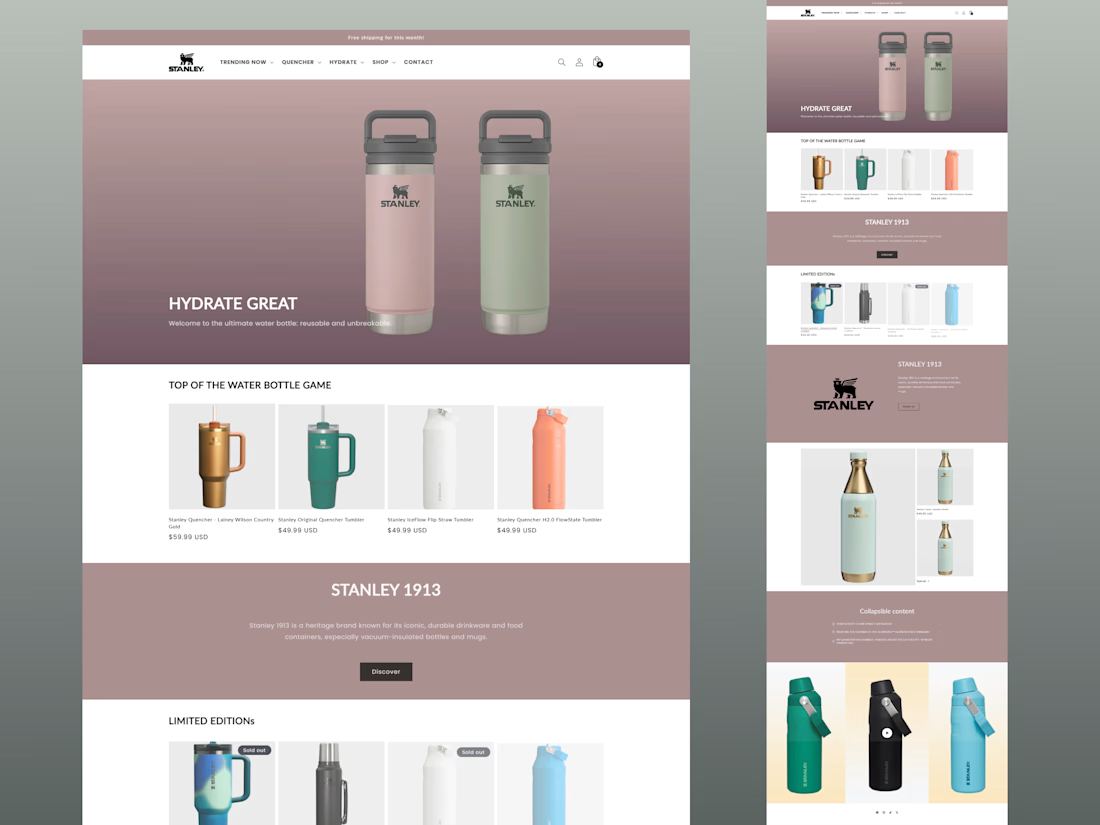
Water Bottle Shopify Store.
Built using the Dawn theme, fully customized and optimized for mobile.
From setup to design — I handled it all.
📱 Looks clean, works smooth, and ready to sell!
Need a Shopify store for your brand?
💬 DM me today to get started!



Nice design

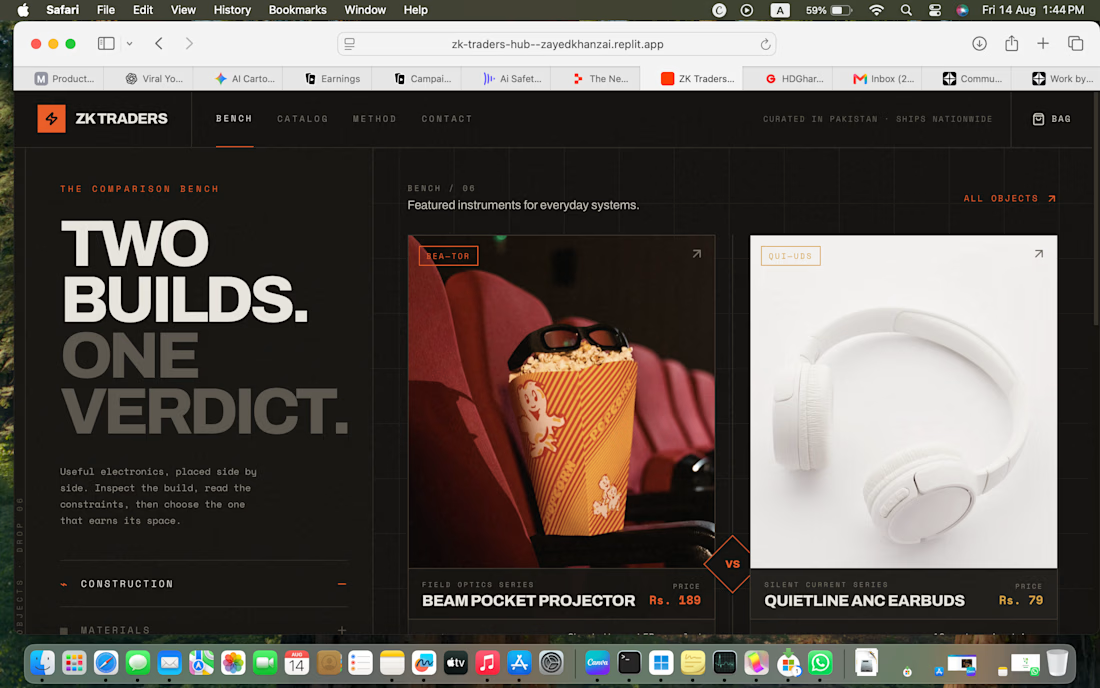
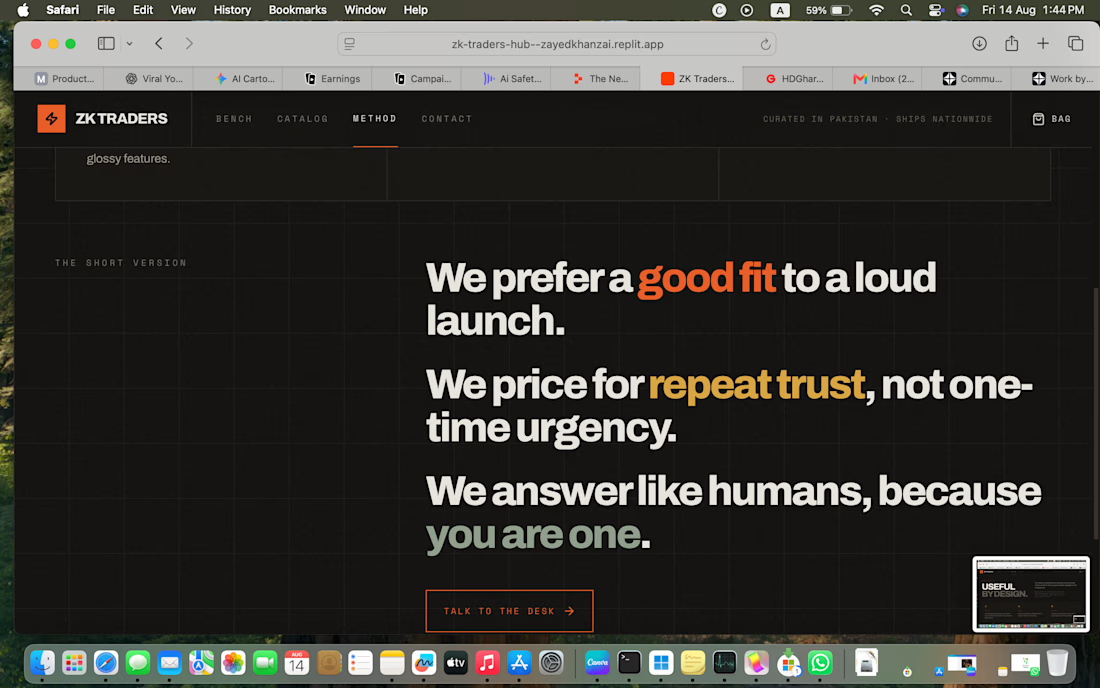
I built a website for my shopify online store and I started from scratch and I made it with 4 days day and night I have been working on this and now I am glad that its ready and fully functional

Just published our latest work for AURA 👋
Exploring an editorial hero experience for fashion e-commerce, combining bold imagery and interaction to create a stronger first impression!
Let us know what you think 👀


